
Installing the right NVIDIA drivers on your Ubuntu 26.04 system is crucial for optimizing your graphics card’s performance. Whether you are gaming, designing, or running graphic-intensive applications, the proper driver can make a significant difference. This guide covers the recommended methods to install NVIDIA drivers Ubuntu 26.04 users can rely on, starting with the simplest and most reliable approach.
Table of Contents
In this tutorial you will learn:
- How to install NVIDIA drivers via the command line (recommended)
- How to use the graphics-drivers PPA for newer driver versions
- How to install NVIDIA drivers using the GNOME GUI
- How to verify that the NVIDIA driver is loaded correctly
Software Requirements
| Category | Requirements, Conventions or Software Version Used |
|---|---|
| System | Ubuntu 26.04 Resolute Raccoon |
| Hardware | NVIDIA Graphics Card |
| Software | ubuntu-drivers, apt |
| Other | Privileged access to your Linux system as root or via the sudo command. Internet connection for downloading drivers. |
| Conventions | # – requires given linux commands to be executed with root privileges either directly as a root user or by use of sudo command$ – requires given linux commands to be executed as a regular non-privileged user |
ubuntu-drivers.
| Step | Command/Action |
|---|---|
| 1. Check available drivers for your GPU | ubuntu-drivers devices |
| 2. Install the recommended driver | sudo ubuntu-drivers install |
| 3. Reboot to load the new driver | sudo reboot |
| 4. Verify the driver is active | nvidia-smi |
Method 1: Install NVIDIA Drivers on Ubuntu 26.04 via Command Line (Recommended)
This is the recommended method for Ubuntu 26.04. The ubuntu-drivers tool reads your hardware, identifies the correct driver, and installs it from Ubuntu’s official restricted repository. Consequently, the driver integrates with the system update mechanism and survives kernel upgrades without manual intervention.
- Identify Your Graphics Card: Begin by determining your NVIDIA graphics card model and the available drivers:
$ ubuntu-drivers devices
== /sys/devices/pci0000:00/0000:00:10.0 ==
modalias : pci:v000010DEd00002206sv00001458sd0000403Fbc03sc00i00
vendor   : NVIDIA Corporation
model    : GA102 [GeForce RTX 3080]
driver   : nvidia-driver-580 - distro non-free
driver   : nvidia-driver-595 - distro non-free
driver   : nvidia-driver-580-open - distro non-free
driver   : nvidia-driver-595-open - distro non-free recommended
driver   : nvidia-driver-580-server - distro non-free
driver   : nvidia-driver-595-server - distro non-free
driver   : nvidia-driver-595-server-open - distro non-free
driver   : nvidia-driver-580-server-open - distro non-free
driver   : xserver-xorg-video-nouveau - distro free builtin
The
recommendedtag marks the version Ubuntu suggests for your specific card. On Ubuntu 26.04, the recommended driver for modern GPUs is the open-kernel variant, in this casenvidia-driver-595-open. - Install the Recommended Driver: Let
ubuntu-driversselect and install the recommended driver automatically:$ sudo ubuntu-drivers install
Alternatively, to install a specific version, use
aptdirectly. For example, to install the non-free 595 build:$ sudo apt install nvidia-driver-595
Or to explicitly install the open-kernel variant:
$ sudo apt install nvidia-driver-595-open
- Reboot Your System: Finalize the installation by rebooting:
$ sudo reboot
This ensures the NVIDIA kernel module is loaded and the Nouveau driver is replaced.
- Verify the Driver: After the reboot, confirm the driver is active:
$ nvidia-smi
The output lists your GPU model, driver version, and any processes currently using the GPU.
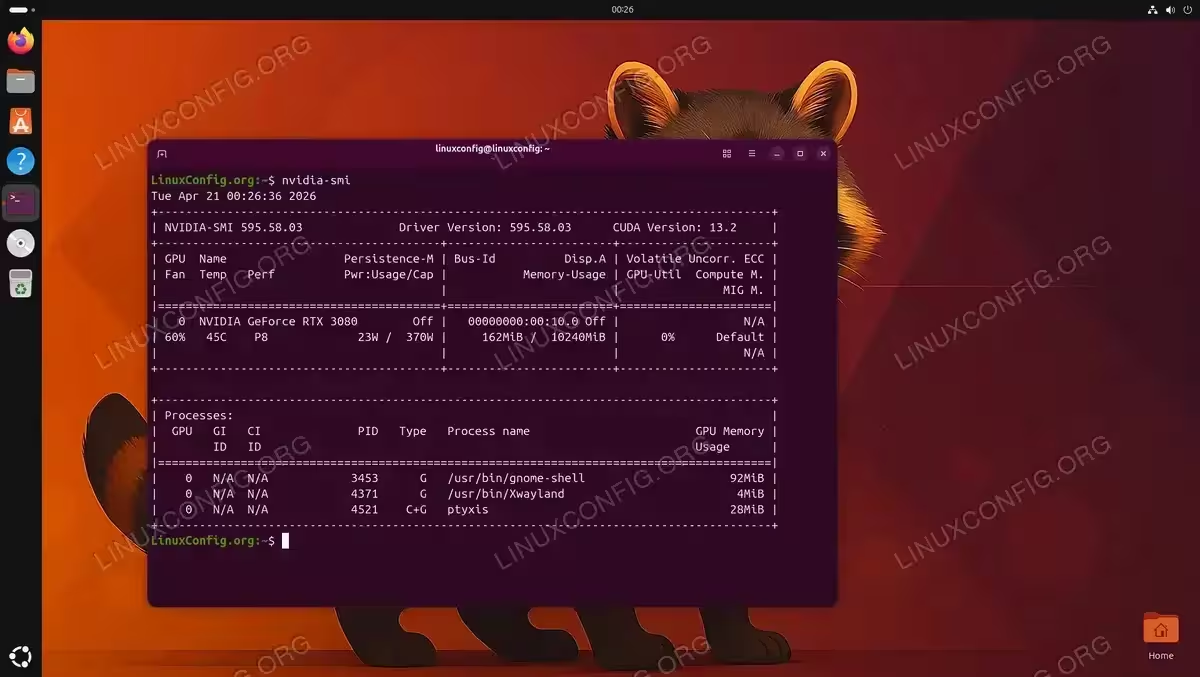
The nvidia-smi command output confirms successful NVIDIA driver installation, displaying GPU model (RTX 3080), driver version (595.58.03), CUDA version (13.2), and active GPU processes.
COMPLETED
If nvidia-smi displays your GPU details without errors, the driver is installed and active. No further steps are required.
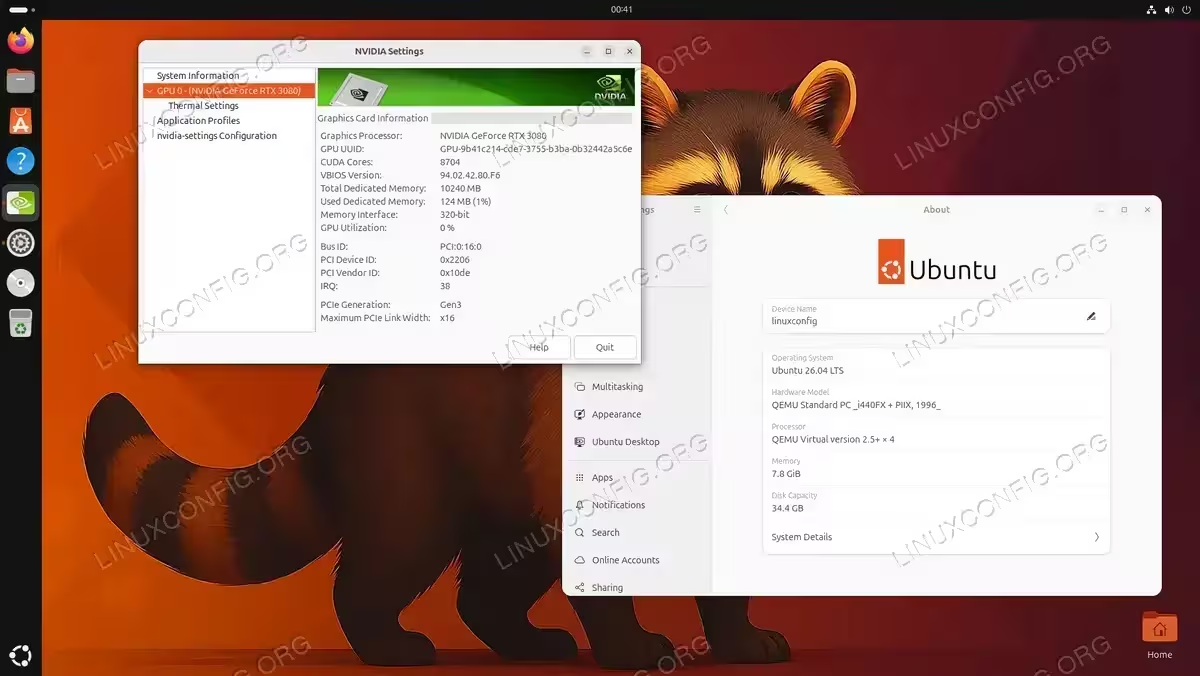
Method 2: Install NVIDIA Drivers on Ubuntu 26.04 Using the Graphics-Drivers PPA
IMPORTANT
On Ubuntu 26.04, the restricted component of the main Ubuntu repository already ships recent NVIDIA drivers (currently 595). At the time of writing, the graphics-drivers PPA provides no newer version than what is already available in the official repositories. Therefore, this method produces the same result as Method 1 without any additional benefit. The PPA becomes useful only if a specific newer driver version appears there before landing in the official Ubuntu repositories.
- Add the PPA Repository: Add the graphics-drivers PPA and update the package lists:
$ sudo add-apt-repository ppa:graphics-drivers/ppa
$ sudo apt update
When the PPA is added, Ubuntu prints the currently available driver branches. Compare those versions against what
ubuntu-drivers devicesalready shows to determine whether the PPA offers anything newer.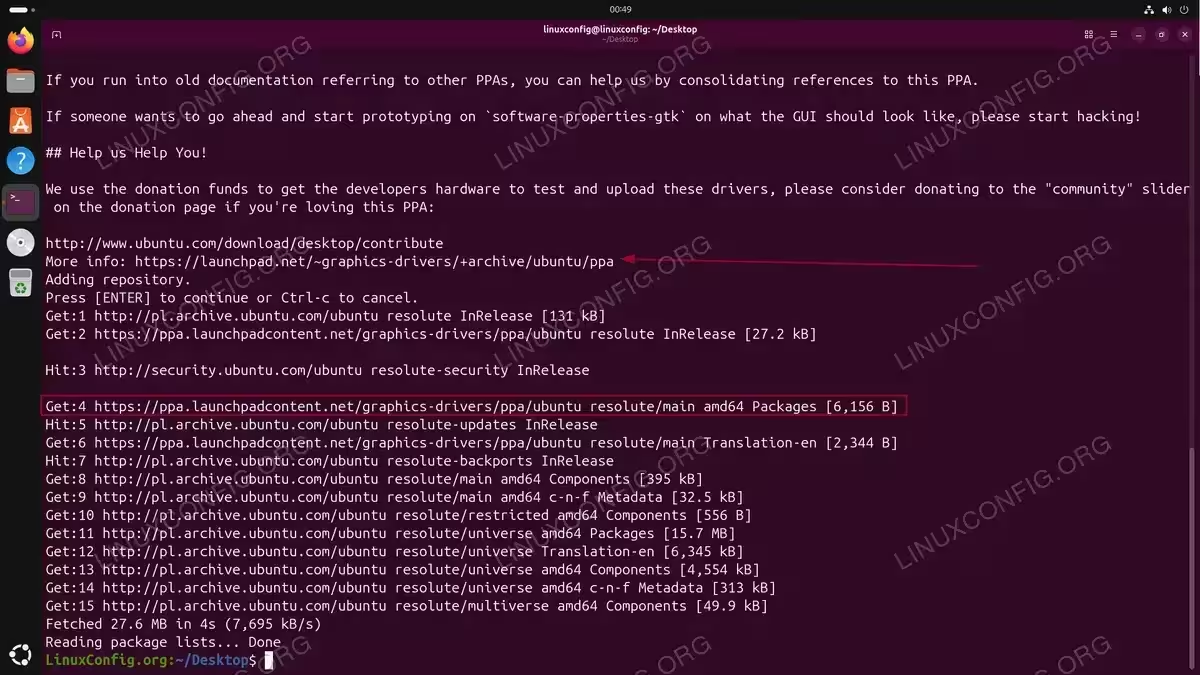
The terminal output demonstrates adding the graphics-drivers PPA repository to Ubuntu 26.04, showing the repository details and the subsequent apt update process fetching package lists from multiple sources. - Check Available Drivers: Run
ubuntu-drivers devicesto see whether any drivers are now taggedthird-party non-freefrom the PPA:$ ubuntu-drivers devices
If the highest-versioned driver is still tagged
distro non-free, it is coming from Ubuntu’s restricted repository rather than the PPA, and Method 1 produces exactly the same result. - Install the NVIDIA Driver: Install the recommended driver or specify a version:
$ sudo ubuntu-drivers install
Or to install a specific version directly:
$ sudo apt install nvidia-driver-595
- Reboot Your Computer:
$ sudo reboot
Method 3: Install NVIDIA Drivers on Ubuntu 26.04 Using the GNOME GUI
KNOWN ISSUE
As of the time of writing this article, the GNOME GUI method does not work correctly on Ubuntu 26.04. When opening Software & Updates and navigating to the Additional Drivers tab, no NVIDIA drivers appear in the list. It is unclear whether this is a global Ubuntu 26.04 issue or specific to certain hardware configurations. Until this is resolved, Method 1 (command line) is the recommended approach.
The steps below describe how this method is intended to work and may function correctly once the underlying issue is resolved.
The steps below describe how this method is intended to work and may function correctly once the underlying issue is resolved.
- Launch Software & Updates Application: Open the Software & Updates application from the Activities menu. This is the graphical tool for managing software sources and drivers on Ubuntu 26.04.
- Navigate to Additional Drivers Tab: In the Software & Updates window, click on the Additional Drivers tab. Under normal circumstances, this tab displays a list of proprietary NVIDIA drivers available for your hardware.
- Select the NVIDIA Driver: From the list of available drivers, select the NVIDIA driver of your choice. The recommended driver will typically be highlighted or marked as such.
- Apply Changes: Click the Apply Changes button to begin the installation. The system will download and install the selected NVIDIA driver.
- Reboot Your System: After the installation completes, reboot your system to activate the new driver:
$ sudo reboot
This ensures the NVIDIA kernel module is loaded and active on your next login.
Conclusion
Installing NVIDIA drivers on Ubuntu 26.04 Resolute Raccoon significantly enhances your system’s graphics performance for gaming, professional design, or general use. On Ubuntu 26.04, the clear recommendation is the command line method: sudo ubuntu-drivers install installs the correct driver directly from Ubuntu’s official repository, integrates with system updates, and works reliably out of the box. The PPA method is available but currently offers no advantage, as Ubuntu 26.04 already ships a recent driver in its restricted repository. The GUI method is documented here for completeness, but at the time of writing it does not function correctly on Ubuntu 26.04.
Frequently Asked Questions
- How do I check which NVIDIA driver is currently installed on Ubuntu 26.04? Run
nvidia-smiin a terminal to see the active driver version and GPU details. Alternatively, useapt list --installed | grep nvidia-driverto list installed driver packages. - What is the difference between the open and non-free NVIDIA drivers on Ubuntu 26.04? The
-openvariants use NVIDIA’s open-source kernel modules, which are recommended for Turing-generation GPUs (RTX 20-series) and newer. The regular non-free drivers use the traditional proprietary kernel modules and are still required for older GPU generations. Both variants provide the same user-space components and equivalent performance on supported hardware. - Why does the Additional Drivers tab show no NVIDIA drivers in Ubuntu 26.04? This is a known issue affecting Ubuntu 26.04 at the time of writing. The Software & Updates GUI fails to display available NVIDIA drivers in the Additional Drivers tab. As a workaround, use the command line method instead: run
ubuntu-drivers devicesto list available drivers andsudo ubuntu-drivers installto install the recommended one. - How do I completely remove NVIDIA drivers from Ubuntu 26.04? Run
sudo apt purge 'nvidia-*' 'libnvidia-*'followed bysudo apt autoremove. Reboot afterward so the Nouveau driver is loaded again. - Do I need to reinstall the NVIDIA driver after a kernel update? No. The DKMS system rebuilds the kernel module automatically on every kernel update, so no manual action is required.