
By default, Ubuntu 26.04 Resolute Raccoon ships with the root account locked, requiring users to perform administrative tasks through the sudo command. However, there are situations where you may need to enable root login on Ubuntu 26.04, such as when managing legacy systems, running specialized software, or performing low-level system recovery. This guide walks you through the steps to enable root login on Ubuntu 26.04, covering both console and graphical login methods, along with important security considerations.
- How to set a root password on Ubuntu 26.04
- How to enable root login via the console (TTY)
- How to enable root login on the GDM graphical login screen
- How to verify that root login is working
- Security risks associated with enabling root login
- How to reverse the process and disable root login
Software Requirements
| Category | Requirements, Conventions or Software Version Used |
|---|---|
| System | Ubuntu 26.04 Resolute Raccoon |
| Software | GDM (GNOME Display Manager) for GUI login; PAM (Pluggable Authentication Modules) |
| Other | Privileged access to your Linux system as root or via the sudo command. |
| Conventions | # – requires given linux commands to be executed with root privileges either directly as a root user or by use of sudo command$ – requires given linux commands to be executed as a regular non-privileged user |
| Step | Command/Action |
|---|---|
| 1. Set root password | sudo passwd root |
| 2. Switch to root | su - |
| 3. Enable GUI root login (optional) | Edit /etc/pam.d/gdm-password and /etc/gdm3/custom.conf |
Set the Root Password on Ubuntu 26.04
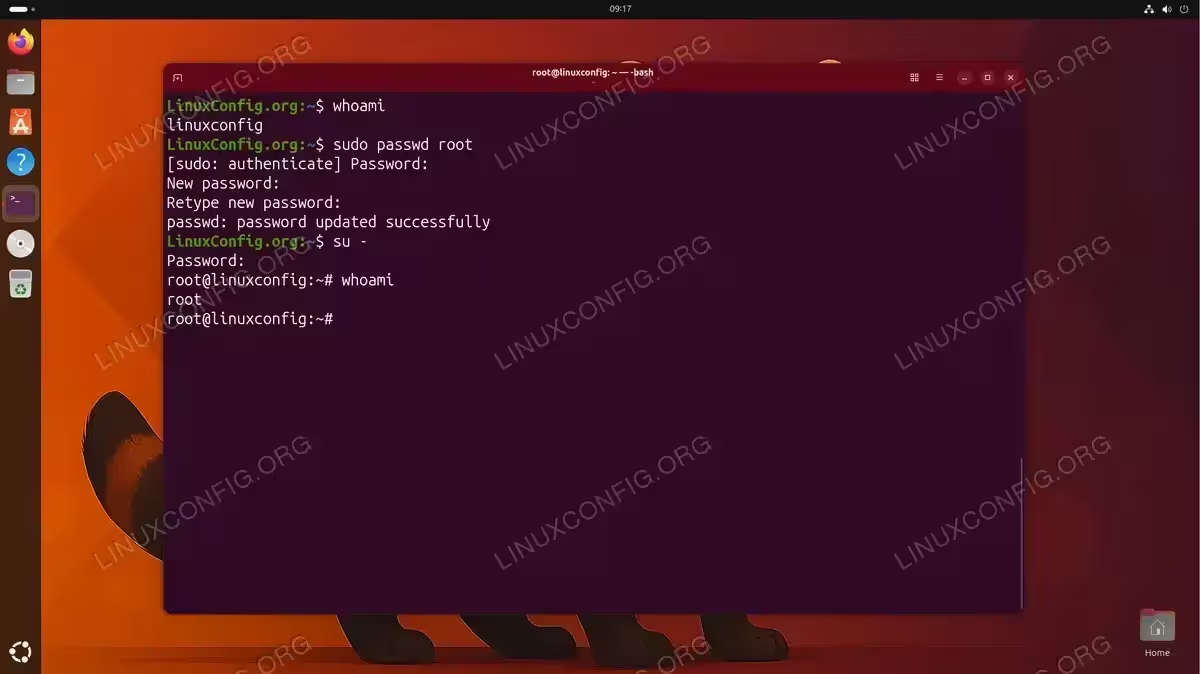
The first step to enable root login on Ubuntu 26.04 is to set a password for the root account. By default, the root account exists but has no usable password, which effectively prevents direct login. To set the root password, run the following command:
$ sudo passwd root
You will be prompted to enter and confirm a new password for root. Choose a strong password, as the root account has unrestricted access to the entire system.
New password:
Retype new password:
passwd: password updated successfully
Once the password is set, the root account is unlocked and you can use su - to switch to root from any terminal session. If you ever need to change the root password later, simply run the same sudo passwd root command again. Additionally, should you forget the root password, you can reset the root password through recovery mode.
SECURITY ALERT
Enabling the root account increases your system’s attack surface. Ensure you use a strong, unique password and consider whether sudo is sufficient for your needs before proceeding.
Enable Root Console Login on Ubuntu 26.04
After setting the root password, console login (TTY) should work immediately. You can switch to a virtual console by pressing Ctrl+Alt+F3 (or F3 through F6) and log in with the username root and the password you just created.
Alternatively, from within an existing terminal session, use the su command to switch to the root user:
$ su -
Enter the root password when prompted. The - flag ensures a full login shell, which loads root’s environment variables and sets the working directory to /root.
To verify the switch was successful, check the current user:
# whoami
root
If you need to enable root SSH login for remote access, that requires additional configuration of the SSH daemon, which is covered in a separate guide.
Enable Root GUI Login on Ubuntu 26.04
Enabling root login on the GNOME graphical login screen (GDM) requires two configuration changes: modifying the PAM authentication rules and updating the GDM configuration. This process is more involved than console login, and is generally discouraged for everyday use. Nevertheless, there are scenarios where GUI root access may be necessary.
Step 1: Set the Root Password
If you have not already set a root password, do so now. Without a valid password, you will not be able to log in as root on the GDM login screen. To set the root password, run:
$ sudo passwd root
Enter and confirm a strong password when prompted. If you have already set the root password in the previous section, you can skip this step.
Step 2: Modify the GDM PAM Configuration
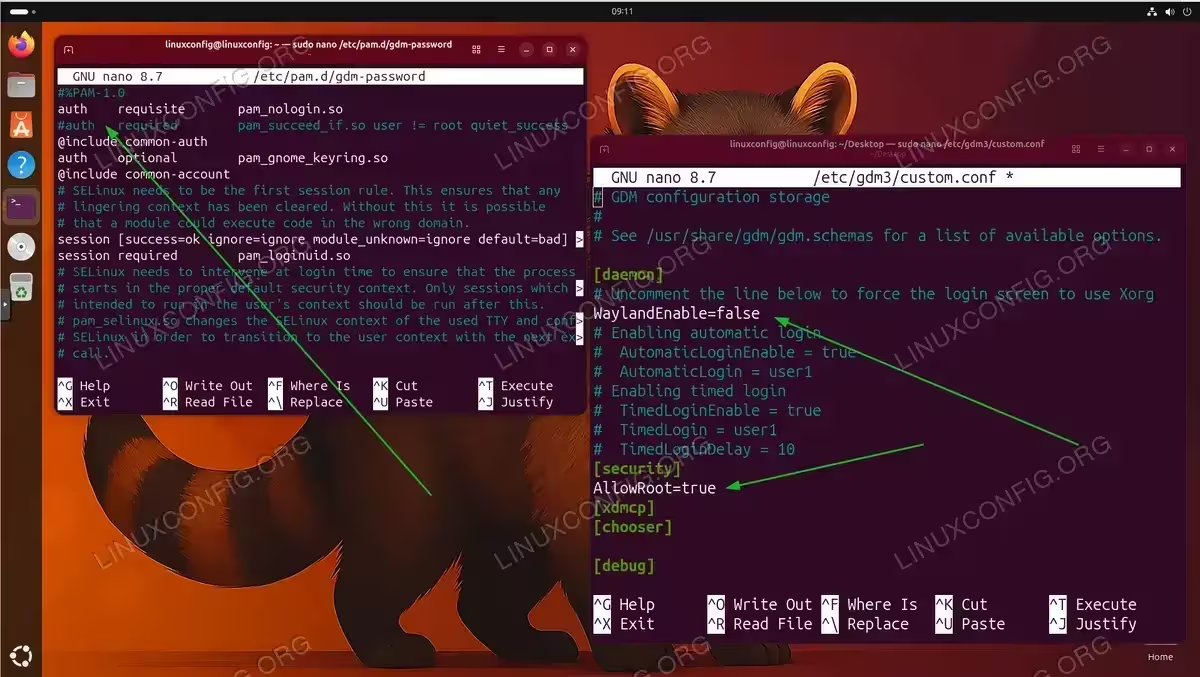
GDM uses a PAM rule that explicitly denies root login on the graphical interface. To remove this restriction, edit the GDM PAM configuration file:
$ sudo nano /etc/pam.d/gdm-password
Locate the following line:
auth required pam_succeed_if.so user != root quiet_success
Comment it out by adding a # at the beginning:
#auth required pam_succeed_if.so user != root quiet_success
Save and close the file.
Step 3: Allow Root Login in GDM Configuration
Next, edit the GDM custom configuration file:
$ sudo nano /etc/gdm3/custom.conf
Under the [security] section, add the following line. If the section does not exist, create it:
[security]
AllowRoot=true
Save and close the file.
Step 4: Configure Root Profile for GNOME
Since Ubuntu 26.04 uses Wayland by default, and Wayland does not permit root sessions for security reasons, you must force GDM to use Xorg for the root login. Edit the GDM custom configuration file again:
$ sudo nano /etc/gdm3/custom.conf
Under the [daemon] section, add or uncomment:
[daemon]
WaylandEnable=false
IMPORTANT
Disabling Wayland affects all users on the system, not just root. If you only need occasional root access, consider using su - from a terminal instead of enabling full GUI root login.
Step 5: Restart GDM
Apply the changes by restarting the GDM service. This will terminate your current graphical session, so save all work before proceeding:
$ sudo systemctl restart gdm3
After the restart, you should see the GDM login screen where you can select “Not listed?” or type root as the username and enter the root password.
Verify Root Login on Ubuntu 26.04
After completing the configuration, it is important to verify that root login is functioning correctly. There are several ways to confirm this depending on your chosen login method.
Verify Console Root Login
Open a terminal and switch to the root user:
$ su -
Password:
# id
uid=0(root) gid=0(root) groups=0(root)
The id command confirms you are running as the root user with UID 0.
Verify GUI Root Login
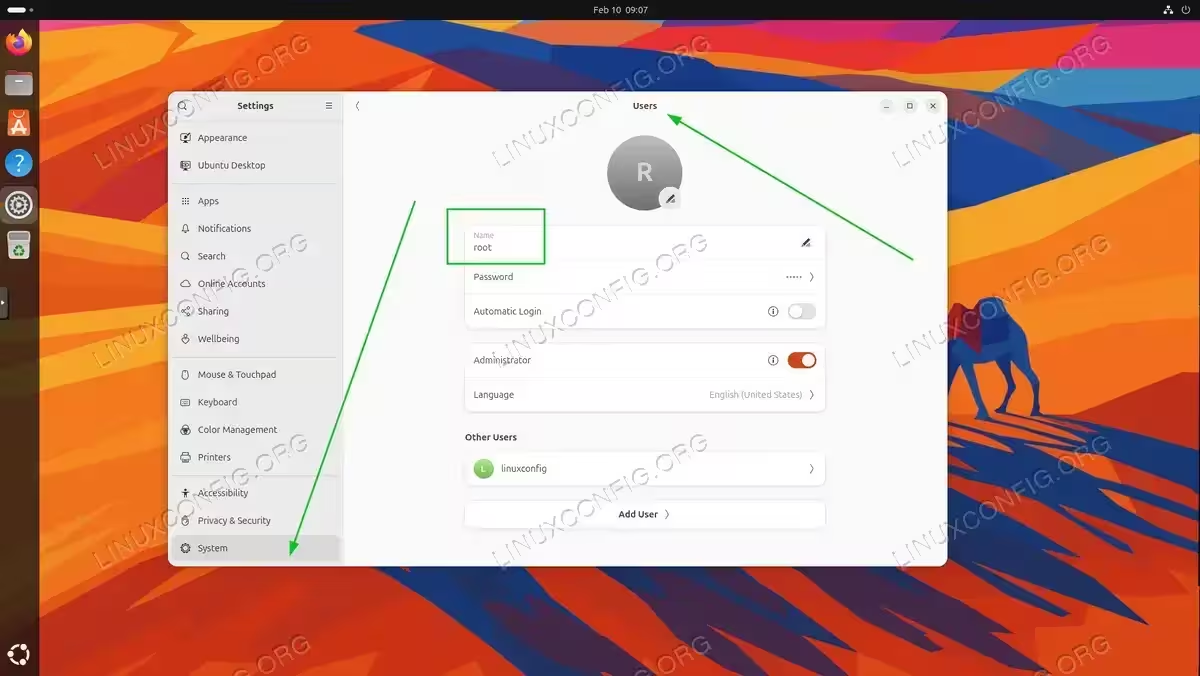
If you enabled graphical root login, log out of your current session and log in as root through GDM. Once logged in, open Settings from the system menu, navigate to System in the left panel, and click Users. The Users panel will display root as the currently logged-in user, confirming that your GUI root session is active.
If the login fails, review the system logs for errors:
# journalctl -u gdm3 --no-pager -n 20
Security Considerations
While enabling root login on Ubuntu 26.04 can be useful in specific circumstances, it carries significant security risks that you should carefully evaluate. Ubuntu deliberately disables root login by default for good reasons.
The root account has unrestricted access to every file and process on the system. Consequently, any mistake made while logged in as root can cause irreversible damage, including accidental deletion of critical system files or misconfigured services. Furthermore, a compromised root account gives an attacker complete control over the system.
Therefore, consider these best practices if you must enable root login:
- Limit root usage: Only log in as root when absolutely necessary. Use
sudofor day-to-day administrative tasks, as it provides an audit trail through/var/log/auth.log. - Disable root SSH access: Even if you enable local root login, keep SSH root login disabled to reduce your remote attack surface. If you do require remote root access, refer to our guide on enabling root SSH login and consider using key-based authentication only.
- Use strong passwords: If root login is enabled, ensure the root password is strong, unique, and stored securely.
- Monitor login attempts: Regularly review authentication logs for unauthorized login attempts:
# grep "root" /var/log/auth.log | tail -20
IMPORTANT
For systems running Ubuntu 26.04 on ZFS root, be especially cautious with root login. ZFS dataset permissions and mount points can be affected by root-level operations, potentially leading to data integrity issues if commands are run carelessly.
How to Disable Root Login on Ubuntu 26.04
If you no longer need direct root login, it is a good practice to reverse the changes and lock the root account. This restores the default Ubuntu 26.04 security posture.
- Lock the root account: Disable root login by locking the account password:
$ sudo passwd -l root
This places an exclamation mark (
!) in front of the password hash in/etc/shadow, preventing password-based authentication for root. - Restore GDM PAM configuration: If you modified the GDM PAM file, edit
/etc/pam.d/gdm-passwordand uncomment the line you previously disabled:auth required pam_succeed_if.so user != root quiet_success
- Restore GDM configuration: Remove or comment out
AllowRoot=truefrom/etc/gdm3/custom.confand re-enable Wayland if desired:[daemon] WaylandEnable=true [security] #AllowRoot=true
- Restart GDM: Apply the changes:
$ sudo systemctl restart gdm3
After these steps, root login will be disabled on both the console and the graphical login screen. You can verify by attempting su -, which should now fail with an authentication error.
For more information on managing the root account, refer to the official Ubuntu RootSudo documentation.
Conclusion
You have learned how to enable root login on Ubuntu 26.04 through both the console and the GDM graphical interface. The process involves setting a root password, and optionally modifying PAM and GDM configurations for GUI access. While root login is useful in certain administrative scenarios, it should be used sparingly and disabled when no longer needed. The sudo command remains the recommended approach for privilege escalation on Ubuntu 26.04 systems, as it provides better accountability and a reduced risk of accidental system damage.
Frequently Asked Questions
- Is it safe to enable root login on Ubuntu 26.04? Enabling root login increases your system’s security risk. The root account has unrestricted access, so any compromised credential or accidental command can cause serious damage. It is recommended to use
sudoinstead and only enable root login when absolutely necessary. Always disable it when you are finished. - Why can’t I log in as root on the GDM graphical login screen? Ubuntu 26.04 uses Wayland by default, which blocks root sessions for security reasons. Additionally, GDM has a PAM rule that explicitly denies root login. You need to disable Wayland (switching to Xorg), comment out the PAM restriction in
/etc/pam.d/gdm-password, and setAllowRoot=truein/etc/gdm3/custom.conf. - How do I disable root login after enabling it? Lock the root account with
sudo passwd -l root, restore the PAM rule in/etc/pam.d/gdm-password, removeAllowRoot=truefrom the GDM configuration, and restart GDM withsudo systemctl restart gdm3. This returns your system to the default security configuration. - Can I enable root login over SSH on Ubuntu 26.04? Yes, but it requires editing the SSH daemon configuration separately. You need to set
PermitRootLogin yesin/etc/ssh/sshd_configand restart the SSH service. However, this is strongly discouraged for security reasons. If you must allow remote root access, use key-based authentication instead of password-based login. - What is the difference between
suandsu -when switching to root? Thesucommand switches to the root user but retains the current user’s environment variables and working directory. In contrast,su -simulates a full login shell, loading root’s environment (includingPATH, home directory, and shell profile). For administrative tasks,su -is generally preferred as it provides a clean root environment.