
Every Linux system is running a Linux kernel, which serves as the foundation for a fully packaged operating system. As technology evolves, the Linux kernel receives updates to accommodate new hardware, features, and security patches.
Keeping your Linux kernel up to date is an important task for administrators and users alike. Do you know what kernel version your Linux distribution is running? In this guide, we’ll show you how to find the Linux kernel version through various command line utilities.
In this tutorial you will learn:
- How to check kernel version with uname, hostnamectl, and /proc/version
| Category | Requirements, Conventions or Software Version Used |
|---|---|
| System | Any Linux distro |
| Software | N/A |
| Other | Privileged access to your Linux system as root or via the sudo command. |
| Conventions |
# – requires given linux commands to be executed with root privileges either directly as a root user or by use of sudo command$ – requires given linux commands to be executed as a regular non-privileged user |
How to check kernel version via uname command
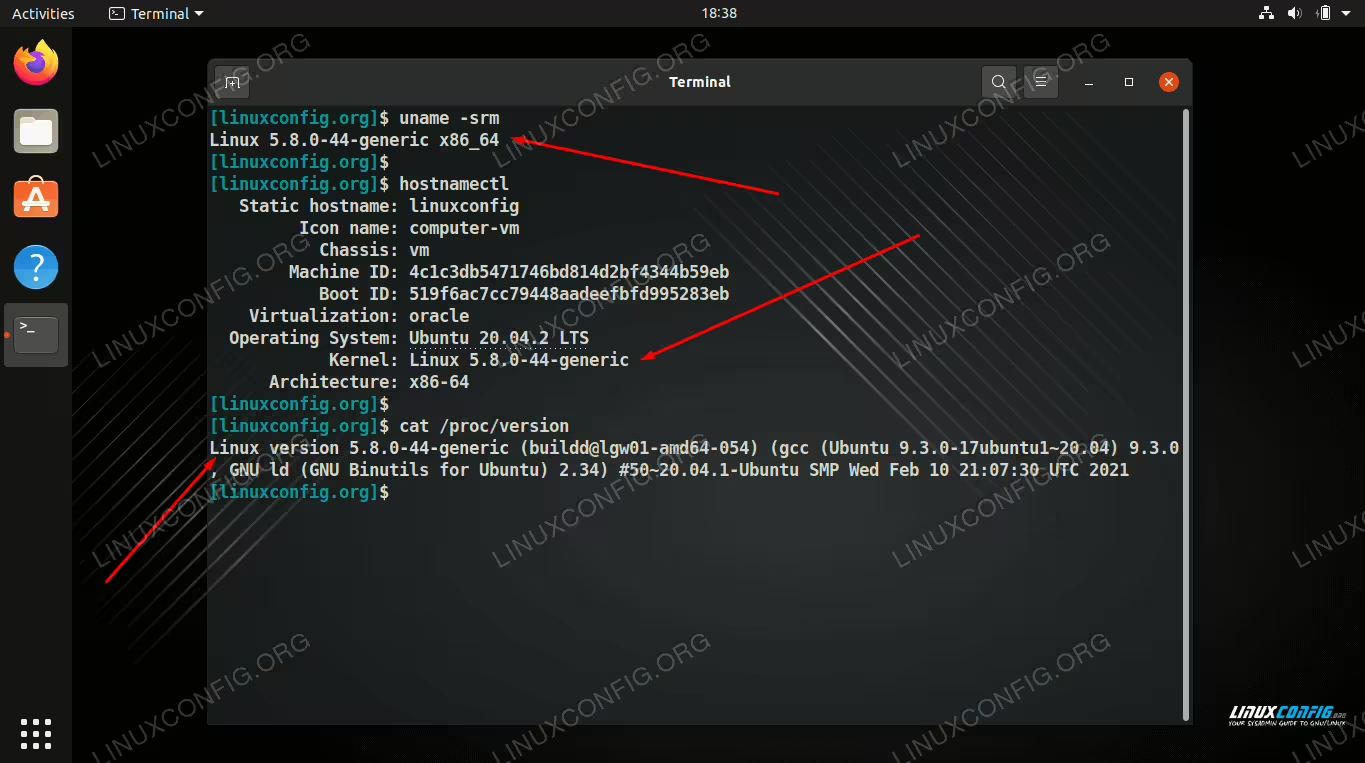
We can use the uname Linux command to see our system’s kernel version. Open a terminal and execute the following command to see yours.
$ uname -srm
Linux 5.8.0-44-generic x86_64
The output shows us that we’re running kernel version 5.8.0-44.
Here’s what each of these numbers mean:
5– Kernel version.8– Major revision.0– Minor revision.44– Patch number.- The
x86-64indicates the CPU architecture that the kernel is compiled for.
To see more information about your particular kernel build, which gives us distribution-specific details, you can also add the -v option.
$ uname -srmv
Linux 5.8.0-44-generic #50~20.04.1-Ubuntu SMP Wed Feb 10 21:07:30 UTC 2021 x86_64
How to check kernel version via hostnamectl command
Linux systems that use systemd, which is the vast majority of distros these days, can utilize the hostnamectl command to see kernel information.
$ hostnamectl
   Static hostname: linuxconfig
         Icon name: computer-vm
           Chassis: vm
        Machine ID: 4c1c3db5471746bd814d2bf4344b59eb
           Boot ID: 519f6ac7cc79448aadeefbfd995283eb
    Virtualization: oracle
  Operating System: Ubuntu 20.04.2 LTS
            Kernel: Linux 5.8.0-44-generic
      Architecture: x86-64
Or, for a more concise output:
$ hostnamectl | grep Kernel
            Kernel: Linux 5.8.0-44-generic
How to check kernel version via /proc/version file
You may also view the /proc/version file, which contains kernel information.
$ cat /proc/version
Linux version 5.8.0-44-generic (buildd@lgw01-amd64-054) (gcc (Ubuntu 9.3.0-17ubuntu1~20.04) 9.3.0, GNU ld (GNU Binutils for Ubuntu) 2.34) #50~20.04.1-Ubuntu SMP Wed Feb 10 21:07:30 UTC 2021
Conclusion
In this guide, we saw several commands that can be used to reveal a Linux system’s kernel version. These commands will work on any major Linux distro, so you can use them regardless of what distro you’re running.
