
The latest stable version of fedora linux, often regarded as the best Linux distro for polished and professional use, has been released a couple of hours ago, and is available for download. Sponsored by Red Hat, Fedora has a release cycle of approximately 6 months; it provides up-to-date versions of the most used free and open source software, and one of the best (if not the best), available “vanilla” GNOME desktop experience. In this article, we take a look at Fedora 41, and at some of the major changes it comes with.
In this tutorial you will learn:
- Some of the major changes in Fedora 41
| Category | Requirements, Conventions or Software Version Used |
|---|---|
| System | Fedora 41 |
| Software | No specific software needed |
| Other | None |
| Conventions | # – requires given linux-commands to be executed with root privileges either directly as a root user or by use of sudo command$ – requires given linux-commands to be executed as a regular non-privileged user |
Hardware encryption support in the Anaconda installer
Fedora 41 installer, Anaconda, now supports using hardware-encryption features available when using certain SATA or NVMe devices. You won’t, however, find this option in the graphical installer: since it is considered an “advanced” feature, it will only be available when performing a Kickstart installation. Self-encrypting drive support can be enabled, for supported devices, by using specifying either luks2-hw-opal or luks2-hw-opal-only as value of the --luks-version option, when encrypting a partition or a logical volume. The former enables support to hardware-encryption in conjunction with traditional LUKS software encryption, while the latter enables hardware-encryption only. Relying on native hardware encryption only, is discouraged, since by doing so, one places all the trust on hardware vendors, and their proprietary encryption implementation. Hardware encryption password can be specified via the --hw-passphrase option.
Dnf 5 is now the default package manager
Dnf (Dandified YUM) is the package manager of Fedora and the other distribution of the Red Hat family. One of the major changes shipping with Fedora 41, is the inclusion Dnf 5. This is a major update, which sees a porting of the codebase from Python to C++. This change improves the overall performance of the package manager, which also saw some interface changes. Let’s see some examples.
In previous versions of Dnf, the
group command was used to handle package groups, performing actions such as “list”, “install”, “info”, and “remove”. Some aliases to those actions existed, e.g: “grouplist”, “groupinstall”, “groupinfo”, and “groupremove”; they have been removed in Dnf 5.
The group command was also used to get information about “environment” groups, which represent Fedora different spins, and have themselves package groups as dependencies. Although the “group” command can still be used to install environment groups, a dedicated command (“environment”) was introduced to obtain information about them. Just as an example, to retrieve information about the “workstation-product-environment”, environment group, we would run:
$ dnf environment info workstation-product-environment
Below is the output of the command:
Id                 : workstation-product-environment
Name               : Fedora Workstation
Description        : Fedora Workstation is a user friendly desktop system for laptops and PCs.
Order              : 2
Installed          : True
Repositories       : @System
Required groups    : base-graphical
                   : container-management
                   : core
                   : desktop-accessibility
                   : firefox
                   : fonts
                   : gnome-desktop
                   : guest-desktop-agents
                   : hardware-support
                   : libreoffice
                   : multimedia
                   : networkmanager-submodules
                   : printing
                   : workstation-product
Optional groups    : domain-client
As you can, see package groups IDs are now displayed by default, instead of names, as it was before. Although Dnf 5 is now the default package manager, its previous iteration can still be used: it must be invoked explicitly, by using the dnf4 command.
Tuned in place of power-profiles-daemon
We already talked about power-profiles-daemon, an open source daemon working over D-Bus, designed to safely control power profiles. Power-profiles-daemon supported only three profiles: “powersave”, “balance” and “performance”. In Fedora 41, it has been replaced by Tuned, which supports more profiles and customizations. The “tuned” daemon is controlled by the tuned-adm command line utility, which, among the other things, allows us to list and switch between existing profiles. To retrieve the list of all available profiles, together with their brief description, we can run:
$ sudo tuned-adm list
At the moment of writing, the command returns the following output:
Available profiles:
- accelerator-performance    - Throughput performance based tuning with disabled higher latency STOP states
- aws                        - Optimize for aws ec2 instances
- balanced                   - General non-specialized tuned profile
- balanced-battery           - Balanced profile biased towards power savings changes for battery
- desktop                    - Optimize for the desktop use-case
- hpc-compute                - Optimize for HPC compute workloads
- intel-sst                  - Configure for Intel Speed Select Base Frequency
- latency-performance        - Optimize for deterministic performance at the cost of increased power consumption
- network-latency            - Optimize for deterministic performance at the cost of increased power consumption, focused on low latency network performance
- network-throughput         - Optimize for streaming network throughput, generally only necessary on older CPUs or 40G+ networks
- optimize-serial-console    - Optimize for serial console use.
- powersave                  - Optimize for low power consumption
- throughput-performance     - Broadly applicable tuning that provides excellent performance across a variety of common server workloads
- virtual-guest              - Optimize for running inside a virtual guest
- virtual-host               - Optimize for running KVM guests
Current active profile: balanced
To activate a profile, we use the “profile” option of the tuned-adm command, and pass the name of the profile we want to switch to as an argument. Just as an example, to switch to the “powersave” profile, we would run:
$ tuned-adm profile powersave
Power profiles can still be changed graphically, via the dedicated GNOME and KDE Plasma interfaces, although they only support only the three “standard” profiles: “Balanced”, “Powersave” and “Performance” (when available).
Tuned allows us to create custom profiles, either starting from scratch or by using existing ones as a base.
No more Python2
Although in recent Fedora releases Python 3 was already set as the default version of the programming language (/usr/bin/python was a symlink to /usr/bin/python3), Python2 was still installed, and could be invoked as “python2” (/usr/bin/python2). In Fedora 41 the “python2” package has finally been deprecated and purged from the official repositories. Fedora 41 ships with the latest Python 3 major release (3.13).
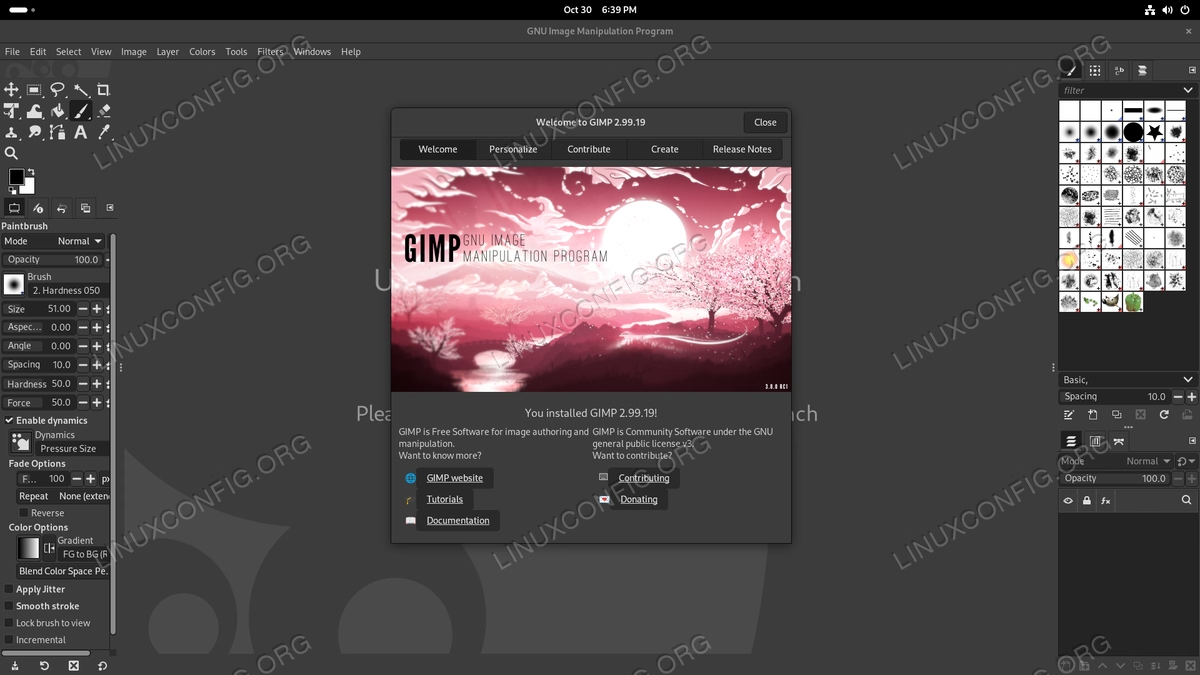
Gimp 3
Another great news is that Fedora 41 includes the latest version of Gimp in its repositories. Version 3 (2.99, actually) of the image editing program comes itself with many improvements and bugfixes:
GNOME 47
Fedora 41 Workstation edition, ships with the latest stable version of GNOME, codename: “Denver”. This version of the desktop environment, comes with some interesting changes, let see some of them.
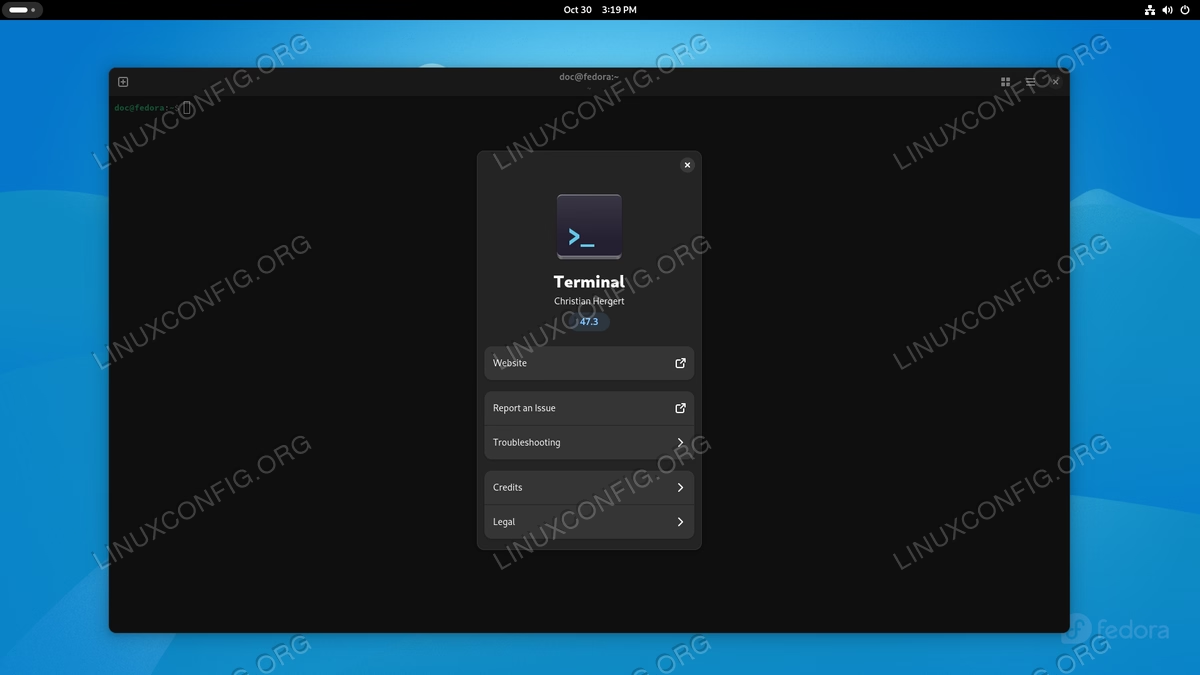
The default terminal emulator, “gnome-terminal”, was replaced by “Ptyxis”, which in the desktop environment dashboard is simply called “Terminal”. The application is developed with the GTK4 toolkit, which provides it a more uniform look with the rest of the desktop. It comes with a decent degree of customization:
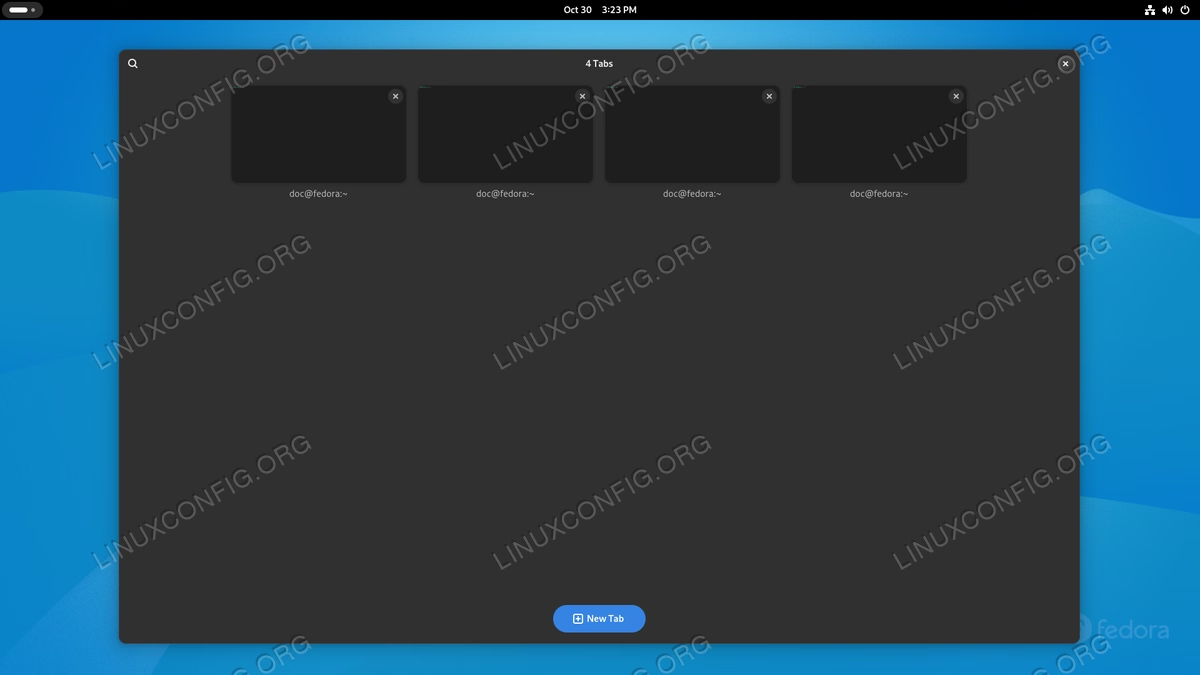
The application has a “tab overview” mode, which let us open new tabs, visualize existing ones, and even search them via the dedicated widget:
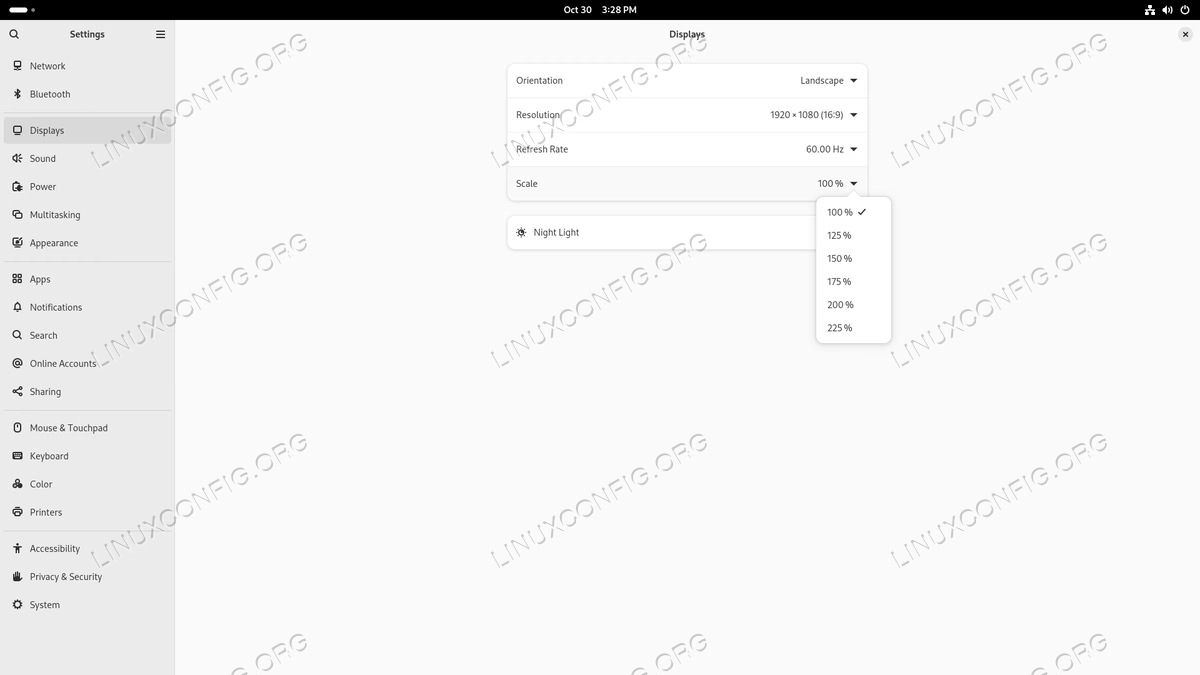
Another big change of this Fedora release, is support for fractional scaling out of the box. Although this feature, even if improved, is still considered “experimental” by upstream, it is now active by default:
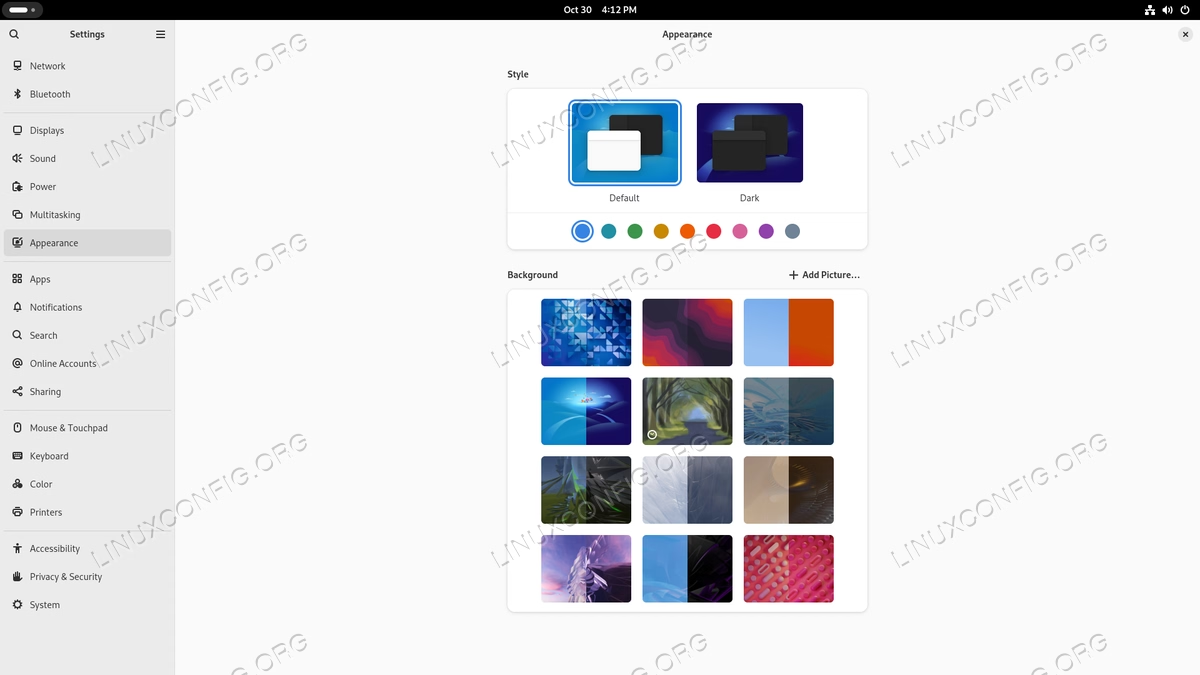
GNOME 47 also introduced “accent” colors. In the “appearance” section of the settings app, it is now possible to select one of the available colors which will be used in various parts of the desktop environment (for quick-settings toggles, for example):
Fedora alternative spins
As always, a new release of Fedora includes updates to alternative spins, the most prominent one being the one which comes with the Plasma desktop, now updated to version 6.2. Alternative Fedora versions include Silverblue, Kinoite, Sway Atomic and Budgie Atomic, which are, respectively, the immutable counterparts of Fedora Workstation and of the Fedora KDE, Sway and Budgie spins. Immutable or atomic distributions are considered, by many, as the future of Linux, at least on the desktop: their goal is to provide identical and easily reproducible installations, which are composed by an immutable, read-only core which is updated atomically, and by additional packages which are primarily installed as Flatpaks, in containers isolated from the main system. If you are interested in immutable Fedora versions, you can start by reading the Silverblue User Guide.
Conclusions
Fedora is a distribution able to incorporate the latest trends in the Linux world, while maintaining a solid and reliable infrastructure. The latest version of the community distribution sponsored by Red Hat, includes many changes. Here we only mentioned a few. To know more, you can read the complete change set at this address. Go on and try Fedora!