
Linux systems are often configured with strict password policies to ensure security, including enforcing minimum password length requirements. However, there may be scenarios where you want to allow shorter passwords, such as for testing environments or specific user needs. This guide will show you how to modify the PAM (Pluggable Authentication Module) configuration to permit shorter passwords using the `passwd` command. Without these adjustments, you might encounter an error like: "You must choose a longer password." when trying to set a password that is shorter than the system’s default policy allows.
In this tutorial you will learn:
- How to edit PAM configuration files for password policies
- How to adjust the `minlen` parameter for allowing shorter passwords
- How to test the changes by setting a shorter password

| Category | Requirements, Conventions or Software Version Used |
|---|---|
| System | Linux (any distribution with PAM support) |
| Software | PAM (Pluggable Authentication Module) |
| Other | Access to a text editor (e.g., nano, vim) |
| Conventions | # – requires given linux commands to be executed with root privileges either directly as a root user or by use of sudo command$ – requires given linux commands to be executed as a regular non-privileged user |
How to Allow Short Passwords in Linux
Modifying the password length requirements in Linux involves adjusting settings in the PAM configuration files. These files control various aspects of user authentication, including password complexity and length. By adjusting the minlen parameter in the pam_unix.so module, you can specify a shorter minimum password length and avoid errors like "You must choose a longer password."
- Edit the PAM Configuration File: The first step is to edit the appropriate PAM configuration file to adjust the password policy. This file is typically located at
/etc/pam.d/common-passwordor/etc/pam.d/system-authdepending on your Linux distribution.$ sudo nano /etc/pam.d/common-password
This command opens the PAM configuration file in the nano text editor with root privileges, allowing you to make the necessary changes.
- Modify the
pam_unix.soLine: Locate the line in the file that referencespam_unix.so. Add theminlenparameter to set a shorter minimum password length. For example, if you want to allow passwords as short as 4 characters, modify the line as follows:password [success=1 default=ignore] pam_unix.so obscure yescrypt minlen=4
This change adjusts the password policy to allow passwords with a minimum length of 4 characters. The
obscureoption still enforces some complexity rules, making it a reasonable balance between length and complexity. Without this change, attempts to set shorter passwords will result in the error message"You must choose a longer password.".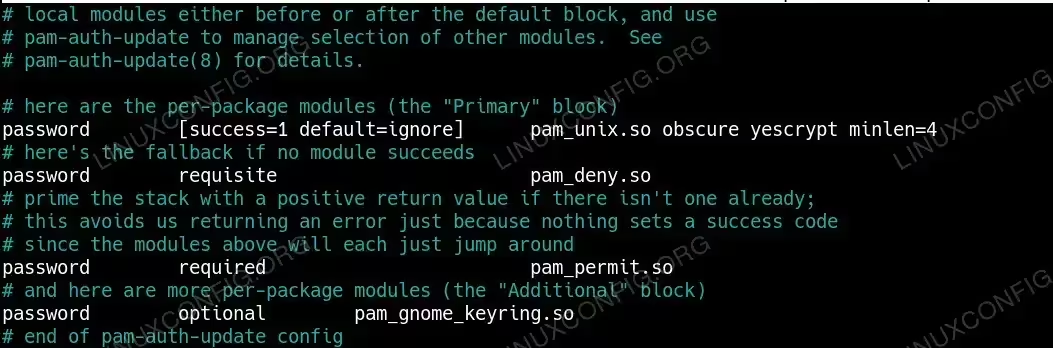
Modify the pam_unix.so Line to allow longer passwords - Save and Exit the Editor: After making the changes, save the file and exit the text editor. If using
nano, pressCtrl+Oto write the changes andCtrl+Xto exit.
Make sure to double-check the changes before exiting to ensure that no syntax errors were introduced, as incorrect configurations could prevent user logins. - Test the Changes: To confirm that the new password length policy is in effect, try setting a password for a user with the
passwdcommand:# sudo passwd username
Replace
usernamewith the actual user’s name. You should now be able to set a password that meets the new, shorter length requirement. If the system accepts a password shorter than the previous minimum, the configuration has been successfully updated.
Conclusion
By adjusting the PAM configuration, you can control the minimum password length on your Linux system. While allowing shorter passwords can be beneficial in specific scenarios, it’s crucial to balance this flexibility with the need for system security. Always ensure that changes to authentication settings are suitable for your environment, and consider applying these modifications only when necessary.
