
Arch Linux and Ubuntu are two extremely popular Linux distributions. While they naturally have a lot of functional overlap, their core principles, user friendliness, and native features are very different. Ubuntu is easy to use, while Arch Linux is more customizable. Rather than trying to decide between the two, it is possible to configure a dual boot system so that you can boot into whichever operating system you feel like using.
With a dual boot system, you are prompted at system boot to select which operating system to load into. The Arch Linux and Ubuntu installations will remain completely separate, and whenever you need to access the other system, you just need to perform a quick reboot. In this tutorial, we will take you through the step by step instructions of installing Arch Linux alongside a pre-existing Ubuntu Linux installation.
NOTE
Virtualization is also a viable approach to running two Linux distributions on your computer. The disadvantage of virtualization, however, is that the operating system will not have direct access to the host hardware. This is a big drawback for users that want to squeeze every drop of performance from Arch Linux, such as gamers or those that tend to run resource intensive processes.
In this tutorial you will learn:
- How to create free up space on the Ubuntu data partition
- How to partition a hard drive for Arch Linux installation
- How to install Arch Linux alongside Ubuntu Linux in dual boot configuration
- How to load into Arch Linux or Ubuntu Linux during system boot
| Category | Requirements, Conventions or Software Version Used |
|---|---|
| System | Ubuntu Linux and Arch Linux |
| Software | N/A |
| Other | Privileged access to your Linux system as root or via the sudo command. |
| Conventions |
# – requires given linux commands to be executed with root privileges either directly as a root user or by use of sudo command$ – requires given linux commands to be executed as a regular non-privileged user |
Preliminary Steps
Before getting started, let’s go over the creation of an Arch Linux installation USB drive and discuss hard drive partitioning schemes.
Creating a bootable USB for installation
One of the prerequisites is a USB drive that has the bootable Arch Linux installer on it. Head over to the Arch Linux download page to grab the latest ISO available. Then, on Ubuntu, you can create a bootable USB with the ISO and dd command:
$ sudo dd bs=4M if=path/to/archlinux.iso of=/dev/usb conv=fsync oflag=direct status=progress
Of course substitute the proper values in place of the ISO file device path for the USB that we have above.
Hard drive partitioning
The Arch Linux installation is going to require three different hard drive partitions:
- EFI system
- swap
- root
The EFI partition should already exist due to your Ubuntu installation. Arch Linux can share this partition, so we do not need to create it. However, the swap space should be at least 4 GiB, and the root partition can be any size you want, with a minimum of about 25 GiB.
The way you set up the partitions may depend on how you have your disk currently configured. There are a few possibilities:
- Ubuntu currently takes up the entirety of the hard drive
- There is some free space on the drive already available for Arch Linux
- You plan to install Arch Linux on a different hard drive than Ubuntu
The majority of users probably fall into the first scenario, with their Ubuntu installation configured to take up their entire hard drive. In this case, you will need to partition the hard drive in order to free up some space for the Arch Linux install. This process will not affect your Ubuntu files, rather simply give away some free space to the future Arch Linux installation by shrinking the Ubuntu volume. You will see how to do that in the first steps below.
If you already have a section of unpartitioned free space on your hard drive, Arch Linux can use some or all of that space for installation. Likewise if you have a secondary disk that you want to install Arch Linux on, this can house the Arch Linux installation and be totally separate from the Ubuntu install.
Create a bootable USB for hard drive partitioning
If you need to resize your main partition in order to accommodate the Arch Linux installation, then we recommend using a Ubuntu USB to boot into a live environment and work with gparted to resize the partition. It is not possible to resize the partition from in Ubuntu itself, since the partition will be mounted, so that is why it is necessary to use the live environment.
We will cover the steps below for booting into an Ubuntu live environment and resizing the partition for Arch Linux.
Back up your hard drive first
Remember to perform a back up of all important files before proceeding. A slight mishap in the configuration can lead to the loss of files, though nothing should happen if you are careful. Even still, we highly recommend backing up your files before tinkering with the hard drive partitioning and installation of a new OS.
Dual Boot Ubuntu and Arch Linux
[Previous content remains exactly the same until reaching the relevant section…]
fdisk -l if you need to see the paths to your new partitions (should be under /dev). In our case, we will execute the following commands to format the the swap partition using mkswap as swap file system, and the root partition with the ext4 file system:
# mkswap /dev/sda4
# mkfs.ext4 /dev/sda5
Remember to check the path for your partitions and put the proper values above. These commands will format the partitions with the appropriate file system types.
[Remainder of content remains exactly the same…]
From now on, when you start your system, the GRUB loader will ask you which operating system you want to load into. You can make your selection by using the arrow keys and then press the Enter key to load into what you selected.
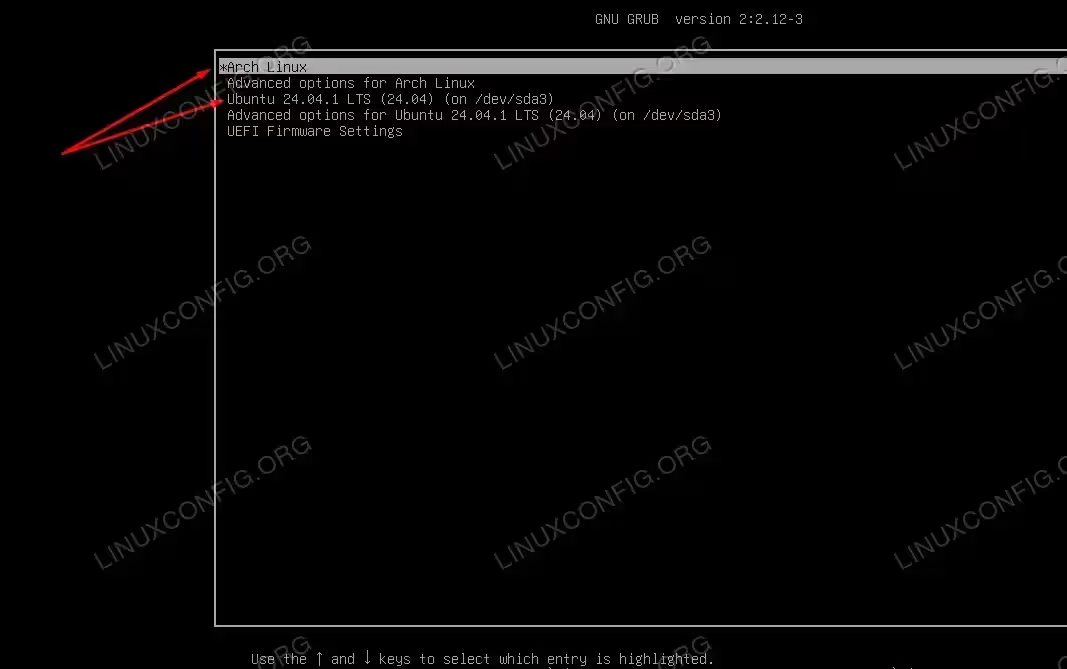
You may edit the GRUB_DEFAULT option within the /etc/default/grub file if you would like your boot menu to select Ubuntu by default, instead of Arch Linux. You may also want to edit the GRUB_TIMEOUT value to give yourself some extra time to make a selection, before the default one automatically loads.
Closing Thoughts
In this tutorial, we saw how to install Arch Linux alongside Ubuntu Linux as a dual boot system. Having both of these Linux distributions on your computer grants you a lot of flexibility, so you can pick between the user friendly Ubuntu or the harder to use, yet more customizable Arch Linux. Depending on the project or task at hand, one may be better suited than the other, but either one is always a quick reboot away.
