
Arch Linux is a robust operating system often chosen by power users and IT professionals. While there is no doubt that it is an extremely powerful OS, the need to use other systems can also arise for users that are required to use a variety of applications and ecosystems that Arch Linux can’t always easily accommodate. This is when a dual boot system that runs both Arch Linux and Windows 11 proves useful.
With a dual boot system, you are prompted at system boot to select which operating system to load into. The Arch Linux and Windows installations will remain completely separate, and whenever you need to access the other system, you just need to perform a quick reboot. In this tutorial, we will take you through the step by step instructions of installing Arch Linux alongside a pre-existing Windows 11 install.
NOTE
You may also be considering the option of running Arch Linux inside of a virtual machine. Note that you would be sacrificing a lot of Arch Linux’s power by using virtualization as an abstraction layer, therefore not allowing the operating system to interface directly with the system’s hardware. Virtualization is a viable approach if you only plan to fire up Arch every once in a while, but for more frequent or intense usage, a dual boot system will work much better!
In this tutorial you will learn:
- How to create free space on a Windows partition
- How to partition a hard drive for Arch Linux installation
- How to install Arch Linux alongside Windows 11 in dual boot configuration
- How to load into Arch Linux or Windows 11 during system boot

| Category | Requirements, Conventions or Software Version Used |
|---|---|
| System | Windows 11 and Arch Linux |
| Software | N/A |
| Other | Privileged access to your Linux system as root or via the sudo command. |
| Conventions |
# – requires given linux commands to be executed with root privileges either directly as a root user or by use of sudo command$ – requires given linux commands to be executed as a regular non-privileged user |
Preliminary Considerations
Before getting started, let’s go over some important points to consider prior to installation.
Creating a bootable USB for installation
One of the prerequisites is a USB drive that has the bootable Arch Linux installer on it. Head over to the Arch Linux download page to grab the latest ISO available. Then, on Windows, you can use a program like Rufus or Etcher to create the bootable USB drive. On Linux, you can create a bootable USB with the ISO and dd command.
Is dual booting compatible with BitLocker?
Arch Linux is frequently utilized by tech enthusiasts and power users, so there is a good chance you took the time to enable BitLocker when you initially set up Windows 11. Unfotunately, BitLocker must be disabled prior to configuring the dual boot system, as the BitLocker encryption will obfuscate the drive contents and it will not be possible for the boot manager to know that two operating systems are on the drive.
Hard drive partitioning
The majority of users probably have their Windows installation configured to take up their entire hard drive. In this case, you will need to partition the hard drive in order to free up some space for the Arch Linux install. This process will not affect your Windows files, rather simply give away some free space to the future Arch Linux installation by shrinking the Windows volume. You will see how to do that in the first steps below.
If you already have a section of unpartitioned free space on your hard drive, Arch Linux can use some or all of that space for installation. Likewise if you have a secondary disk that you want to install Arch Linux on, this can house the Arch Linux installation and be totally separate from the Windows install.
WARNING!
Take care when making major changes to the hard drive structure, which we will be doing below by shrinking the Windows volume and installing a new OS. While we can safely expect everything to go according to plan, you should still back up all important files in case something goes wrong during installation.
Dual Boot Windows 11 and Arch Linux
[First part of content unchanged until reaching the relevant section…]
fdisk -l if you need to see the paths to your new partitions (should be under /dev). In our case, we will execute the following commands to format the EFI partition with fat32, use mkswap to create the swap partition, and the root partition with the ext4 file system:
# mkfs.fat -F32 /dev/nvme0n1p5
# mkswap /dev/nvme0n1p6
# mkfs.ext4 /dev/nvme0n1p7
Remember to check the path for your partitions and put the proper values above. These commands will format the partitions with the appropriate file system types.
[Remainder of content unchanged…]
From now on, when you start your system, the GRUB loader will ask you which operating system you want to load into. You can make your selection by using the arrow keys and then press the Enter key to load into what you selected.
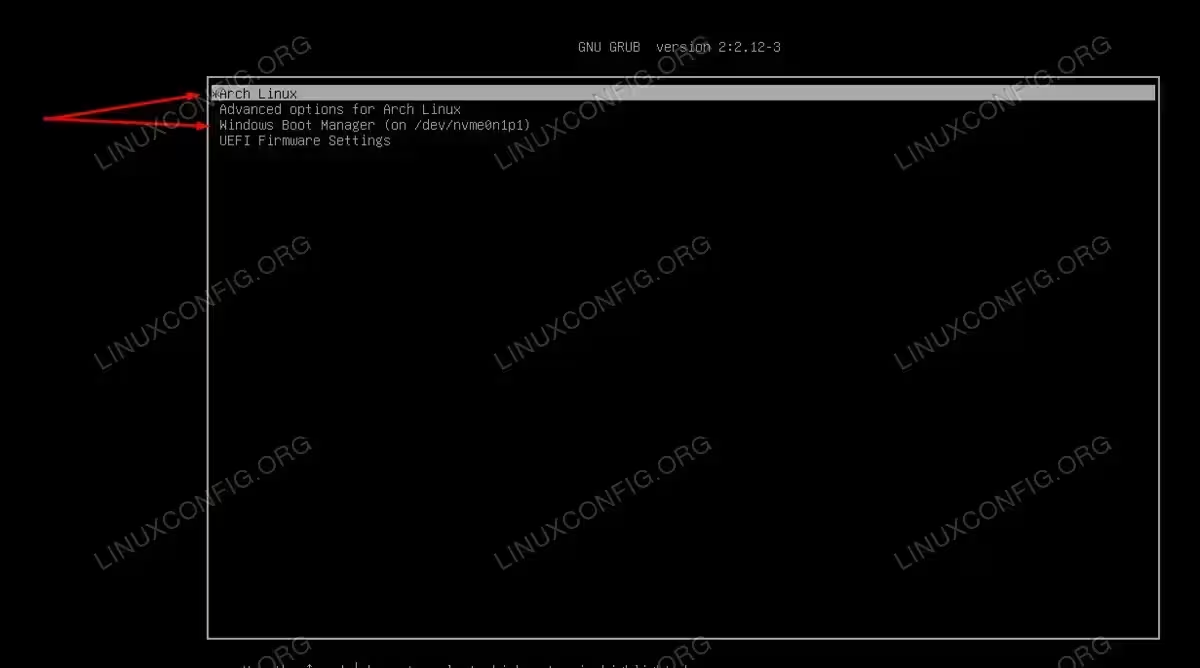
You may edit the GRUB_DEFAULT option within the /etc/default/grub file if you would like your boot menu to select Windows by default, instead of Arch Linux. You may also want to edit the GRUB_TIMEOUT value to give yourself some extra time to make a selection, before the default one automatically loads.
Closing Thoughts
In this tutorial, we saw how to install Arch Linux alongside Windows 11. This gives users access to two powerful but extremely different operating systems at their fingertips. The next steps for Arch Linux will be to install a desktop environment and additional packages. Arch Linux is highly customizable and leaves all of the configuration up to the user, so you can get the system exactly as you like it.
