
In today’s digital landscape, we must be careful to authenticate our network connections to remote servers. To help keep us secure, we use certificates that allow us to verify connections between clients and servers. A Certificate Authority is a crucial part of this process, as it is responsible for issuing the certificates to clients and servers, and verifying the devices that are trying to establish secure connections to each other.
Without a certificate authority, it is easy for malicious servers to masquerade as the one we want, and obtain sensitive information upon our connection to them. It has become common process for businesses or other network infrastructures to create their own certificate authorities, since doing so is cheaper than paying for an official one, and much more flexible in its customization. A certificate authority can allow users to reliably connect to a VPN, a secure website (HTTPS), cryptographically sign emails, and lots more.
For client devices, it will be necessary to import the certificate from the Certificate Authority server. This involves adding the certificate to the list of trusted authorities. Once the certificate is added, the client system will trust the CA server for validating connections to remotely signed servers.
In this tutorial, we will go through the step by step instructions of adding a certificate to the trusted authorities list in Ubuntu Linux. Once finished, your Ubuntu system can begin using the Certificate Authority server as a means to validate its connection to other verified servers. We will also cover the instructions for adding a certificate to Ubuntu’s default browser, Firefox, in case you plan on also using the browser to connect to remote servers signed by the CA.
In this tutorial you will learn:
- How to add a certificate to Ubuntu Linux
- How to add a certificate to Firefox

| Category | Requirements, Conventions or Software Version Used |
|---|---|
| System | Ubuntu Linux |
| Software | N/A |
| Other | Privileged access to your Linux system as root or via the sudo command. |
| Conventions |
# – requires given linux commands to be executed with root privileges either directly as a root user or by use of sudo command$ – requires given linux commands to be executed as a regular non-privileged user |
Add Certificate to Ubuntu Trusted Authorities Step by Step
We are assuming that you have already received the certificate file from the server administrator of the Certificate Authority server – you will need that file before doing anything. This is a human readable file and should be easy to identify if it begins with the line
----BEGIN CERTIFICATE----.
Your certificate file needs to have a
.crt file extension. If it has some other extension, such as .pem, you must first remove this extension and apply the aforementioned one. In the instructions below, we will go through the process of adding this certificate file as a trusted authority in Ubuntu Linux.
- Get started by opening a command line terminal and installing the
ca-certificatessoftware package withapt:$ sudo apt install ca-certificates
- Next, copy the certificate file to the
/usr/local/share/ca-certificatesdirectory. As an example, we will copy a certificate file namedmycert.crtthere:$ sudo cp mycert.crt /usr/local/share/ca-certificates
- Lastly, we need to update the certificate list in order for the changes to take effect by running the command below:
$ sudo update-ca-certificates
That’s all there is to it. You should now be able to connect to the private servers that are authenticated by the certificate authority.
Add Certificate to Firefox
It is worth noting that if you are going to connect to servers with Firefox (such as a private web server which has an SSL certificate issued by the certificate authority), then you may need to update the certificate in the browser as well. Here are the instructions for doing that:
- Open Firefox, go to the settings page, click on the “Privacy and security” tab, and then scroll down part way to click on the button that says “View certificates.”
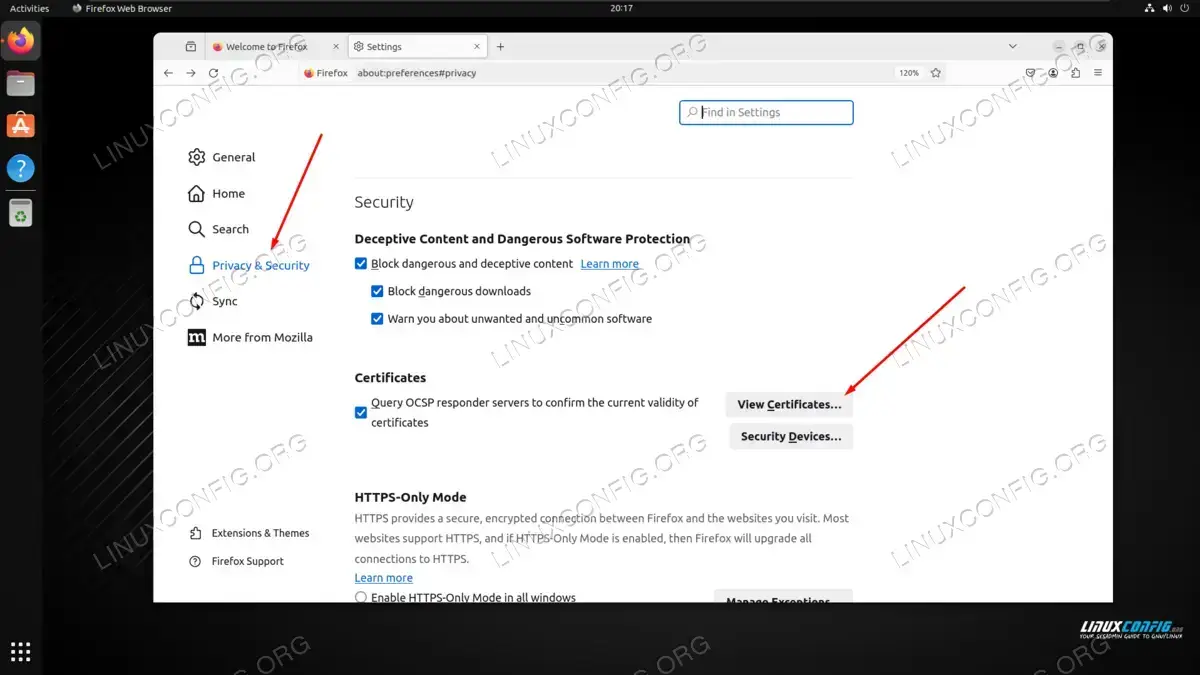
Click on view certificates in the Firefox security settings - Click on the Authorities tab and then click Import. From here, locate your certificate file and upload it into Firefox to complete the process.
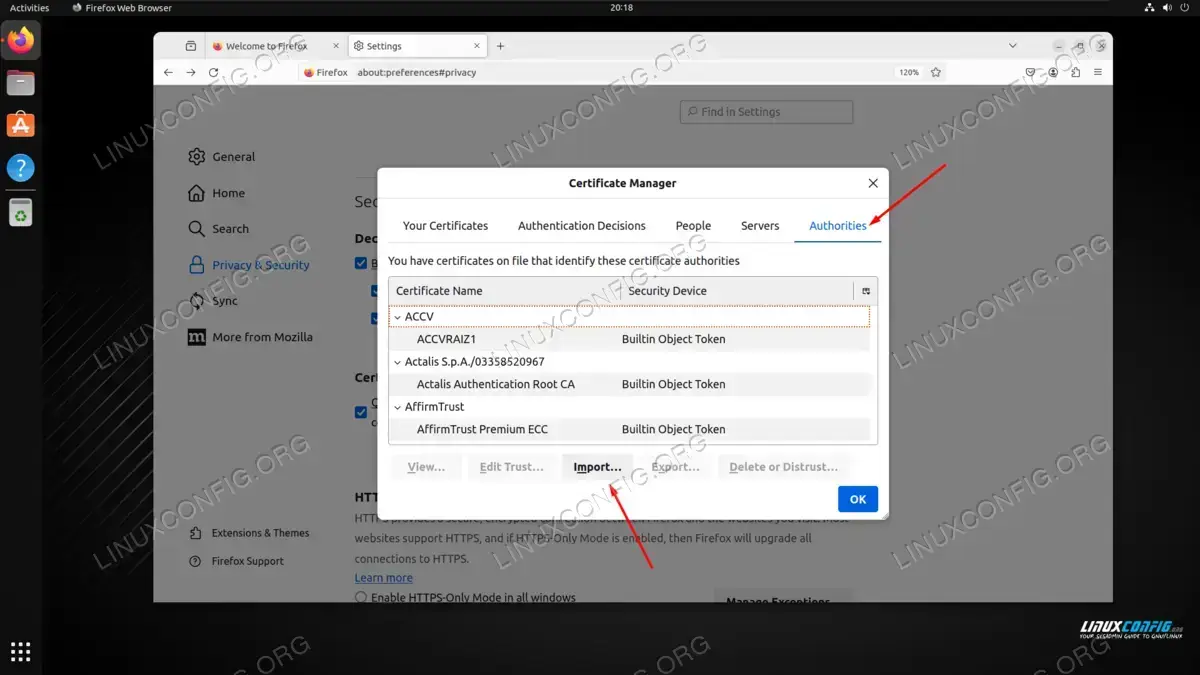
Importing a certificate into Mozilla Firefox
Closing Thoughts
In this tutorial, we saw how to add a certificate to the trusted authorities on an Ubuntu Linux system. Doing this allows us to communicate with servers that have also been signed and verified by the same certificate authority server. We also learned how to add the certificate to the Firefox browser, in case we need to connect via HTTPS to any servers.
