
In this tutorial you will learn how to burn ISO image to DVD from command line using Ubuntu 20.04 Focal Fossa Linux desktop/server.
In this tutorial you will learn:
- How to Burn ISO to DVD from a command line
- How to install the
growisofsISO burning tool
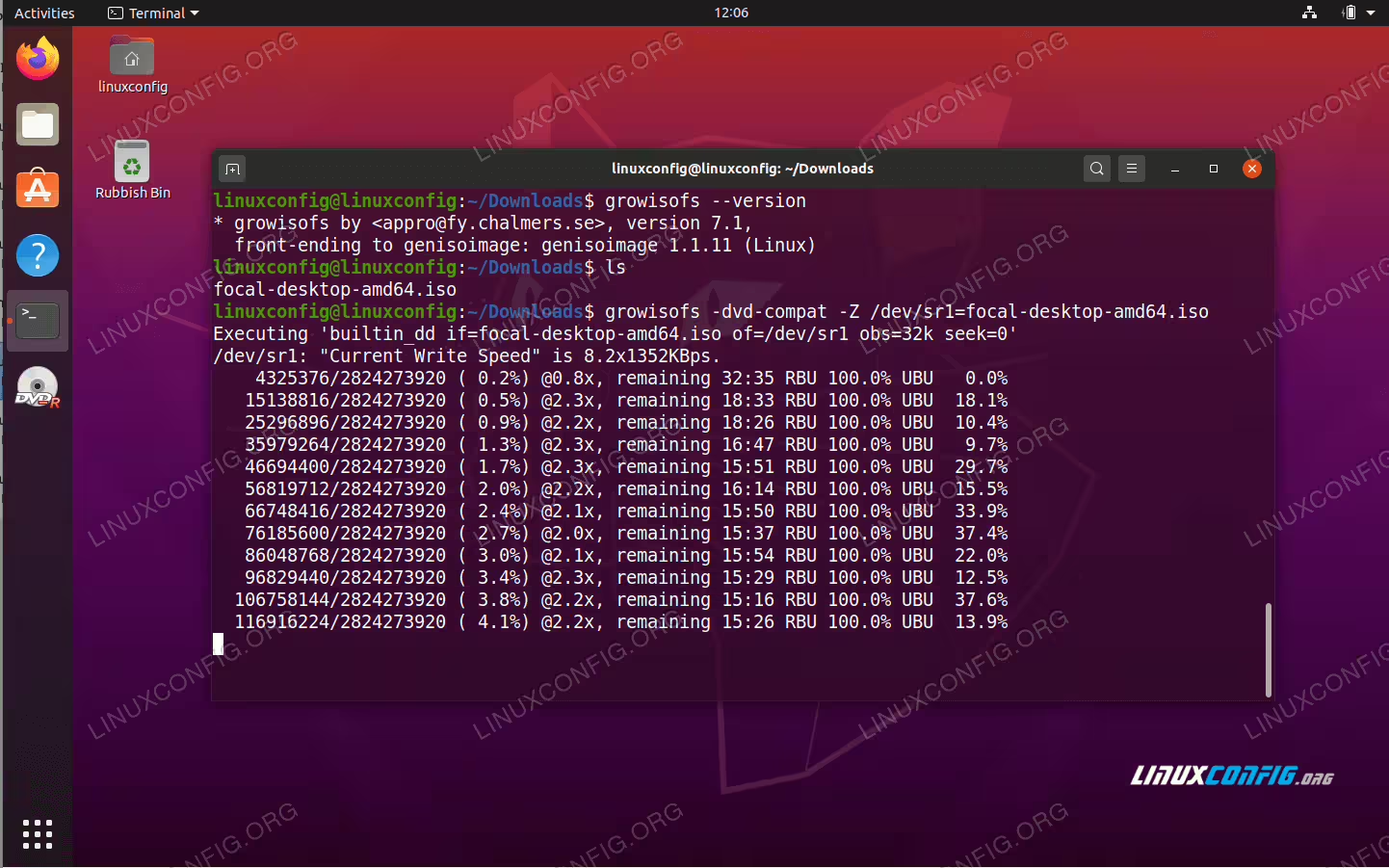
Ubuntu 20.04 Burn ISO to DVD from command line
Software Requirements and Conventions Used
| Category | Requirements, Conventions or Software Version Used |
|---|---|
| System | Installed Ubuntu 20.04 or upgraded Ubuntu 20.04 Focal Fossa |
| Software | growisofs |
| Other | Privileged access to your Linux system as root or via the sudo command. |
| Conventions |
# – requires given linux commands to be executed with root privileges either directly as a root user or by use of sudo command$ – requires given linux commands to be executed as a regular non-privileged user |
Ubuntu 20.04 Burn ISO to DVD from command line step by step instructions
- Check your system whether it supports DVD burning. Start by opening a terminal window and execution of the bellow command:
$ cat /proc/sys/dev/cdrom/info
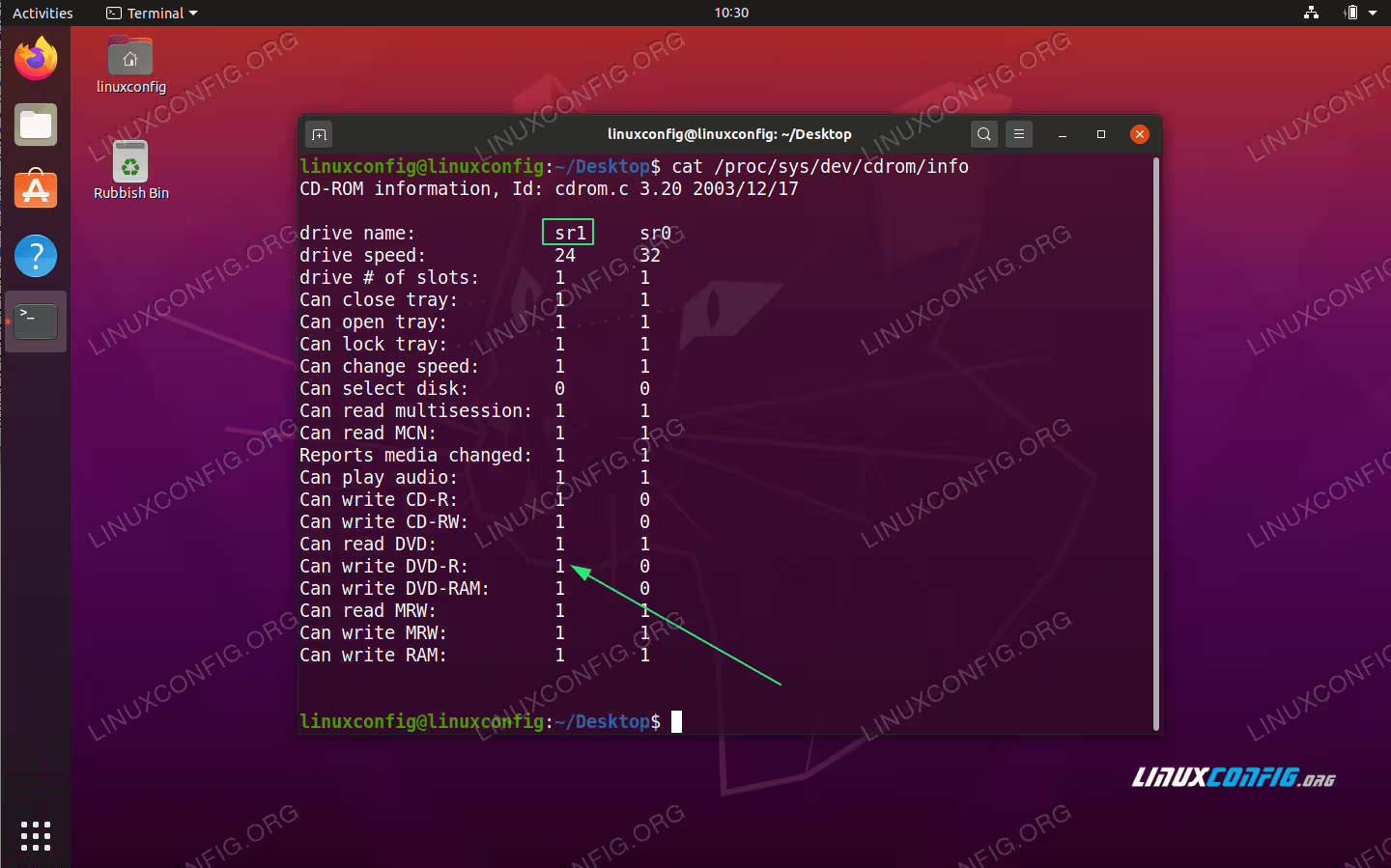 Your system should have at least one hardware device which supports DVD write. Check the output and look for
Can write DVD-R. The integer1means that the DVD write is supported. Also take a note of the drive name supporting the DVD write. In this case the drive name issr1hence the full path to the DVD writer is/dev/sr1. - Next, download the ISO image you wish to burn to DVD. As an example, in this tutorial, we will burn downloaded Ubuntu 20.04 ISO image.
- Install the ISO to DVD burning tool
growisofsby using theaptcommand:$ sudo apt install growisofs
- Insert the blank DVD into your DVD writer. Next, locate the previously downloaded ISO image and use the
growisofsto burn it to DVD. Replace the DVD burner block device path/dev/sr1with the determined inStep 1 and update the full or relative path to your downloaded ISO image:$ growisofs -dvd-compat -Z /dev/srX=iso-image.iso
Example of how to burn ISO image to DVD usinggrowisofsfrom command line.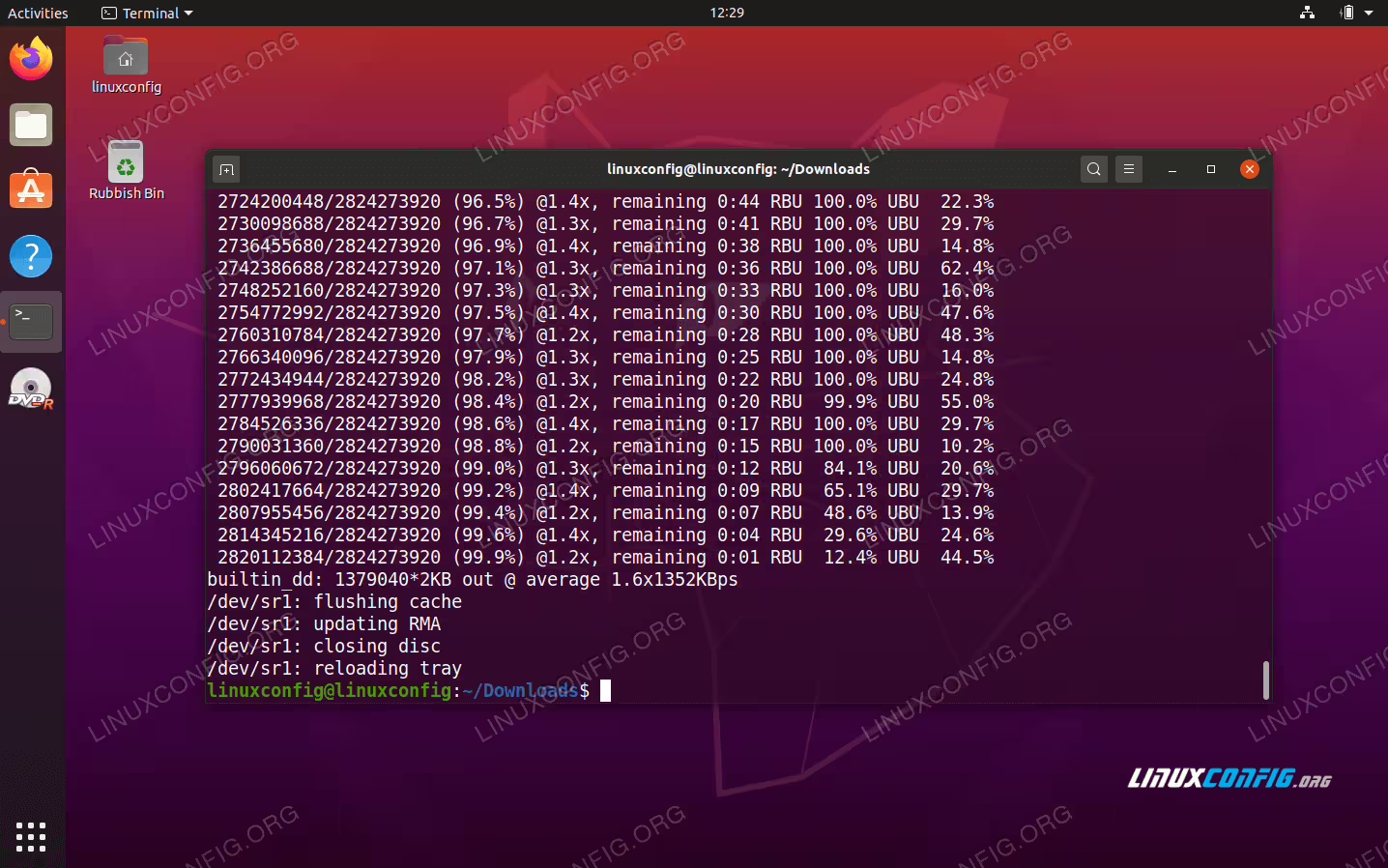 Wait for the burning process to complete. All done.