
This Ubuntu 22.04 guide introduces the new Ubuntu 22.04 and explains how to get this operating system and how to install it on your computer. It also provides you with comprehensive instructions on how to use Ubuntu 22.04.
ubuntu
How to install Tor Browser in Ubuntu 18.04 Bionic Beaver Linux
Objective
To following article will explain how to download, install and use Tor Browser on Ubuntu 18.04 Bionic Beaver Linux.
The aim for Tor Browser is to protect your online privacy, hence from this reason make sure that your Tor downloaded has not been tempered with by properly verifying Tor Browser’s signing signatures otherwise Tor Browser have an absolutely opposite effect for you.
Operating System and Software Versions
- Operating System: – Ubuntu 18.04 Bionic Beaver
- Software: – Tor Browser 7.5 or higher
Requirements
Privileged access to your Ubuntu System as root or via sudo command is required.
Conventions

Install ELK On Ubuntu 18.04 Bionic Beaver Linux
Objective
Install ELK on Ubuntu 18.04 Bionic Beaver
Distributions
Ubuntu 18.04
Requirements
A working install of Ubuntu 18.04 with root privileges
Conventions
- # – requires given linux commands to be executed with root privileges either directly as a root user or by use of
sudocommand - $ – requires given linux commands to be executed as a regular non-privileged user
Other Versions of this Tutorial
What is ELK
If you’re in a situation where you manage large amonts of data logs, the ELK stack is exactly what you’re looking for. The ELK stack combines Elasticsearch, Logstash, and Kibana into a simple, yet powerful, open source stack that lets you manage large amounts of logged data from a convenient graphical web interface.
All three tools are developed by Elastic, so they work in tandem perfectly, and they’re very easy to get set up on your Ubuntu system.
How to Install Latest Adobe Acrobat Reader DC on Ubuntu 18.04 Bionic Beaver Linux with Wine
Objective
The objective is to install the latest version of Adobe Reader on Ubuntu 18.04 Bionic Beaver Linux desktop using Wine.
Operating System and Software Versions
- Operating System: – Ubuntu 18.04 Bionic Beaver
- Software: – wine-3.0, Acrobat Reader DC 2018
Requirements
Privileged access to your Ubuntu System as root or via sudo command is required.
Conventions
Unable to locate package error on Ubuntu 20.04 Focal Fossa Linux
The objective of this tutorial is to provide the reader with a troubleshooting guidance on how to resolve the unable to locate package error message on Ubuntu 20.04 Focal Fossa Linux.
In this tutorial you will learn:
- How to update package repository index
- How to check Ubuntu version
- How to use Ubuntu package search
- How to add repository
How to install Tweak Tool on Ubuntu 20.04 LTS Focal Fossa Linux
The GNOME Tweaks tool allows users to configure a bunch of cosmetic and behavior in the GNOME desktop environment. It can be installed on Ubuntu 20.04 and used to customize things like the top bar, quick launch toolbar, etc.
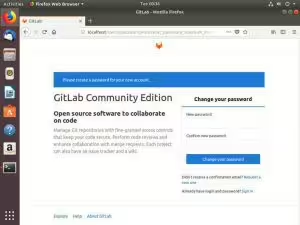
How to Install Gitlab on Ubuntu 18.04 Bionic Beaver
Objective
Install a Gitlab server on Ubuntu 18.04
Distributions
Ubuntu 18.04 Bionic Beaver
Requirements
A running install of Ubuntu 18.04 with root privileges
Conventions
- # – requires given linux commands to be executed with root privileges either directly as a root user or by use of
sudocommand - $ – requires given linux commands to be executed as a regular non-privileged user
Introduction
Gitlab is the solution for hosting your own Git repositories. Not only are the server systems on par with commercial options like Bitbucket and Github, it’s got an amazing web interface that’s intuitive and simple for just about any user.
How to create desktop shortcut launcher on Ubuntu 20.04 Focal Fossa Linux
The objective of this tutorial is to show you how to create a desktop shortcut launcher on Ubuntu 20.04 focal fossa using the default GNOME user interface.
In this tutorial you will learn:
- How to create desktop shortcut launcher from existing .desktop files
- How to create desktop shortcut launcher from scratch
26 Things To Do After Installing Ubuntu 18.04 Bionic Beaver Linux
The stable LTS version of Ubuntu, Ubuntu 18.04 Bionic Beaver, was released on 26th of April 2018. Some of the features of Ubuntu 18.04 include: new default desktop GNOME 3.28, better boot speed, new “minimal installation” option, new default applications, Linux Kernel 4.15 and others.
This guide will list for you some selected things to do after installing Ubuntu 18.04.
Some of the recommendations might not be suitable for everybody, hence use it as a guide only and decide what suits you best according to your user needs.
Ubuntu 22.04 Review
Ubuntu 22.04 is out and ready for download. If you have come across this article, you may be wary of installing Ubuntu 22.04 just yet. Indeed, this is the latest version of Ubuntu, and it has a lot of shiny features, but it introduces some problems, too.
How to install Cinnamon desktop on Ubuntu 18.04 Bionic Beaver Linux
Objective
This article will explain how to install Cinnamon desktop on Ubuntu 18.04 Bionic Beaver. Use this guide if you wish to change your default GNOME desktop to Cinnamon environment. See also our article: The 8 Best Ubuntu Desktop Environments (18.04 Bionic Beaver Linux) for more desktop environment choices.
Alternatively, follow our guide on how to install GUI on Ubuntu server 18.04 Bionic Beaver.
Operating System and Software Versions
- Operating System: – Ubuntu 18.04 Bionic Beaver Linux
Requirements
Privileged access to your Ubuntu System as root or via sudo command is required.
Conventions
Add user on Ubuntu 18.04 Bionic Beaver Linux
Objective
The purpose of this article is to explain how to add user on Ubuntu 18.04 Bionic Beaver Linux. The guide will provide instructions on how to add user on Ubuntu using graphical user interface, and, also how to create user using a command line.
Operating System and Software Versions
- Operating System: – Ubuntu 18.04 Bionic
Requirements
Privileged access to your Ubuntu System as root or via sudo command is required.