
In this how to check hard drive power on hours in Linux you will see how you might prevent disaster, by knowing details about system’s storage device in terms of “power on” hours (runtime), number of read and writes, or bad blocks, to determine the overall hard drive’s health and ageing.
Hardware
How to check HDD firmware version in Linux
The command line terminal on Linux systems can give us a lot of insight into the hardware of a computer. Among many other things, we can retrieve the HDD firmware directly by using the Linux command line.
How to format USB with exFAT on Linux
exFAT stands for Extensible File Allocation Table and is a format made by Microsoft for use on devices like USB flash drives. In general, you do not hear a lot about exFAT these days, but it remains a viable format that is compatible with Windows, MacOS, and Linux, so it is a good choice for a flash drive that you plan on using with a variety of different systems. Some manufacturers even use exFAT as the default format for their SD cards or other products.

How to manage snapshots with Snapper on Linux
Snapper is a free and open source application we can use to manage snapshots on Linux. It was originally designed to work with BTRFS snapshots, but was extended to supports also LVM thin-provisioned logical volumes. In this tutorial, we learn how to install Snapper on the most used Linux distributions, and how to use it to manage snapshots on Linux.
List all directories and sort by size
When it comes to tidying up your hard drive on Linux, either to free up space or to become more organized, it’s helpful to identify which directories are consuming the most storage space.
In this guide, we’ll show you how to list all directories and sort them by their total size on Linux, through command line examples, a Bash script, and GUI methods.
In this tutorial you will learn:
- How to list directories by size with
ducommand examples - How to list directories by size with a Bash script
- How to check directory sizes with Disk Usage Analyzer GUI utility
How to force fsck to check filesystem after system reboot on Linux
Checking the file system for errors is an important part of Linux system administration. It is a good troubleshooting step to perform when encountering bad performance on read and write times, or file system errors. In this tutorial, we will explain a procedure on how to force fsck to perform a file system check on the next system reboot or force file system check for any desired number of system reboots, whether it is the root or a non-root mount point.
How to mount USB drive in Linux
Mounting USB drive is no different than mounting USB stick or even a regular SATA drive. The video example below will illustrate the entire process of mounting USB drive on Linux system. To gain more understanding, read the subsequent paragraphs. In Linux, you can mount all file systems including ext4, FAT, and NTFS.
How to check memory size in Linux
If you want to know the memory size of your Linux system, you will be relieved to know that it is not necessary to crack open the PC or boot into the BIOS screen to get your information. Linux allows us to check our memory size, and other relevant information such as spare slots and RAM speed, etc, all from within the operating system. We will go over some of these hardware checking methods below.
How to backup Raspberry Pi
A big number of Raspberry Pi users love to experiment with the device. For many, that was the motivation of purchasing it in the first place. It is not uncommon to lose some files or corrupt an operating system on your Raspberry Pi every now and then, as a result of experimentation. But this is never much of a problem – that is, as long as you have made proper backups.
How to encrypt partition in Linux
One of the best ways to protect your files on a Linux system is to enable hard disk encryption. It’s possible to encrypt an entire hard drive or partition, which will keep every file that resides there safe. Without the correct decryption key, prying eyes will only be able to see cryptic gibberish when they try to read your files.
In this guide, we’ll go over the step by step instructions of using LUKS to encrypt a Linux partition. Regardless of what Linux distro you’re running, these steps should work the same. Follow along with us below to get partition encryption configured on your own system.
In this tutorial you will learn:
- How to install cryptsetup on major linux distros
- How to create an encrypted partition
- How to mount or unmount encrypted partition
- How to setup disk encryption during Linux install
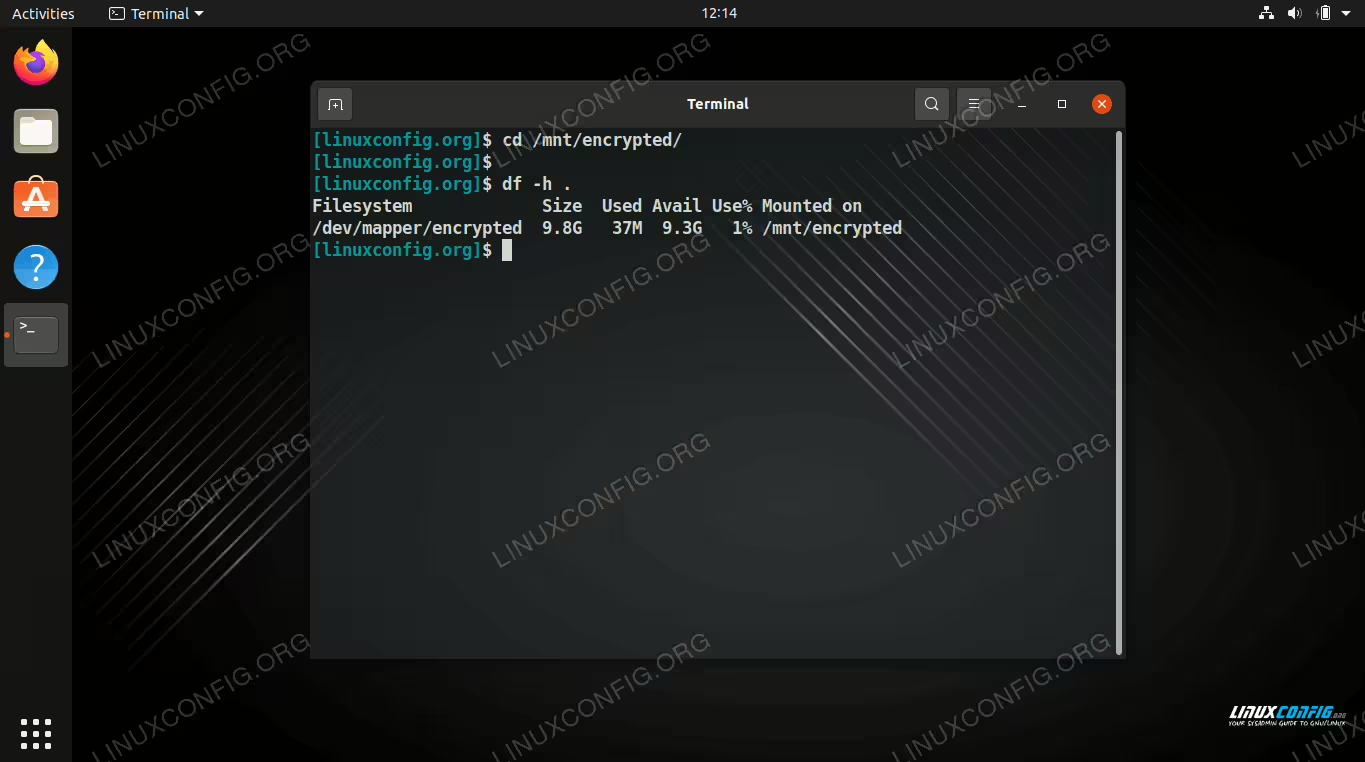
How to configure, mount, and access encrypted partition on Linux
How to check disk space on Raspberry Pi
There are a few tools at your disposal for checking the disk space on a Raspberry Pi system. These tools and Linux commands can be used to check a storage device’s capacity (such as that of your micro SD card) and the size of the files on it, or just to check the size of a particular directory or file. We will show you how to get a visual representation of how the total storage space is being used on your Raspberry Pi, as well as a few commands that you can enter into the terminal to quickly find the relevant storage stats on your Raspberry Pi.
How to check an hard drive health from the command line using smartctl
The smartmontools package is generally available in the default repositories of all the major Linux distributions. It contains two utilities useful to check the status of storage with S.M.A.R.T support (Self Monitoring Analysis and Reporting Technology): smartcl and smartd. The former is the utility we use directly to check S.M.A.R.T attributes, run tests, or perform other actions; the latter is the daemon which can be used to schedule operations in the background. In this tutorial we will learn the basic usage of smartctl.
In this tutorial you will learn:
- How to install smartmontools package on various distributions
- What are the differences between the S.M.A.R.T self-tests
- How to use smartctl to check the health of a storage device
- How to run tests on a storage device from the command line