
Steam is easily the most popular PC gaming client, and with hundreds of titles available for Linux systems, it’s no wonder why Linux gamers would want to install steam on ubuntu. Valve, the company behind Steam, officially targets Ubuntu and Debian with their Linux support, which is great news for Ubuntu users.
gaming
Ubuntu 20.04 Minecraft Server Setup
The beauty of having your own Minecraft server is that you’re totally in charge of your gaming experience. You get to choose what settings are used on the server, you can use (or abuse) your admin powers for an advantage, and bestow those powers on to your fellow gaming buddies. You may want to create a private server for just you and your friends, or make it public for everyone to access.
Ubuntu 20.04 Focal Fossa is a top choice for hosting a Minecraft server, as Linux is known for its stability when running servers and Ubuntu is known for its ease of use. Follow along below as we take you through the steps to get your Minecraft server up and running.
In case you’re also wondering how to play Minecraft on Ubuntu 20.04, we’ve got you covered for that too. Just check out our other guide about how to install Minecraft on Ubuntu 20.04 Focal Fossa Linux.
In this tutorial you will learn:
- How to install and configure Minecraft Server
- Create Minecraft systemd startup script
- Provision new Minecraft server instance on the same host
Install Lutris On Ubuntu 22.04 Jammy Jellyfish Linux
Lutris is a game manager built for Linux operating systems, and it does its job incredibly well. It has thousands of games in its catalog and works with very little fuss, allowing you to install games from the cloud and keep them up to date. Most games are “one click install” titles, meaning that you shouldn’t have to worry about fiddling with extra configuration to get a Windows game working on Linux. It just works.
How to Install The Latest AMD Radeon Drivers on Ubuntu 18.04 Bionic Beaver Linux
Objective
Install the latest AMD graphics drivers on Ubuntu
Distributions
Ubuntu 18.04
Requirements
A working install of Ubuntu 18.04 with root privileges
Conventions
- # – requires given linux commands to be executed with root privileges either directly as a root user or by use of
sudocommand - $ – requires given linux commands to be executed as a regular non-privileged user
Other Versions of this Tutorial
Introduction
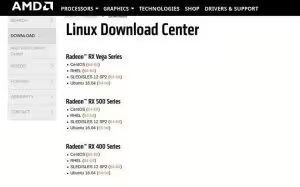
If you’re planning on using an AMD graphics card with Ubuntu 18.04, you have a couple of options. Because Bionic is an LTS release, you do have the option of using the proprietary AMDGPU-PRO drivers. The open source drivers that come with Ubuntu are probably better for gamers, though. They’re already installed, and you can configure your system to receive constant performance-boosting upgrades from the latest Mesa releases. Either way, you’re going to have great experience working with AMD on Ubuntu 18.04.
How to disable Nouveau nvidia driver on Ubuntu 18.04 Bionic Beaver Linux
Objective
The objective is to disable the default Nouveau kernel driver on Ubuntu 18.04 Bionic Beaver Linux
Operating System and Software Versions
- Operating System: – Ubuntu 18.04 Bionic Beaver
Requirements
Privileged access to to your Ubuntu 18.04 Linux installation will be required.
Conventions
Best Terminal Games on Linux
Intro
GNU/Linux gaming has come a long way over the past decade. We are lucky to live in an age where there are a number of native linux games including AAA titles to choose from on the platform. Steam has also vastly increased the number of games available on Linux. Despite the vast availability of GUI based games, sometimes it can be more relaxing and entertaining to play terminal based ones. This is not so surprising considering the fact that most Linux users spend a lot of time on the command line and feel at home there. Luckily, there are a number of great terminal based games available on the platform as well.

How to create a portable retrogaming USB stick with Batocera Linux
Batocera is a free and open source Linux distribution designed to create retrogaming consoles out of a vast selection of devices. It supports a variety of platforms and architectures, from Intel-based computers to Raspberry Pi boards and handheld consoles, and works as a central control panel for all the best console emulators.

Install Lutris On Ubuntu 18.04 Bionic Beaver Linux
Objective
Install Lutris on Ubuntu 18.04 and use it to install games.
Distributions
Ubuntu 18.04 Bionic Beaver
Requirements
A working install of Ubuntu 18.04 with root privileges
Conventions
- # – requires given linux commands to be executed with root privileges either directly as a root user or by use of
sudocommand - $ – requires given linux commands to be executed as a regular non-privileged user
Other Versions of this Tutorial
Ubuntu 20.04 (Focal Fossa)
If you need help installing focal fossa first, we have a guide for that.
Introduction
Lutris is probably the best thing to happen to Linux gaming since Steam. That’s no small assertion, but it’s true. Lutris is awesome. It makes installing and managing games on Linux a whole lot easier than ever before, and it works with Wine.
How to Install Battle.net on Ubuntu 20.04 Linux Desktop
Blizzard makes some extremely popular PC games, and their Battle.net application is how gamers install those games on their systems and keep them up to date. The only problem is that Blizzard has neglected the Linux community by never porting their Battle.net application over to it. Fortunately, most of the games still work pretty well on Linux if you are using Wine. We’ll show you how to install Wine and run Battle.net on Ubuntu 20.04 Focal Fossa in this guide.
Before getting started, it’s a good idea to make sure that your system has the latest graphics drivers installed. This will make the games run smoother and save you a possible headache later on.
In this tutorial you will learn:
- How to install Wine and related packages
- How to configure Winetricks and additional components
- How to install Battle.net
How to install the NVIDIA drivers on Ubuntu 22.04
The objective is to install the NVIDIA drivers on Ubuntu 22.04 (Jammy Jellyfish) Linux and switch from the default open source Nouveau driver to the proprietary Nvidia driver. While the Nouveau driver comes installed by default, the proprietary Nvidia driver can offer several benefits over its alternative. By downloading the official driver, you will have the most cutting edge software and ensure maximum compatibility with your video card hardware.
How to install Discord on Ubuntu 18.04 Bionic Beaver Linux
Objective
The objective is to install Discord the gamer’s chat platform on Ubuntu 18.04 Bionic Beaver Linux
Operating System and Software Versions
- Operating System: – Ubuntu 18.04 Bionic Beaver
- Software: – Discord 0.0.4 or higher
Requirements
Privileged access to your Ubuntu System as root or via sudo command is required.
Conventions
Install Lutris on Manjaro
Lutris is a game manager that can be run on Manjaro and other Linux distributions, and it does its job incredibly well. It has thousands of games in its catalog and works with very little fuss, allowing you to install games from the cloud and keep them up to date. Most games are “one click install” titles, meaning that you shouldn’t have to worry about fiddling with extra configuration to get a Windows game working on Linux. It just works.
You’ll need to have Wine on Manjaro in order to ensure a smooth experience with Lutris. The two work really well together, and that’s because the developers of Lutris also work directly with Wine staging. Since the Lutris developers already program their installers to use the most optimal settings possible, there’s no need to fool around with Winetricks or any of the usual wine configuration utilities.
If you’ve already installed Manjaro and are ready to start gaming, follow along as we setup Lutris and its dependencies on our system.
In this tutorial you will learn:
- How to install Wine and dependencies
- How to install Lutris
- How to install a game on Lutris