
Self-hosted budgeting applications provide complete control over your financial data while offering powerful tools to manage your personal finances. Firefly III is one of the best open-source options available, featuring comprehensive expense tracking, budgeting capabilities, and insightful reporting. This tutorial will guide you through setting up Firefly III using Docker on Debian or Ubuntu systems.
In This Tutorial, You Will Learn:
- How to install Docker and Docker Compose on Debian/Ubuntu
- How to configure and deploy Firefly III using Docker Compose
- How to properly secure your Firefly III installation
- How to access and begin using your self-hosted finance manager
Software Requirements and Linux Command Line Conventions
| Category | Requirements, Conventions, or Software Version Used |
|---|---|
| System | Debian 11+ or Ubuntu 20.04+ |
| Software | Docker Engine, Docker Compose |
| Other | Active internet connection, sudo privileges |
| Conventions | # – Requires commands to be executed with root privileges, either directly as root or using sudo.$ – Requires commands to be executed as a regular non-privileged user. |
Setting Up Firefly III with Docker on Debian/Ubuntu
WHAT IS FIREFLY III?
Firefly III is a free and open-source personal finance manager that helps you track expenses, manage budgets, and gain insights into your spending habits. By self-hosting it using Docker, you maintain complete control over your sensitive financial data.
Firefly III can be deployed quickly using Docker Compose, which handles the setup of both the application and its required database. This approach is recommended for its simplicity and ease of maintenance, allowing you to get up and running with minimal effort.
Step-by-Step Instructions
- Install Docker and Docker Compose: First, we need to ensure Docker is properly installed on your system.
$ sudo apt update
$ sudo apt install docker.io docker-compose python3-setuptools -y
This command installs Docker Engine, Docker Compose, and the Python setuptools package which includes the distutils module needed by Docker Compose. After installation, verify that Docker is running properly:
$ sudo systemctl status docker
Add your user to the Docker group to run Docker commands without sudo:
$ sudo usermod -aG docker $USER
Log out and log back in for the group changes to take effect, or run this command to apply them to your current session:
$ newgrp docker
- Create a directory for Firefly III: Create a dedicated directory to store your Firefly III configuration files.
$ mkdir ~/firefly-iii
$ cd ~/firefly-iii
Using a dedicated directory helps keep your Docker configurations organized and easier to manage.
- Download the Docker Compose file: Get the official Docker Compose configuration for Firefly III.
$ curl -O https://raw.githubusercontent.com/firefly-iii/docker/main/docker-compose.yml
This file defines the services needed for Firefly III, including the application itself and a MariaDB database.
- Download the environment configuration files: You’ll need two separate configuration files.
$ curl -O https://raw.githubusercontent.com/firefly-iii/firefly-iii/main/.env.example
$ curl -O https://raw.githubusercontent.com/firefly-iii/docker/main/database.env
Now rename these files to match what the Docker Compose expects:
$ mv .env.example .env
$ mv database.env .db.env
- Configure your installation: Edit the environment files to set important configuration options.
$ nano .env
Change the
APP_KEYto a random 32-character string. Then setDB_PASSWORDto a secure password of your choice. You can generate a random key with:$ head /dev/urandom | tr -dc A-Za-z0-9 | head -c 32 ; echo
Now edit the database environment file:
$ nano .db.env
Set
MYSQL_PASSWORDto the same value you used forDB_PASSWORDin the previous file. This ensures the database and application can communicate properly. - Start the Firefly III containers: Launch the application using Docker Compose.
$ docker-compose up -d
The
-dflag runs the containers in detached mode (in the background). Docker will download the necessary images and start the containers. This might take a few minutes depending on your internet connection. You can now run this command without sudo because we added your user to the docker group. - Monitor the installation process: You can check the progress and watch for any errors.
$ docker-compose logs -f
The
-fflag follows the log output. You’ll see the startup process of both the database and Firefly III. Press Ctrl+C when you want to stop following the logs. - Access your Firefly III installation: Once the containers are running, access the application through your web browser.
http://localhost
If you’re accessing the server remotely, replace localhost with your server’s IP address. You’ll be guided through the initial setup process to create your admin account.
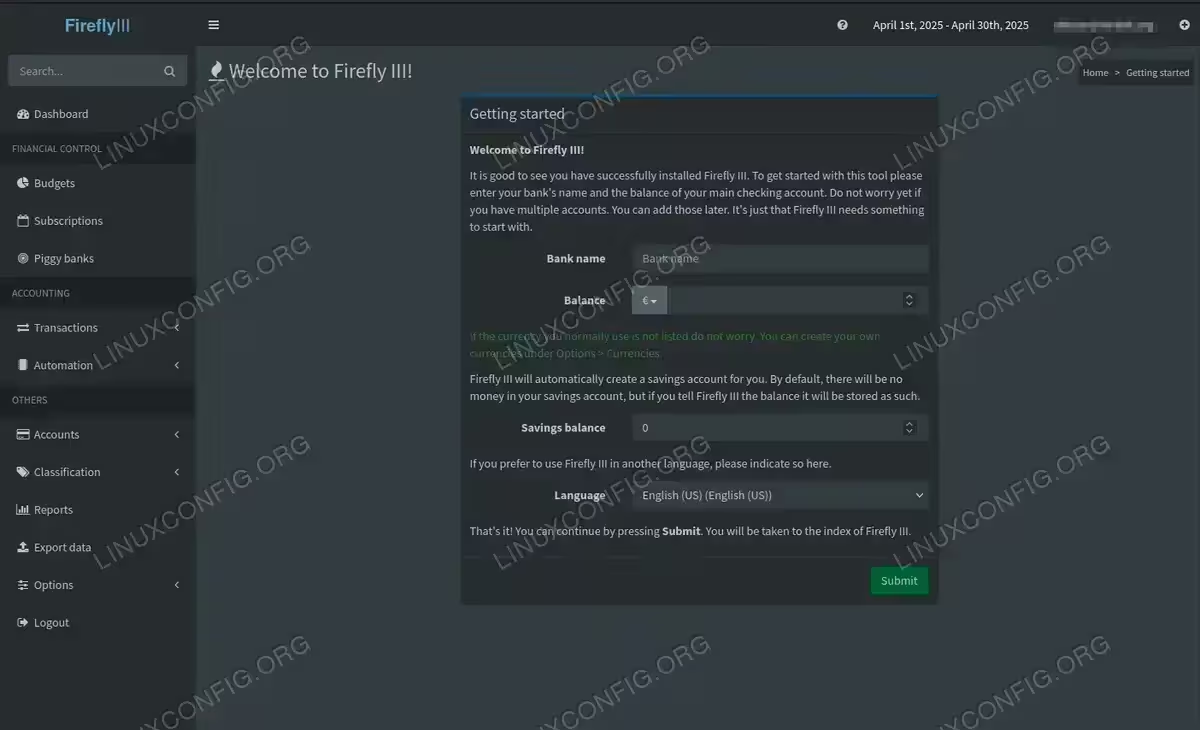
Firefly III welcome page after creating admin account
Conclusion
You’ve successfully set up Firefly III using Docker on your Debian/Ubuntu system. This self-hosted finance manager now gives you complete control over your financial data while providing powerful tools to track expenses, manage budgets, and gain insights into your spending habits. To make the most of your new installation, take some time to explore the various features including accounts setup, budget creation, and recurring transactions. Regular backups of your Docker volumes are recommended to ensure your financial data remains safe.
Troubleshooting
Common Installation Issues
Python Module Error: If you encounter the error ModuleNotFoundError: No module named 'distutils', it means your system is missing Python packages required by Docker Compose. You can fix it by installing Python setuptools:
$ sudo apt install python3-setuptools -y
For Ubuntu 22.04+ or Debian 11+, you might also need to install python3-distutils-extra. After installation, try the docker-compose commands again.
Docker Command Syntax: Newer Docker installations may use docker compose (with a space) while older versions use docker-compose (with a hyphen). Try both formats if one doesn’t work for your system.
Permission Denied Errors: If you encounter permission issues when running Docker commands, make sure you’ve logged out and back in after adding your user to the docker group. Alternatively, you can use sudo with the docker commands as a workaround:
$ sudo docker-compose up -d
Port Conflict Errors
If you encounter an error like listen tcp4 0.0.0.0:80: bind: address already in use, it means port 80 is already being used by another application on your system. You have two options to resolve this:
Option 1: Stop the conflicting service
You can identify and stop the service using port 80:
$ sudo lsof -i :80
$ sudo systemctl stop apache2    # If Apache is using the port
$ sudo systemctl stop nginx      # If Nginx is using the port
Option 2: Use a different port for Firefly III (Recommended)
Edit your docker-compose.yml file to use a different port:
$ nano docker-compose.yml
Find the ports section for the app service and change it from 80:8080 to another port, such as 8000:8080:
  app:
    # ...
    ports:
      - "8000:8080"  # Changed from 80:8080
Save the file and start the containers again:
$ docker-compose up -d
Now you can access Firefly III at http://localhost:8000 or http://your-server-ip:8000.
Using PostgreSQL Instead of MariaDB
If you’re running on ARM hardware (like Raspberry Pi), or simply prefer PostgreSQL, you can switch from MariaDB by modifying your configuration files:
In .env file, change:
DB_CONNECTION=pgsql
DB_HOST=db
DB_PORT=5432
In .db.env file, rename all MYSQL_* variables to POSTGRES_* and remove MYSQL_RANDOM_ROOT_PASSWORD.
Also modify your docker-compose.yml file to use PostgreSQL instead of MariaDB and update the volume path to /var/lib/postgresql/data.
Frequently Asked Questions (FAQ)
-
How do I update Firefly III when a new version is released?
To update Firefly III, navigate to your Firefly III directory and run:
docker-compose pullto download the latest image, followed bydocker-compose up -dto restart the containers with the updated version. Your data will be preserved as it’s stored in Docker volumes. -
How can I back up my Firefly III data?
The best way to back up your Firefly III installation is to back up the Docker volumes where your data is stored. Use
docker volume lsto identify the volumes, thendocker volume inspectto find their location. You can also use Firefly III’s built-in export feature to export your financial records as CSV files. -
Is Firefly III secure for managing my financial data?
Firefly III is designed with security in mind, but the overall security depends on your server setup. For maximum security: use HTTPS (with a reverse proxy like Nginx), keep your server updated, use strong passwords, and consider restricting access to your server with a firewall. Since it’s self-hosted, your financial data never leaves your own infrastructure.
-
How do I import existing financial data into Firefly III?
Firefly III offers several import options. The easiest is using the Data Importer tool, which is a separate container that can import CSV files from banks and financial institutions. To set it up, follow the documentation at the official Firefly III website. You can also manually import transactions through the web interface or use the API for more advanced integration.
-
Can I access Firefly III from my mobile devices?
Yes, Firefly III has a responsive web interface that works well on mobile devices. There are also third-party mobile apps like “Firefly III Mobile” for Android that connect to your self-hosted instance. To enable mobile access, you’ll need to make your Firefly III installation accessible over the internet securely, preferably using a reverse proxy with HTTPS.
