
The nc (netcat) command is a versatile tool that allows Linux users to transfer data over a network. This method can be useful for quickly moving files between systems without needing additional data transfer protocols like FTP, HTTP, or SCP. In this tutorial, you will learn how to transfer a file between two Linux systems using nc, with one system acting as the server (sending the file) and the other as the client (receiving the file).
In this tutorial you will learn:
- How to set up the client to receive data using the
nccommand - How to send data from the server to the client using the
nccommand - How to properly finish the transfer process

| Category | Requirements, Conventions or Software Version Used |
|---|---|
| System | Linux-based system |
| Software | nc (netcat) command |
| Other | Network connectivity between source and destination hosts |
| Conventions | # – requires given linux commands to be executed with root privileges either directly as a root user or by use of sudo command$ – requires given linux commands to be executed as a regular non-privileged user |
Steps to Transfer Data Using nc
SECURITY ALERT
Be aware that data transferred using nc (netcat) is sent unencrypted by default. This means that any data you send or receive over the network can potentially be intercepted by others. If you’re transferring sensitive information, consider using more secure alternatives, such as scp or encrypting the data before transfer.
- Start Receiving on the Client: On the client (the system that will receive the file), run the following command. This sets up
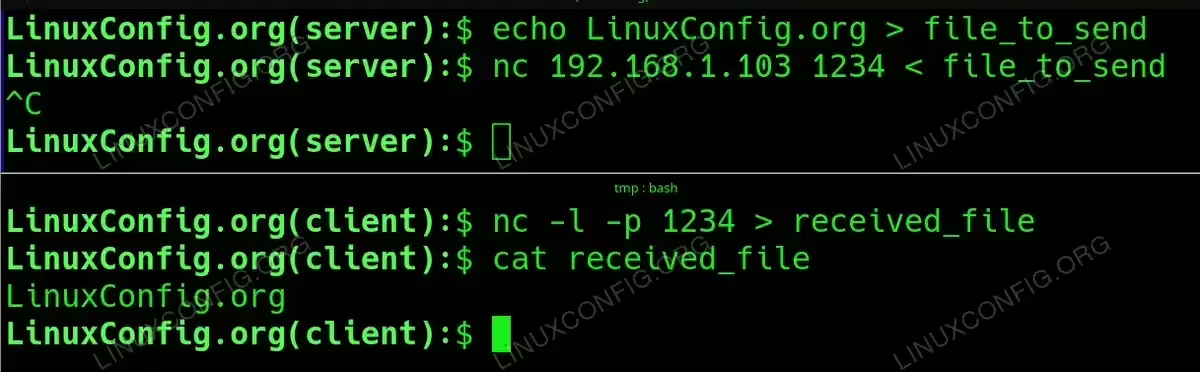
ncto listen on a specific port (e.g., 1234) and save the incoming data to a file namedreceived_file.$ nc -l -p 1234 > received_file
This command makes the client ready to receive the file. It listens on port 1234 and waits for the incoming connection from the server. Once the connection is established, the received data will be written to
received_file. - Send Data from the Server: On the server (the system that has the file you want to send), run the following command to send the file
file_to_sendto the client. Be sure that the client is already listening before you execute this command.$ nc client_IP 1234 < file_to_send
This command connects to the client using its IP address (replace
client_IPwith the actual IP address or hostname of the client) on port 1234 and sends the contents offile_to_send. Once the transfer is complete, pressCTRL+Cto terminate the process on the server side. This step is essential to properly finish the transfer and ensure the client writes all data to the file.
Send and receive data with nc command step by step example
DID YOU KNOW?
In addition to transferring files, nc (netcat) can be used for other network-related tasks, such as creating simple chat servers or even port scanning. You can also use nc for transferring directories by compressing them into a single file with tools like tar. For example, you can archive and transfer a directory in one command using:
$ tar -czf - directory_name | nc destination_IP 1234
This compresses the directory and sends it over the network, saving bandwidth and time!
Troubleshooting Connection Issues
If you encounter any issues during the transfer, here are some steps you can take:
– Verify Network Connectivity: Ensure that the client and server can communicate over the network. You can test connectivity using the ping command or by checking if the ports are open using nmap.
– Check Firewall Settings: Ensure that the firewall on both systems allows traffic on the port you are using (e.g., 1234).
– Ensure Correct Command Execution Order: The client must be ready and listening before you initiate the transfer from the server. If the server command is run before the client is listening, the connection will fail.
Conclusion
Using the nc (netcat) command is a simple and effective way to transfer files between Linux systems. By following the steps in this tutorial, you can successfully move files from a server to a client and troubleshoot any issues that may arise during the process.