
Switching between different versions of Python on fedora linux can be essential for various development environments and projects. With multiple versions of Python available, it’s important to manage them effectively to ensure compatibility and functionality across different projects. This guide will walk you through the process of switching between Python versions on Fedora Linux in a detailed, step-by-step manner.
In this tutorial you will learn:
- How to check your current Python version
- How to install and configure multiple Python versions
- How to switch between different Python versions

| Category | Requirements, Conventions or Software Version Used |
|---|---|
| System | Fedora Linux |
| Software | Python 3.12.2, Python 3.9 |
| Other | Internet connection for installing packages |
| Conventions | # – requires given linux commands to be executed with root privileges either directly as a root user or by use of sudo command$ – requires given linux commands to be executed as a regular non-privileged user |
Steps to Switch Between Python Versions on Fedora Linux
Switching between Python versions involves several steps, including checking the current version, installing additional versions, and configuring the alternatives system to manage them. Follow these steps to smoothly switch between Python versions on your Fedora Linux system:
- Check the current Python version: Before making any changes, it’s important to know which version of Python is currently set as the default. This can be done by running the following command:
$ python --version
You should see an output similar to:
Python 3.12.2
This confirms that Python 3.12.2 is the current default version.
- Install the current Python version into alternatives: To manage multiple Python versions, we use the
alternativessystem. First, add the current version to the alternatives system:$ sudo alternatives --install /usr/bin/python python /usr/bin/python3.12 1
This command registers Python 3.12 as an alternative and sets its priority to 1.
- Install another Python version: To switch between versions, we need at least one more version of Python installed. For example, let’s install Python 3.9:
$ sudo dnf install python39
This command installs Python 3.9 on your Fedora system.
- Register the new Python version with alternatives: After installing Python 3.9, register it with the alternatives system:
$ sudo alternatives --install /usr/bin/python python /usr/bin/python3.9 2
This command sets up Python 3.9 as an alternative with a priority of 2.
- Switch between Python versions: Now that both versions are registered, you can switch between them using the
alternatives --configcommand:$ sudo alternatives --config python
You will be presented with a menu to choose the default Python version. Select the version you wish to use by entering the corresponding number.
- Verify the switch: Finally, check to ensure that the switch was successful by verifying the Python version:
$ python --version
You should see the version you selected as the new default, confirming that the switch was successful.
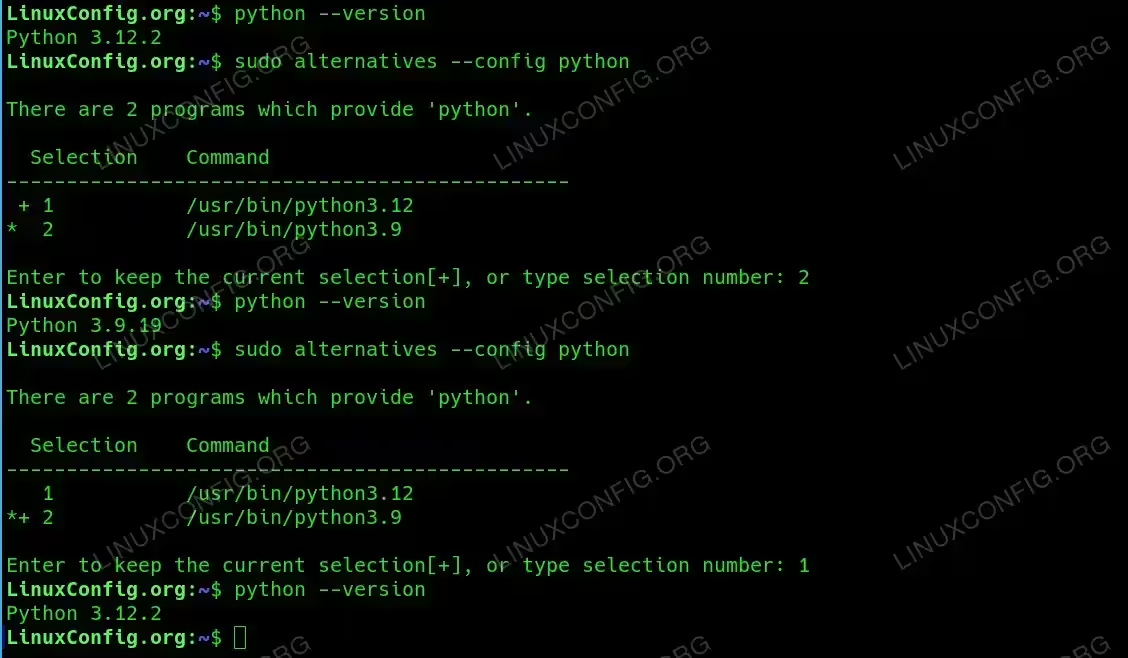
Switch between Python versions
Conclusion
Managing multiple Python versions on Fedora Linux is straightforward with the alternatives system. By following these steps, you can easily switch between different Python versions, allowing you to maintain compatibility with various projects and development environments. This flexibility is crucial for developers working on diverse applications and ensures that you can always use the appropriate Python version for your needs.