
Moving a folder (also called directory) on Linux is a common task that every user will have to perform frequently. This can be done via any desktop environment that you have installed, or from command line with the mv command.
While this is a pretty basic function, there are some important caveats to keep in mind. In this guide, we’ll go over several examples of moving a folder on Linux. Feel free to follow along on your own system in order to master the mv command and GUI process.
In this tutorial you will learn:
- How to move a directory via GUI
- How to move a directory via command line
| Category | Requirements, Conventions or Software Version Used |
|---|---|
| System | Any Linux distro |
| Software | N/A |
| Other | Privileged access to your Linux system as root or via the sudo command. |
| Conventions |
# – requires given linux commands to be executed with root privileges either directly as a root user or by use of sudo command$ – requires given linux commands to be executed as a regular non-privileged user |
How to move a folder via GUI
The process for moving a folder on Linux, through the graphical interface, is going to vary a little depending on your distribution and desktop environment that you have installed. But the only real difference you’ll see is that some of the menus look a little different.
Once you know how to move folders on one GUI, you’ll have mastered them all. In the steps below, we’re using the GNOME desktop environment, which is the default for many popular distributions like Ubuntu.
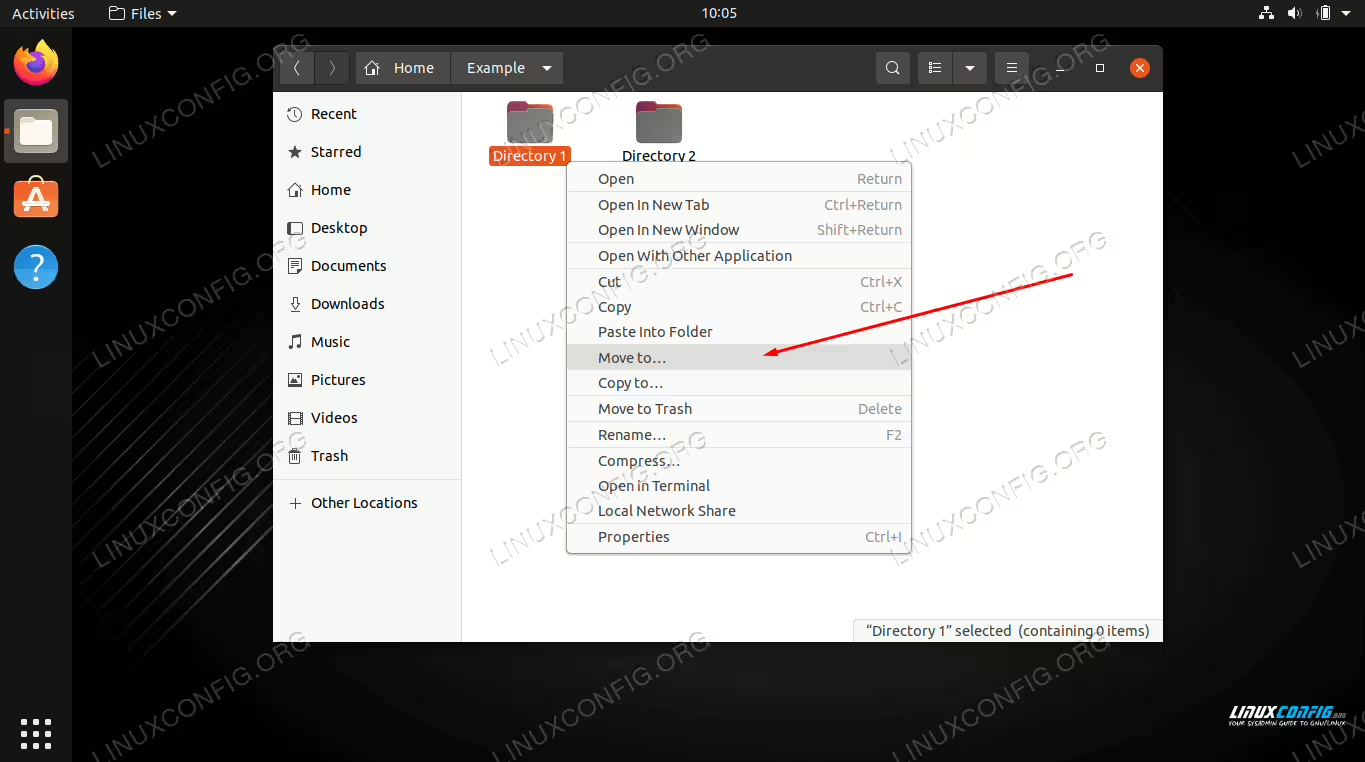
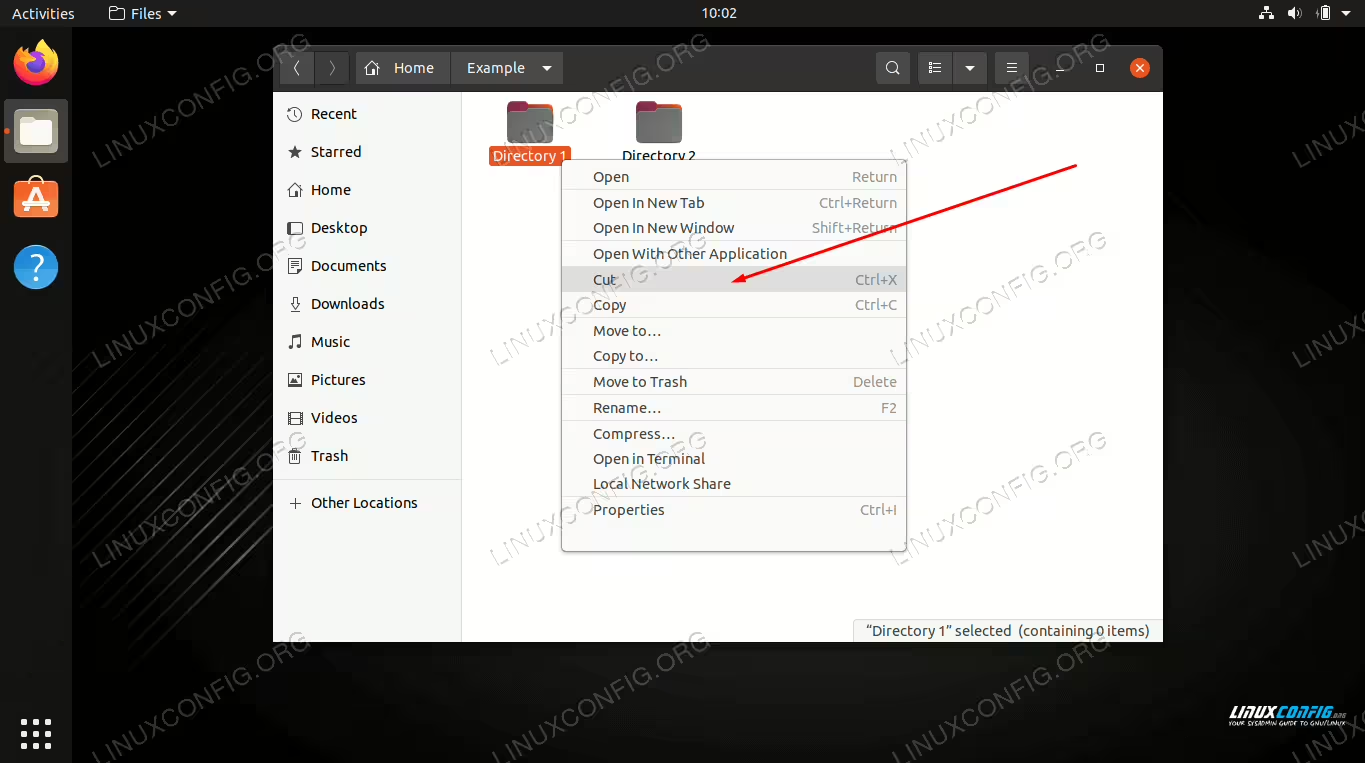
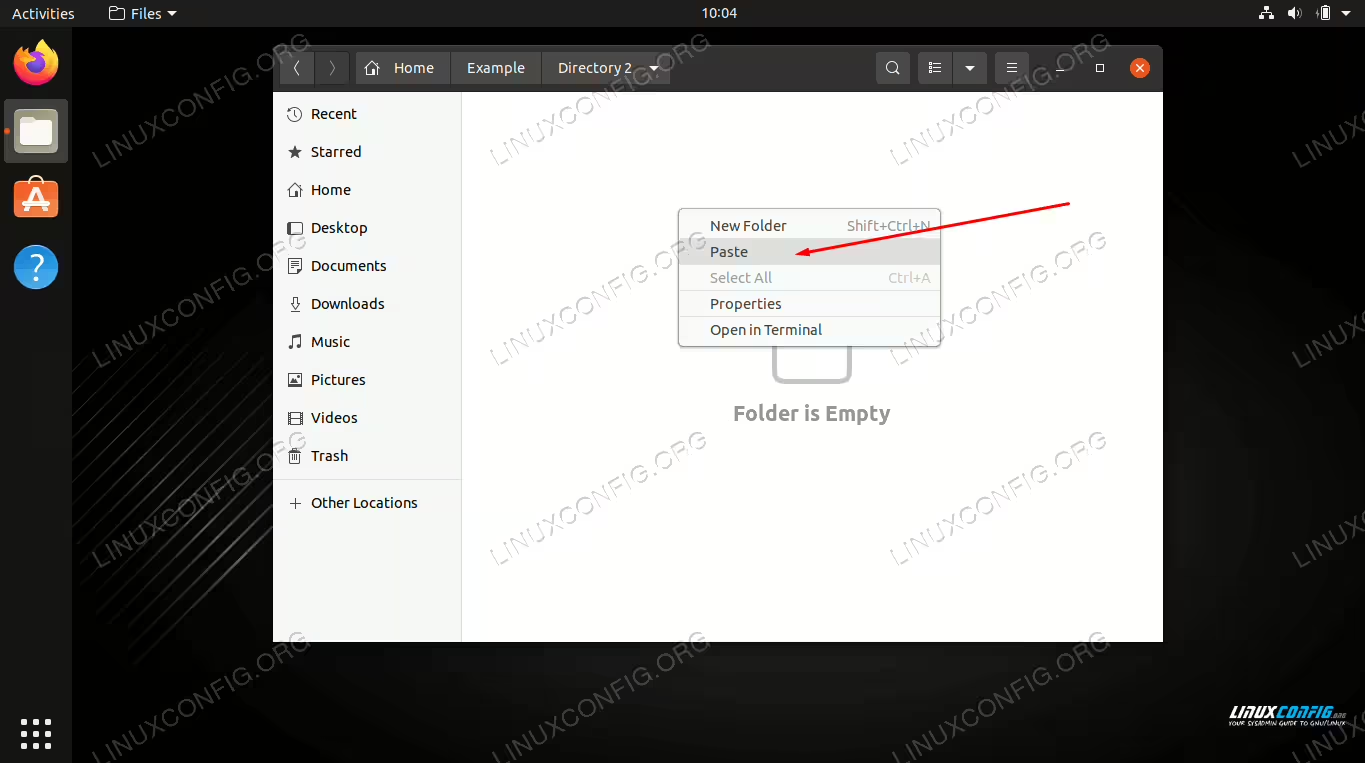
- Right click on the folder you wish to move, and click on “cut.” Alternatively, you can highlight the folder and press
Ctrl + Xon your keyboard to cut it. - Navigate to the location that you’d like to move the folder to. Right click in an empty area, and click “paste.” Alternatively, navigate to the location and press
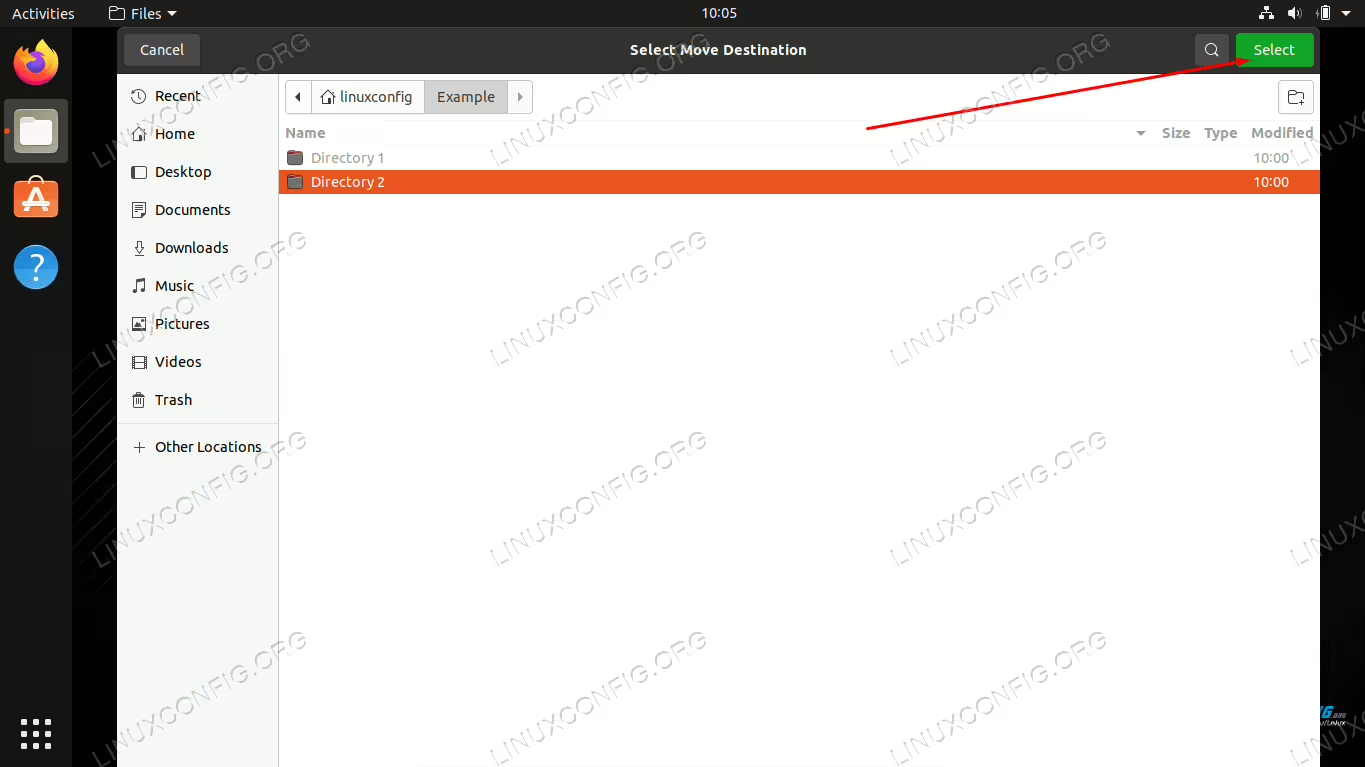
Ctrl + Von your keyboard to paste the folder. - On some desktop environments, you can also right click a directory and select the “Move to” option.
- Then, browse to the new destination, highlight it, and click “select” to complete the move.
That’s all there is to it. Note that this will move the folder, and all of its contents, including subdirectories. Next, we’ll cover the command line method.
How to move a folder via command line
The mv command is used to move folders (and files, too) on Linux. The most basic form of the command is to simply specify a source and destination location in your command. You can either use absolute paths or relative paths to the directories.
$ mv /dir1 /dir2
The command above will move /dir1 into /dir2. Pretty simple, right?
But wait, what if /dir2 doesn’t already exist? In that case, /dir1 would simply get renamed to /dir2. In other words, we can specify a new name for our moved directory when we use the mv command. To avoid specifying a new name, just move the directory into a location that already exists.
Now that we understand the behavior of the mv command, let’s look at some other things that are handy to know about it.
By default, mv won’t overwrite a directory that already exists, unless the destination directory is empty.
$ mv example1 example2
mv: cannot move 'example1' to 'example2/example1': Directory not empty
The -i (interactive) option will prompt us to ask if we want to overwrite the directory or not. Enter a “yes” or “no” in response, then press enter.
$ mv -i example1 example2
mv: overwrite 'example2/example1'?
You can also use the -v (verbose) option to get details about the move process. Notice that mv actually says it’s renaming the directory. Essentially, that’s the same as “moving” it, since paths are just links to files and directories on the hard drive.
$ mv -v directory1 directory2
renamed 'directory1' -> 'directory2/directory1'
You can also move multiple directories at the same time. The last directory in your command will be the destination directory for the rest. In this example, dir1 and dir2 will both be moved into dir3.
$ mv dir1 dir2 dir3
Closing Thoughts
In this guide, we saw how to move folders on a Linux system through GUI and command line. This is a common task that all users should master. As usual, the command line method offers us a bit more control over the process, but both methods are equally viable. Use whichever one is more convenient for you.
