
The RHEL 8 ISO can be transferred to the USB flash drive using the ddrescue command hence creating a bootable RHEL 8 USB flashdrive.
In this tutorial you will learn:
- How to create bootable RHEL 8 USB flash drive.
- How to access boot menu.
- How to access BIOS/UEFI.
Software Requirements and Conventions Used
| Category | Requirements, Conventions or Software Version Used |
|---|---|
| System | Red Hat Enterprise Linux 8 |
| Software | ddrescue |
| Other | Privileged access to your Linux system as root or via the sudo command. |
| Conventions |
# – requires given linux commands to be executed with root privileges either directly as a root user or by use of sudo command$ – requires given linux commands to be executed as a regular non-privileged user |
How to install RHEL 8 from USB step by step instructions
- Obtain the Red Hat Enterprise Linux 8 ISO image. Login to your Redhat customer portal and download the latest RHEL 8 iso image. Example:
$ ls
rhel-server-8.0-x86_64-dvd.iso
- Install the
ddrescuecommand line tool which will be used in the next step to create the bootable RHEL 8 USB flash drive:REDHAT/CENTOS # yum install ddrescue DEBIAN/UBUNTU # aptitude install gddrescue
- Use the
fdisk -lcommand to locate the block device name of your USB flash drive. Sample output:# fdisk -l Disk /dev/sdb: 14.4 GiB, 15500673024 bytes, 30274752 sectors Units: sectors of 1 * 512 = 512 bytes
WARNING
The block device name of your USB flash drive may be different. Make sure that you have a correct block device to avoid accidents like overwriting your existing system or data. - Create a bootable RHEL 8 flash drive. Use the
ddrescuecommand to transferrhel-server-8.0-x86_64-dvd.isoonto USB flash drive/dev/sdX. Amend the bellow command with the correct ISO image path, name and block device. No prior USB flash drive formatting is required:# ddrescue rhel-server-8.0-x86_64-dvd.iso /dev/sdX --force -D
- Insert the RHEL 8 bootable USB flash drive into your computer and access the boot menu.
To start the USB boot, switch off your PC and insert the USB bootable flash drive into your computer. It is recommended that all other USB devices are removed (e.g. memory cards, printers). After that, switch ON your computer. If you set your BIOS/UEFI correctly your PC will start the booting sequence from the USB external media in order to install RHEL 8 from USB.
Access Boot Menu
To access Boot Menu on your computer you will need to hit different keys (or combination of keys) depending on your computer type. Here is the list of possible keys you may have to press depending on your PC:
Key combinations for accessing Boot Menu Device Key Combination Comment Acer Esc,F12orF9F12key most likelyAsus F8orEscCompaq EscorF9Dell F12eMachines F12Fujitsu F12HP EscorF9Lenovo F8,F10orF12Other possibilities: Novobutton orFn + F11Samsung EscorF2orF12For ultrabooks from Samsung disable the fast boot option in BIOS/UEFI. See next section. VAIO Esc,F10orF11Other possibilities: AssistbuttonToshiba F12Access BIOS/UEFI
To access BIOS/UEFI on your computer you will also need to hit different keys (or combination of keys) depending on your computer type. Here is the list of possible keys you may have to press depending on your PC:
Key combinations for accessing BIOS/UEFI Device Key Combination Comment Acer DelorF2F2key most likelyAsus DeleteorDelCompaq F10Dell F2eMachines TaborDelFujitsu F2HP Esc,F10,F11Other possibilities: on Pavilion – F1Lenovo F1orF2Other possibilities: small button next to the Power button (if laptop) Samsung F2For ultrabooks from Samsung it might be F10VAIO F1,F2,F3Other possibilities: AssistbuttonToshiba F1,F2,F12orEsc - Select
Install Red Hat Enterprise Linux 8from the boot menu and continue with the RHEL 8 installation as per usual.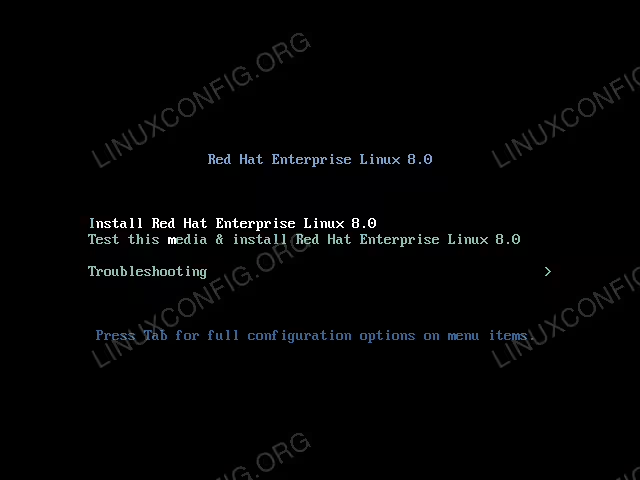 Red Hat Enterprise Linux 8 boot menu.