
Finding the right PDF reader on Ubuntu 26.04 depends on your workflow. Whether you need a lightweight viewer for quick document reading or a feature-rich application with annotation support, Ubuntu 26.04 offers several excellent options. This guide covers how to install a pdf reader on Ubuntu 26.04 using both the APT package manager and the Snap store, so you can choose the method that suits you best.
- How to install Evince, the default GNOME PDF viewer
- How to install Okular for advanced annotation features
- How to install MuPDF for lightweight command-line use
- How to install PDF readers via Snap on Ubuntu 26.04
- How to set a default PDF reader on Ubuntu 26.04
- Which PDF reader best fits your workflow
Software Requirements
| Category | Requirements, Conventions or Software Version Used |
|---|---|
| System | Ubuntu 26.04 Resolute Raccoon |
| Software | Evince 45+, Okular 23+, MuPDF 1.23+ |
| Other | Privileged access to your Linux system as root or via the sudo command. |
| Conventions | # – requires given linux commands to be executed with root privileges either directly as a root user or by use of sudo command$ – requires given linux commands to be executed as a regular non-privileged user |
TL;DR
| Step | Command/Action |
|---|---|
| 1. Update package index | sudo apt update |
| 2. Install Evince (lightweight) | sudo apt install evince |
| 3. Or install Okular (feature-rich) | sudo apt install okular |
| 4. Open a PDF file | evince document.pdf |
Install Evince (Default GNOME Viewer) on Ubuntu 26.04
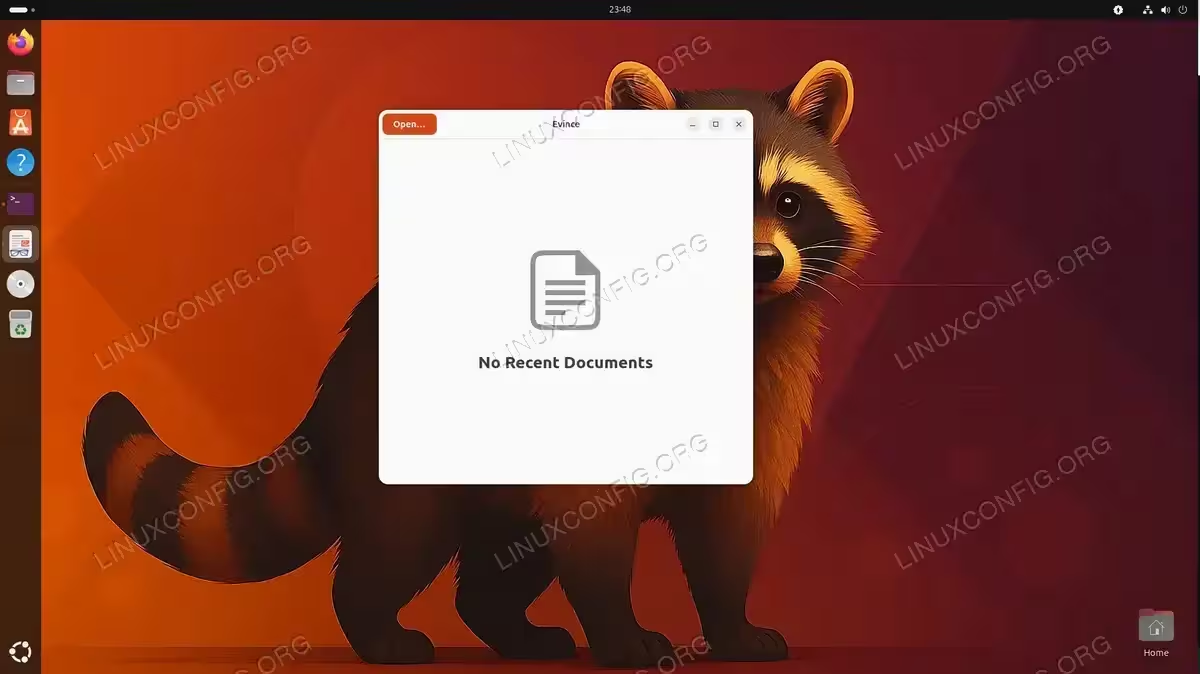
Evince is the default document viewer for the GNOME desktop environment and is the most natural choice for Ubuntu 26.04’s default GNOME session. It handles PDF files efficiently, supports annotations, and integrates cleanly into the GNOME desktop. On many Ubuntu 26.04 installations, Evince is already present. Consequently, the first step is to check whether it is already installed before proceeding.
- Check if Evince is already installed: Run the following command to verify:
$ evince --version
If the command returns a version number, Evince is already available. If not, proceed to install it.
- Update the package index: Before installing any package, refresh the local package database to ensure you get the latest available version:
$ sudo apt update
- Install Evince: Install the package with APT:
$ sudo apt install evince
APT will resolve all dependencies and install Evince along with any required libraries.
- Launch Evince: You can open Evince from the GNOME Activities overview by searching for “Document Viewer”, or launch it directly from the terminal:
$ evince /path/to/document.pdf
IMPORTANT
Evince supports PDF, PostScript, DjVu, TIFF, and DVI formats. However, it does not support editing or form filling in most PDF forms. For those use cases, consider Okular.
Install Okular on Ubuntu 26.04
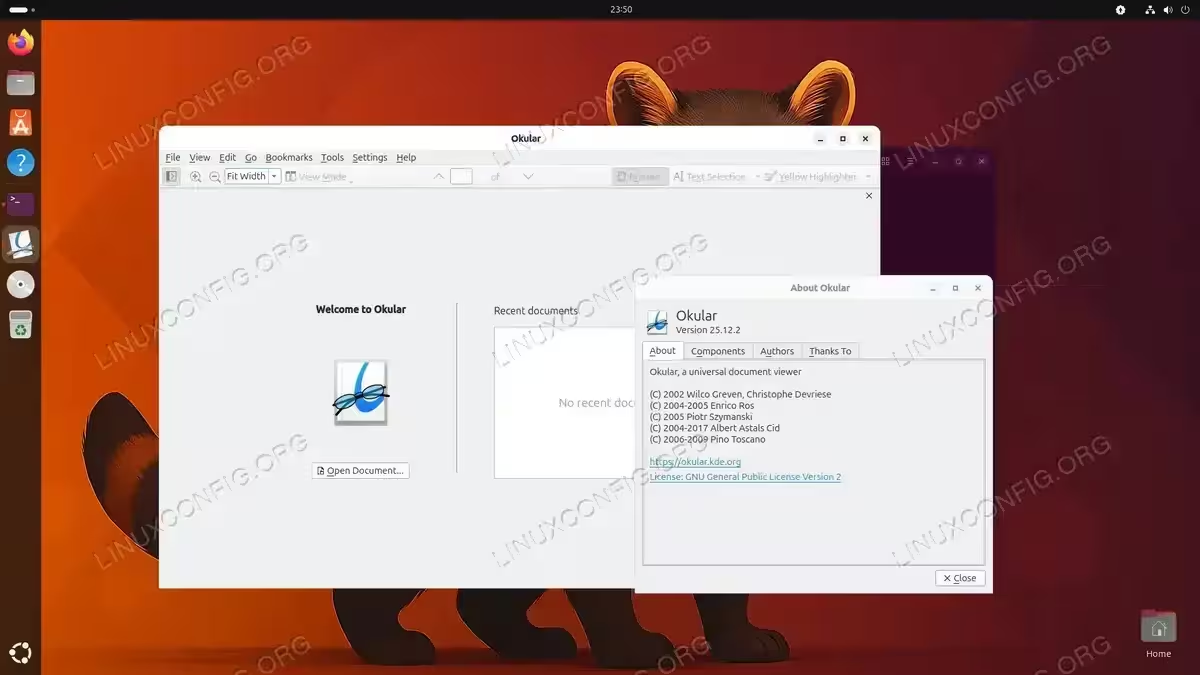
Okular is KDE’s powerful document viewer and one of the most feature-rich pdf readers available on Ubuntu 26.04. It supports annotations, bookmarks, text highlighting, form filling, and a wide range of document formats. Although Okular originates from the KDE project, it works perfectly on GNOME and installs without requiring a full KDE desktop environment.
- Update the package index:
$ sudo apt update
- Install Okular:
$ sudo apt install okular
Note that Okular pulls in several KDE framework libraries as dependencies. Therefore, the download size is larger than Evince. On a fresh Ubuntu 26.04 system, expect approximately 100-150 MB of additional packages.
- Launch Okular: Open it from the application menu or from the terminal:
$ okular /path/to/document.pdf
INSTALLATION TIPS
If you are on a minimal Ubuntu 26.04 server installation, installing Okular will pull in many KDE and Qt dependencies. On a headless server, consider MuPDF or Evince instead for a smaller footprint.
Okular is particularly well suited for academic workflows. Its annotation tools allow you to highlight text, add sticky notes, draw freehand, and export annotations in a format compatible with other PDF readers. Additionally, the GNOME desktop environment integrates Okular seamlessly through the XDG MIME type system, making it easy to set as the default viewer.
Install MuPDF on Ubuntu 26.04
MuPDF is a lightweight, high-performance PDF viewer designed for speed and minimal resource usage. It is particularly useful on low-spec hardware or in scripting workflows where you need to render or extract content from PDFs programmatically. MuPDF also serves as the rendering engine behind several other PDF tools on Linux, including Zathura.
- Install MuPDF via APT:
$ sudo apt update
$ sudo apt install mupdf
- Open a PDF with MuPDF:
$ mupdf /path/to/document.pdf
MuPDF opens in a minimal window with keyboard-driven navigation. Use arrow keys to scroll,
+and-to zoom, andqto quit. - Install MuPDF tools for scripting: The
mupdf-toolspackage provides command-line utilities likemutool, which is useful for converting, merging, and extracting content from PDFs:$ sudo apt install mupdf-tools
For example, to extract text from a PDF:
$ mutool draw -F text document.pdf
Install PDF Readers via Snap on Ubuntu 26.04
The Snap store provides additional PDF reader options beyond what APT offers. Snap packages are sandboxed, automatically updated, and work across Ubuntu releases. Moreover, they are useful when you need a more recent version than what is available in the Ubuntu 26.04 APT repositories. You can also use Snap package management to install and manage these readers from the command line.
- Install Evince via Snap: If you prefer the Snap-managed version of Evince:
$ sudo snap install evince
- Install Okular via Snap: The Snap version of Okular is often more up to date than the APT version:
$ sudo snap install okular
- Search for additional PDF tools: To discover other available PDF-related packages in the Snap store:
$ snap find pdf
This lists all PDF-related applications available, including converters and utility tools.
IMPORTANT
Snap-installed applications run in a confined sandbox. Consequently, they may have limited access to certain directories. If a Snap-based PDF reader cannot open files in non-standard locations, grant the necessary permissions using snap connect or access files through your home directory.
PDF Reader Comparison on Ubuntu 26.04
Choosing the right pdf reader for Ubuntu 26.04 depends on your specific needs. The table below summarizes the key differences between the options covered in this guide to help you make an informed decision.
| Reader | Install Method | Annotations | Form Filling | Resource Usage | Best For |
|---|---|---|---|---|---|
| Evince | APT / Snap | Basic | Limited | Low | Quick viewing, GNOME integration |
| Okular | APT / Snap | Advanced | Yes | Medium | Academic work, annotations |
| MuPDF | APT | None | No | Very Low | Scripting, low-resource systems |
Set Default PDF Reader on Ubuntu 26.04
After installing your preferred pdf reader on Ubuntu 26.04, you may want to set it as the default application for opening PDF files. There are two approaches: using the GNOME Settings interface or using the command line.
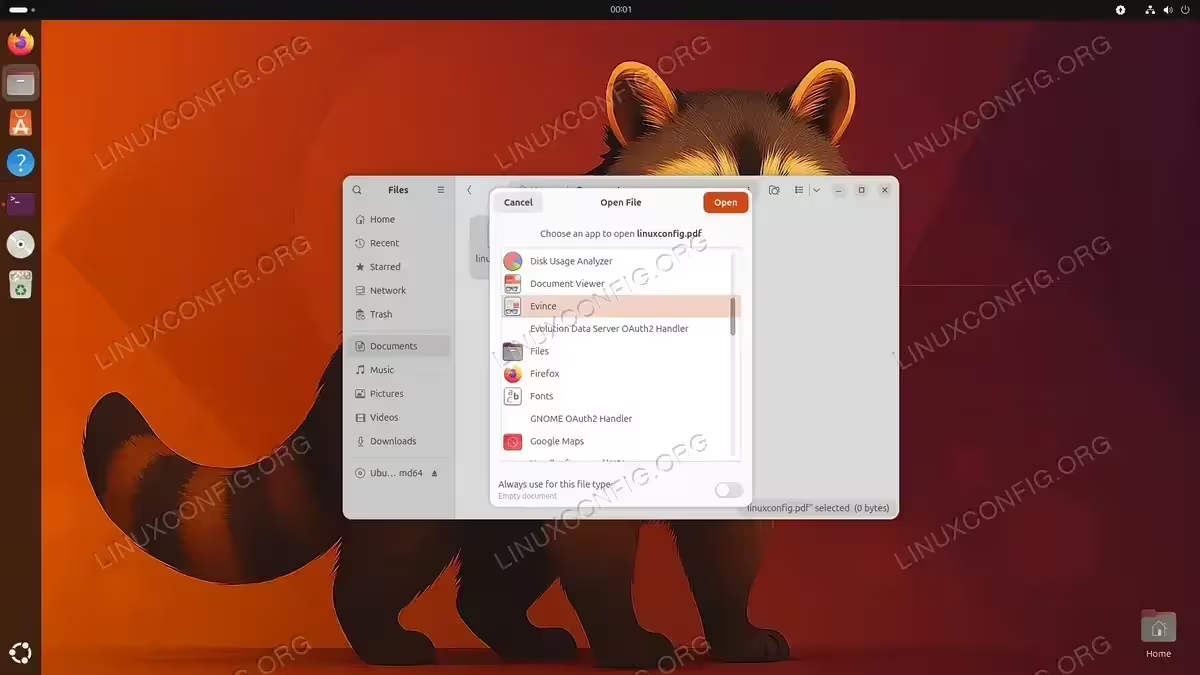
- Set default via GNOME Settings: Open Settings, navigate to Apps, then search for “Document Viewer” or the reader you installed. Alternatively, right-click any PDF file in the Files application, select “Open With”, choose your preferred reader, and click “Set as Default”.
- Set default via command line: Use
xdg-mimeto set the default application for PDF files. For example, to set Okular as the default:$ xdg-mime default org.kde.okular.desktop application/pdf
To set Evince as default:
$ xdg-mime default org.gnome.Evince.desktop application/pdf
Verify the change:
$ xdg-mime query default application/pdf
Conclusion
Ubuntu 26.04 offers a solid selection of PDF readers to fit every use case. For most desktop users, Evince provides fast and lightweight viewing with good GNOME integration. Okular is the better choice when advanced annotations and form filling are required, while MuPDF serves scripting and low-resource scenarios perfectly. All three options install cleanly via APT or Snap, making them reliable and well-supported choices for pdf reading on Ubuntu 26.04. For more information on supported document formats and viewer capabilities, refer to the official Evince project documentation.
Frequently Asked Questions
- Is Adobe Acrobat Reader available on Ubuntu 26.04? Adobe discontinued the native Linux version of Acrobat Reader many years ago and it is no longer available for Ubuntu 26.04. However, Okular and Evince provide comparable functionality including form filling and annotation support. For basic reading, any of the options in this guide will serve as an effective replacement.
- Which PDF reader on Ubuntu 26.04 supports form filling? Okular offers the most complete form filling support among the options covered here. It can read, fill, and save interactive PDF forms. Evince has limited form support for viewing only. If form filling is critical to your workflow, Okular installed via APT or Snap is the recommended choice on Ubuntu 26.04.
- Can I install multiple PDF readers on Ubuntu 26.04 simultaneously? Yes, you can install as many PDF readers as you like. They coexist without conflict. Only one can be set as the system default for opening PDF files automatically, but you can always open any PDF in a non-default reader by right-clicking the file and selecting “Open With” from the context menu.
- Why is my Snap-installed PDF reader unable to open files in certain folders? Snap applications run in a security sandbox that restricts access to some system directories by default. Therefore, if your Snap-based PDF reader cannot access files outside your home directory, you may need to grant additional permissions. Run
snap connections <package-name>to see current permissions and usesnap connectto add the required interfaces. - How do I uninstall a PDF reader on Ubuntu 26.04? For APT-installed readers, use
sudo apt remove evinceorsudo apt remove okularas needed. For Snap packages, usesudo snap remove evinceorsudo snap remove okular. To also remove unused dependencies left behind by an APT removal, runsudo apt autoremoveafterwards.