
Objective
This article will provide reader with step by step instructions on how to install Matlab on Ubuntu 18.04 Bionic Beaver Linux.
Operating System and Software Versions
- Operating System: – Ubuntu 18.04 Bionic Beaver Linux
- Software: – MATLAB R2018a or higher
Requirements
Privileged access to your Ubuntu System as root or via sudo command is required.
Conventions
- # – requires given linux commands to be executed with root privileges either directly as a root user or by use of
sudocommand - $ – requires given linux commands to be executed as a regular non-privileged user
Other Versions of this Tutorial
Preparations
Before you begin please note that this guide assumes that you have already downloaded the Matlab installation package for the Linux operating system and save it into the ~/Downloads directory.
Open up terminal and confirm that matlab_R20XXa_glnxa64.zip is located within your ~/Downloads directory:
$ ls ~/Downloads/
matlab_R2018a_glnxa64.zip
Next, create a destination /usr/local/MATLAB/R2018a/ directory for the Matlab installation.
$ sudo mkdir -p /usr/local/MATLAB/R2018a/
Now you are ready to unzip the Matlab installation package.
Unzip Matlab
Navigate to your ~/Downloads directory and create a new temporary matlab directory to store the content of the matlab_R20XXa_glnxa64.zip file:
$ cd Downloads
$ mkdir matlab
While still in the ~/Downloads directory use the unzip command to extract the content of the matlab_R20XXa_glnxa64.zip file into the previously created ~/Downloads/matlab directory:
$ unzip -q matlab_R2018a_glnxa64.zip -d matlab
The content of the matlab_R20XXa_glnxa64.zip file should now be located within the ~/Downloads/matlab directory.
Install Matlab on Ubuntu
At this stage we are ready to start the Matlab installer wizard:
$ cd matlab
$ sudo ./install
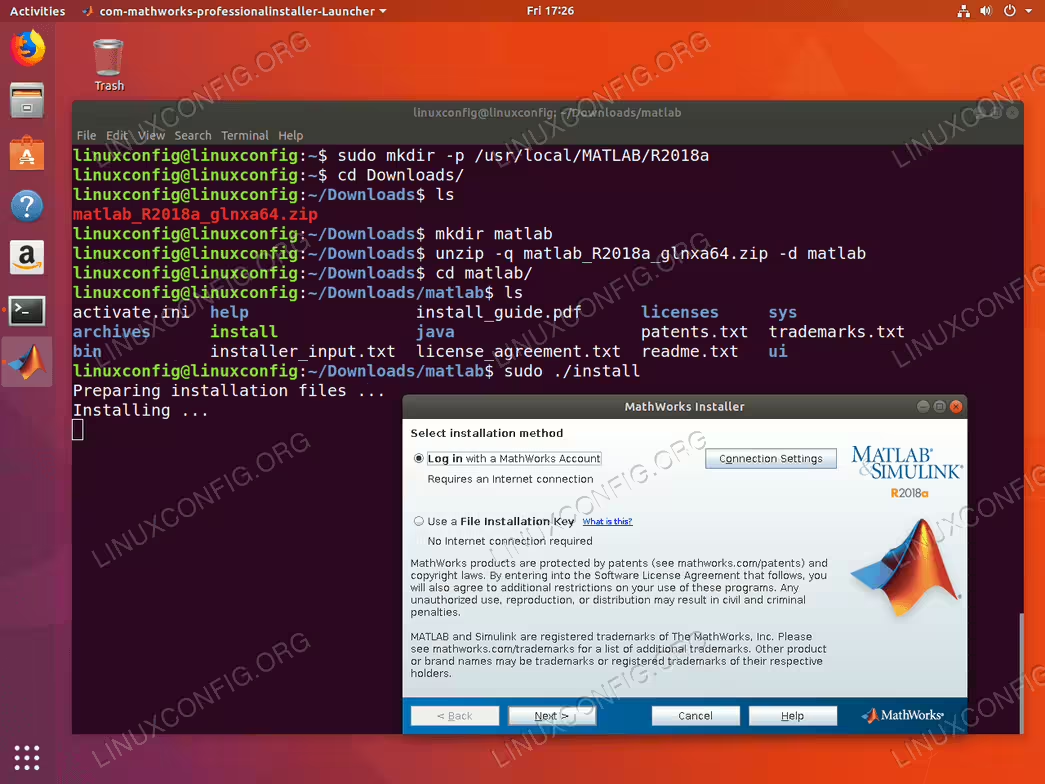
File installation Key choose Log in.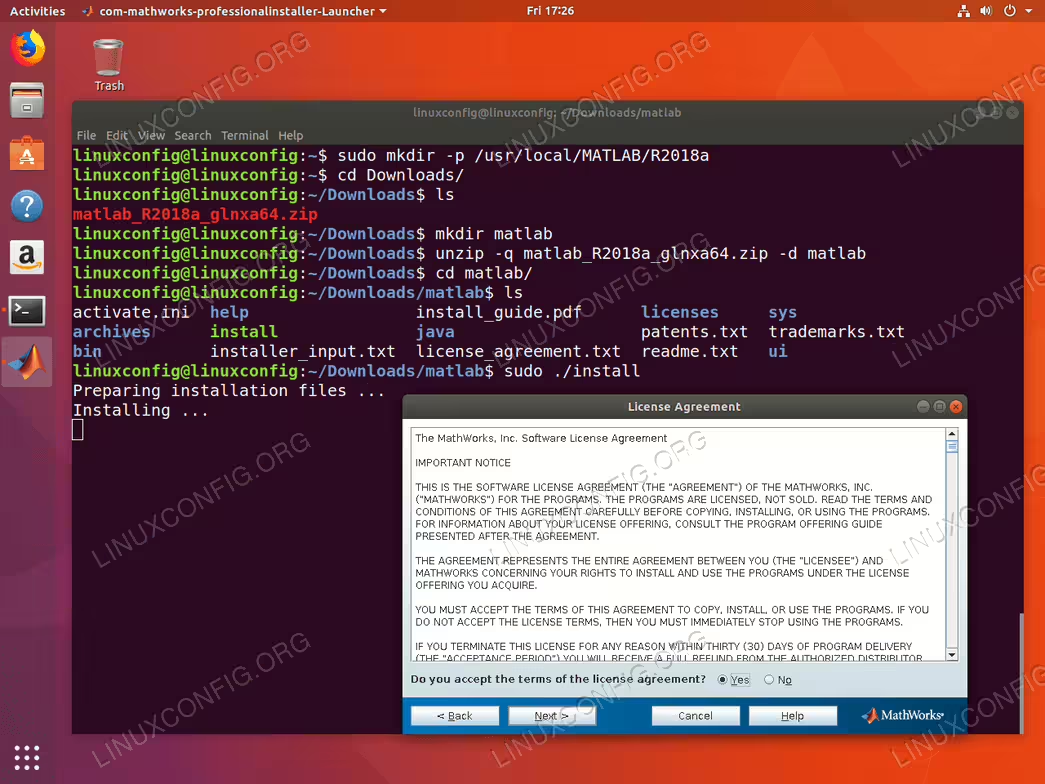
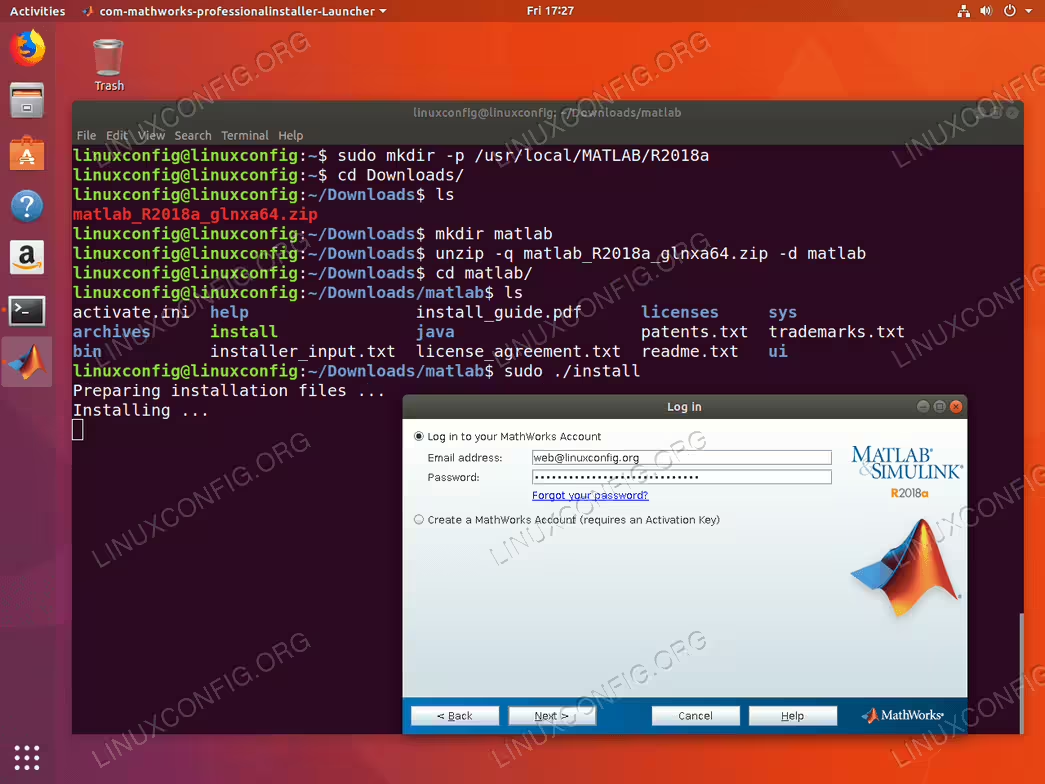
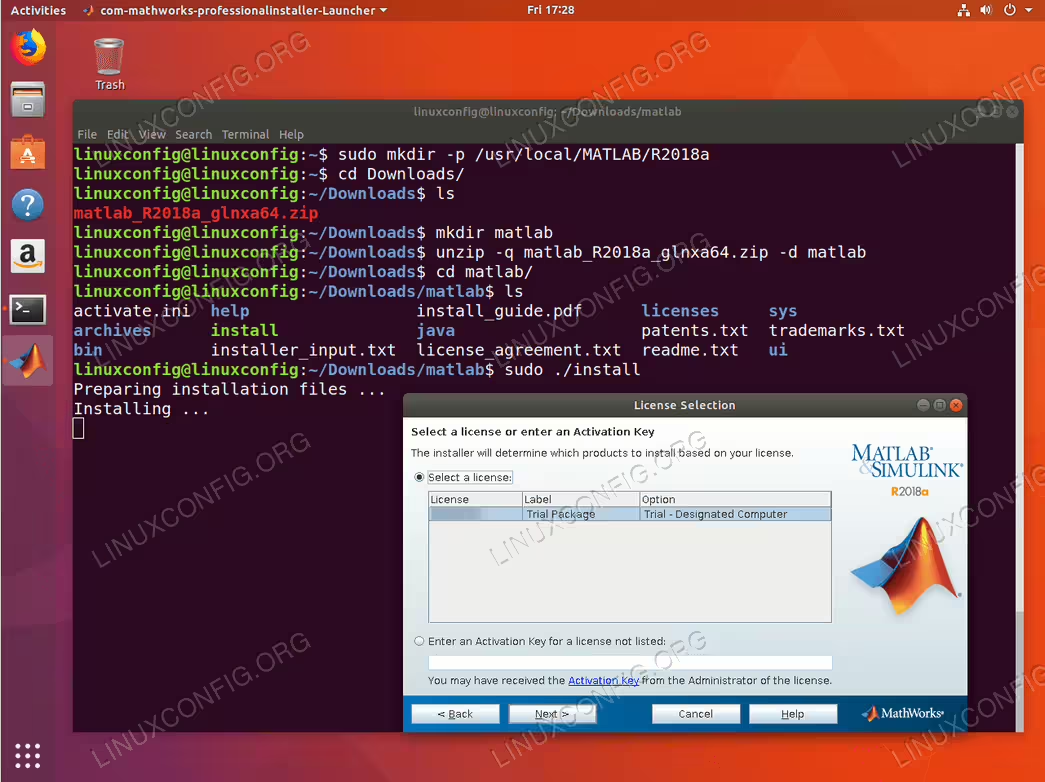
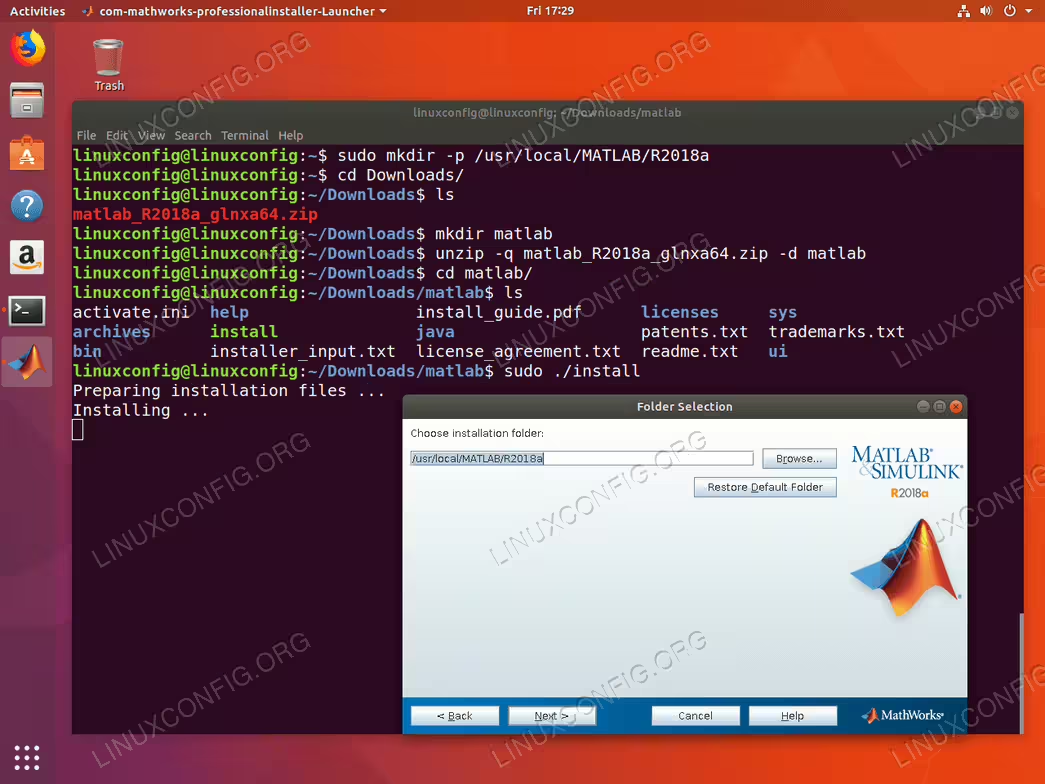
/usr/local/MATLAB/R2018a/.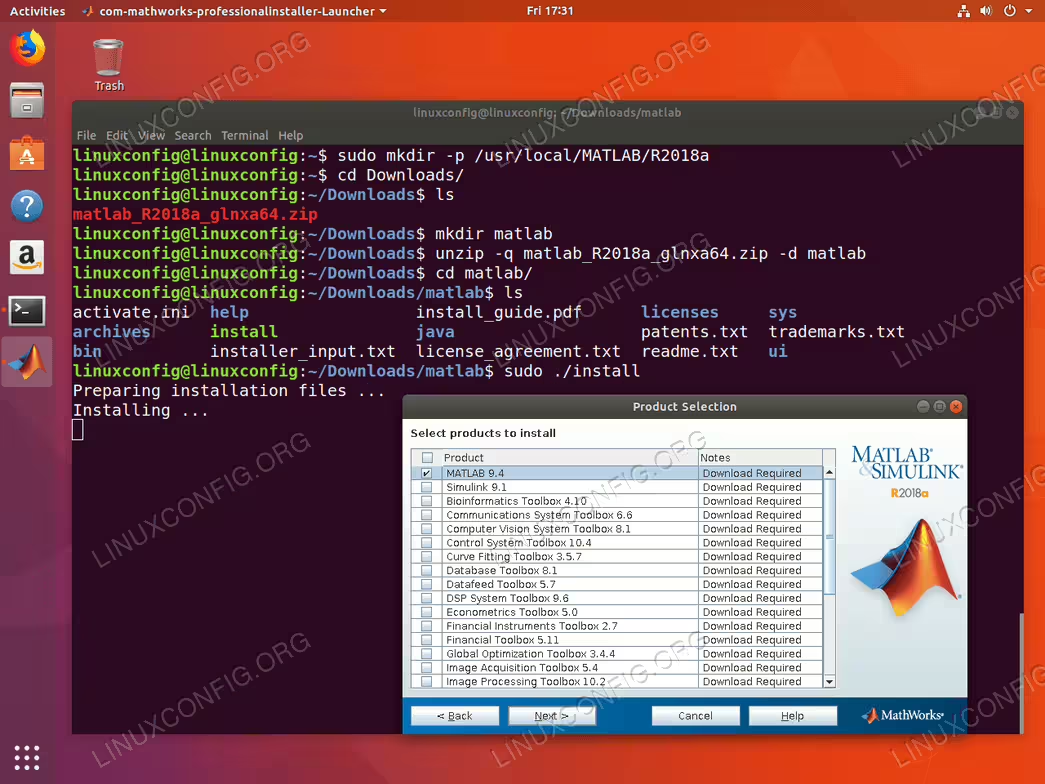
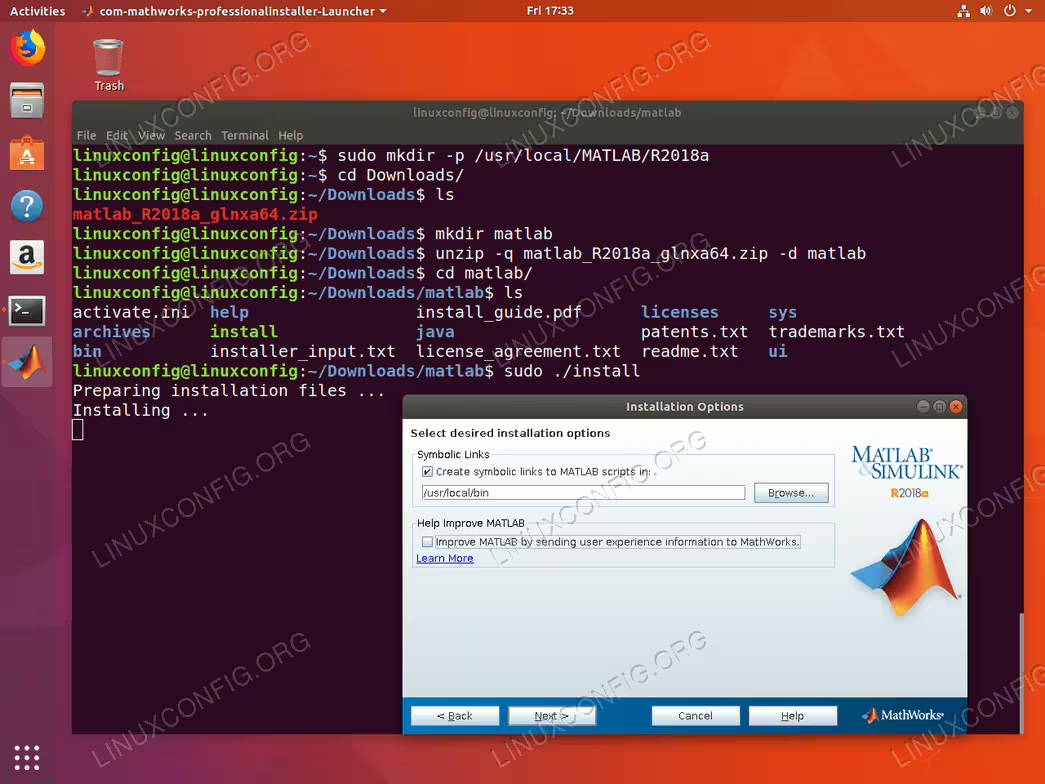
Create symbolic links to MATLAB scripts. Unless you know what you are doing, leave the default /usr/local/bin destination directory.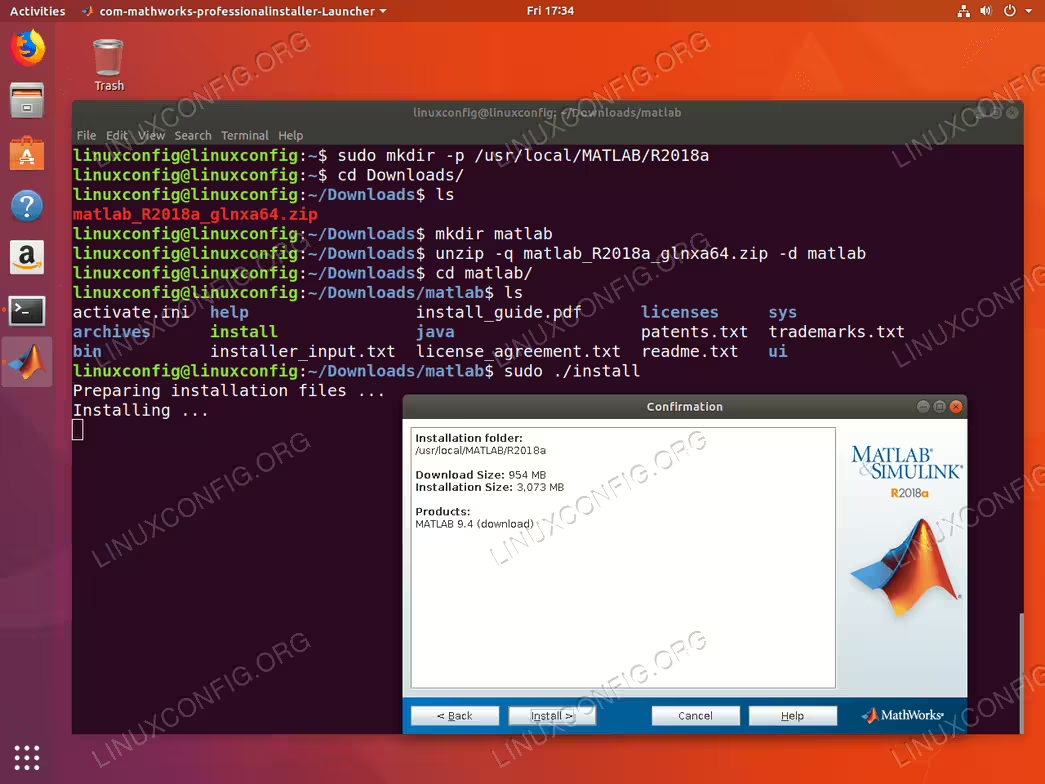
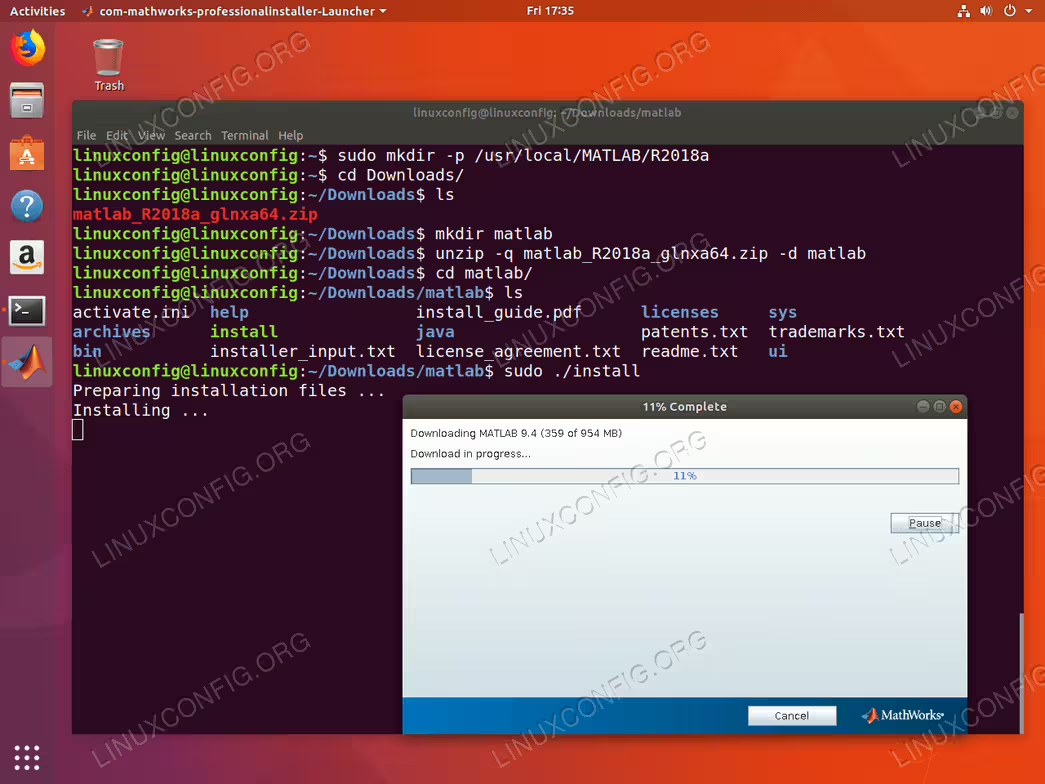
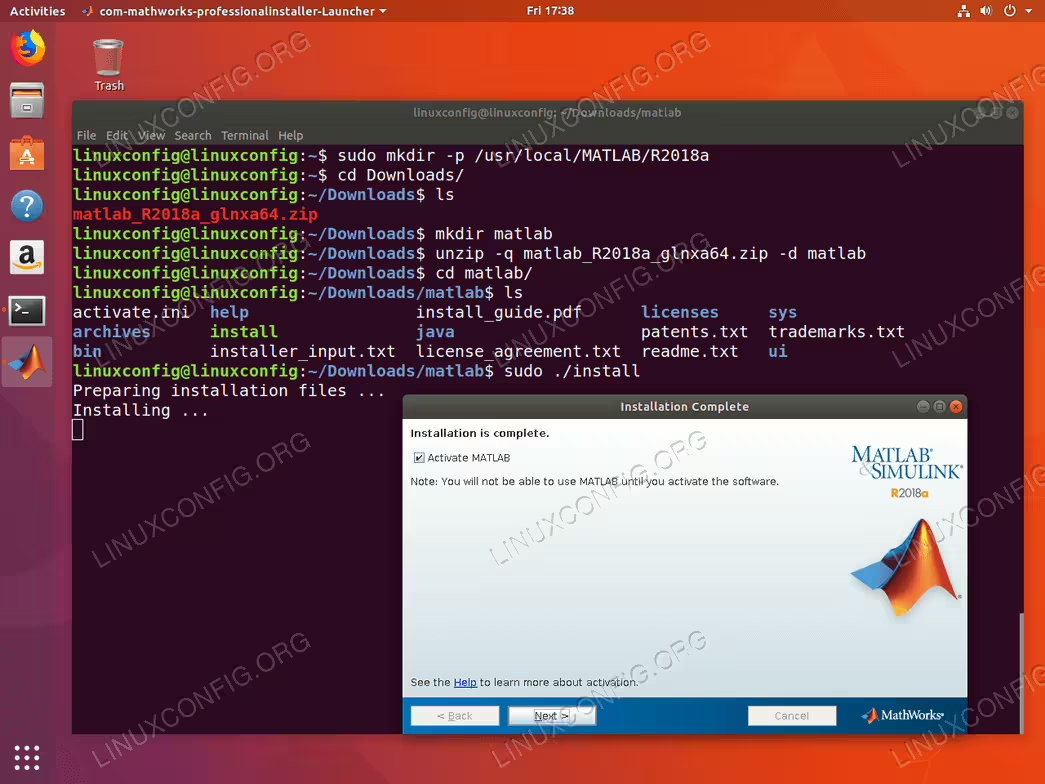
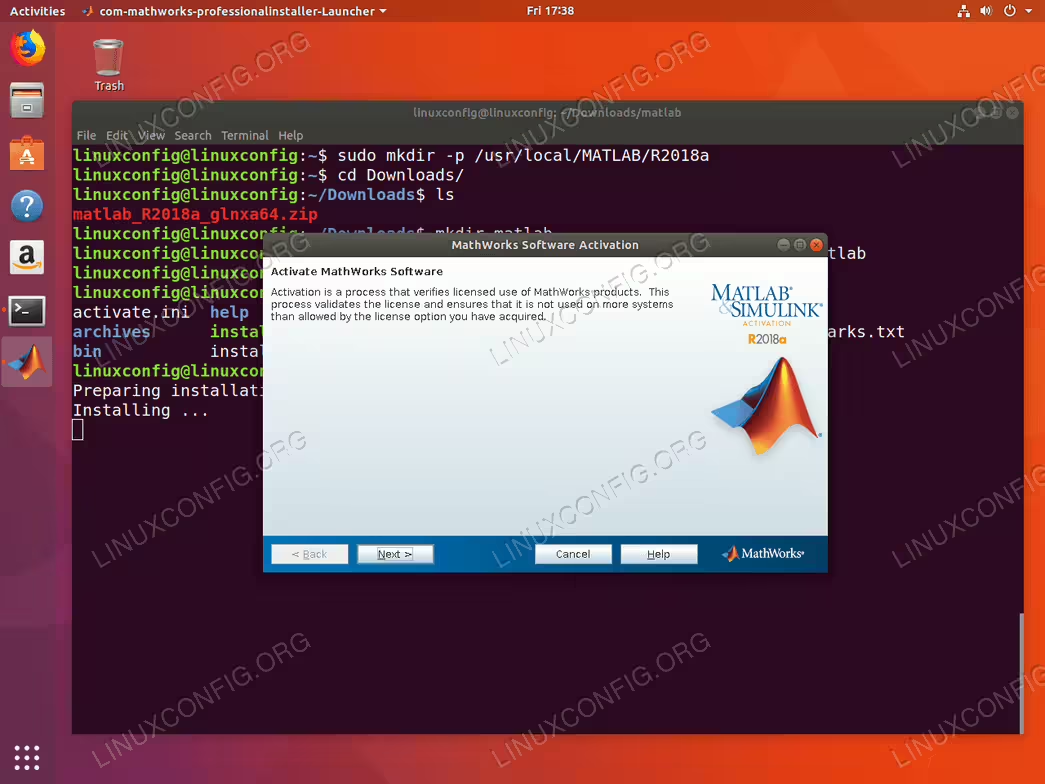
NEXT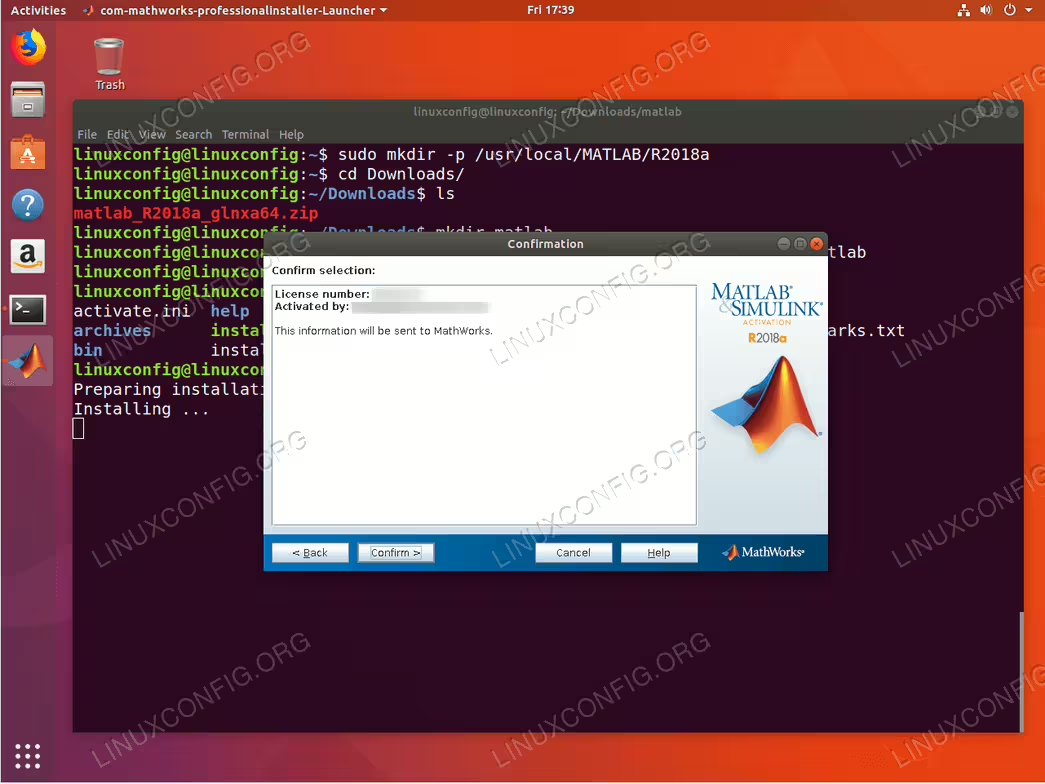
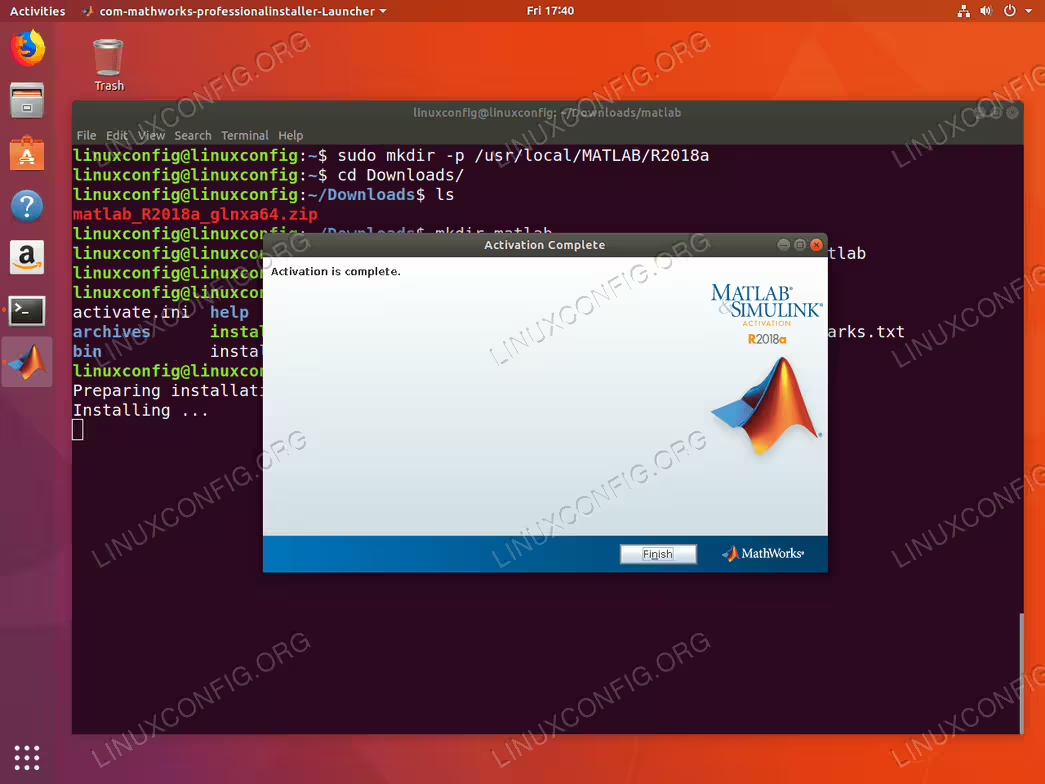
Now, we will create a shortcut launcher for an easy Matlab application start. While still in the terminal execute the following linux commands:
$ sudo wget -qO /usr/share/icons/matlab.png goo.gl/NDyi9t
$ sudo wget -qO /usr/share/applications/matlab.desktop goo.gl/NaHXrn
Optionaly, use a text editor and edit /usr/share/applications/matlab.desktop to reflect your Matlab version number.
$ sudo nano /usr/share/applications/matlab.desktop
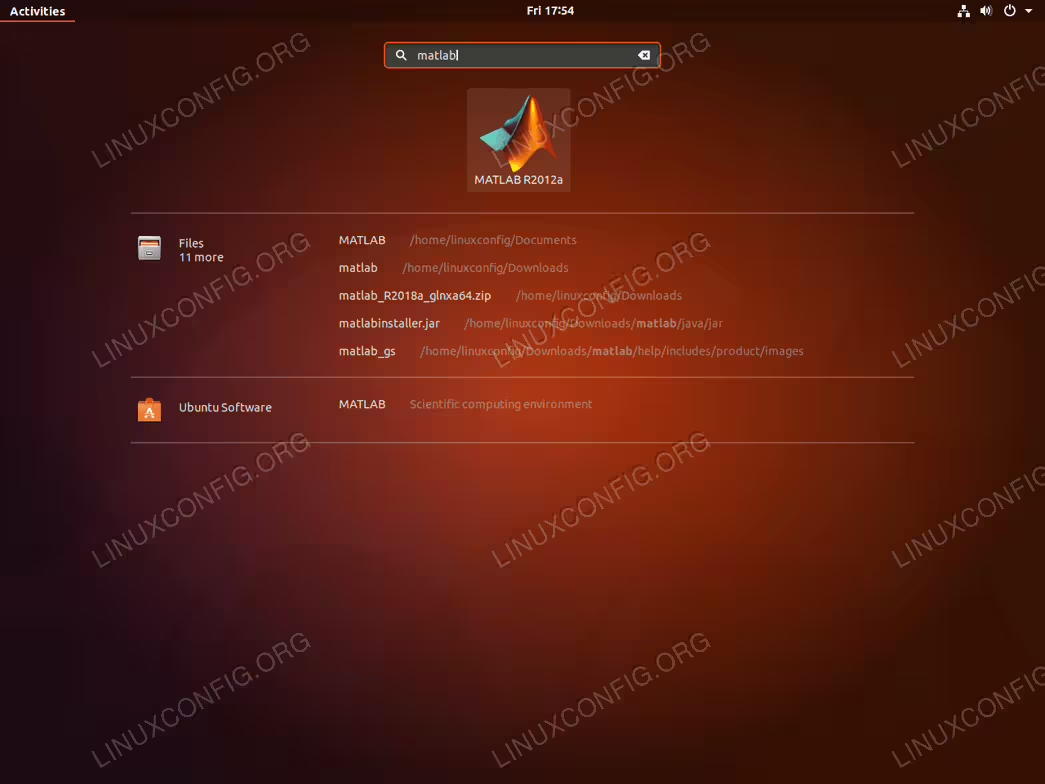
matlab keyword. Start Matlab by clicking on its icon.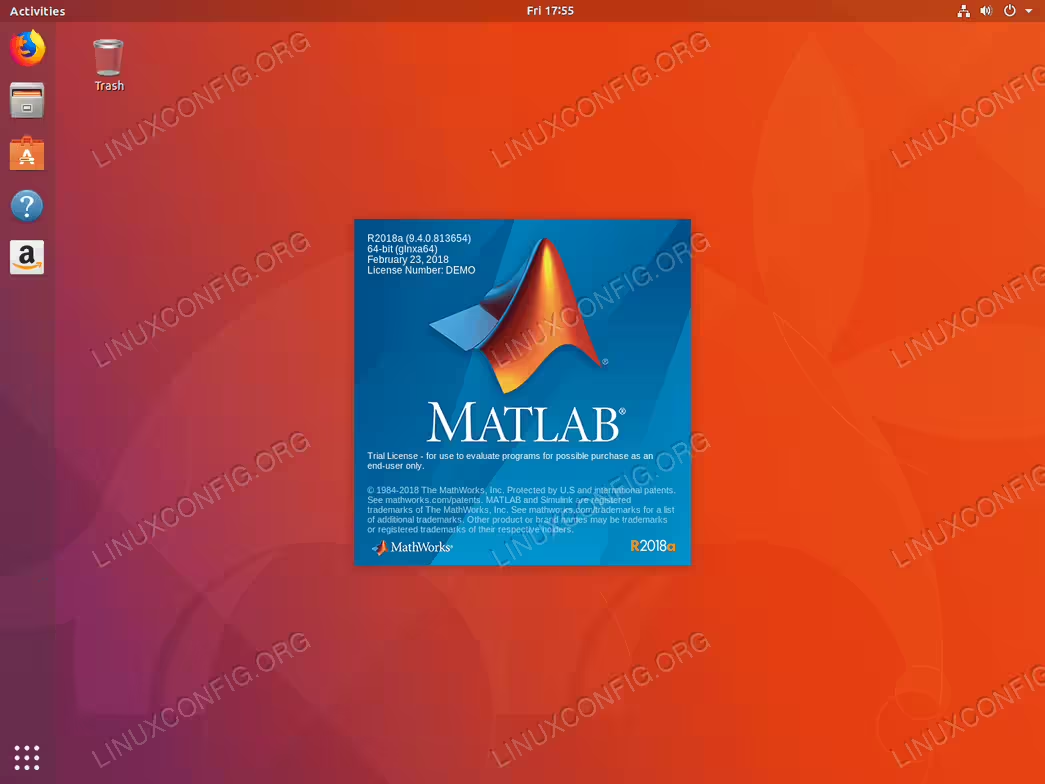
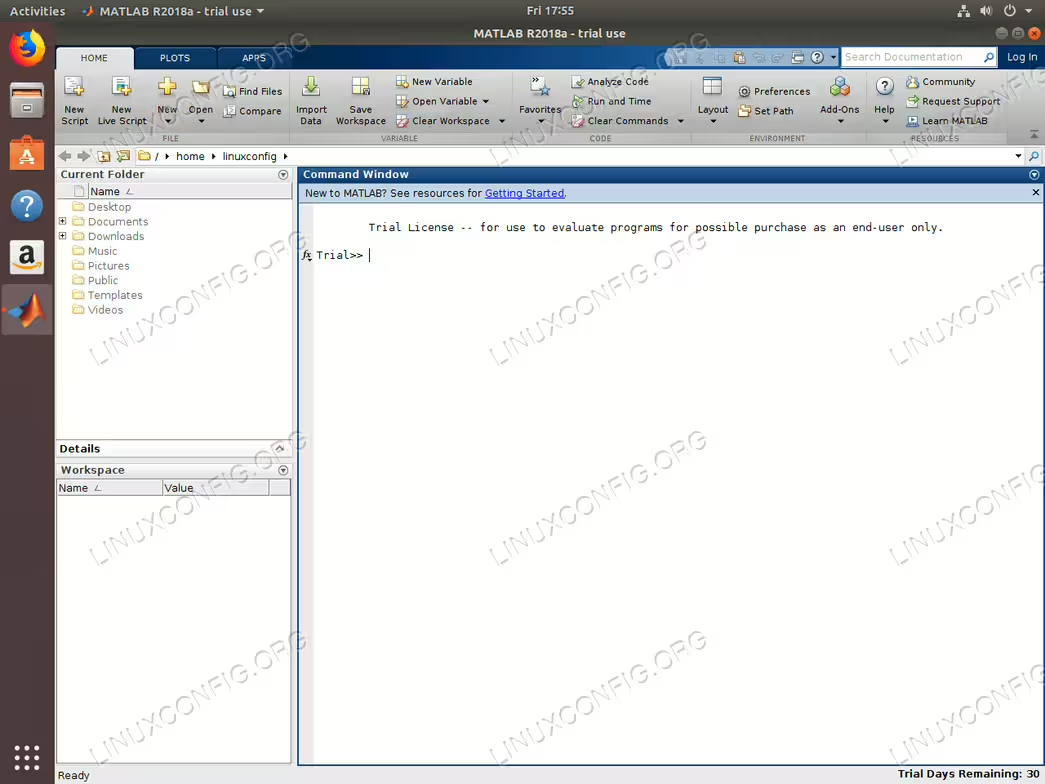
Clean up
All that remains, is to remove the Matlab’s installation file and the temporary directory:
$ rm ~/Downloads/matlab_R2018a_glnxa64.zip
$ rm -fr ~/Downloads/matlab
Enjoy!