
Installing Google Chrome on CentOS can be a straightforward process if you follow the right steps. Chrome, a popular web browser developed by Google, offers a fast and secure browsing experience. This guide will walk you through the process of installing Google Chrome on your CentOS system, including CentOS 7, 8, 9, and higher, as well as centos stream versions.
In this tutorial you will learn:
- How to download the Google Chrome package
- How to install Google Chrome on CentOS
- How to launch Google Chrome

| Category | Requirements, Conventions or Software Version Used |
|---|---|
| System | CentOS 7, 8, 9, and higher, CentOS Stream |
| Software | Google Chrome |
| Other | Internet connection |
| Conventions | # – requires given linux commands to be executed with root privileges either directly as a root user or by use of sudo command$ – requires given linux commands to be executed as a regular non-privileged user |
Installing Google Chrome on CentOS
To install Google Chrome on your CentOS system, follow these steps. Each step includes the necessary command and a detailed explanation to ensure you can easily complete the installation process.
- Download the Google Chrome package: Start by downloading the Google Chrome package using wget. This command fetches the package directly from Google’s servers and saves it to the /tmp directory.
$ wget -O /tmp/chrome.rpm https://dl.google.com/linux/direct/google-chrome-stable_current_x86_64.rpm
This command downloads the latest stable version of Google Chrome for 64-bit systems directly to the /tmp directory.
- Switch to the root user: You need root privileges to install software on CentOS. Switch to the root user using the su command.
$ su -
This command will prompt you to enter the root password. Once entered, you’ll have root privileges.
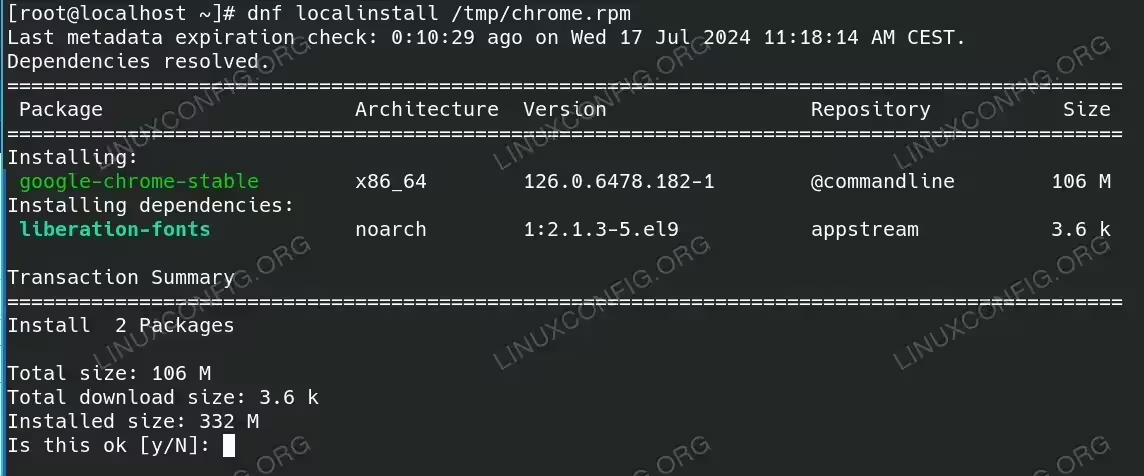
- Install the Google Chrome package: Use the dnf package manager to install the downloaded package. Navigate to the /tmp directory and run the following command.
# dnf localinstall /tmp/chrome.rpm
This command installs the Google Chrome package on your system. The dnf tool handles the installation process, resolving any dependencies automatically.
Install the Google Chrome package - Launch Google Chrome: After installation, you can start Google Chrome either from the terminal or through the system menu.
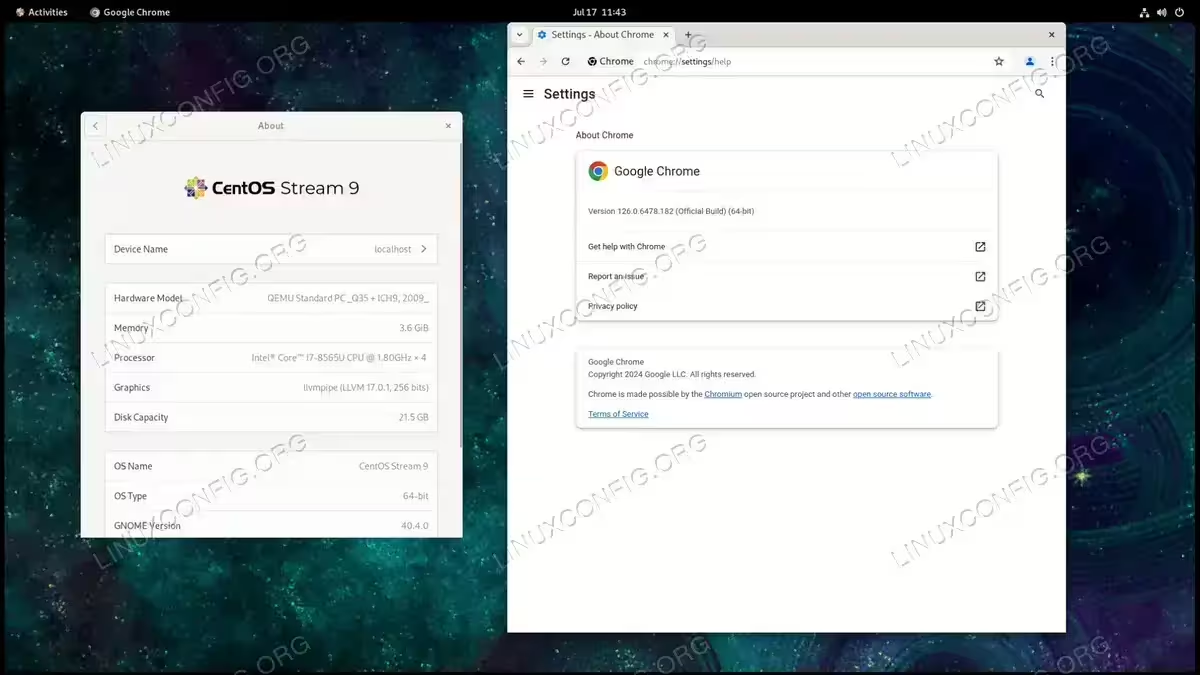
$ google-chrome
This command launches Google Chrome. Alternatively, you can find Google Chrome in your desktop environment’s application menu and launch it from there.
Google chrome on CentOS
Conclusion
By following these steps, you can easily install Google Chrome on your CentOS system. Whether you’re using CentOS 7, 8, 9, or higher, or CentOS Stream, the process remains straightforward. Enjoy a fast and secure browsing experience with Google Chrome on your Linux machine.
FAQ: Installing Google Chrome Browser on CentOS
Frequently Asked Questions
Below are some frequently asked questions regarding the installation of Google Chrome on CentOS systems, including CentOS 7, 8, 9, and higher, as well as CentOS Stream versions.
- What versions of CentOS support the installation of Google Chrome?
A: You can install Google Chrome on CentOS 7, 8, 9, and higher versions, as well as CentOS Stream. The process involves downloading the Chrome package, switching to the root user, and using the dnf package manager to install it.
- Is the installation process the same for CentOS 8, 9, and higher versions?
A: Yes, the installation process is the same for CentOS 8, 9, and higher versions, as well as CentOS Stream. The commands and steps remain consistent across these versions.
- What if I encounter dependency issues during installation?
A: The dnf package manager typically resolves dependencies automatically. However, if you encounter issues, make sure your system is up to date by running
# dnf updatebefore attempting the installation again. - Do I need an internet connection to install Google Chrome?
A: Yes, you need an internet connection to download the Google Chrome package using the wget command. Once downloaded, you can proceed with the installation offline.
- How do I launch Google Chrome after installation?
A: You can launch Google Chrome by running the
$ google-chromecommand in the terminal or by selecting it from your desktop environment’s application menu. - Can I install Google Chrome without root access?
A: No, installing software on CentOS typically requires root access. You can gain root privileges by using the
sucommand or by prefixing commands withsudoif your user account has sudo privileges. - Is it safe to download Google Chrome from external links?
A: It is always recommended to download Google Chrome from the official Google repository or website to ensure you are getting a legitimate and up-to-date version of the browser.
- How can I update Google Chrome on CentOS?
A: You can update Google Chrome by running
# dnf update google-chrome-stable. This command will check for the latest version of Chrome and update it if available.