
In this tutorial we will learn how to install Apache Tomcat 8 application container to RHEL 8 / CentOS 8. We will be using the zip package available to download from the Apache Tomcat website. As this package will not handle setting up the environment, we will create it from the command line.
In this tutorial you will learn:
- How to install Apache Tomcat from zip file
- How to create the environment for the Tomcat server from command line
- How to add basic service file to systemd
- How to enable autostart, start and stop the Tomcat server
- How to verify Tomcat is reachable
Software Requirements and Conventions Used
| Category | Requirements, Conventions or Software Version Used |
|---|---|
| System | RHEL 8 / CentOS 8 |
| Software | Apache Tomcat 8 |
| Other | Privileged access to your Linux system as root or via the sudo command. |
| Conventions |
# – requires given linux commands to be executed with root privileges either directly as a root user or by use of sudo command$ – requires given linux commands to be executed as a regular non-privileged user |
How to install apache tomcat on Linux Redhat 8 step by step instructions
We will install a Tomcat server not from an rpm package, but a zip file that we will download from the official site. Therefore the user that will be running the server, filesystem paths and rights must be set by hand. While installing from rpm is a much more convenient way, there may be situations where it is not an option.
The most trivial example would be that the rpm package is not available, another could be that the application that will run in the Tomcat container requires an exact version of tomcat, and by leaving the package manager out of the installation it is ensured that system updates will leave the Tomcat server untouched. Of course this may not be optimal from the security perspective.
For this installation to work you need to have Java 1.8 installed on the target system.
- First, we’ll download and extract the
zippackage. By browsing the download site of Tomcat 8, we can copy the link we need, and usewgeton the target system.We’ll use/optas the base path of the installation, as it is a common place for software installed by hand. Let’s switch to this directory:# cd /opt
And download the package directly to this path:
# wget https://www-us.apache.org/dist/tomcat/tomcat-8/v8.5.37/bin/apache-tomcat-8.5.37.zip
--2019-01-02 18:06:00--  https://www-us.apache.org/dist/tomcat/tomcat-8/v8.5.37/bin/apache-tomcat-8.5.37.zip
Resolving www-us.apache.org (www-us.apache.org)... 40.79.78.1
Connecting to www-us.apache.org (www-us.apache.org)|40.79.78.1|:443... connected.
HTTP request sent, awaiting response... 200 OK
Length: 10246390 (9.8M) [application/zip]
Saving to: 'apache-tomcat-8.5.37.zip'

apache-tomcat-8.5.37.zip                           100%[================================================================================================================>]   9.77M   280KB/s    in 23s

2019-01-02 18:06:24 (444 KB/s) - 'apache-tomcat-8.5.37.zip' saved [10246390/10246390]
The mirror may vary by location, for optimal performance, use the mirror closest to your location.
- Next we extract the package with
unzipin-place:# unzip apache-tomcat-8.5.37.zip
- We create a symbolic link
/opt/tomcatpointing to/opt/apache-tomcat-8.5.37:# ln -s /opt/apache-tomcat-8.5.37 /opt/tomcat
This way installing yet another version, and switching to it is a matter of changing where the symlink is pointing to.
- We delete the original
/opt/tomcat/logsdirectory, and replace it with a symlink pointing to/var/log/tomcat:# mkdir /var/log/tomcat # rmdir /opt/tomcat/logs # ln -s /var/log/tomcat /opt/tomcat/logsThe reason behind this is to store all logs under
/var/logwhere the storage is handled with system load, and therefore logfile sizes in mind. It is a good practice to store data of the same type in one place, and/var/logis already the place of the system logfiles. - We create the user that will run the server, and set it as the owner of the required directories using the chown command:
# useradd tomcat # chown -R tomcat:tomcat /opt/apache-tomcat-8.5.37 # chown -R tomcat:tomcat /var/log/tomcat - We add execute rights to the scripts located in the
bindirectory:# chmod +x /opt/tomcat/bin/*.sh
- We create a basic service file
/etc/systemd/system/tomcat.serviceforsystemdwith our favorite text editor, likeviornanowith the following content:[Unit] Description=Tomcat After=syslog.target network.target [Service] Type=forking User=tomcat Group=tomcat ExecStart=/opt/tomcat/bin/catalina.sh start ExecStop=/opt/tomcat/bin/catalina.sh stop [Install] WantedBy=multi-user.target - We reload the
systemdconfiguration, sosystemdwill notice the new service file:# systemctl daemon-reload
- We will access Tomcat on port
8080. We open the port on the firewall
:# firewall-cmd --zone=public --add-port=8080/tcp --permanent
And reload the firewall:
# firewall-cmd --reload
- We ask
systemdabout the new service:# systemctl status tomcatenable systemd service tomcat.service - Tomcat Loaded: loaded (/etc/systemd/system/tomcat.service; disabled; vendor preset: disabled) Active: inactive (dead) - As
systemdnow knows about the serice, we can start it:# systemctl start tomcat
- Finally, we verify our running server with systemd:
# systemctl status tomcat
 tomcat.service - Tomcat
   Loaded: loaded (/etc/systemd/system/tomcat.service; disabled; vendor preset: disabled)
   Active: active (running) since Wed 2019-01-02 18:40:00 CET; 4s ago
  Process: 4854 ExecStop=/opt/tomcat/bin/catalina.sh stop (code=exited, status=0/SUCCESS)
  Process: 5529 ExecStart=/opt/tomcat/bin/catalina.sh start (code=exited, status=0/SUCCESS)
 Main PID: 5543 (java)
    Tasks: 47 (limit: 12544)
   Memory: 85.2M
   CGroup: /system.slice/tomcat.service
           ˪5543 /usr/bin/java -Djava.util.logging.config.file=/opt/tomcat/conf/logging.properties [...]
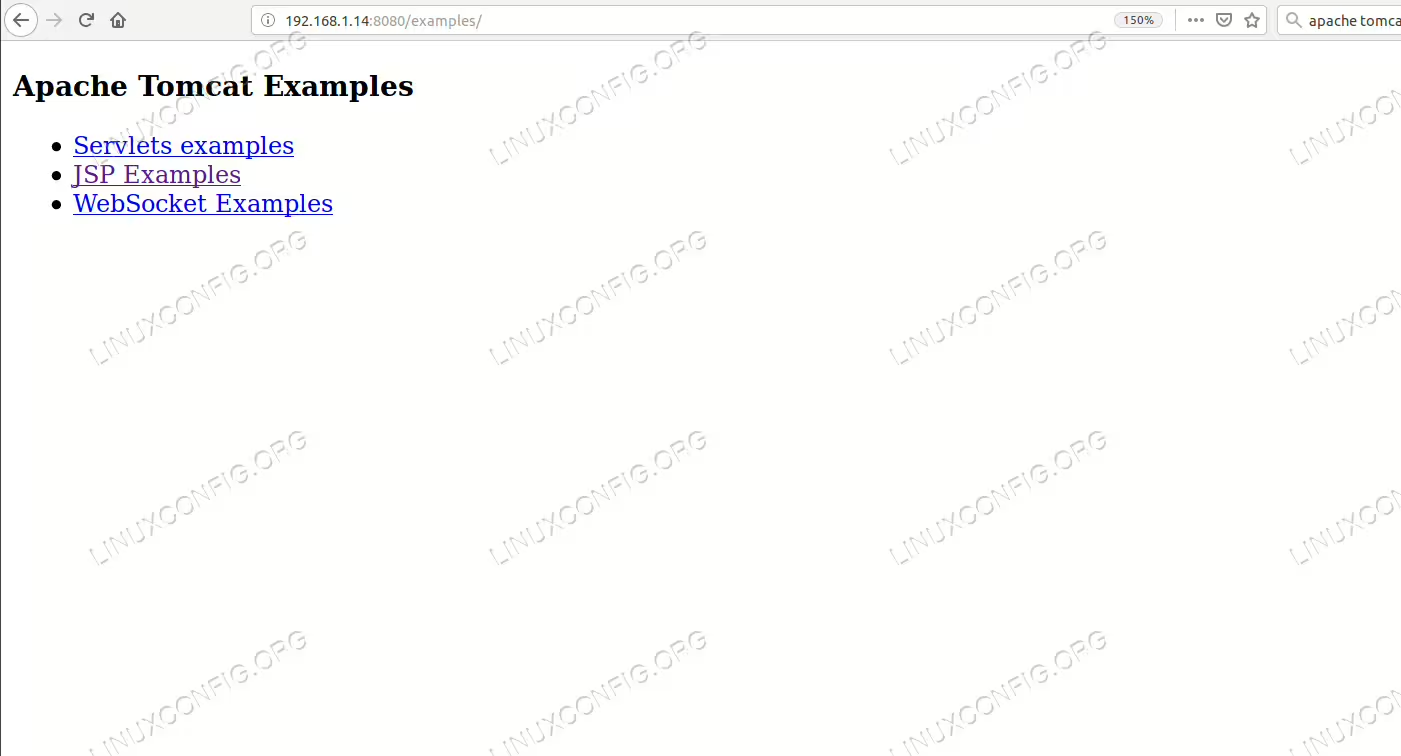
If we open up a browser, and type
http://<name-or-ip-address-of-the-server>:8080/examples/to the address bar, we should see the official examples shipped with the package that are served from our successfully installed Tomcat server. - If needed, we can enable systemd service to automatically start our server on boot:
# systemctl enable tomcat