
GNU R provides thousands of packages that extend its functionality for statistics, data visualization, machine learning, and specialized analyses. While R comes with essential packages pre-installed, you’ll often need to install additional packages for specific tasks. This guide explains how to manage R packages on Debian and Ubuntu Linux systems.
In this tutorial you will learn:
- How to list available and installed R packages
- How to install R packages from the command line
- How to install R packages from the R console
- How to load and remove packages

| Category | Requirements, Conventions or Software Version Used |
|---|---|
| System | Debian 13 or higher, Ubuntu 26.04 or higher |
| Software | GNU R 4.0 or higher |
| Other | Root privileges for system-wide package installation |
| Conventions | # – requires given linux commands to be executed with root privileges either directly as a root user or by use of sudo command$ – requires given linux commands to be executed as a regular non-privileged user |
Understanding R Packages
A package in R is a collection of functions, documentation, and data files bundled together. Packages are stored in libraries on your system. R includes a system-level library containing default packages, and you can add user-specific libraries for additional packages.
INSTALLATION TIPS
Loading too many packages simultaneously can cause function name conflicts between packages. Only load the packages you need for your current session
List Available and Loaded Packages
- Check default packages: View which packages load automatically when R starts
> getOption("defaultPackages")
[1] "datasets"  "utils"     "grDevices" "graphics"  "stats"     "methods"
The base package is always loaded but not shown in this list
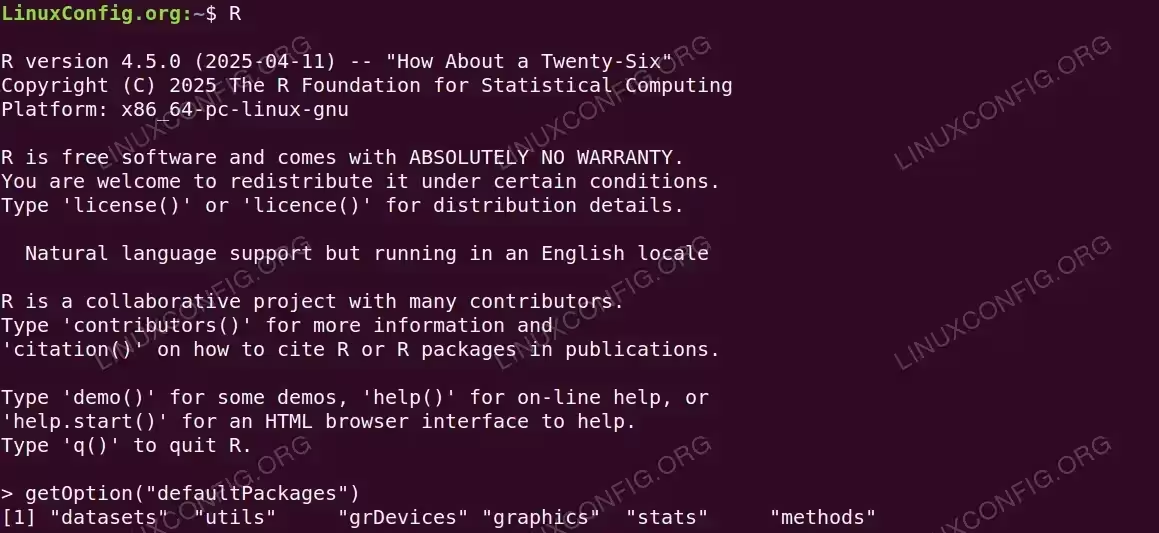
R console displaying version 4.5.0 with default packages including datasets, utils, grDevices, graphics, stats, and methods - List currently loaded packages: See which packages are active in your current R session
> (.packages())
[1] "stats"     "graphics"  "grDevices" "utils"     "datasets"  "methods"
[7] "base"
This shows all packages available in the current R session
- List all installed packages: View every package installed on your system
> (.packages(all.available=TRUE))
This command displays all packages in your library, whether loaded or not

R console displaying (.packages()) command output showing 7 loaded packages, followed by (.packages(all.available=TRUE)) showing all 29 installed packages - View package details: Get descriptions for all available packages
> library()
Running library without arguments shows all installed packages with brief descriptions
Load and Use Packages
- Load a package: Make a package’s functions available in your current session
> library(lattice)
The package must be installed before you can load it
- View package documentation: Access help files for a loaded package
> library(help=lattice)
This displays detailed information about the package and its functions
- Access quick help: Get immediate help for a specific package
> ?lattice
This opens the package’s main help page
Install R Packages from R Console
- Install from CRAN: Use the built-in function to install packages directly
> install.packages("ggplot2")R will prompt you to select a CRAN mirror closest to your location. If you see a warning about library not being writable, R will ask if you want to create a personal library in your home directory. Answer yes to install packages without root privileges. The package installs to your user library by default
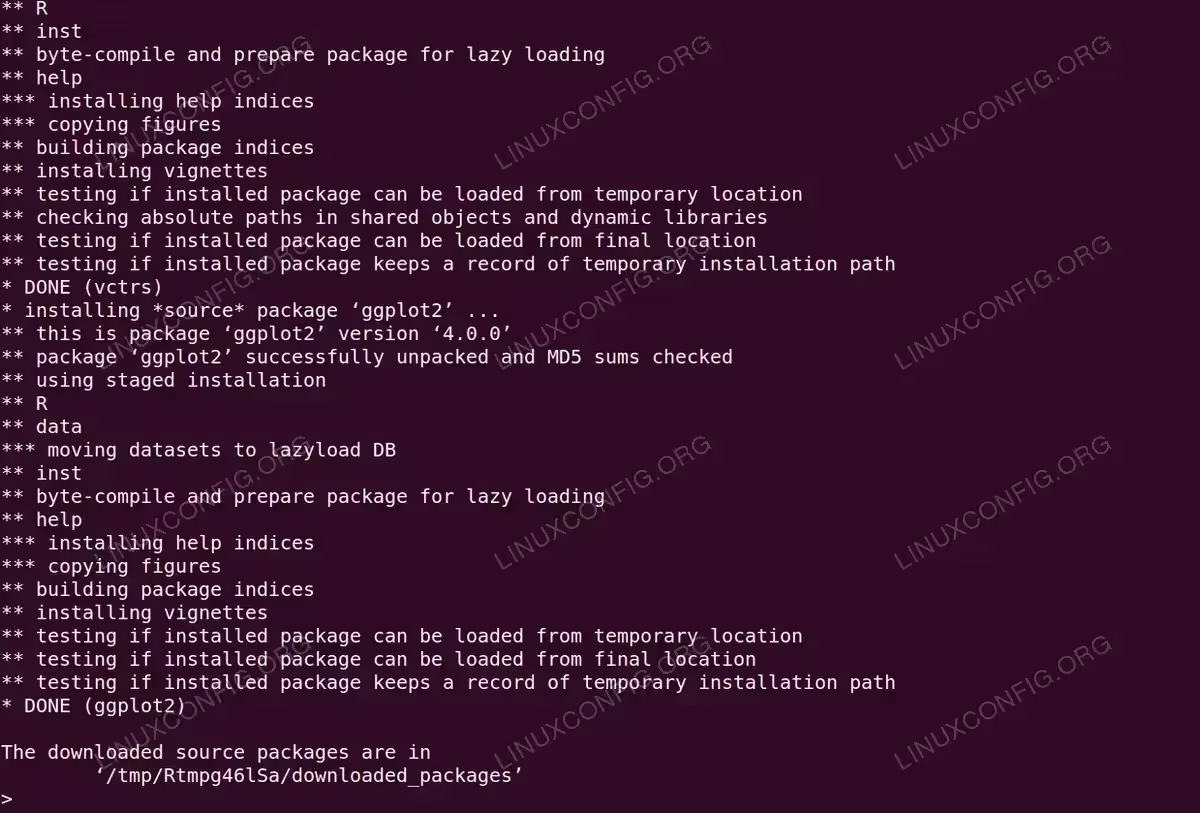
erminal output displaying the complete installation process of ggplot2 version 4.0.0, including byte-compilation, help indices creation, and final confirmation message - Load the installed package: Make the newly installed package available
> library(ggplot2)
You can now use all functions from the ggplot2 package
- Remove a package: Uninstall packages you no longer need
> remove.packages("ggplot2")This removes the package from your library. You can specify a custom library path as a second argument if needed
INSTALLATION TIPS
When installing packages as a regular user, R creates a personal library in your home directory (typically ~/R/x86_64-pc-linux-gnu-library/). This is normal and recommended. For system-wide installation, run R as root with sudo R, but personal libraries are sufficient for most users
Manual Package Installation from Command Line
This method is not recommended for regular use as you must manually download and install all dependencies. Use the R console method above instead, which automatically handles dependencies.
INSTALLATION TIPS
Manual installation requires you to identify and install all package dependencies yourself. This process can be time-consuming and error-prone. Only use this method when the R console installation is not available
- Download the package: Obtain the package file from CRAN or another repository
$ wget https://cran.r-project.org/src/contrib/ggplot2_4.0.0.tar.gz
Replace the URL with your desired package. CRAN is the primary R package repository
- Install the package: Use R CMD INSTALL to install from the command line
$ sudo R CMD INSTALL ggplot2_4.0.0.tar.gz
Root privileges may be required depending on the installation directory. If dependencies are missing, you must download and install each one manually before installing your target package
Finding R Packages
The Comprehensive R Archive Network (CRAN) is the primary source for R packages. CRAN hosts thousands of packages with complete documentation. Visit the CRAN website to browse available packages and their documentation. Each package listing includes descriptions, manuals, and installation instructions.
Conclusion
You now understand how to manage R packages on Debian and Ubuntu systems. You can list installed packages, install new packages from both the command line and R console, and load packages for use in your projects. The extensive R package ecosystem on CRAN provides tools for virtually any statistical or data analysis task.
