
This article explains how to create a new sub-directory in Linux using the mkdir command. Whether you are a beginner or an experienced user, understanding this basic file system operation is essential for managing directories and organizing files effectively.
In this tutorial you will learn:
- How to create a single directory
- How to create multiple directories and manage nested directories using the
-poption

| Category | Requirements, Conventions or Software Version Used |
|---|---|
| System | Any Linux distribution |
| Software | No specific software required, only the shell environment |
| Other | Access to a terminal or command line interface |
| Conventions | # – requires given linux commands to be executed with root privileges either directly as a root user or by use of sudo command$ – requires given linux commands to be executed as a regular non-privileged user |
Creating Directories in Linux
Creating directories is a fundamental skill needed for organizing files in Linux. Below, we provide detailed steps and examples to create directories using the mkdir command.
- Creating a Single Directory: To create a new directory, you can use the
mkdircommand followed by the name of the directory.$ mkdir newdir
This command will create a directory named
newdirin the current working directory. - Understanding the
-pOption: The-poption allows you to create nested directories (i.e., a directory and its subdirectories) in a single command. It also prevents error messages if the directory already exists.$ mkdir -p newdir/subdir/subsubdir
Without the
-poption, attempting to create nested directories without their parent existing will result in an error:$ mkdir newdir/subdir/subsubdir
This would typically produce an error saying
mkdir: cannot create directory ‘newdir/subdir/subsubdir’: No such file or directoryifnewdir/subdirdoes not already exist.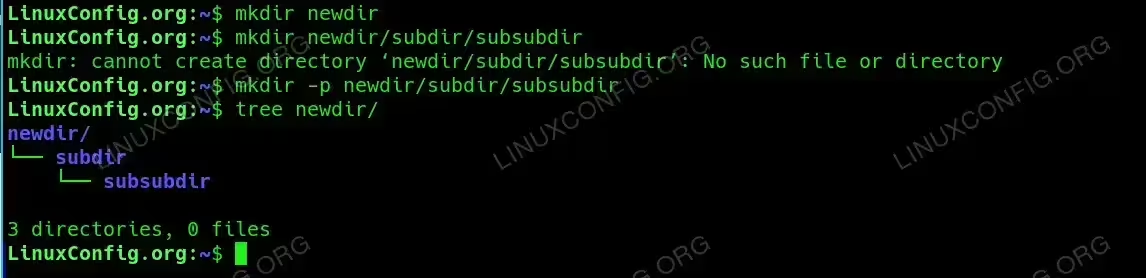
The -p option allows you to create nested directories otherwise the error mkdir: cannot create directory will be displayed.
Conclusion
Understanding how to use the mkdir command with and without the -p option can significantly ease the management of directories on Linux systems. By mastering these commands, you can efficiently manage files and directories, ensuring a well-organized file system.
