
If you have multiple desktop environments installed on your Ubuntu 26.04 Resolute Raccoon system, you may want to change the default environment that loads at login. Whether you have switched from the default GNOME to KDE Plasma, XFCE, or another desktop, configuring which one launches automatically saves time and ensures a consistent experience. This guide covers how to change the default environment on Ubuntu 26.04 using both GUI and command-line methods.
- How desktop session files work on Ubuntu 26.04
- How to select a different desktop environment from the login screen
- How to change the default desktop environment using the command line
- How to switch between display managers (GDM, SDDM, LightDM)
- How to verify which desktop environment is currently active
Software Requirements
| Category | Requirements, Conventions or Software Version Used |
|---|---|
| System | Ubuntu 26.04 Resolute Raccoon |
| Software | GDM3, SDDM, or LightDM (display manager); at least two desktop environments installed |
| Other | Privileged access to your Linux system as root or via the sudo command. |
| Conventions | # – requires given linux commands to be executed with root privileges either directly as a root user or by use of sudo command$ – requires given linux commands to be executed as a regular non-privileged user |
update-alternatives to set it system-wide via CLI.
| Step | Command/Action |
|---|---|
| 1. List available sessions | ls /usr/share/xsessions/ /usr/share/wayland-sessions/ |
| 2. Select at login screen | Click gear icon → choose session → log in |
| 3. Set system-wide default (CLI) | sudo update-alternatives --config x-session-manager |
Understanding Desktop Sessions on Ubuntu 26.04
DESKTOP ENVIRONMENT VS DISPLAY MANAGER
These two terms are often confused. A desktop environment (e.g., GNOME, KDE Plasma, XFCE) is the graphical workspace you interact with after login, including the panel, file manager, window manager, and system settings. A display manager (e.g., GDM3, SDDM, LightDM) is the login screen that authenticates you and launches your chosen desktop session. You can mix and match any display manager with any desktop environment.
Before changing your default environment on Ubuntu 26.04, it helps to understand how desktop sessions are managed. Each installed desktop environment registers one or more .desktop session files that the display manager reads at login time. These session files are stored in two locations depending on the display protocol:
- Wayland sessions: Session files for Wayland-based desktops are stored in
/usr/share/wayland-sessions/. Since Ubuntu 26.04 uses Wayland as the default display protocol for GNOME, the primary GNOME session file is located here. - X11 sessions: Session files for X11-based desktops are stored in
/usr/share/xsessions/. Desktop environments such as XFCE and LXQt typically register their sessions here.
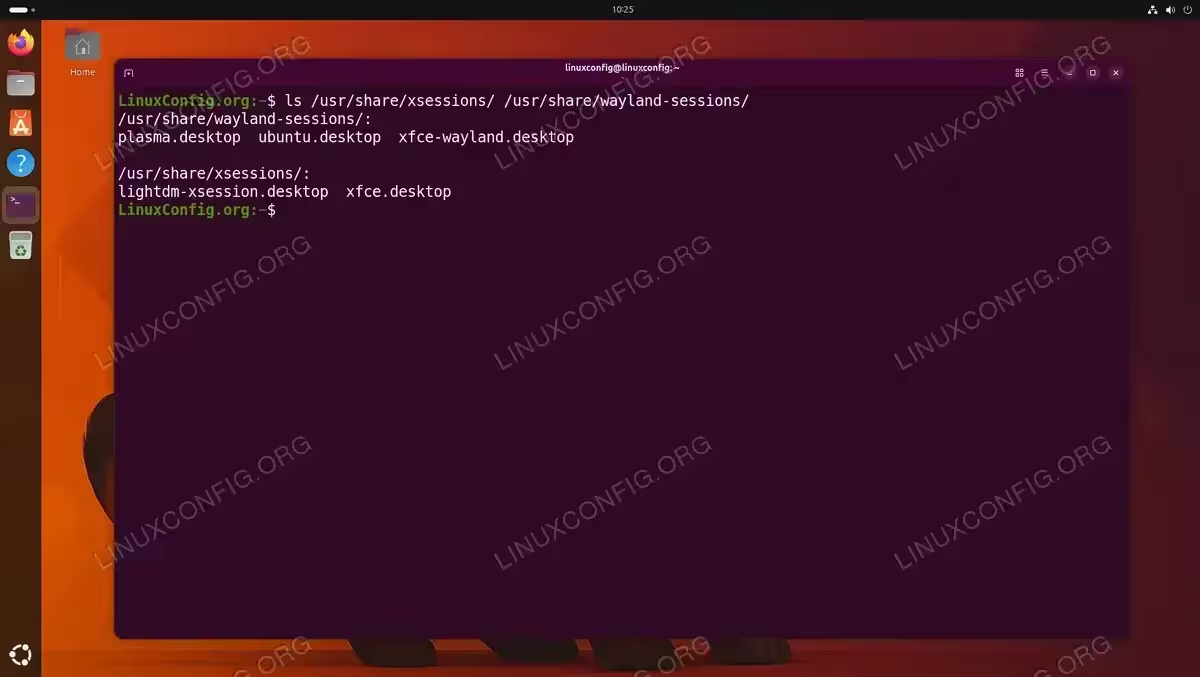
To list all available desktop sessions on your system, run:
$ ls /usr/share/xsessions/ /usr/share/wayland-sessions/
Each .desktop file contains a Name field that appears in the display manager’s session selector. The display manager remembers your last selected session, so in many cases simply choosing once at login is enough to make the change persistent.
IMPORTANT
Note that Ubuntu 26.04 has removed the GNOME X11 session entirely. If you need a full X11 desktop, you will need to install a separate desktop environment such as XFCE or KDE Plasma with X11 support.
Changing the Default Desktop via Login Screen (GUI)
The simplest way to change your default environment on Ubuntu 26.04 is through the display manager’s login screen. This method requires no command-line interaction and works with GDM, SDDM, and LightDM.
- Log out of your current session: Save your work and log out. You can do this from the system menu in the top-right corner of the GNOME desktop, or by running:
$ gnome-session-quit --logout
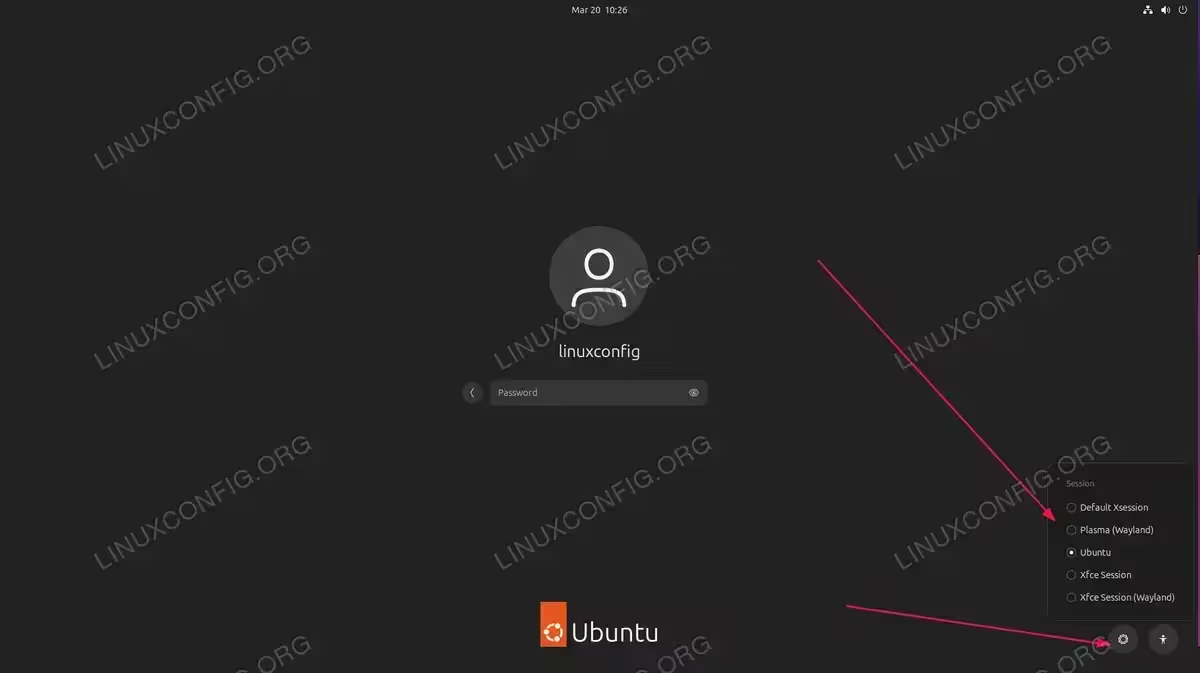
- Locate the session selector: On the login screen, click your username to select it. Before entering your password, look for a gear icon (GDM) or session dropdown menu (SDDM/LightDM). The exact location depends on your display manager:
- GDM3: Gear icon appears in the bottom-right corner after selecting a user
- SDDM: Session dropdown is typically at the bottom-left of the login screen
- LightDM: Session selector is usually in the top-right corner of the greeter
- Select the desired desktop environment: Click the session selector and choose the desktop environment you want. For example, select “Plasma (Wayland)” for KDE or “Xfce Session” for XFCE.
- Log in: Enter your password and log in. The display manager will remember your selection for future logins.
TIP
Most display managers remember your last selected session on a per-user basis. This means each user on the system can have a different default desktop environment without affecting others.
Changing the Default Desktop via Command Line
For a system-wide change or when working on a headless system, you can change the default environment on Ubuntu 26.04 using command-line tools. There are several approaches depending on what you need to accomplish.
Method 1: Using update-alternatives
The update-alternatives system manages symbolic links for default applications, including the session manager. To change the system-wide default:
- List available session managers: Check which session managers are registered:
$ sudo update-alternatives --list x-session-manager
This will output paths to available session managers, such as
/usr/bin/gnome-session,/usr/bin/startplasma-wayland, or/usr/bin/startxfce4. - Select a new default: Run the interactive selection tool:
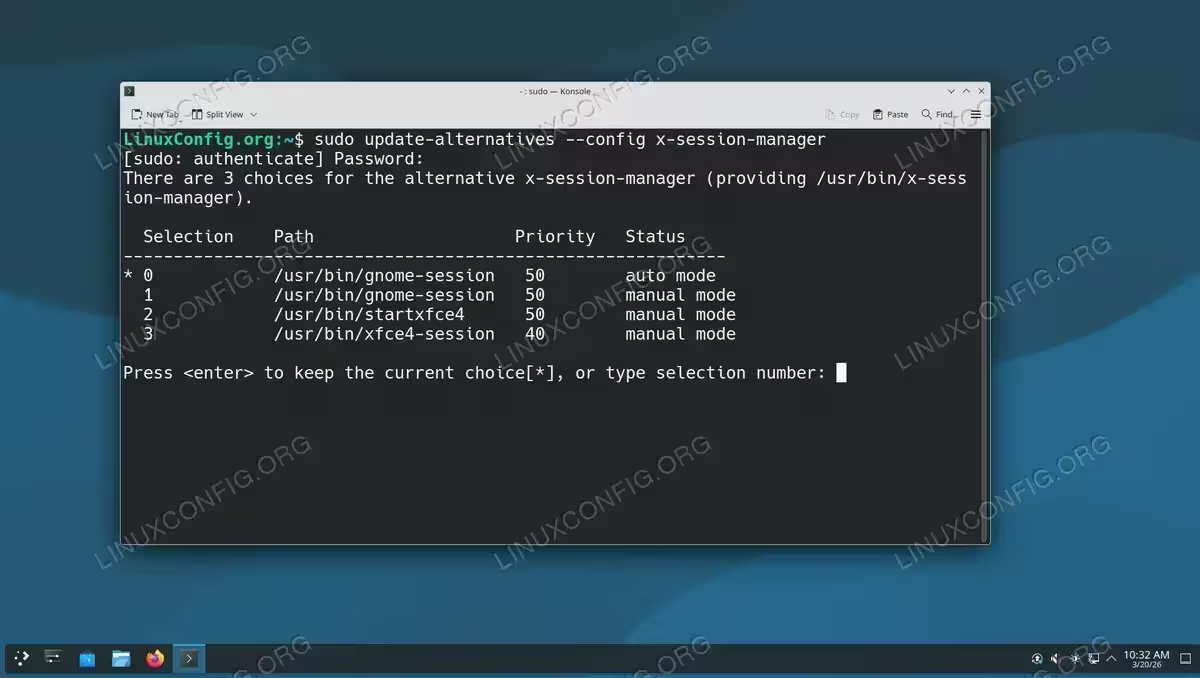
$ sudo update-alternatives --config x-session-manager
You will see a numbered list. Enter the number corresponding to your preferred desktop environment and press Enter.
Method 2: Using AccountsService (Per-User)
Ubuntu’s display manager (GDM) uses AccountsService to store per-user session preferences. You can modify this directly to set a specific user’s default desktop:
- Find the session name: First, identify the exact session name from the available
.desktopfiles:$ ls /usr/share/wayland-sessions/ /usr/share/xsessions/
Note the filename without the
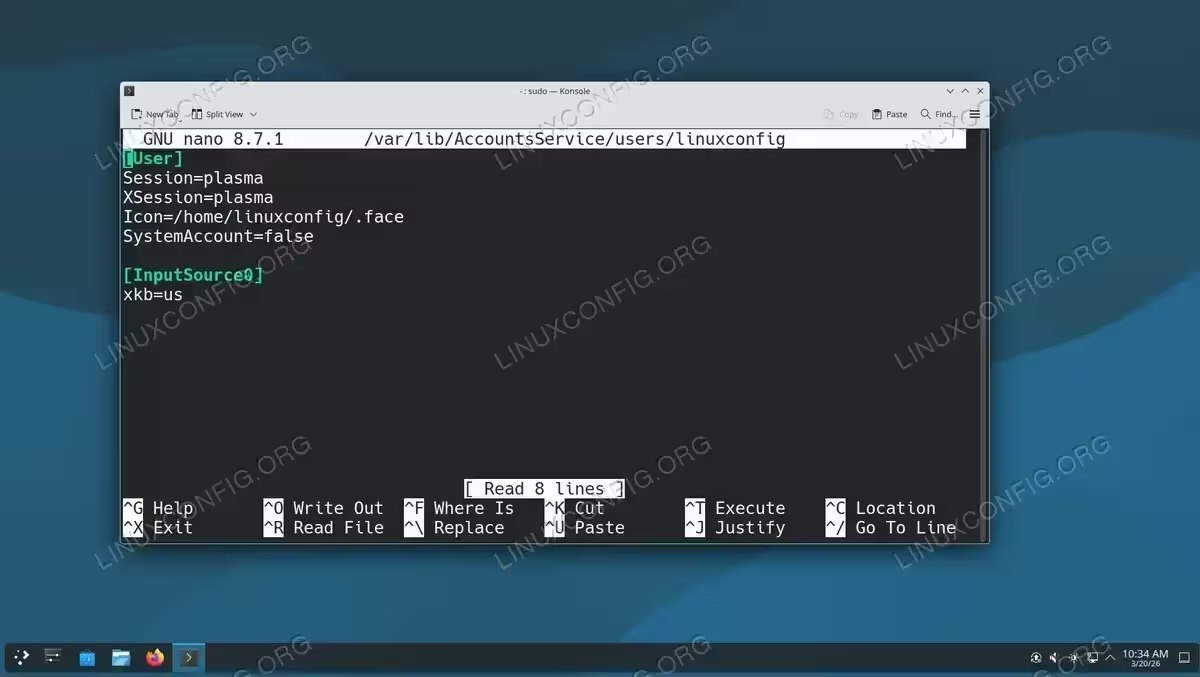
.desktopextension (e.g.,plasma,xfce,gnome). - Edit the AccountsService user file: Open the user configuration file for your account:
$ sudo nano /var/lib/AccountsService/users/linuxconfig
Locate the
[User]section and set or modify theSessionandXSessionkeys:[User] Session=plasma XSession=plasmaReplace
plasmawith the session name matching your desired desktop environment. - Restart the display manager: For the changes to take effect:
$ sudo systemctl restart gdm3
CAUTION
Restarting the display manager will immediately terminate all graphical sessions. Save all your work before running this command. Alternatively, reboot your system instead.
Method 3: Using a Default Session File
You can also create a per-user .dmrc file in the home directory. While this method is considered legacy, some display managers still respect it:
$ echo -e "[Desktop]\nSession=plasma" > ~/.dmrc
Replace plasma with the name of your desired session file (without the .desktop extension).
Changing the Default Display Manager
If you have installed multiple display managers (e.g., GDM3 with GNOME and SDDM with KDE), you may also want to change which display manager loads at boot. This is separate from changing the desktop environment itself, but the two often go hand in hand. Consequently, switching to the display manager that ships with your preferred desktop can provide a more cohesive experience.
- Reconfigure the default display manager: Ubuntu provides a simple tool to switch between installed display managers:
$ sudo dpkg-reconfigure gdm3
A dialog will appear listing all installed display managers. Use the arrow keys to select your preferred one and press Enter.
- Reboot: After making the change, reboot to start with the new display manager:
$ sudo reboot
DISPLAY MANAGER PAIRINGS
Common pairings are: GDM3 with GNOME, SDDM with KDE Plasma, and LightDM with XFCE or LXQt. While any display manager works with any desktop, using the paired manager typically provides the best integration and theming.
Verifying the Default Desktop Environment on Ubuntu 26.04
After making changes, you should verify that the correct default environment is active on Ubuntu 26.04. There are several ways to confirm this.
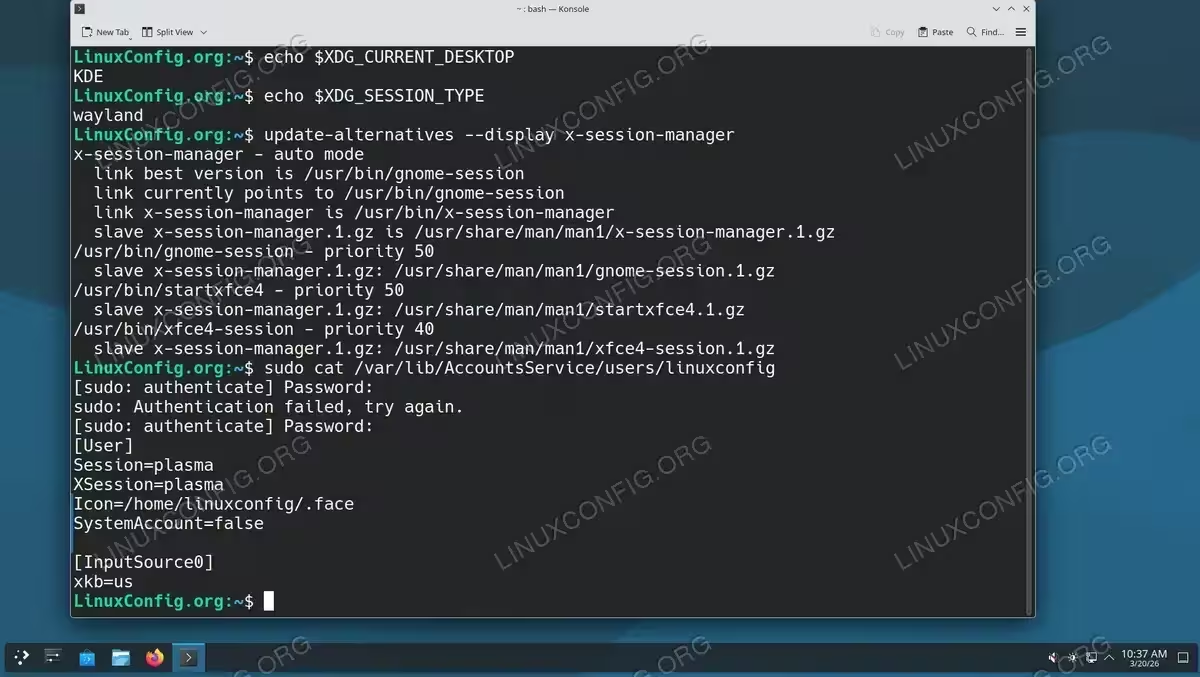
- Check the current desktop session: After logging in, open a terminal and run:
$ echo $XDG_CURRENT_DESKTOP
This will output the name of the active desktop environment, such as
ubuntu:GNOME,KDE, orXFCE. - Check the session type: To verify whether you are running Wayland or X11:
$ echo $XDG_SESSION_TYPE
The output will be either
waylandorx11. - Check the update-alternatives setting: To verify the system-wide default:
$ update-alternatives --display x-session-manager
This shows the currently configured default session manager and all available alternatives.
- Check AccountsService: To see the per-user session setting stored by the display manager:
$ sudo cat /var/lib/AccountsService/users/linuxconfig
Look for the
Session=line under the[User]section.
Additionally, your default firewall configuration and other system settings remain independent of the desktop environment, so switching desktops will not affect your security setup.
Conclusion
Changing the default environment on Ubuntu 26.04 is straightforward whether you prefer the graphical approach through the login screen or the command-line method using update-alternatives and AccountsService. The login screen session selector is the quickest option for individual users, while update-alternatives provides a system-wide default. For more information on desktop environment options, refer to the official Ubuntu Desktop Customization documentation.
Frequently Asked Questions
- How do I check which desktop environment is currently running on Ubuntu 26.04? Open a terminal and run
echo $XDG_CURRENT_DESKTOP. This outputs the name of your active desktop environment. You can also runecho $XDG_SESSION_TYPEto check whether you are using Wayland or X11. - Will changing the default desktop environment affect my files or settings? No, switching desktop environments does not modify your personal files. However, application-specific settings (such as panel layouts and keyboard shortcuts) are stored separately for each desktop environment. Your documents, downloads, and other personal data remain untouched.
- Can I have multiple desktop environments installed at the same time? Yes, you can install multiple desktop environments side by side on Ubuntu 26.04. Each one registers its own session file, and you can switch between them at the login screen. Keep in mind that installing multiple desktops increases disk usage and may add extra entries to your application menu.
- Why is the GNOME X11 session not available on Ubuntu 26.04? Ubuntu 26.04 has removed the GNOME X11 session entirely. GNOME runs exclusively on Wayland. If you need an X11-based desktop, install an alternative environment such as XFCE or KDE Plasma with X11 support.
- Do I need to change the display manager when switching desktop environments? Not necessarily. Any display manager (GDM, SDDM, LightDM) can launch any installed desktop environment. However, using the display manager that pairs with your chosen desktop (for example, SDDM with KDE Plasma) provides better visual integration and theming consistency.