
Installing a new desktop environment on your Debian GNU/Linux system can significantly enhance your user experience by offering a fresh look, improved functionality, and additional applications. One popular choice among Linux users is the XFCE desktop environment. XFCE provides a lightweight, yet fully functional desktop experience, ideal for users with older hardware or those who prefer a minimalist desktop. This guide will walk you through the process of installing the XFCE desktop environment on a Debian GNU/Linux system.
In this tutorial you will learn:
- How to update your system to ensure compatibility and security
- Steps to install the XFCE desktop environment and LightDM desktop manager
- How to reboot your system to apply changes
- Instructions for selecting XFCE as your default desktop environment
| Category | Requirements, Conventions or Software Version Used |
|---|---|
| System | Debian-based Linux Distribution |
| Software | XFCE desktop environment, LightDM |
| Other | Internet connection for downloading packages |
| Conventions | # – requires given linux commands to be executed with root privileges either directly as a root user or by use of sudo command$ – requires given linux commands to be executed as a regular non-privileged user |
Installing XFCE Desktop on Debian GNU/Linux
Before diving into the installation process, it’s essential to understand why you’re performing each step and what it entails. This ensures a smooth installation process and helps you troubleshoot any issues that might arise.
- Update Your System: Keeping your system updated is crucial for security, compatibility, and performance. This step ensures that all your system packages are up to date before installing new software.
# apt update
# apt upgrade
This command updates the list of available packages and their versions, and then installs the latest versions of all packages currently installed on your system.
- Install XFCE Desktop and LightDM Desktop Manager: XFCE is known for its simplicity and light resource usage, making it an excellent choice for older hardware. LightDM is a display manager that manages user sessions and provides a graphical login interface.
# apt install xfce4-goodies xfce4 lightdm
During the installation, you will be prompted to choose LightDM as your default desktop manager. Selecting LightDM integrates it with the XFCE desktop, providing a seamless user experience.
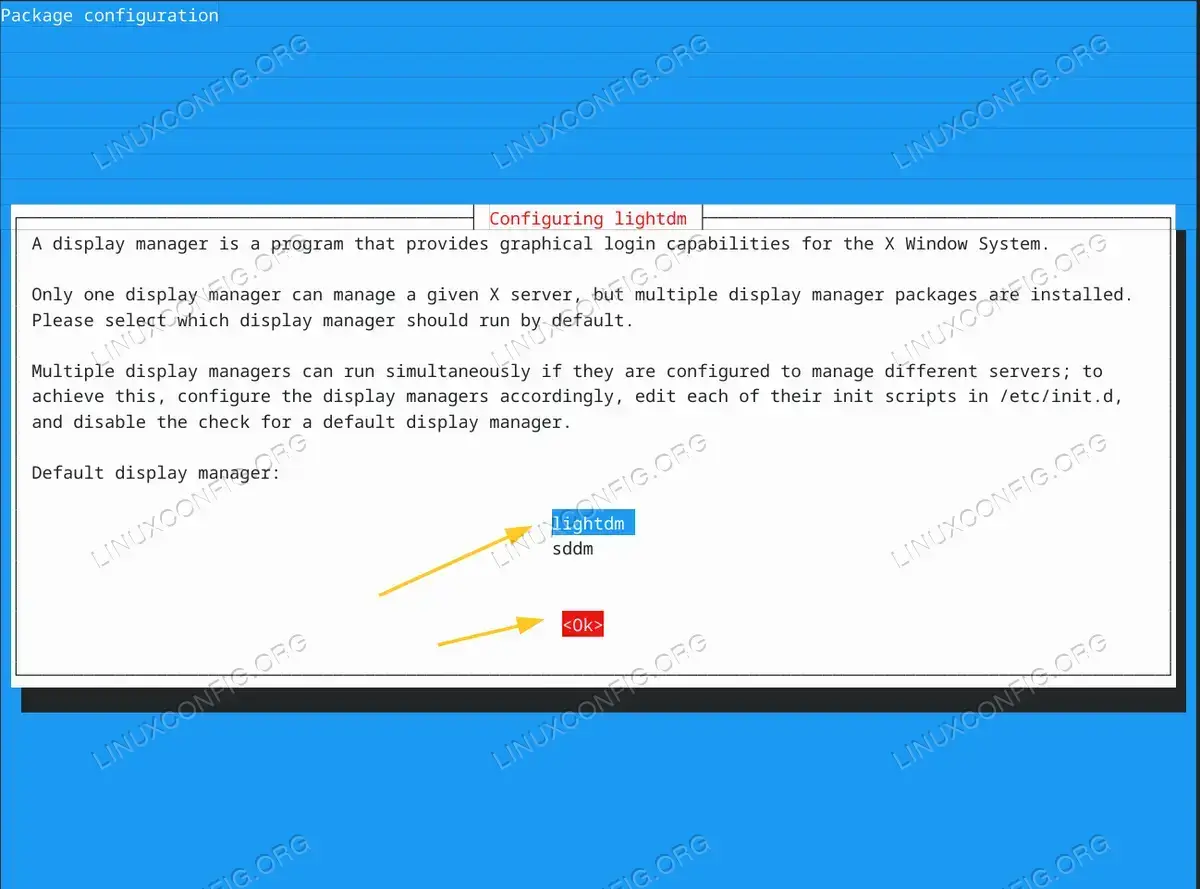
choose LightDM as your default desktop manager - Reboot System: Once the installation is completed, rebooting your system applies the changes and initializes the new desktop environment.
# reboot
This command safely restarts your computer, allowing you to proceed with setting up XFCE as your default desktop. -
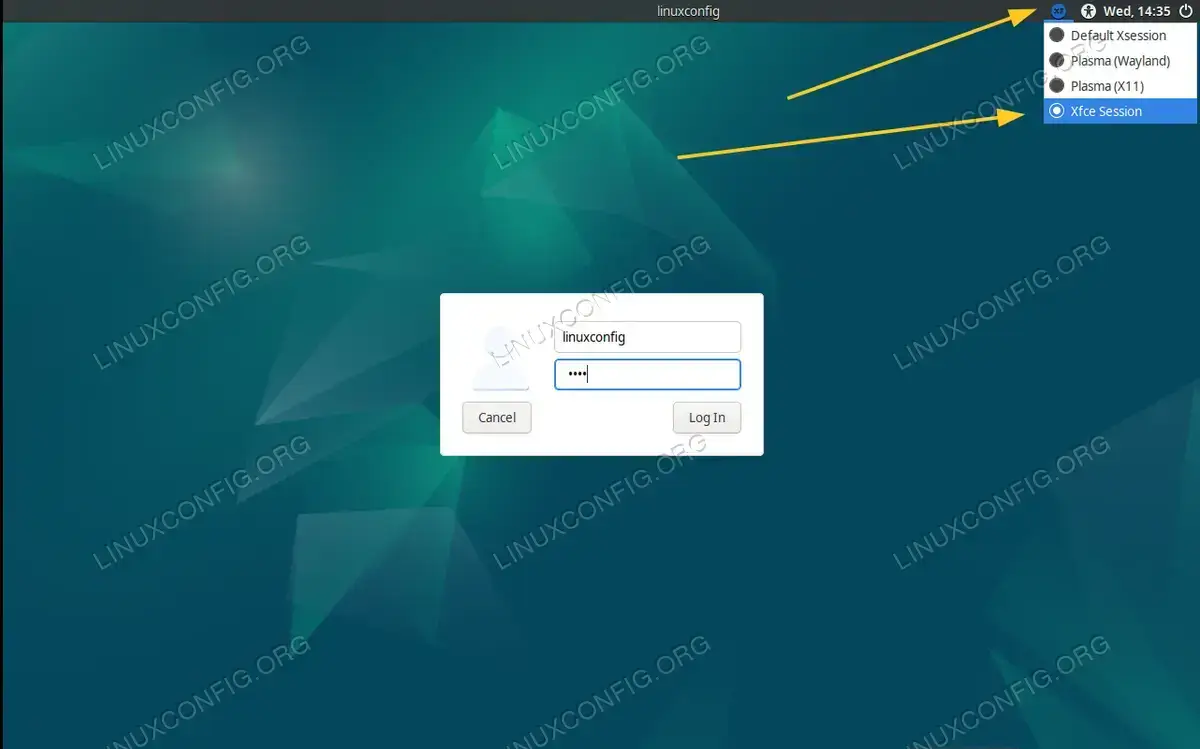
Select XFCE as Default Desktop on Login Screen : After rebooting, you’ll reach the login screen. Here, you can select XFCE from the session options, setting it as your default desktop environment.
- Log into Your XFCE Desktop: Enter your username and password on the login screen to access your new XFCE desktop environment on Debian. Enjoy the clean, efficient workspace XFCE provides!
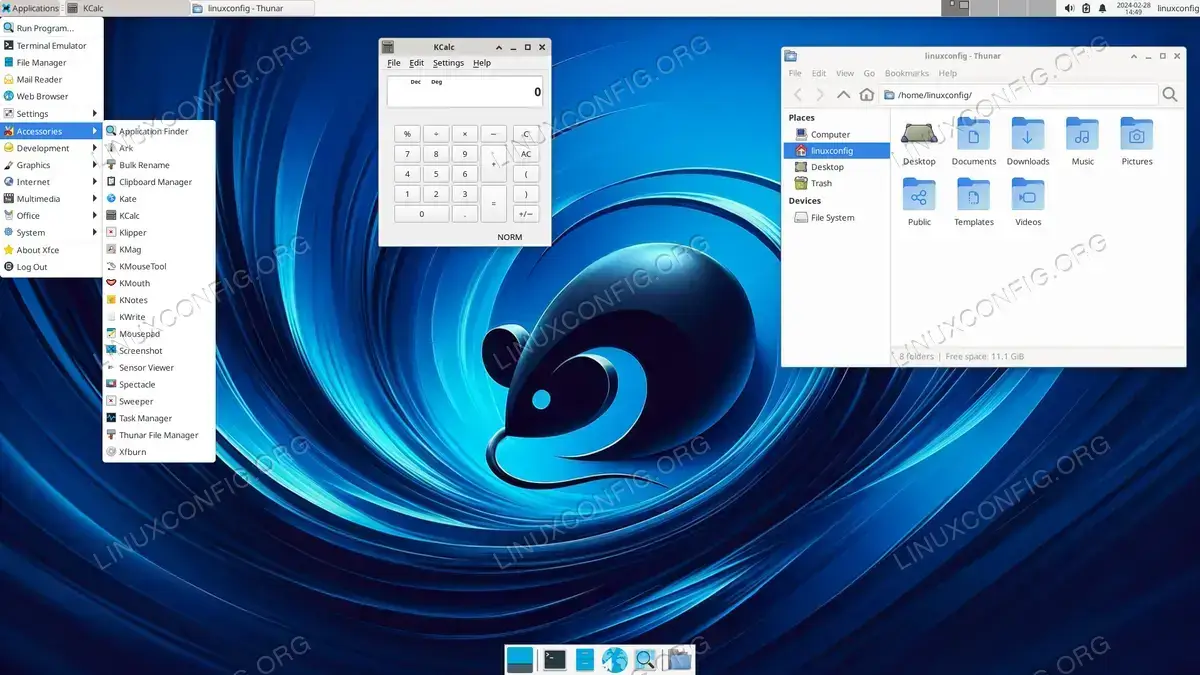
XFCE Desktop on Debian GNU/Linux
Conclusion
By following these steps, you’ve successfully installed the XFCE desktop environment on your GNU/Debian Linux system. XFCE offers a combination of lightweight performance and aesthetic appeal, making it a great choice for both new and experienced Linux users. Enjoy exploring your new desktop environment!