
When working with media files, it’s common to find yourself needing to batch convert multiple files. This is particularly true in fields like video editing, audio processing, or even when simply organizing your media library. The powerful tool at the heart of such tasks is often FFMPEG, a versatile, open-source software that can handle almost all video and audio formats. Understanding how to harness FFMPEG through shell scripting can significantly speed up your workflow.
In this tutorial you will learn:
- How to create a basic script to convert multiple files based on file extension using FFMPEG.
- How to write a script to convert all files within a specific directory regardless of their extension.
Introduction to FFMPEG Scripting
FFMPEG is a powerful command-line tool that allows for the manipulation of audio and video files. It supports various codecs and can be used for tasks such as conversion, compression, and even streaming. Writing scripts to automate FFMPEG processes can save time and increase productivity, especially when dealing with large numbers of files. bash scripting in Linux offers an accessible and efficient way to achieve this. In this tutorial, we’ll explore two examples of how to use FFMPEG in scripts for batch processing of media files.
- Converting Files Based on Extension: In our first example, we’ll create a script to convert all files of a specific extension in a directory to a different format. This is particularly useful when you need to convert an entire collection of media files to a more compatible or compressed format.
#!/bin/bash

# Specify the input and output formats
input_format="mp4"
output_format="mkv"

# Loop through all files with the input format
for file in *.$input_format; do
    # Extract the base name without the extension
    base_name=$(basename "$file" .$input_format)

    # Construct the output file name
    output_file="${base_name}.${output_format}"

    # Use ffmpeg to convert the file
    echo "Converting file: $file"
    ffmpeg -loglevel quiet -i "$file" "$output_file"

    echo "Converted $file to $output_file"
done
This script loops through all.mp4files in the current directory, converting them to.mkvformat. Thebasenamecommand extracts the filename without its extension, allowing the script to create a new filename with the desired output format. Adjust theinput_formatandoutput_formatvariables as needed for different file types.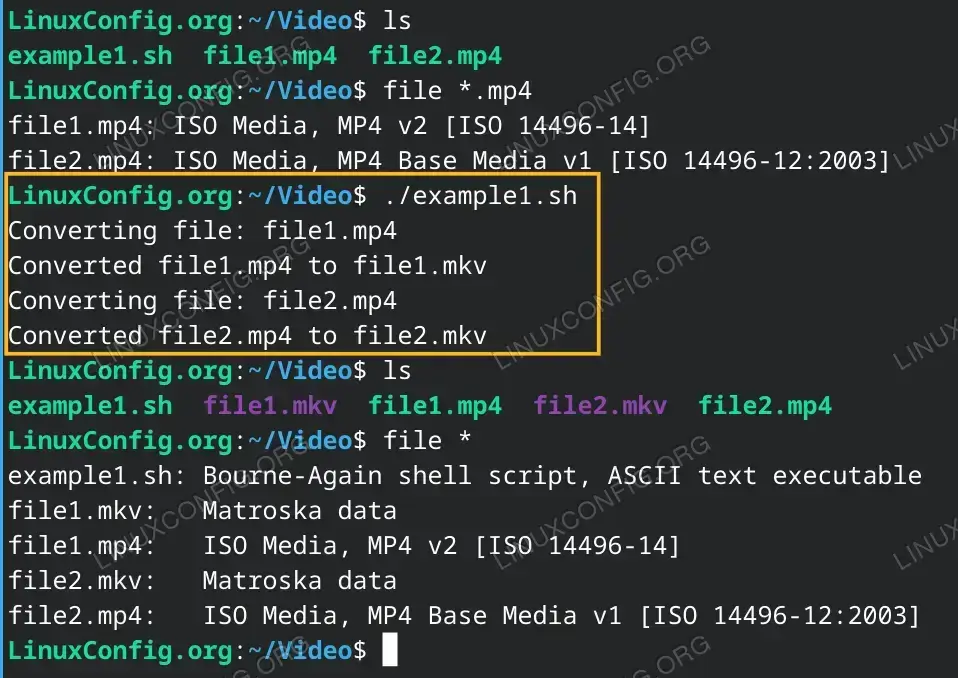
Converting Files Based on Extension - Converting All Files in a Specific Directory: The second example demonstrates how to convert all files within a specific directory. This approach is useful when the directory contains various types of media files, and you wish to convert all of them to a single format.
#!/bin/bash

# Directory containing the media files
directory="/path/to/your/media/files" # update your directory
output_format="avi"

# Change to the specified directory
cd "$directory"

# Loop through all files in the directory
for file in *; do
    # Skip directories
    if [ -d "$file" ]; then
        continue
    fi

    # Extract the base name and extension
    base_name=$(basename "$file")
    extension="${file##*.}"

    # Construct the output file name
    output_file="${base_name%.*}.${output_format}"

    # Use ffmpeg to convert the file
    echo "Converting file: $file"
    ffmpeg -loglevel quiet -i "$file" "$output_file"

    echo "Converted $file to $output_file"
done
This script changes to the specified directory and converts each file within it to the
.aviformat. It checks each item to ensure it is a file and not a directory before proceeding with the conversion. The script can be adjusted to exclude certain file types or to apply different conversion settings based on the file type.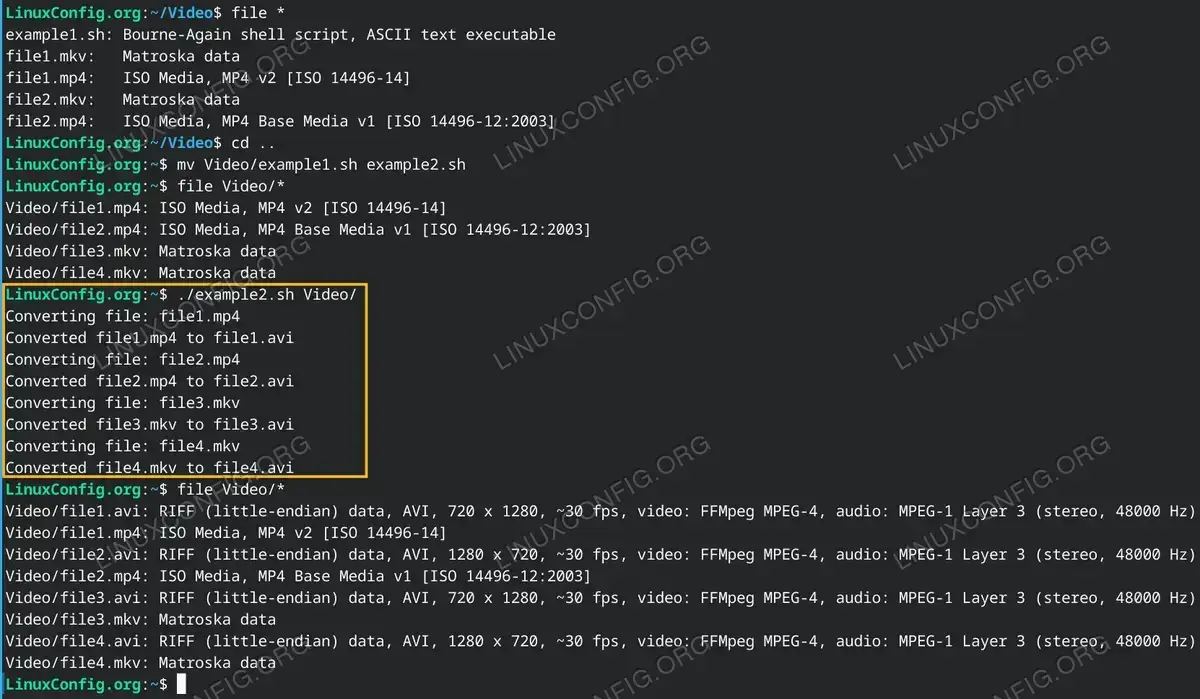
Converting All Files in a Specific Directory
Conclusion
Batch processing media files with FFMPEG through Linux shell scripting can significantly streamline your workflow. Whether you’re dealing with files of a specific type or a diverse collection within a directory, these scripts offer a starting point for automating your conversion tasks. Remember, FFMPEG is a highly versatile tool, and these scripts can be further customized to include various conversion parameters, such as bitrate adjustments, codec changes, or even adding watermarks.
