
/tmp, /var/tmp, and /var/log in RAM using tmpfs. This ensures these directories are cleared at every reboot, leaving no logs or temp files behind. The tmpfs filesystem is a RAM-based filesystem that stores all data in volatile memory rather than on a persistent storage device, making it ideal for privacy-focused configurations.
In This Tutorial, You Will Learn:
- How to mount
/tmp,/var/tmp, and/var/login RAM using tmpfs - How to recreate essential log directory structure on boot
- How to limit persistent logs for maximum privacy
- How to balance privacy with system functionality
Software Requirements and Linux Command Line Conventions
| Category | Requirements, Conventions, or Software Version Used |
|---|---|
| System | Any modern Linux distribution with systemd (including Debian, Ubuntu, Fedora, Arch, openSUSE) |
| Software | Systemd, systemd-journald, tmpfs (pre-installed on most modern Linux distributions) |
| Other | 16 GB RAM recommended to avoid memory exhaustion when mounting multiple directories in RAM Administrative privileges (root or sudo access) to modify system configuration |
| Conventions | $ – Regular non-privileged user commands # – Commands that require root privileges, executed either directly as root or with sudo |
Mount Critical Directories in RAM with tmpfs
WARNING: PRIVACY VS. TROUBLESHOOTING TRADEOFF
This configuration ensures that your temporary and log files are never written to disk, improving privacy at the cost of limited troubleshooting capability. All activity logs will exist only in RAM and be completely erased when your system powers down or reboots, leaving no trace for forensic analysis. Only use this approach if you understand and accept that you’ll lose the ability to access logs from previous sessions.
By mounting sensitive directories in tmpfs, we avoid disk writes and leave no logs behind after a reboot. This approach significantly enhances privacy by preventing the creation of persistent records of your activities. To keep the system functional, we also recreate the needed log directory structure automatically at startup, ensuring that applications expecting these directories won’t fail and critical system services can still operate normally.
The directories we’ll focus on include:
/tmp– Used by applications for temporary files that often contain sensitive information/var/tmp– Similar to /tmp but usually preserved between reboots (we’ll change this behavior)/var/log– Contains system and application logs that can reveal user activity patterns and behavior
Step-by-Step Instructions
- Edit fstab to use tmpfs: Add tmpfs mount entries for /tmp, /var/tmp, and /var/log
$ sudo nano /etc/fstab
Append the following lines to mount these directories in RAM:
tmpfs /tmp       tmpfs defaults,noatime,mode=1777,size=512M 0 0
tmpfs /var/tmp   tmpfs defaults,noatime,mode=1777,size=512M 0 0
tmpfs /var/log   tmpfs defaults,noatime,mode=0755,size=50M  0 0
These entries mount the target directories into RAM on each boot with limited memory usage. Let’s break down what each option means:
-
defaults– Uses the default mount options for tmpfsnoatime– Disables updating access time on files, reducing unnecessary writes to RAMmode=1777– Sets permissions to allow all users to write to the directory but prevents them from deleting files owned by others (sticky bit)mode=0755– For /var/log, sets more restrictive permissions appropriate for log filessize=512Morsize=50M– Limits the maximum amount of RAM each directory can use to prevent memory exhaustion0 0– Disables filesystem checking and backup operations as they’re unnecessary for tmpfs
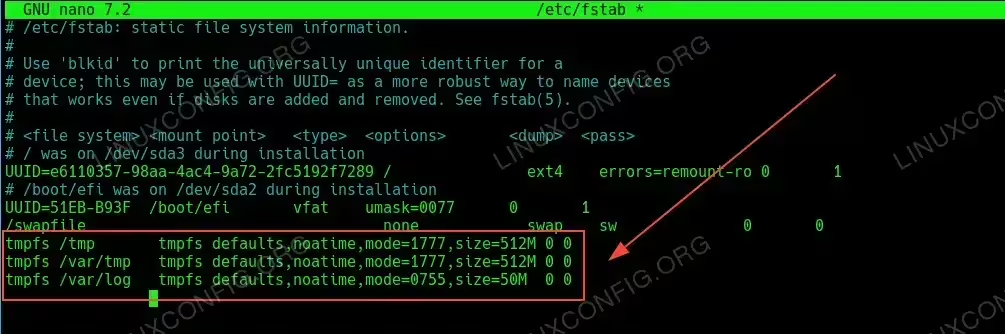
Configure fstab to use tmpfs -
- Create a systemd service to recreate log structure: Next, we’ll create a systemd service to ensure essential /var/log subdirectories exist after reboot
$ sudo nano /etc/systemd/system/log-tmpfs-init.service
Paste this unit file:
[Unit]
Description=Initialize /var/log directory structure
DefaultDependencies=no
After=local-fs.target
Before=multi-user.target

[Service]
Type=oneshot
ExecStart=/usr/local/bin/init-log-tmpfs.sh
RemainAfterExit=true

[Install]
WantedBy=multi-user.target
This systemd unit runs a script on boot to recreate the log directory layout. It executes early in the boot process after filesystems are mounted but before most services start, runs once to initialize directories, and remains marked as active afterward. The service is configured to start automatically during normal system boot.
- Create the log structure script: This script will rebuild critical directories
$ sudo nano /usr/local/bin/init-log-tmpfs.sh
Paste the following script:
#!/bin/bash

# Create essential log directories used by various system services
mkdir -p /var/log/journal /var/log/cups /var/log/lightdm /var/log/apt /var/log/installer /var/log/nginx /var/log/mysql

# Create essential log files that some applications explicitly check for
touch /var/log/wtmp /var/log/btmp /var/log/lastlog

# Set correct ownership and permissions on authentication log files
chown root:utmp /var/log/wtmp /var/log/btmp
chmod 664 /var/log/wtmp /var/log/btmp
chmod 644 /var/log/lastlog

# Restart the journal service to ensure it writes to the newly created directories
systemctl restart systemd-journald
This script creates the necessary directory structure and files for system functionality. It sets up log directories for critical services (systemd, printing, display, package management, etc.), creates essential authentication log files (wtmp, btmp, lastlog), applies proper security permissions, and restarts the journaling service to ensure it recognizes the new structure.
Don’t forget to make the script executable:
$ sudo chmod +x /usr/local/bin/init-log-tmpfs.sh
AUTOMATIC LOG DIRECTORY CREATION ON BOOT
Enable the systemd service to auto-recreate/var/logstructure on each boot to avoid broken services. This ensures applications depending on specific log directories don’t fail when starting up. - Enable the service and reload systemd: Apply the changes to systemd
$ sudo systemctl daemon-reexec
$ sudo systemctl daemon-reload
$ sudo systemctl enable log-tmpfs-init.service
These commands refresh the systemd configuration, apply our new service definition, and enable the service to start automatically at boot time. The
daemon-reexeccommand ensures systemd itself is restarted with the new configuration,daemon-reloadmakes systemd aware of our new service file, andenablesets up the service to run on each system startup. - Reboot your system: Apply all changes and verify functionality
$ sudo reboot
A system reboot is necessary to fully apply the tmpfs mounts defined in fstab. After rebooting, your temporary directories will be mounted in RAM, and the log structure will be automatically recreated by our systemd service. This ensures a clean system state with privacy protection active.
- Test the new configuration: Verify that everything is working correctly
$ mount | grep tmpfs
$ ls -la /var/log
$ df -h | grep tmpfs
After rebooting, these commands will help you verify that your configuration is working properly. The first command confirms that your directories are indeed mounted as tmpfs filesystems. The second command shows that the log directory structure has been properly recreated by our service. The third command displays the size and usage of your tmpfs mounts, allowing you to monitor memory usage and ensure the allocated sizes are appropriate for your system.
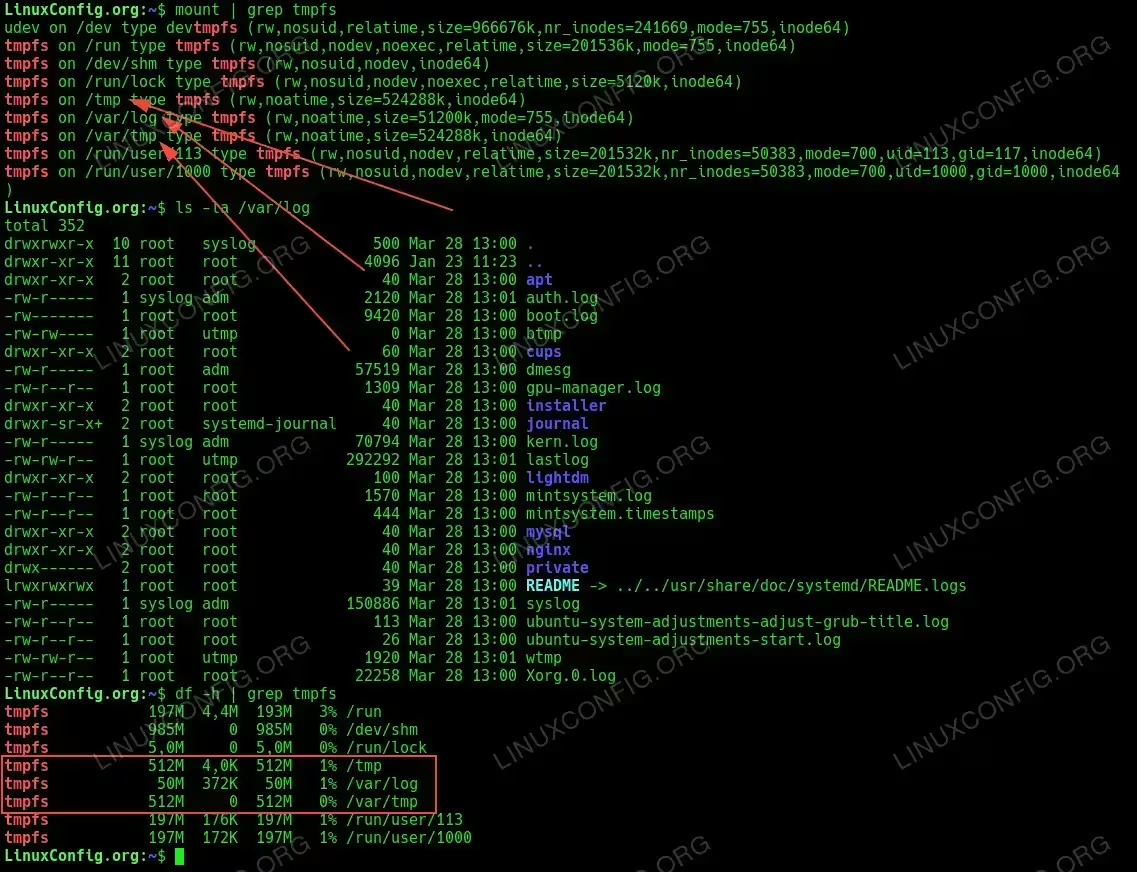
Test the new configuration. Make sure that /tmp and other directories are mounted in tmpfs
Understanding the Security and Privacy Benefits
Moving sensitive directories to RAM provides several crucial privacy advantages:
- No Persistent Logs: All activity records vanish completely after shutdown, leaving no forensic trail
- Reduced Disk Wear: Fewer writes to SSD or HDD improve drive longevity, especially for SSDs with limited write cycles
- Performance Boost: RAM is significantly faster than disk storage, improving system performance for temporary file operations
- Protection Against Data Recovery: Even advanced forensic tools cannot recover data that was never written to disk
Conclusion
Mounting /tmp, /var/tmp, and /var/log as tmpfs is a powerful way to reduce traceable activity on your Linux Mint system. While it limits some troubleshooting capabilities, it offers significant gains in privacy. With proper setup of directory structure recreation, your system will remain stable while running clean every boot. This approach is particularly valuable for privacy-conscious users, journalists working with sensitive information, or anyone concerned about leaving minimal digital footprints.
Remember that this configuration means you’ll lose log data after reboots, so if you need to troubleshoot persistent issues, you may need to temporarily modify your setup or implement selective log persistence for critical components.
Frequently Asked Questions (FAQ)
-
Will mounting /var/log in RAM break my system?
Not if you recreate the required log directories on boot using a systemd service. Most issues come from missing files and directories, which we pre-create with our init script. However, you may lose the ability to troubleshoot issues that occurred in previous boot sessions, as those logs won’t persist.
-
Can I allocate more RAM to /var/log if needed?
Yes. You can increase the
size=value in the fstab entry for /var/log. Just ensure you have enough available memory. For systems with heavy logging, you might want to increase from 50M to 100M or more. Monitor your RAM usage withdf -h /var/logto see how much space is being used and adjust accordingly. -
What happens to logs after reboot?
They are wiped completely, leaving no trace of prior activity unless you’ve configured a persistent logging mechanism elsewhere. This is the main privacy benefit of this approach, but it also means you can’t check logs from previous boot sessions when troubleshooting issues.
-
How can I troubleshoot issues if all logs are cleared at reboot?
For troubleshooting specific issues, you can temporarily set up selective log persistence by creating a small script that copies important logs to a secure location before shutdown. Alternatively, you can temporarily disable the tmpfs mounts by commenting out the relevant lines in /etc/fstab and rebooting.
-
Will this affect system performance?
Generally, it will improve performance for operations involving temporary files since RAM is much faster than disk storage. However, if your system has limited RAM, allocating too much to tmpfs could lead to memory pressure. Start with conservative sizes and adjust based on your system’s resources and needs.
-
Is this configuration compatible with disk encryption?
Yes, and it actually enhances security even further. While disk encryption protects data at rest, tmpfs ensures sensitive logs and temporary files never reach the disk at all, providing protection even when the system is running with the encrypted disk mounted.
