
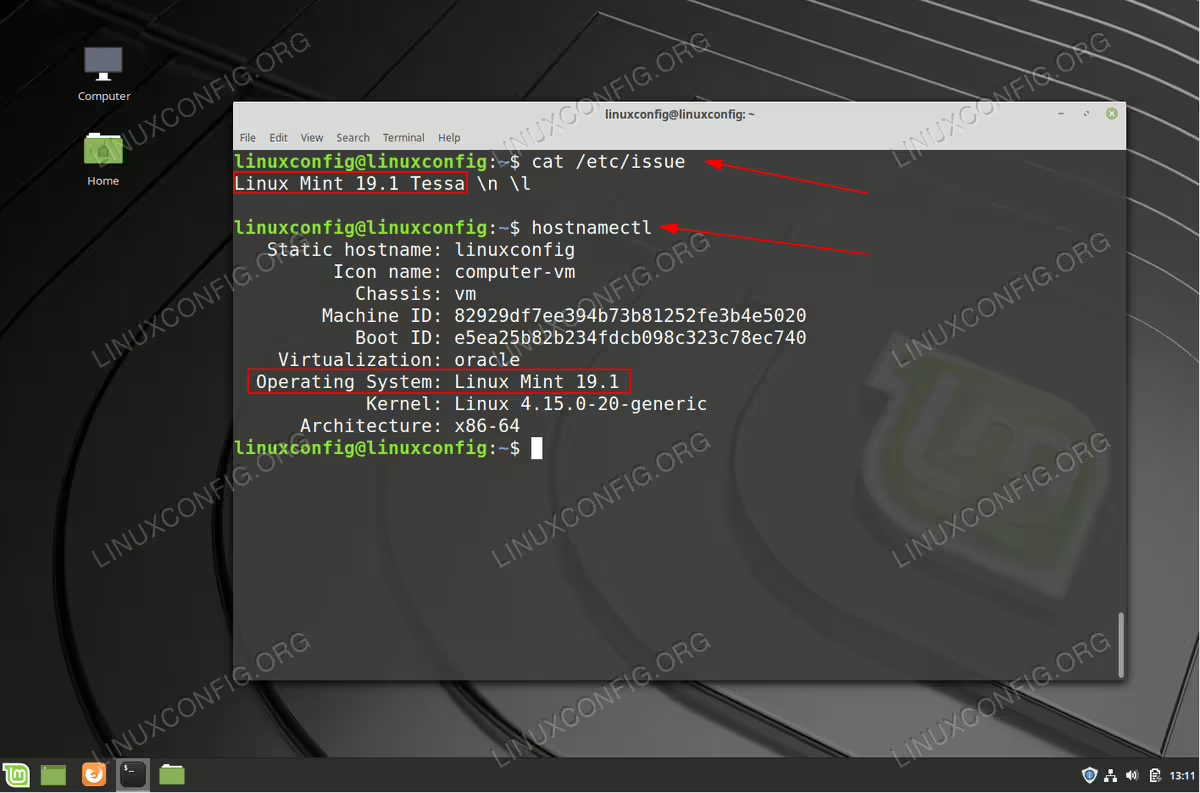
There are number of ways on how to check Linux Mint version. Since Linux Mint comes with number of available Desktops the graphical user interface may differ from user to user hence the procedure is also different. From this reason the easiest and perhaps even recommend solution is to simply open up a command line terminal and execute the following command cat /etc/issue.
To check a version of other Linux distributions visit our how to check Linux version guide.
In this tutorial you will learn:
- How to check Linux Mint version from graphical user interface
- How to check Linux Mint version from the command line
Software Requirements and Conventions Used
| Category | Requirements, Conventions or Software Version Used |
|---|---|
| System | Red Hat Enterprise Linux 8 |
| Software | N/A |
| Other | Privileged access to your Linux system as root or via the sudo command. |
| Conventions |
# – requires given linux commands to be executed with root privileges either directly as a root user or by use of sudo command$ – requires given linux commands to be executed as a regular non-privileged user |
Check Linux Mint version from GUI instructions
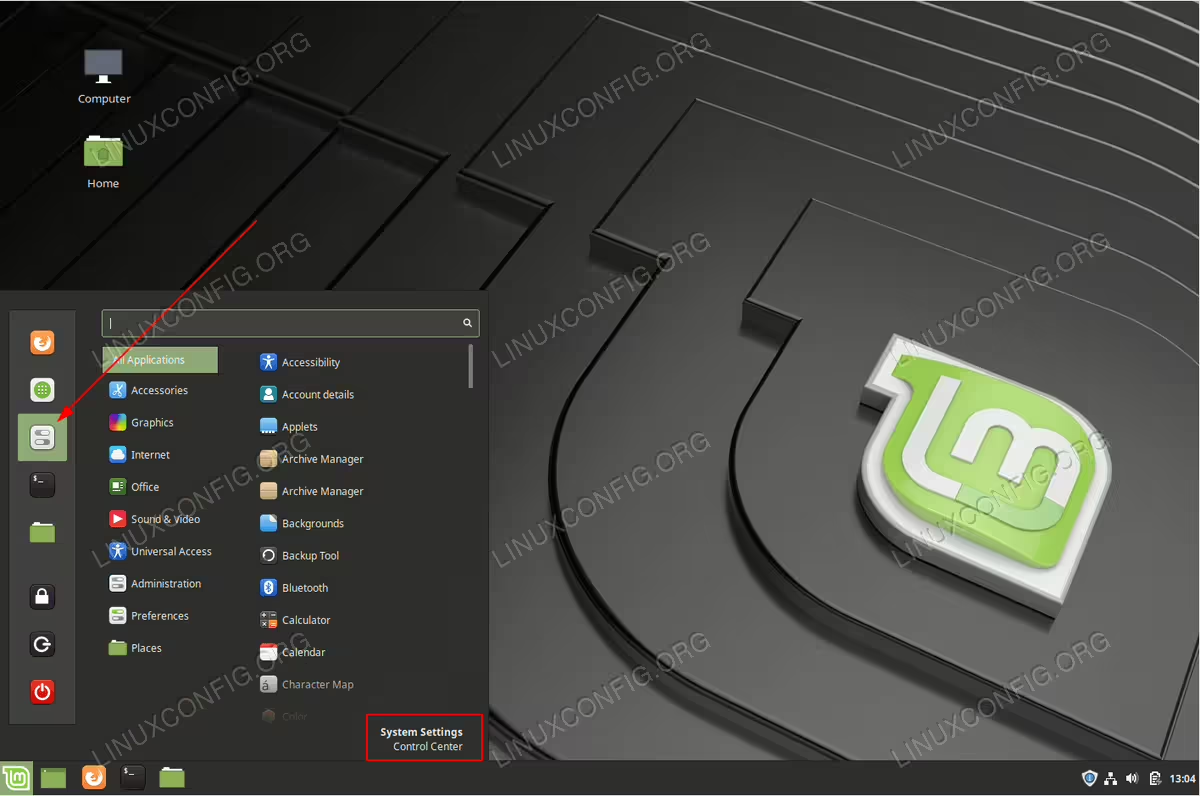
As already mentioned there are number of Desktop managers available for the Linux Mint. Follow the below step to check Linux Mint version using Cinnamon Desktop.
- Select the
System Settings: Open up a Start menu and clink on
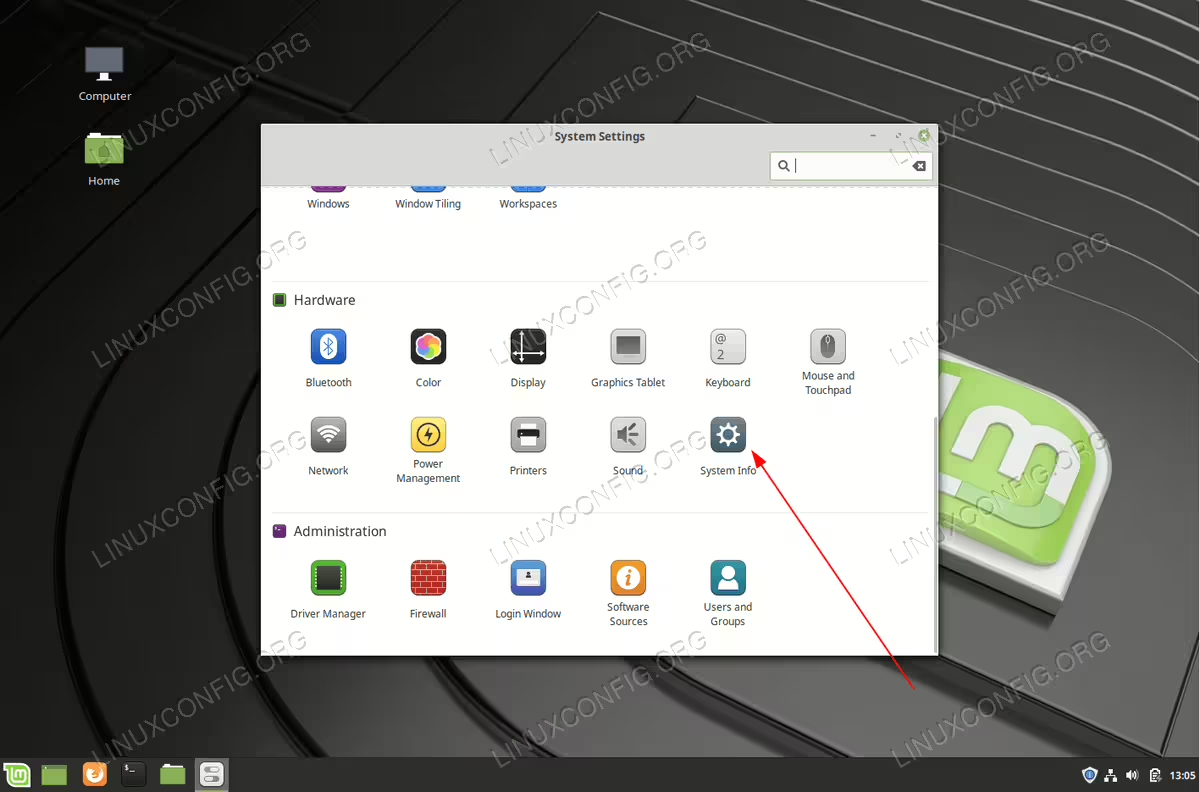
System Settingsbutton. - Click on the
System Infobutton: Select
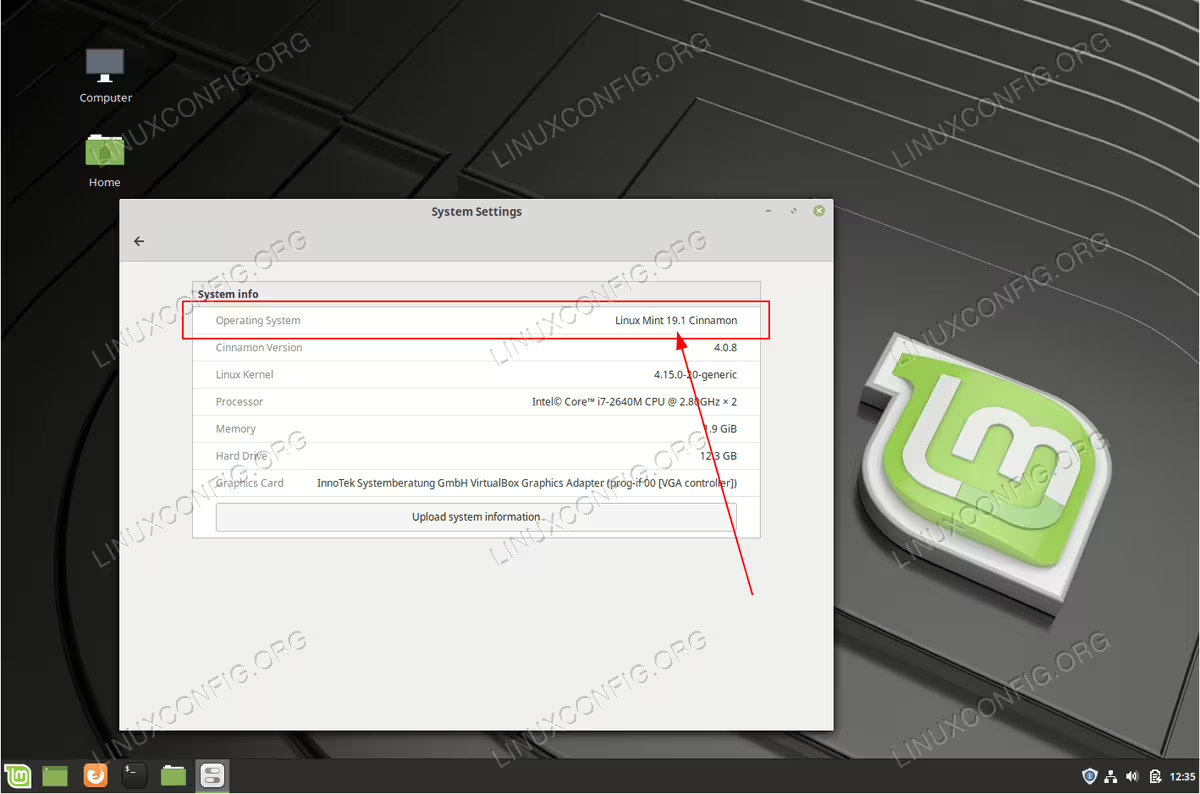
System Infobutton. - Read the provided information:
 Checking a Linux Mint version from GUI Cinnamon desktop.
How to check Linux Mint version from the Linux terminal step by step instructions
There are various text files and system utilities to which may help to reveal the Linux Mint version. The most obvious file to contain the Linux Mint version and which is available across all Debian based GNU/Linux distributions is the /etc/issue file.
$ cat /etc/issue
Linux Mint 19.1 Tessa \n \l
The most common utility to check the Linux Mint version is the hostnamectl linux command:
$ hostnamectl
   Static hostname: linuxconfig
         Icon name: computer-vm
           Chassis: vm
        Machine ID: 82929df7ee394b73b81252fe3b4e5020
           Boot ID: e5ea25b82b234fdcb098c323c78ec740
    Virtualization: oracle
  Operating System: Linux Mint 19.1
            Kernel: Linux 4.15.0-20-generic
      Architecture: x86-64
As a bonus, the hostnamectl command among the Mint version also reveals the currently used and loaded kernel version. Next option is to look into the the Mint Linux specific file called /etc/linuxmint/info:
$ cat /etc/linuxmint/info
RELEASE=19.1
CODENAME=tessa
EDITION="Cinnamon"
DESCRIPTION="Linux Mint 19.1 Tessa"
DESKTOP=Gnome
TOOLKIT=GTK
NEW_FEATURES_URL=https://www.linuxmint.com/rel_tessa_cinnamon_whatsnew.php
RELEASE_NOTES_URL=https://www.linuxmint.com/rel_tessa_cinnamon.php
USER_GUIDE_URL=https://www.linuxmint.com/documentation.php
GRUB_TITLE=Linux Mint 19.1 Cinnamon
lsb_release command provides you with a flexibility to choose which information is most important to include as part of you version checking effort. To obtain an information about codename, release version, distributor and distribution execute:
$ lsb_release -crid
Distributor ID: LinuxMint
Description:    Linux Mint 19.1 Tessa
Release:        19.1
Codename:       tessa
Lastly, check the content of the /etc/lsb-release and /etc/os-release in order to obtain an information about the Linux Mint version installed on your computer.
