
Disabling user accounts on a Linux system is a common administrative task, often performed to prevent users from accessing the system without completely removing their accounts. This can be necessary for various reasons, such as security concerns, temporary suspensions, or transitioning users to different systems. This guide will walk you through the steps required to disable user accounts effectively and securely.
In this tutorial you will learn:
- How to disable a user account using the
usermodcommand - How to lock a user account using the
passwdcommand - How to expire a user account using the
chagecommand - How to set a user’s shell to
nologin - How to modify the
/etc/shadowfile to disable an account
| Category | Requirements, Conventions or Software Version Used |
|---|---|
| System | Linux distribution (e.g., Ubuntu, CentOS, Debian) |
| Software | usermod, passwd, chage, nologin |
| Other | None |
| Conventions | # – requires given linux commands to be executed with root privileges either directly as a root user or by use of sudo command$ – requires given linux commands to be executed as a regular non-privileged user |
Disabling User Accounts on Linux
There are several methods to disable user accounts on a Linux system. Each method offers a different level of restriction, from locking the account to setting an expiration date. The methods discussed here are using the usermod, passwd, chage commands, setting the user’s shell to nologin, and modifying the /etc/shadow file.
- Disable a User Account Using usermod: The
usermodcommand is a powerful tool used to modify user accounts in Linux. To disable an account, the-L(lock) option can be used.# usermod -L username
This command locks the specified user account by disabling their password. The user will not be able to log in until the account is unlocked using the
-Uoption:# usermod -U username
Unlocking the account restores the user’s ability to log in.
- Lock a User Account Using passwd: The
passwdcommand is commonly used to change user passwords, but it can also lock and unlock user accounts.# passwd -l username
Locking a user account with the
passwdcommand adds an exclamation mark (!) at the beginning of the user’s password hash in the/etc/shadowfile, rendering the password invalid.
To unlock the account, use:# passwd -u username
- Expire a User Account Using chage: The
chagecommand changes the user password expiry information. You can set an account to expire immediately, effectively disabling it.# chage -E 0 username
This command sets the account expiry date to the Unix epoch (January 1, 1970), which disables the account. To set a specific expiry date, use:
# chage -E YYYY-MM-DD username
where
YYYY-MM-DDis the desired expiry date. - Set a User’s Shell to nologin: Another method to disable a user account is to change the user’s shell to
nologin. This prevents the user from logging in to the system.# usermod -s /sbin/nologin username
With this command, when the user attempts to log in, they will see a message indicating that their account is not available.
- Modify the /etc/shadow File to Disable an Account: You can manually disable a user account by editing the
/etc/shadowfile. Adding an asterisk (*) or an exclamation mark (!) in front of the user’s encrypted password will render the password invalid.# nano /etc/shadow
Find the line corresponding to the user account you want to disable and add
*or!at the beginning of the password field:username:!*encrypted_password:other_fields
Save the file and exit the editor. The user will no longer be able to log in with the modified password.
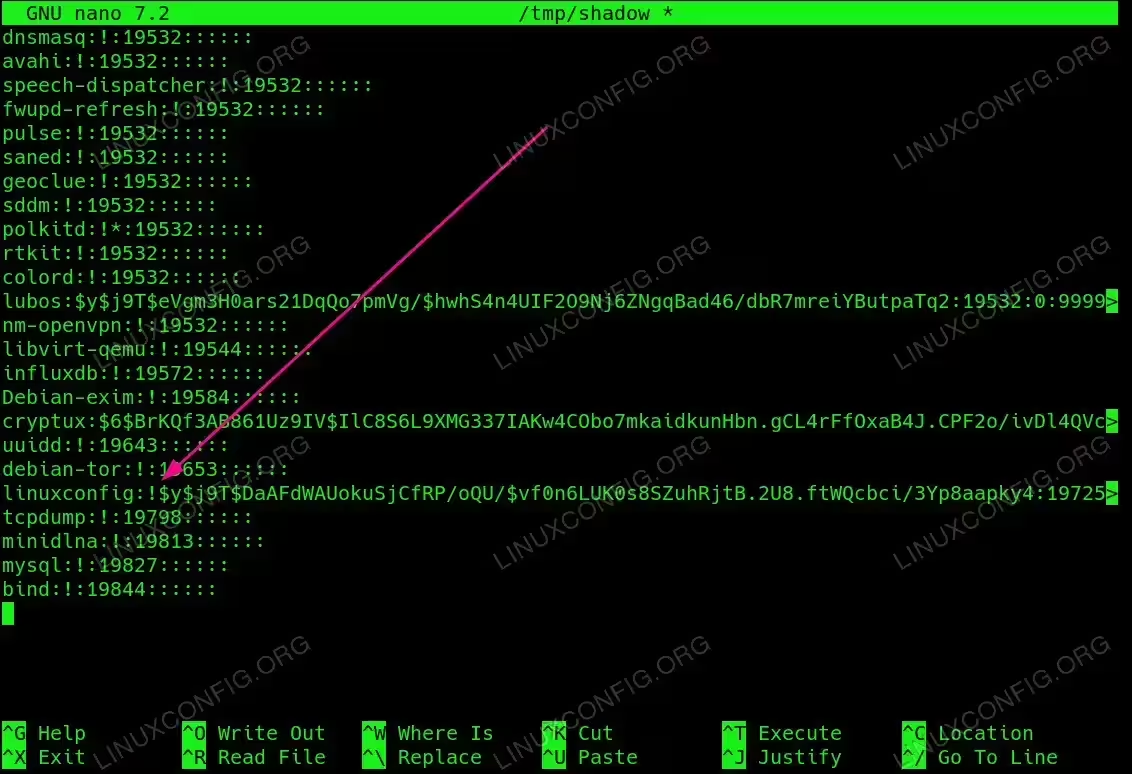
Modify the /etc/shadow File to Disable an Account
Conclusion
Disabling user accounts on a Linux system can be done using various methods, each suitable for different administrative needs. Whether you choose to lock an account, disable a password, set an expiration date, change the user’s shell to nologin, or modify the /etc/shadow file, these tools provide the flexibility and control necessary to manage user access effectively. Always ensure you have the appropriate privileges and backup critical data before making changes to user accounts.
