
Amazon Kindle supports a limited number of eBook formats, making it essential to convert your files to a compatible format before sending them to your device. If you are a Linux user, there are several tools at your disposal to help with this conversion process. In this guide, we will cover how to use popular tools such as ebook-convert, calibre, and unoconv to convert various eBook formats to Amazon Kindle-supported formats.
In this tutorial you will learn:
- How to install and use
ebook-convertto convert eBooks - How to install and use
calibrefor eBook conversion - How to use
unoconvfor document format conversion
| Category | Requirements, Conventions or Software Version Used |
|---|---|
| System | Any Linux distribution |
| Software | ebook-tools, calibre, unoconv |
| Other | Internet connection for package installation |
| Conventions | # – requires given Linux commands to be executed with root privileges either directly as a root user or by using the sudo command$ – requires given Linux commands to be executed as a regular non-privileged user |
Methods to Convert eBook Formats
- Using ebook-convert: This method involves using the
ebook-convertcommand-line tool, which is part of theebook-toolspackage. It allows you to convert between various eBook formats such as ePub, PDF, Mobi, and RTF.# dnf install ebook-tools
For Fedora, CentOS, or Redhat users, install
ebook-toolsusing the command above. For Ubuntu/Debian users, install the package with the following command:# apt install calibre
Once installed, you can use the following commands to convert your eBooks:
$ ebook-convert my-ebook.epub my-kindle.mobi
This command converts an ePub file to the Kindle-compatible Mobi format.
$ ebook-convert my-ebook.pdf my-kindle.mobi
This command converts a PDF file to the Mobi format for Kindle.
$ ebook-convert my-ebook.epub my-kindle.rtf
This command converts an ePub file to RTF format.
- Using calibre:
calibreis a comprehensive eBook management application that supports multiple formats and provides a graphical interface for converting eBooks.# dnf install calibre
For Fedora, CentOS, and Redhat users, use the above command to install
calibre. For Ubuntu/Debian users, use the following:# apt install calibre
After installation, launch
calibreusing:$ calibre
Add your eBook to the library, right-click on it, select “Convert books,” choose the output format (e.g., MOBI), and click OK. The converted file will be saved in your
Calibre Librarydirectory.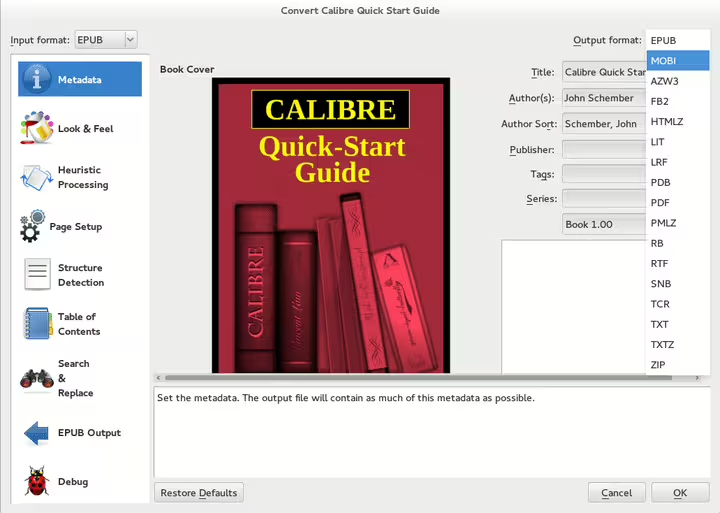
Converting eBooks to Kindle MOBI format with calibre on Linux - Using unoconv:
unoconvis a versatile tool primarily used for converting between LibreOffice formats, PDFs, and Microsoft document formats. While it is not specifically designed for eBook formats, it can be useful for converting text-based documents into formats that can then be further processed for Kindle, such as DOCX or PDF.# dnf install unoconv
To install
unoconvon Fedora, CentOS, or Redhat, use the above command. For Ubuntu/Debian, use:# apt install unoconv
By default,
unoconvconverts documents to PDF, but you can specify other formats that can be converted to Kindle formats later using tools likecalibre. For example:$ unoconv -f pdf my-doc.odt
This command converts an ODF document to PDF, which can then be converted to Kindle format (e.g., MOBI) using
calibre.$ unoconv -f docx my-doc.odt
This command converts an ODF document to DOCX format, which can also be converted to a Kindle-compatible format using other tools. While
unoconvdoesn’t directly support Kindle formats, it’s useful for preparing documents for further conversion with tools likeebook-convertorcalibre.
Conclusion
Converting eBooks for your Amazon Kindle on Linux is straightforward with the right tools. Whether you prefer the command-line power of ebook-convert, the user-friendly interface of calibre, or the flexibility of unoconv, you can easily convert your documents into Kindle-compatible formats. With these methods, you can ensure that your favorite eBooks are ready to read on your Kindle anytime.