
In this quick config we will setup the Berkeley Internet Name Domain (DNS) service named. First, let’s briefly describe our environment and proposed scenario. We will be setting up a DNS server to host a single zone file for domain linuxconfig.org. Our DNS server will act as a master authority for this domain and will resolve fully qualified domain (FQDN) linuxconfig.org and www.linuxconfig.org to an IP address 1.1.1.1.
Furthermore, our named daemon will be listening on a two local IP addresses, the loopback IP address 127.0.0.1 and local network interface 10.1.1.100. Lastly, the DNS server will allow queries from any external IP address.
DNS server Installation
Now that we have described our basic scenario let’s begin with an DNS server installation. To install DNS server on RHEL7 use yum command below:
# yum install bind
...
RHEL_7_Disc/productid                         | 1.6 kB     00:00
  Verifying  : 32:bind-9.9.4-14.el7.x86_64                       1/2
  Verifying  : 32:bind-libs-9.9.4-14.el7.x86_64                  2/2

Installed:
  bind.x86_64 32:9.9.4-14.el7

Dependency Installed:
  bind-libs.x86_64 32:9.9.4-14.el7

Complete!
Once the DNS installation is finished we will now make a quick configuration to make named daemon listen on our loopback and local network interface address:
[root@rhel7 ~] # ip addr show | grep inet
    inet 127.0.0.1/8 scope host lo
    inet6 ::1/128 scope host
    inet 10.1.1.110/8 brd 10.255.255.255 scope global enp0s3
    inet6 fe80::a00:27ff:fe15:38b7/64 scope link
From the above command output we can see our both IPv4 and IPv6 IP addresses. Let’s make our named daemon to listen on both. Open the main named configuration file /etc/named.conf and change line:
listen-on port 53 { 127.0.0.1; };
TO:
listen-on port 53 { 127.0.0.1; 10.1.1.110; };
At this point we can start named daemon:
[root@rhel7 ~]# service named start
Redirecting to /bin/systemctl start  named.service
If the above servicecommand hangs make sure that you have a correctly setup your hostname and that you can resolve it:
[root@rhel7 ~]# ping -c 1 `hostname`
ping: unknown host rhel7
Quickest way to fix this is to edit your /etc/hosts file to something like:
[root@rhel7 ~]# vi /etc/hosts
127.0.0.1   rhel7 localhost localhost.localdomain localhost4 localhost4.localdomain4
10.1.1.110  rhel7
::1         localhost localhost.localdomain localhost6 localhost6.localdomain6
[root@rhel7 ~]# ping -c 1 `hostname`
PING rhel7 (127.0.0.1) 56(84) bytes of data.
64 bytes from rhel7 (127.0.0.1): icmp_seq=1 ttl=64 time=0.080 ms

--- rhel7 ping statistics ---
1 packets transmitted, 1 received, 0% packet loss, time 0ms
rtt min/avg/max/mdev = 0.080/0.080/0.080/0.000 ms
At this point you should be able to start your DNS server without any problems. Once your named daemon started check port 53 by using a netstat command which is a part of net-tools package:
[root@rhel7 ~]# netstat -ant | grep -w 53

At this point we should have DNS server configured to be listening on at least two sockets:
10.1.1.110:53
127.0.0.1:53
Firewall Settings
Now is the time to open a firewall to allow DNS queries from external sources. Make sure you have both protocols TCP and UDP:
[root@rhel7 ~]# firewall-cmd --zone=public --add-port=53/tcp --permanent
success
[root@rhel7 ~]# firewall-cmd --zone=public --add-port=53/udp --permanent
success
[root@rhel7 ~]# firewall-cmd --reload
success
Test that you can access port 53 from some other external host. The easiest way is to use nmap command:
[lrendek@localhost ~]$ nmap -p 53 10.1.1.110

Starting Nmap 6.45 ( http://nmap.org ) at 2014-11-08 16:40 AEDT
Nmap scan report for rhel7.local (10.1.1.110)
Host is up (0.00040s latency).
PORT   STATE SERVICE
53/tcp open  domain

Nmap done: 1 IP address (1 host up) scanned in 0.04 seconds
As well as check whether DNS port 53 is accessible using UDP protocol. You will need root privileges for this:
# nmap -sU -p 53 10.1.1.110

Starting Nmap 6.45 ( http://nmap.org ) at 2014-11-08 17:15 AEDT
Nmap scan report for rhel7.local (10.1.1.110)
Host is up (0.00044s latency).
PORT   STATE SERVICE
53/udp open  domain
MAC Address: 08:00:27:15:38:B7 (Cadmus Computer Systems)

Nmap done: 1 IP address (1 host up) scanned in 0.51 seconds
Zone file configuration
All good. Now, it is time to define our zone file for linuxconfig.org domain. First we create a directory to host all our master zone files:
[root@rhel7 ~]# mkdir -p /etc/bind/zones/master/
Next, let’s create the actual zone file with a following content:
create a zone file:
[root@rhel7 ~]# vi /etc/bind/zones/master/db.linuxconfig.org
;
; BIND data file for linuxconfig.org
;
$TTL    3h
@       IN      SOA       linuxconfig.org admin.linuxconfig.org. (
                          1        ; Serial
                          3h       ; Refresh after 3 hours
                          1h       ; Retry after 1 hour
                          1w       ; Expire after 1 week
                          1h )     ; Negative caching TTL of 1 day
;

@       IN      NS      ns1.rhel7.local.
@       IN      NS      ns2.rhel7.local.

linuxconfig.org.    		IN      A       1.1.1.1
www 				IN      A       1.1.1.1
Change the above zone file to suit your environment, add MX records as well as change Name Server records ns1.rhel7.local. and ns2.rhel7.local. to your FQDN that your new DNS server can be resolved with eg. ns1.mydomain.com. and ns2.mydomain.com.. Once ready include our new zone file to the named config file /etc/named.rfc1912.zones:
zone "linuxconfig.org" {
       type master;
       file "/etc/bind/zones/master/db.linuxconfig.org";
};
Restart your DNS server:
[root@rhel7 ~]# service named restart
Redirecting to /bin/systemctl restart  named.service
DNS server configuration
If there are no errors and the named daemon started correctly once again open the main named configuration file /etc/named.conf and change line:
FROM:
allow-query     { localhost; };
TO:
allow-query     { any; };
The above will allow query your DNS server from external sources. Restart your named daemon :
[root@rhel7 ~]# service named restart
Redirecting to /bin/systemctl restart  named.service
As a last configuration step remains is to make sure that our DNS server starts after we reboot our RHEL7 linux server:
[root@rhel7 ~]# systemctl enable named
ln -s '/usr/lib/systemd/system/named.service' '/etc/systemd/system/multi-user.target.wants/named.service'
RHEL 7 DNS Server Testing
At this stage you should be ready to ask your DNS server to resolve domain linuxconfig.org. From some external host now try to query your DNS server for a domain linuxconfig.org using dig command:
[lrendek@localhost ~]$ dig @10.1.1.110 www.linuxconfig.org
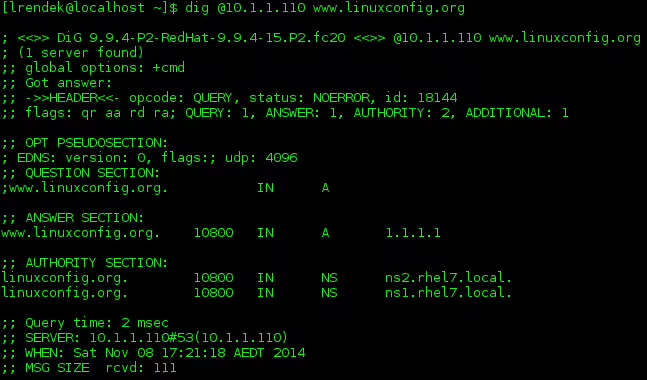
All working as expected.
The above config helped you to get started with some basic configuration of your DNS server on RHEL7 linux server.