
If you have ever downloaded a .deb package on Ubuntu 26.04 and double-clicked it only to be greeted by the frustrating “No app installed for Debian package files” error, you are not alone. This is a common issue on Ubuntu 26.04 Resolute Raccoon because the default GNOME Software Center does not natively handle .deb files. Fortunately, there are several straightforward ways to install deb packages on Ubuntu 26.04, whether you prefer the command line or a graphical tool.
In this tutorial, we will explain why this error occurs and walk you through every reliable method to install .deb packages on your system.
- Why Ubuntu 26.04 shows the “No app installed for Debian package files” error
- How to install
.debpackages usingaptfrom the command line - How to install and use GDebi for a graphical double-click experience
- How to resolve missing dependency errors after installation
Software Requirements
| Category | Requirements, Conventions or Software Version Used |
|---|---|
| System | Ubuntu 26.04 Resolute Raccoon |
| Software | apt, dpkg, GDebi (optional) |
| Other | Privileged access to your Linux system as root or via the sudo command. A downloaded .deb package file. |
| Conventions | # – requires given linux commands to be executed with root privileges either directly as a root user or by use of sudo command$ – requires given linux commands to be executed as a regular non-privileged user |
.deb files directly. Use the command line or install GDebi for a GUI solution.
| Step | Command/Action |
|---|---|
| 1. Install via apt (recommended) | $ sudo apt install ./package.deb |
| 2. Fix missing dependencies | $ sudo apt install -f |
| 3. Or install GDebi for GUI | $ sudo apt install gdebi |
Why This Error Occurs on Ubuntu 26.04
The “No app installed for Debian package files” error appears when you double-click a .deb file in the Ubuntu 26.04 file manager. The reason is straightforward: Ubuntu’s default application store, GNOME Software (also known as Ubuntu Software), does not support installing local .deb package files. It is designed to work with Snap packages and repository-based software instead.
In previous Ubuntu releases, the older Ubuntu Software Center or GDebi handled .deb files out of the box. However, since Ubuntu transitioned to GNOME Software as the default, this capability was dropped. Consequently, the file manager has no registered application to open .deb files, which triggers the error message.
This does not mean you cannot install .deb packages on Ubuntu 26.04. You simply need to use a different approach, either through the command line or a dedicated graphical tool.
Install .deb Packages from the Command Line on Ubuntu 26.04
The most reliable way to install deb packages on Ubuntu 26.04 is from the command line using apt. This method automatically resolves and installs any missing dependencies, making it the recommended approach.
Method 1: Using apt (Recommended)
The apt command can install local .deb files directly when you provide a relative or absolute path to the file. The ./ prefix is important because it tells apt to treat the argument as a local file rather than a package name from the repositories.
- Navigate to the directory containing the .deb file: Open a terminal and change to the directory where the package was downloaded. In most cases, this will be your
Downloadsfolder:$ cd ~/Downloads
- Install the package with apt: Run the following command, replacing
package.debwith the actual filename:$ sudo apt install ./package.deb
The
apttool will read the package metadata, resolve any required dependencies from the configured repositories, and install everything in a single operation. - Verify the installation: Confirm the package was installed successfully by checking its status:
$ apt list --installed | grep package-name
IMPORTANT
Always use ./ before the filename when installing with apt. Without it, apt will search the online repositories instead of using your local file.
Method 2: Using dpkg
The lower-level dpkg tool can also install .deb files. However, unlike apt, it does not resolve dependencies automatically. Therefore, you may need an additional step to fix unmet dependencies after the initial installation.
- Install the package with dpkg:
$ sudo dpkg -i package.deb
If the package has dependencies that are not yet installed on your system,
dpkgwill report errors and leave the package in a partially configured state. - Fix missing dependencies: If
dpkgreported dependency errors, run:$ sudo apt install -f
This command will download and install any missing dependencies, then complete the configuration of the partially installed package.
INSTALLATION TIPS
The apt install ./package.deb method is preferred over dpkg -i because it handles dependencies in a single step. Use dpkg only when you need more granular control over the installation process.
Install .deb Packages with GDebi (GUI) on Ubuntu 26.04
If you prefer a graphical solution that lets you double-click .deb files to install them, GDebi is the answer. GDebi is a lightweight GUI tool specifically designed for installing local .deb packages, and it also handles dependency resolution automatically.
- Install GDebi: Open a terminal and install the package:
$ sudo apt install gdebi
- Set GDebi as the default application for .deb files: Right-click any
.debfile in the file manager, select Open With Other Application, and choose GDebi Package Installer. Check the option to always use this application for.debfiles.Alternatively, you can set it from the command line:$ xdg-mime default gdebi.desktop application/vnd.debian.binary-package
- Install a .deb package: Now simply double-click any
.debfile. GDebi will open, display the package details including a description and dependency information, and provide an Install Package button. Click it, enter your password when prompted, and the installation will proceed.
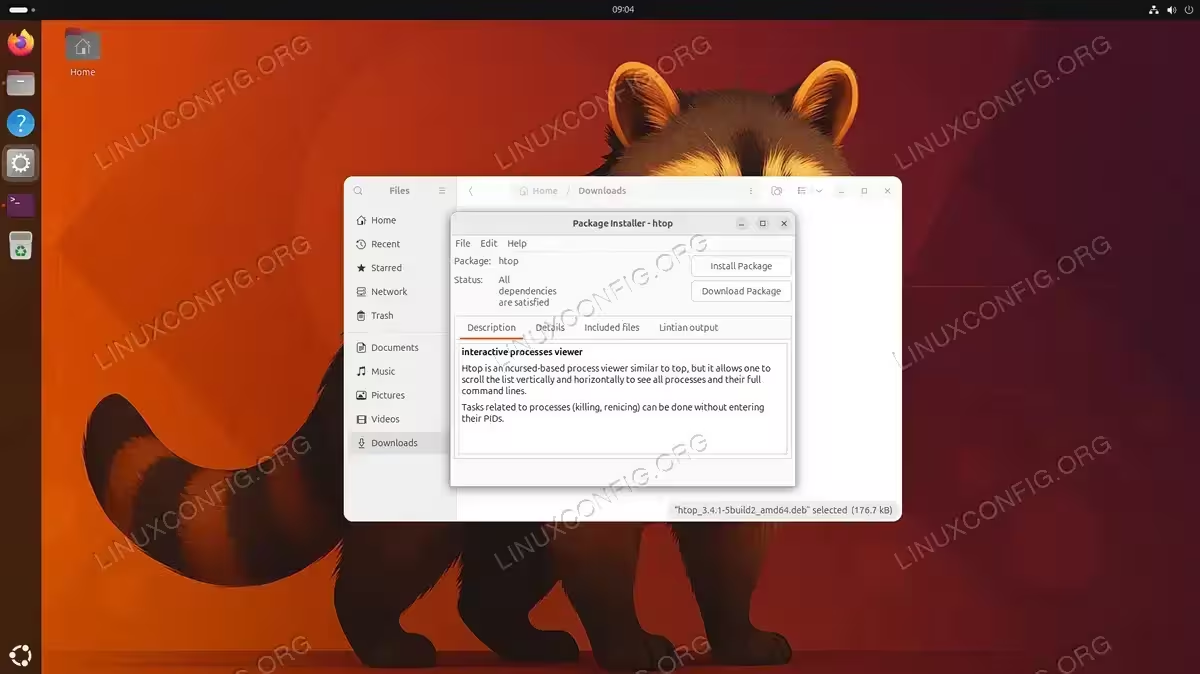
Once GDebi is installed and set as the default handler, the “No app installed for Debian package files” error will no longer appear. Additionally, GDebi provides useful information about the package before installation, such as its description, version, and whether all dependencies can be satisfied.
Conclusion
The “No app installed for Debian package files” error on Ubuntu 26.04 is simply a result of GNOME Software not supporting local .deb file installation. The quickest fix is to use sudo apt install ./package.deb from the terminal, which handles dependencies automatically. For a persistent graphical solution, installing GDebi restores the double-click installation experience. Regardless of which method you choose, installing deb packages on Ubuntu 26.04 remains straightforward once you know the right tool to use.
Frequently Asked Questions
- Why does Ubuntu 26.04 show “No app installed for Debian package files”? Ubuntu 26.04 uses GNOME Software as its default application store, which does not support installing local
.debfiles. The file manager cannot find a registered application to handle the.debfile type, so it displays this error. Install GDebi or useaptfrom the command line to resolve this. - Is it safe to install .deb packages from third-party websites? Only install
.debpackages from sources you trust, such as the official website of the software vendor. Third-party.debfiles can contain malicious code and are not verified by Ubuntu’s package signing system. Whenever possible, prefer packages from the official Ubuntu repositories or Snap Store. - What is the difference between apt install ./package.deb and dpkg -i package.deb? The
aptcommand resolves and installs dependencies automatically in a single step. In contrast,dpkginstalls only the specified package and will fail if dependencies are missing, requiring you to runsudo apt install -fafterward. For this reason,apt install ./package.debis the recommended method. - Can I convert Snap packages to .deb format? No, Snap and
.debare fundamentally different packaging formats. You cannot directly convert between them. If a program is available only as a Snap, you need to install it through thesnapcommand or find an alternative source that provides a.debversion.