
Installing MariaDB on Ubuntu 26.04 is a straightforward process that gives you a powerful, production-ready relational database server. This guide covers the complete mariadb install ubuntu 26.04 workflow, from package installation through initial security hardening and service verification. Whether you are setting up a web application backend, a development environment, or a dedicated database server, this tutorial provides everything you need to get MariaDB running correctly on Ubuntu 26.04 Resolute Raccoon.
Table of Contents
In this tutorial you will learn:
- How to install MariaDB from Ubuntu 26.04 repositories
- How to start, enable, and check the MariaDB service
- How to run
mariadb-secure-installationto harden the server - How to verify the MariaDB version and login
- How to create a database, user, and grant privileges
- How to completely remove MariaDB from Ubuntu 26.04
Software Requirements
| Category | Requirements, Conventions or Software Version Used |
|---|---|
| System | Ubuntu 26.04 Resolute Raccoon |
| Software | MariaDB 10.11 or later (as available in Ubuntu 26.04 repositories) |
| Other | Privileged access to your Linux system as root or via the sudo command. |
| Conventions | # – requires given linux commands to be executed with root privileges either directly as a root user or by use of sudo command$ – requires given linux commands to be executed as a regular non-privileged user |
TL;DR
mariadb-server package, enable the service, and run the security script.
| Step | Command/Action |
|---|---|
| 1. Update package index | sudo apt update |
| 2. Install MariaDB server | sudo apt install mariadb-server |
| 3. Enable and start service | sudo systemctl enable --now mariadb |
| 4. Run security hardening | sudo mariadb-secure-installation |
Install MariaDB on Ubuntu 26.04
The Ubuntu 26.04 official repositories include a recent MariaDB release, so no third-party PPA is required for most use cases. Before you begin the mariadb install ubuntu 26.04 process, update the package index to ensure you pull the latest available version.
- Update the package index: Refresh the local package lists so APT is aware of the latest available versions:
$ sudo apt update
This ensures you install the most recent MariaDB packages available in the Ubuntu 26.04 repositories.
- Install the MariaDB server package: Install
mariadb-server, which pulls in the server, client, and all required dependencies:$ sudo apt install mariadb-server
APT will display the list of packages to be installed and the disk space required. Confirm with Y to proceed.
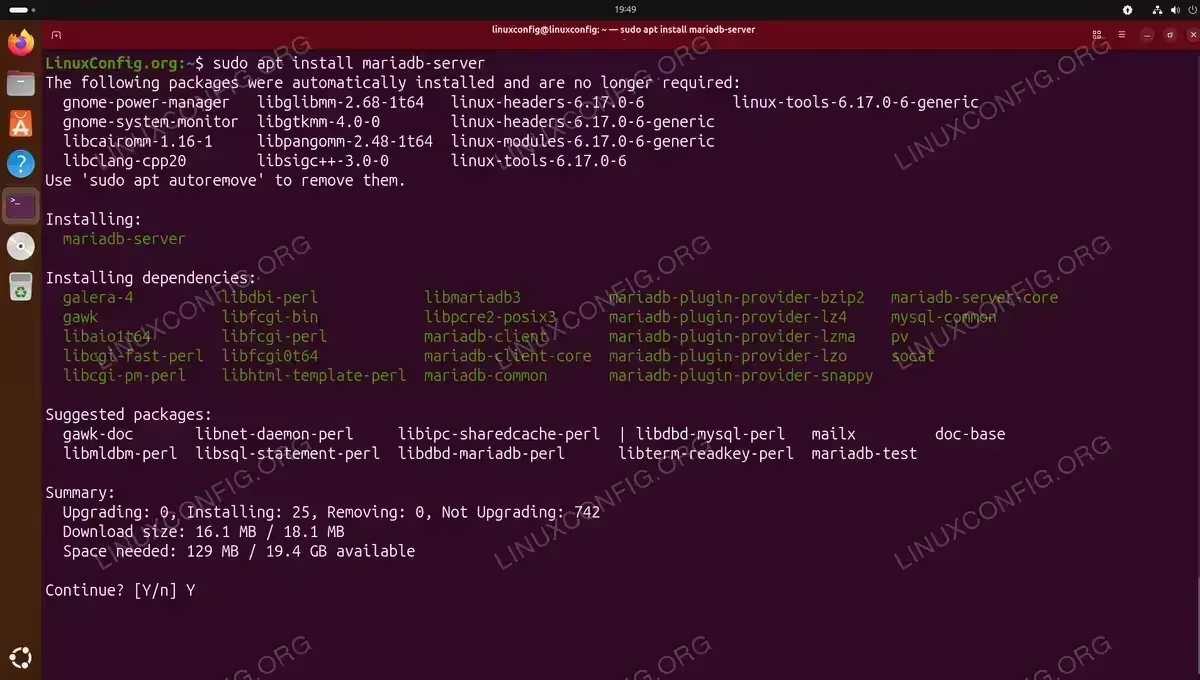
Once the installation finishes, the MariaDB binary and service unit files are in place. The service does not start automatically on all configurations, so the next step addresses that explicitly.
Start and Enable the MariaDB Service
After installation, you need to start the MariaDB service and configure it to launch automatically at boot. Ubuntu 26.04 uses systemd to manage services, consequently a single command handles both actions.
- Enable and start MariaDB: Use the
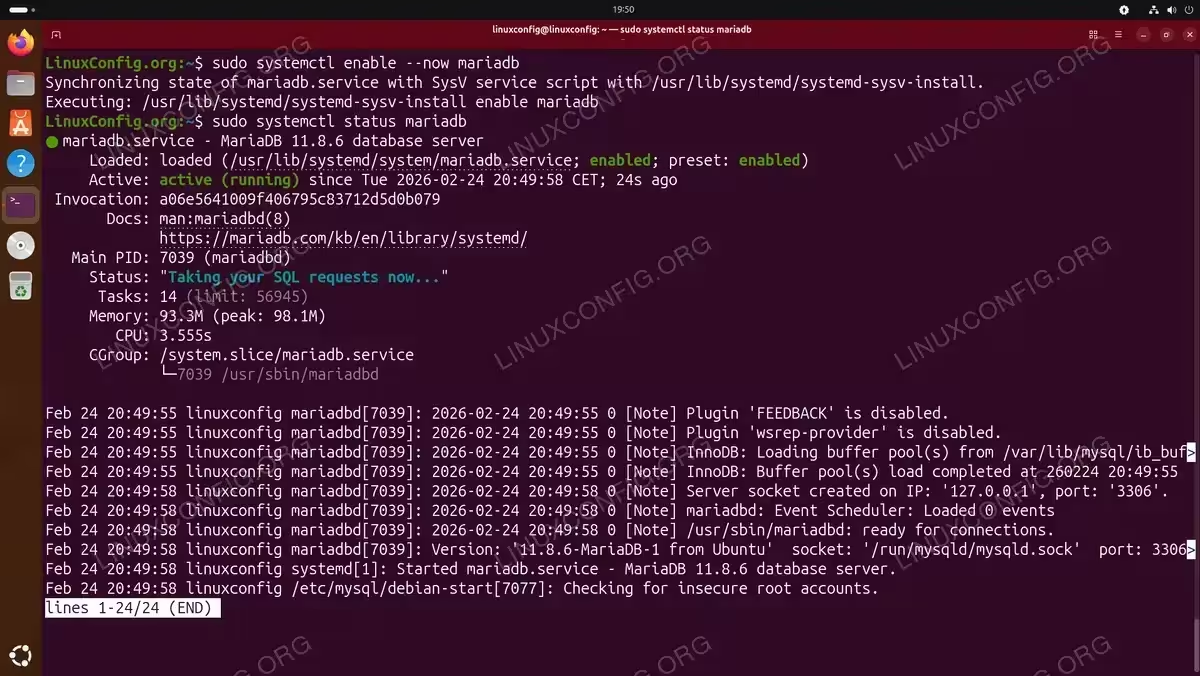
--nowflag to start the service immediately while also enabling it for future boots:$ sudo systemctl enable --now mariadb
- Check the service status: Verify that MariaDB is running without errors:
$ sudo systemctl status mariadb
The output should show
Active: active (running). If the status shows a failure, check/var/log/mysql/error.logfor details.
Run the Security Script
A fresh MariaDB installation on Ubuntu 26.04 includes some defaults that are not suitable for production environments. The mariadb-secure-installation script guides you through removing anonymous users, disabling remote root login, removing the test database, and setting a root password. Running this script is therefore an essential step before exposing the database to any application or network.
- Run the security installation script:
$ sudo mariadb-secure-installation
The script walks you through the following prompts:
- Enter current password for root: Press Enter if no password is set yet.
- Switch to unix_socket authentication: Answer
Yto keep the default socket-based authentication for the root user, orNto use password authentication instead. - Change the root password: Set a strong password if you chose password-based authentication.
- Remove anonymous users: Answer
Y. - Disallow root login remotely: Answer
Yfor security. - Remove test database: Answer
Y. - Reload privilege tables: Answer
Yto apply changes immediately.
SECURITY ALERT
Never skip mariadb-secure-installation on a production server. Anonymous users and the test database represent real attack surfaces that should be removed before the server goes live.
Verify the MariaDB Installation
With MariaDB installed and secured, verify the installation is working correctly by checking the version and logging in to the MariaDB shell.
- Check the installed version:
$ mariadb --version
You should see output similar to:
mariadb Ver 15.1 Distrib 10.11.x-MariaDB, for debian-linux-gnu (x86_64)
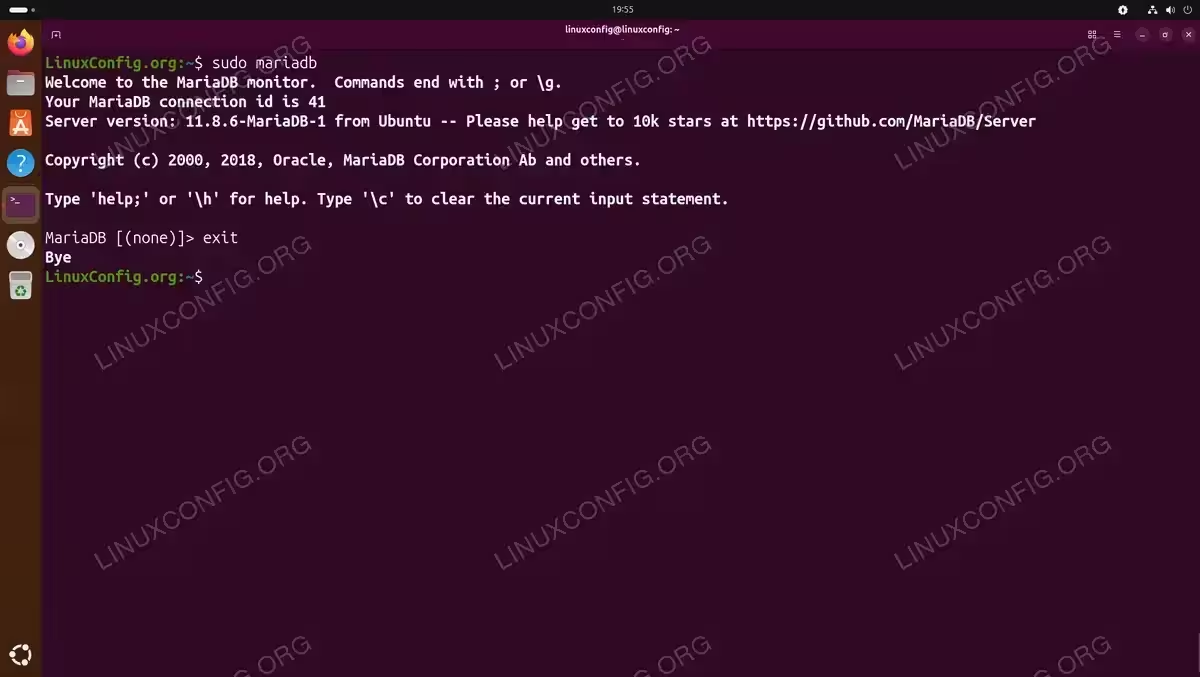
- Log in to the MariaDB shell as root: On Ubuntu 26.04, the root MariaDB user defaults to unix_socket authentication, so you use
sudorather than a password:$ sudo mariadb
You will land at the MariaDB prompt:
MariaDB [(none)]>
- Exit the shell: Type
exitor press Ctrl+D to return to the shell.MariaDB [(none)]> exit
IMPORTANT
On Ubuntu 26.04, the MariaDB root account uses unix_socket authentication by default. This means only the system’s root user (or users with sudo) can log in as the MariaDB root without a password. This is intentional and more secure than password-based root access.
Configure Root Login
For some workflows, particularly automated scripts or applications that need to connect as root, you may need to switch from unix_socket authentication to password-based authentication. Additionally, you may want to create a dedicated administrative user instead. The following steps show how to configure root password authentication if required.
- Log in to the MariaDB shell:
$ sudo mariadb
- Switch root to password authentication: Replace
your_secure_passwordwith a strong password:MariaDB [(none)]> ALTER USER 'root'@'localhost' IDENTIFIED VIA mysql_native_password USING PASSWORD('your_secure_password'); MariaDB [(none)]> FLUSH PRIVILEGES; - Exit and test password login:
MariaDB [(none)]> exit
$ mariadb -u root -p
Enter the password you set when prompted.
INSTALLATION TIPS
Only switch to password-based root authentication if your workflow specifically requires it. Unix socket authentication is the more secure default on Ubuntu 26.04 and should be kept where possible.
Create a Database and User
In practice, applications should never connect to MariaDB as the root user. Moreover, each application should have its own dedicated database and user account with only the necessary privileges. The following example demonstrates this best practice by creating a new database and a dedicated user.
This approach follows the principle of least privilege and is the recommended pattern whether you are installing WordPress on Ubuntu 26.04 or configuring any other web application that requires a database backend.
- Log in to MariaDB:
$ sudo mariadb
- Create a new database: Replace
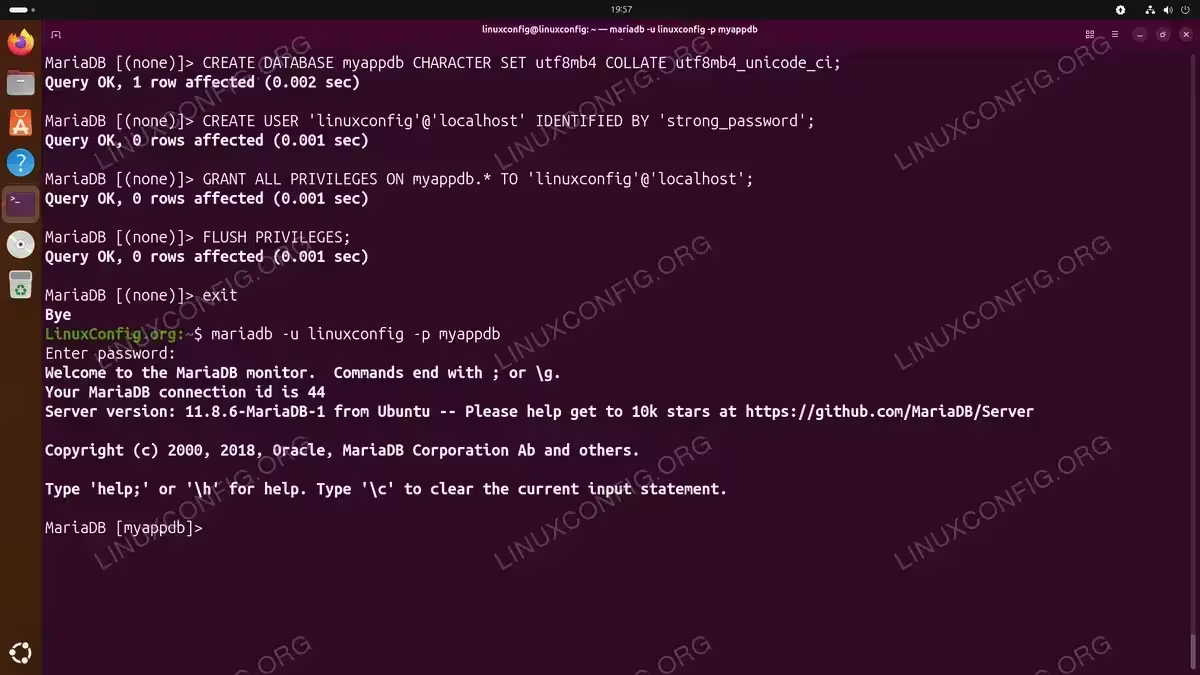
myappdbwith your preferred database name:MariaDB [(none)]> CREATE DATABASE myappdb CHARACTER SET utf8mb4 COLLATE utf8mb4_unicode_ci;
Using
utf8mb4ensures full Unicode support, including emoji characters. - Create a new user: Replace
myappuserandstrong_passwordwith your desired credentials:MariaDB [(none)]> CREATE USER 'linuxconfig'@'localhost' IDENTIFIED BY 'strong_password';
- Grant privileges to the user:
MariaDB [(none)]> GRANT ALL PRIVILEGES ON myappdb.* TO 'linuxconfig'@'localhost';
- Apply the privilege changes:
MariaDB [(none)]> FLUSH PRIVILEGES;
- Exit and verify the new user can log in:
MariaDB [(none)]> exit
$ mariadb -u linuxconfig -p myappdb
Enter the password when prompted. A successful login confirms the user and database are correctly configured.
COMPLETED
Your MariaDB database and user are ready. You can now configure your application to connect using the credentials you created.
Uninstall MariaDB
If you need to completely remove MariaDB from your Ubuntu 26.04 system, use the following steps. Note that this process removes all databases and data, so back up any important data first.
Before removing MariaDB, you may want to review your Ubuntu 26.04 backup strategy to ensure your databases are safely archived.
- Stop the MariaDB service:
$ sudo systemctl stop mariadb
- Remove MariaDB packages:
$ sudo apt remove --purge mariadb-server mariadb-client mariadb-common
The
--purgeflag removes configuration files in addition to the packages. - Remove residual dependencies:
$ sudo apt autoremove --purge
- Remove the data directory: This step permanently deletes all databases. Ensure you have a backup before proceeding:
$ sudo rm -rf /var/lib/mysql
- Remove log files (optional):
$ sudo rm -rf /var/log/mysql
Conclusion
You have successfully completed the mariadb install ubuntu 26.04 process. Your MariaDB server is installed, running, secured with mariadb-secure-installation, and ready to serve database connections. You also know how to create databases and users following least-privilege principles, and how to completely remove MariaDB if needed.
For further reading on MariaDB configuration and administration, refer to the official MariaDB documentation, which covers advanced topics such as replication, storage engines, and performance tuning.
Frequently Asked Questions
- What version of MariaDB is available on Ubuntu 26.04? Ubuntu 26.04 ships MariaDB 10.11 (or later) in its official repositories. You can confirm the exact version after installation by running
mariadb --version. If you require a specific newer version, you can add the official MariaDB repository from mariadb.org, but the version bundled with Ubuntu 26.04 is generally suitable for production use. - Why can’t I log in to MariaDB as root with a password on Ubuntu 26.04? By default, Ubuntu 26.04’s MariaDB installation configures the root account to use
unix_socketauthentication rather than password authentication. This means you must usesudo mariadbto log in as root. This is a deliberate security design. If you need password-based root login, you can change the authentication plugin as described in the “Configure Root Login” section above. - How do I allow remote connections to MariaDB on Ubuntu 26.04? By default, MariaDB on Ubuntu 26.04 binds only to
127.0.0.1, meaning it accepts only local connections. To allow remote connections, edit/etc/mysql/mariadb.conf.d/50-server.cnfand change thebind-addressdirective to0.0.0.0or a specific IP address. Then restart the service withsudo systemctl restart mariadband create a user with a remote host grant, for exampleCREATE USER 'user'@'%' IDENTIFIED BY 'password';. Additionally, ensure your firewall permits traffic on port 3306. - Is MariaDB compatible with MySQL on Ubuntu 26.04? MariaDB is a drop-in replacement for MySQL and maintains strong compatibility with MySQL’s SQL syntax, client libraries, and connector protocols. Most applications that support MySQL will work with MariaDB without modification. However, there are some differences in storage engines, system tables, and advanced features, so always test your specific application after migrating from MySQL to MariaDB.