
This tutorial explains how to install VirtualBox on Ubuntu 26.04 Resolute Raccoon. VirtualBox is a powerful open-source virtualization software that allows you to run multiple operating systems simultaneously on a single machine. Whether you need to test software, run Windows applications, or create isolated development environments, VirtualBox provides a flexible and free solution. This guide covers two installation methods: the Ubuntu repository (recommended for most users) and the Oracle repository (for access to the latest version).
- How to install VirtualBox from Ubuntu repository
- How to install VirtualBox from Oracle repository
- How to install VirtualBox Extension Pack
- How to create and configure a virtual machine
Software Requirements
| Category | Requirements, Conventions or Software Version Used |
|---|---|
| System | Ubuntu 26.04 Resolute Raccoon |
| Software | VirtualBox 7.2.x |
| Other | Privileged access to your Linux system as root or via the sudo command. |
| Conventions | # – requires given linux commands to be executed with root privileges either directly as a root user or by use of sudo command$ – requires given linux commands to be executed as a regular non-privileged user |
| Step | Command/Action |
|---|---|
| 1. Update package list | sudo apt update |
| 2. Install VirtualBox (Ubuntu repo) | sudo apt install virtualbox |
| 3. Verify installation | vboxmanage --version |
Install VirtualBox from Ubuntu Repository (Recommended)
The simplest way to install VirtualBox on Ubuntu 26.04 is through the official Ubuntu multiverse repository. This method provides automatic updates and dependency management through the standard package manager. The Ubuntu repository version is slightly behind the Oracle release but offers better integration with the system.
- Update package index: Begin by refreshing your package lists to ensure you have access to the latest available versions.
$ sudo apt update
- Install VirtualBox: Install VirtualBox along with all required dependencies including the DKMS kernel module.
$ sudo apt install virtualbox
This command installs the
virtualboxmeta package, which automatically pulls invirtualbox-dkmsfor kernel module compilation and all necessary libraries. - Install graphical interface (optional): If you prefer a GUI over command-line management, install the Qt-based interface.
$ sudo apt install virtualbox-qt
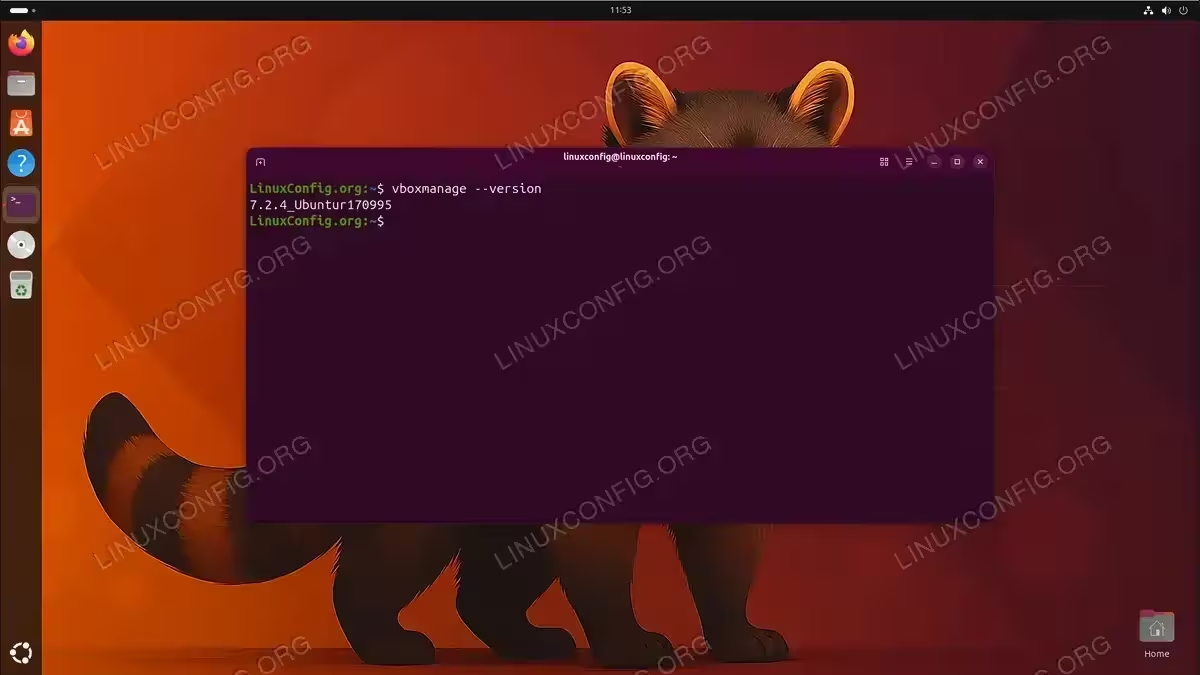
- Verify the installation: Confirm that VirtualBox installed correctly by checking the version.
$ vboxmanage --version
You should see output similar to
7.2.4_Ubuntur172424.
Install VirtualBox from Oracle Repository
For the latest VirtualBox features and bug fixes, you can install directly from Oracle’s official repository. This method provides access to newer versions than the Ubuntu repository. However, you must manually add the repository and GPG key.
IMPORTANT
If you have already installed VirtualBox from the Ubuntu repository, remove it first with sudo apt remove virtualbox* before proceeding with the Oracle repository installation to avoid conflicts.
- Download and add the Oracle GPG key: Import the Oracle public key to verify package authenticity.
$ wget -qO- https://www.virtualbox.org/download/oracle_vbox_2016.asc | sudo gpg --dearmor -o /usr/share/keyrings/oracle-virtualbox-2016.gpg
- Add the Oracle VirtualBox repository: Create a new repository source file for VirtualBox.
$ echo "deb [arch=amd64 signed-by=/usr/share/keyrings/oracle-virtualbox-2016.gpg] https://download.virtualbox.org/virtualbox/debian $(lsb_release -cs) contrib" | sudo tee /etc/apt/sources.list.d/virtualbox.list
This command automatically detects your Ubuntu codename (resolute) and creates the appropriate repository entry.
REPOSITORY NOT AVAILABLE FOR UBUNTU 26.04
At the time of writing, Oracle’s VirtualBox repository does not yet support Ubuntu 26.04 (resolute). If you receive a repository error duringapt update, useplucky(Ubuntu 25.04) instead:$ echo "deb [arch=amd64 signed-by=/usr/share/keyrings/oracle-virtualbox-2016.gpg] https://download.virtualbox.org/virtualbox/debian plucky contrib" | sudo tee /etc/apt/sources.list.d/virtualbox.list
- Update package index: Refresh the package lists to include packages from the newly added Oracle repository.
$ sudo apt update
- List available VirtualBox versions: Check which VirtualBox versions are available from the Oracle repository.
$ apt-cache search "^virtualbox-[0-9]"
This displays available versioned packages such as
virtualbox-7.1andvirtualbox-7.2. - Install VirtualBox: Install your preferred version from the Oracle repository.
$ sudo apt install virtualbox-7.2
Replace
virtualbox-7.2with your desired version from the list obtained in the previous step. - Verify the installation: Confirm that VirtualBox installed correctly.
$ vboxmanage --version
Install VirtualBox Extension Pack
The VirtualBox Extension Pack adds enterprise features such as USB 2.0/3.0 support, VirtualBox Remote Desktop Protocol (VRDP), disk encryption, and PXE boot for Intel cards. The Extension Pack version must exactly match your installed VirtualBox version.
Method 1: Install from Ubuntu Repository
If you installed VirtualBox from the Ubuntu repository, you can install the Extension Pack through apt.
$ sudo apt install virtualbox-ext-pack
During installation, you must accept the Oracle license agreement. Use Tab to navigate to “Ok” and press Enter, then select “Yes” to accept the terms.
Method 2: Manual Installation (Oracle Repository)
For Oracle repository installations, download and install the Extension Pack manually.
- Check your VirtualBox version: First, determine your exact VirtualBox version.
$ vboxmanage --version | cut -dr -f1
Note the version number (e.g.,
7.2.6). - Download the Extension Pack: Download the Extension Pack matching your VirtualBox version from the official VirtualBox downloads page.
$ wget https://download.virtualbox.org/virtualbox/7.2.6/Oracle_VirtualBox_Extension_Pack-7.2.6.vbox-extpack
Replace
7.2.6with your actual VirtualBox version. - Install the Extension Pack: Install the downloaded Extension Pack using VBoxManage.
$ sudo vboxmanage extpack install Oracle_VirtualBox_Extension_Pack-7.2.6.vbox-extpack
Accept the license terms when prompted.
- Verify the installation: Confirm that the Extension Pack installed correctly.
$ vboxmanage list extpacks
Create Your First Virtual Machine
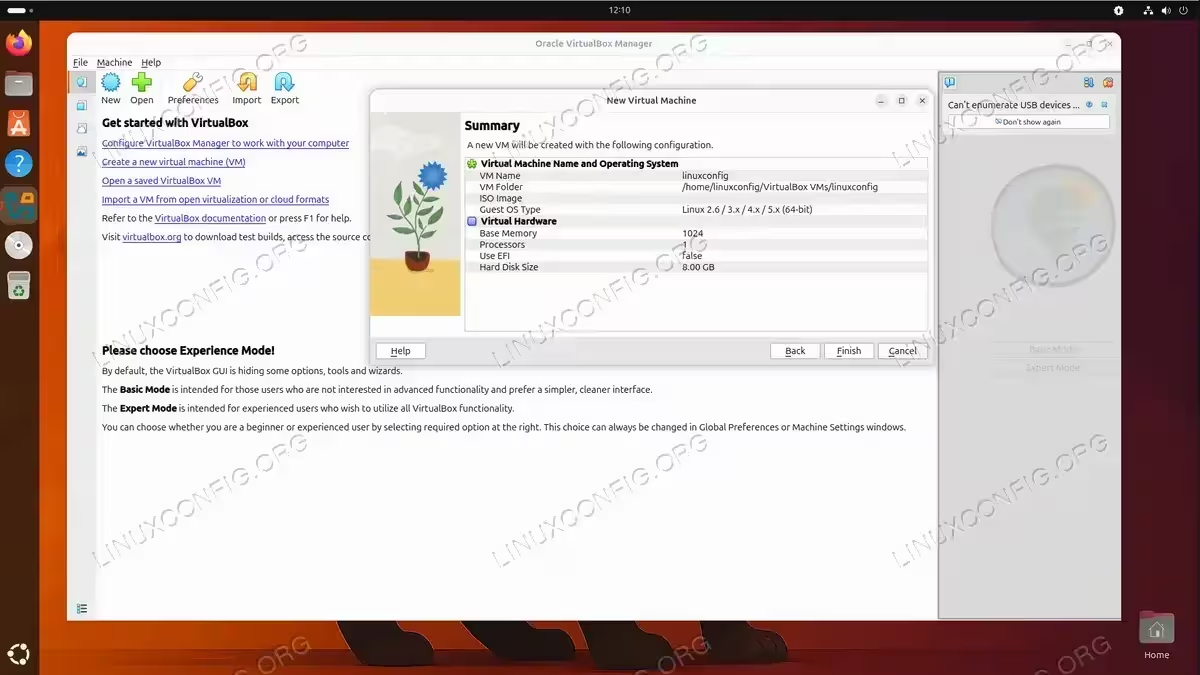
After installing VirtualBox, you can create your first virtual machine. This section demonstrates the basic steps to get started.
- Launch VirtualBox: Start VirtualBox from the application menu or terminal.
$ virtualbox
- Create a new virtual machine: Click “New” to open the VM creation wizard. Enter a name for your VM, select the operating system type and version, and allocate memory and storage as needed.
- Configure VM settings: Before starting the VM, review settings such as CPU cores, video memory, and network configuration. For optimal performance, enable hardware virtualization (VT-x/AMD-V) in your BIOS/UEFI if not already enabled.
- Attach installation media: Go to Settings > Storage, and attach an ISO file to the virtual optical drive.
- Start the VM: Click “Start” to boot the virtual machine and proceed with the guest operating system installation.
After installing the guest operating system, consider installing VirtualBox Guest Additions to enable features such as shared folders, seamless mouse integration, and improved graphics performance.
Conclusion
You have successfully learned how to install VirtualBox on Ubuntu 26.04 using both the Ubuntu and Oracle repositories. The Ubuntu repository method offers simplicity and automatic updates, while the Oracle repository provides access to the latest features. With VirtualBox installed, you can now create virtual machines to run different operating systems, test software in isolated environments, or set up development workstations. Remember to install the Extension Pack if you need USB 3.0 support, remote desktop access, or disk encryption features.
Frequently Asked Questions
- What is the difference between VirtualBox from Ubuntu repository and Oracle repository? The Ubuntu repository version is repackaged by Canonical with minor modifications and may lag behind the official Oracle release by a few versions. The Oracle repository provides the latest version directly from the developers. For most users, the Ubuntu repository version is sufficient and easier to maintain.
- Why do I need the Extension Pack? The Extension Pack is a separate download that adds proprietary features not included in the open-source base package. These include USB 2.0/3.0 device support, VRDP (VirtualBox Remote Desktop Protocol), disk image encryption with AES algorithm, and Intel PXE boot ROM. The Extension Pack is free for personal use and evaluation but requires a license for commercial use.
- How do I enable hardware virtualization for better VM performance? Hardware virtualization (Intel VT-x or AMD-V) must be enabled in your computer’s BIOS/UEFI settings. Restart your computer, enter BIOS setup (usually by pressing F2, Del, or F10 during boot), navigate to CPU or Security settings, and enable the virtualization option. Without hardware virtualization, VMs will run significantly slower.
- Can I run both 32-bit and 64-bit guest operating systems? Yes, VirtualBox supports both 32-bit and 64-bit guest operating systems. However, running 64-bit guests requires hardware virtualization support (VT-x/AMD-V) to be enabled in BIOS. Most modern processors include this capability.
- How do I uninstall VirtualBox from Ubuntu 26.04? To remove VirtualBox installed from the Ubuntu repository, run
sudo apt remove virtualbox virtualbox-*. For Oracle repository installations, usesudo apt remove virtualbox-7.2(replace with your version). To also remove configuration files, usepurgeinstead ofremove.