
When you buy a new PC, laptop, or server and install a Linux distribution, you want to know what hardware is actually installed in the Linux box and more importantly which piece of hardware is supported by the kernel out of the box and which needs special tweaking with modules to get it to work.
This guide features a list of command line examples which should help you to troubleshoot your hardware and find some information about it. This is not an ultimate troubleshooting guide but certainly will serve as a good starting point. Note that some commands may not be available for your platform by default, and some commands may be specific to certain distributions.
In this tutorial you will learn:
- How to see what hardware is installed via Linux commands
| Category | Requirements, Conventions or Software Version Used |
|---|---|
| System | Any Linux distro |
| Software | N/A |
| Other | Privileged access to your Linux system as root or via the sudo command. |
| Conventions |
# – requires given linux commands to be executed with root privileges either directly as a root user or by use of sudo command$ – requires given linux commands to be executed as a regular non-privileged user |
What hardware is in my Linux box
- See general information about host bridge, VGA controller, ethernet controller, USB controller, SATA controller, and more.
# lspci
- See some information about BIOS, motherboard, chassis, and more.
# dmidecode
Processor information
- Retrieve processor type, socket, speed, configured flags, and other information.
# cat /proc/cpuinfo
- Use the
x86infoutility to see information about the CPU.# x86info
Or for more details:
# x86info -a
Also see our guide on how to obtain CPU information on Linux.
Memory (RAM) information
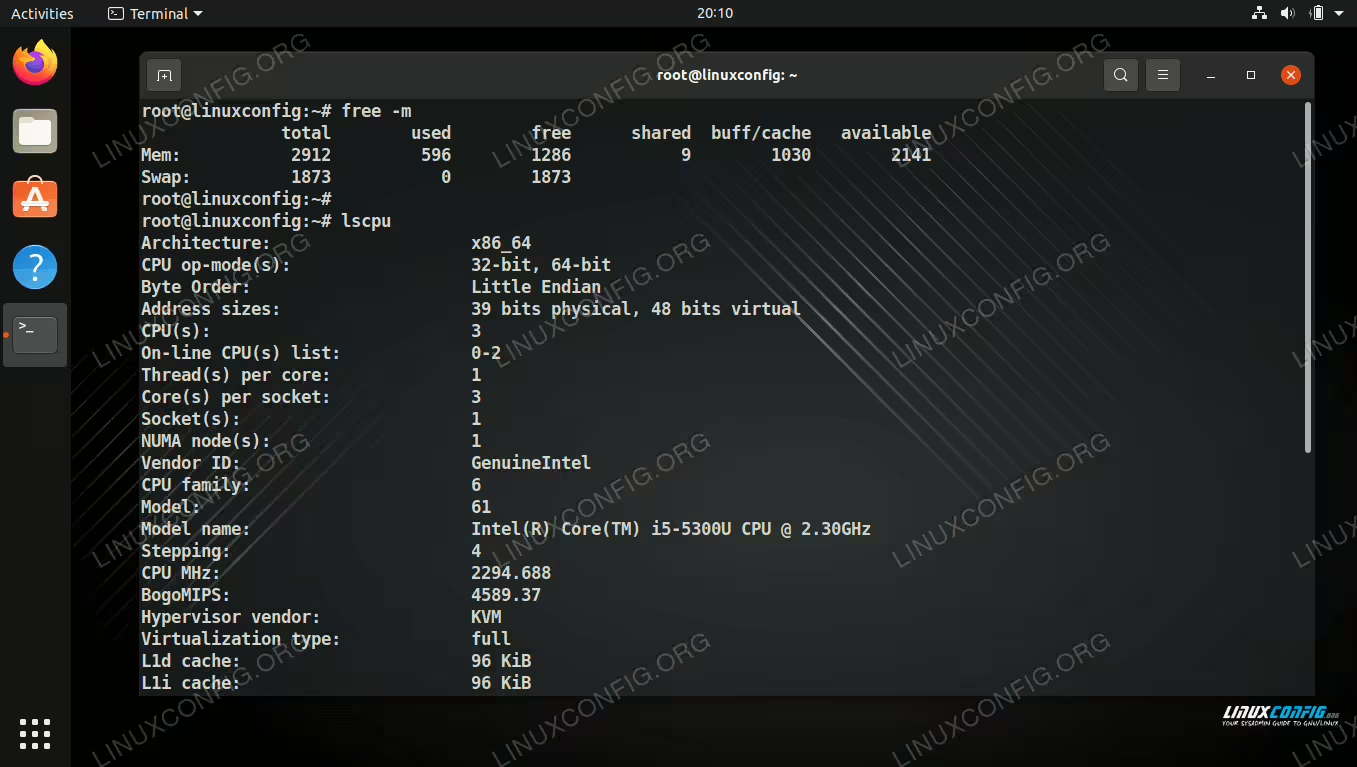
- See how much RAM is installed on a Linux box and how much of it is in use (in megabytes). This will also include swap memory.
# free -m
- You can also use the
toporhtopcommands to see RAM and its current usage.# top or # htop
- See detailed information about system RAM.
# cat /proc/meminfo
- Detect number of RAM slots used, speed, and size.
# lshw -C memory -short
Also check out our guide on how to monitor RAM usage on Linux.
What hardware is using which module
- Adding the
-v(verbose) flag to thelspscicommand will show more detailed information about installed hardware controllers and their corresponding modules.# lspci -v
- You can also add three verbose flags with
-vvvto see information that is even more detailed.# lspci -vvv
- If you have
hardinfoinstalled on your system, use the following command to open a GUI program, click on the “kernel information” tab and see what modules each piece of hardware is using.# hardinfo
- List all hardware components and see their configuration details.
# lshw
- Use the GUI version of
lshwwith thelshw-gtkcommand.# lshw-gtk
- List details for all hardware, including their device files and configuration options with the
hwinfocommand, which may or may not be installed by default on your distro.# hwinfo
BIOS information
- Get some general information about your system’s BIOS.
# biosdecode
- Retrieve the name of your BIOS vendor with this simple command.
# dmidecode -s bios-vendor
Motherboard and additional components
- Retrieve information about your system’s motherboard, including make, model, serial number, and more.
# dmidecode --type baseboard
- Get a list of USB devices plugged into your system.
# lsusb
- Retrieve a list of USB device files.
# ls -la /dev/disk/by-id/usb-*
- Retrieve information about the installed video card.
# lspci | grep VGA
Hard drive information
- Get information about your hard drive’s make, model, serial number, firmware version, and configuration (replace the
xwith the actual name of your hard drive, such as/dev/sda).# hdparm -I /dev/sdx
- Show the speed of an installed hard drive using hdparm – including cached reads and buffered disk reads.
# hdparm -tT /dev/sdx
- Check the size of the hard drive and what hard drives are available in the system. This command will also list USB drives and sticks.
# fdisk -l | grep GiB
- Check what partitions and file system is in use on my hard drives.
# fdisk -l
See also how to check disk usage by folder and how to check disk space with df and du commands.
CD/DVD-ROM information
- Locate CD or DVD device file.
# wodim --devices
- Alternatively you may try the
--scanbusoption.# wodim --scanbus
List, load, and remove modules
- Find what modules are currently loaded.
# lsmod
- Get information about any particular module.
# modinfo module_name
- Remove a module.
# modprobe --remove module_name
- Load a module into the kernel.
# modprobe module_name
Other cards and devices
- Check for PCMCIA cards installed in the system.
# lspcmcia
- Check sound card settings. This command will reveal whether your sound card is installed and what modules are in use.
# cat /dev/sndstat
- Check available wireless cards.
# iwconfig
- See what speed the fans are set to. This may not work on some systems.
# cat /proc/acpi/ibm/fan
- Get battery information on your laptop. You may need to install the
pm-utilspackage before using.# pm-powersave -b
- List Plug and Play BIOS devices.
# lspnp
Closing Thoughts
In this guide, we saw various Linux commands that can be used to check the installed hardware in a computer. These commands should help you get to know your hardware without forcing you to crack open the PC and examining individual components. This ends up saving a lot of times and gives us a concise output of what hardware is installed in our system.
