Objective
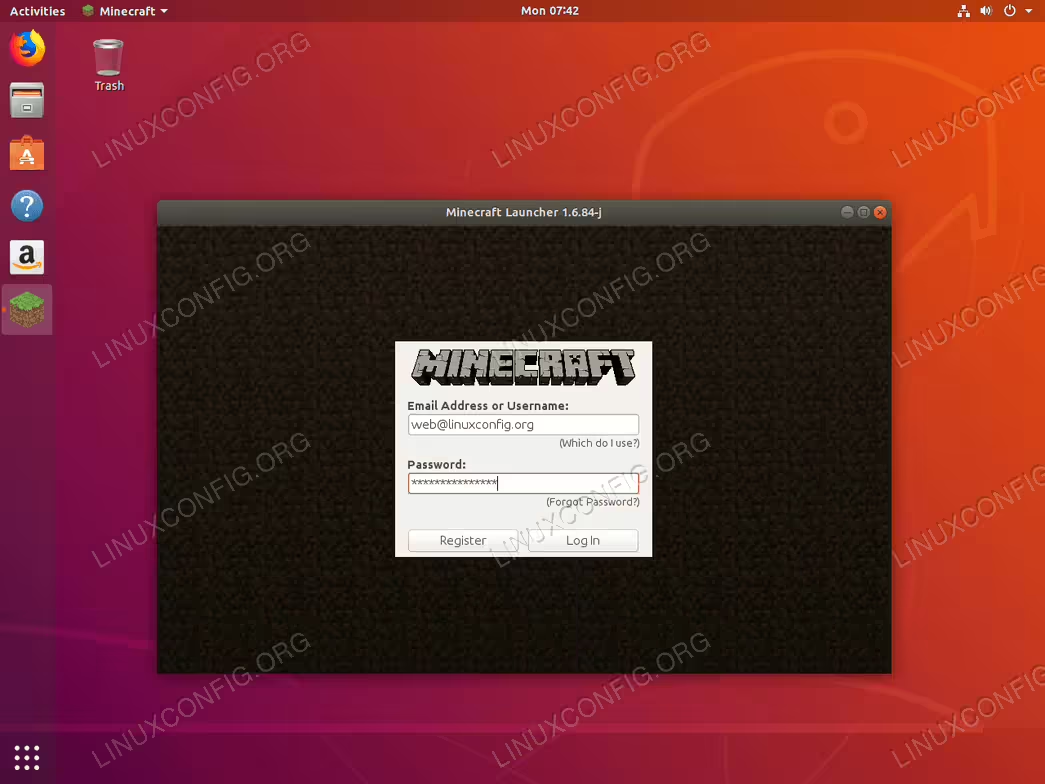
The objective is to install the Minecraft client on Ubuntu 18.04 Bionic Beaver Linux.
Operating System and Software Versions
- Operating System: – Ubuntu 18.04 Bionic Beaver Linux
Requirements
Privileged access to your Ubuntu System as root or via sudo command is required.
Conventions
- # – requires given linux commands to be executed with root privileges either directly as a root user or by use of
sudocommand - $ – requires given linux commands to be executed as a regular non-privileged user
Other Versions of this Tutorial
Instructions
Install Minecraft on Ubuntu using official package
Download Minecraft Package
The first step is to download the official minecraft package. Open up terminal and enter the following wget command to download the Minecraft.deb package:
$ wget -o ~/Minecraft.deb https://launcher.mojang.com/download/Minecraft.deb
Install Minecraft.deb package
The easiest way is to install the previously downloaded Minecraft.deb package is by using gdebi tool. First make sure that gdebi command is available on your system:
$ sudo apt install gdebi-core
Once ready install the Minecraft.deb package:
$ sudo gdebi ~/Minecraft.deb
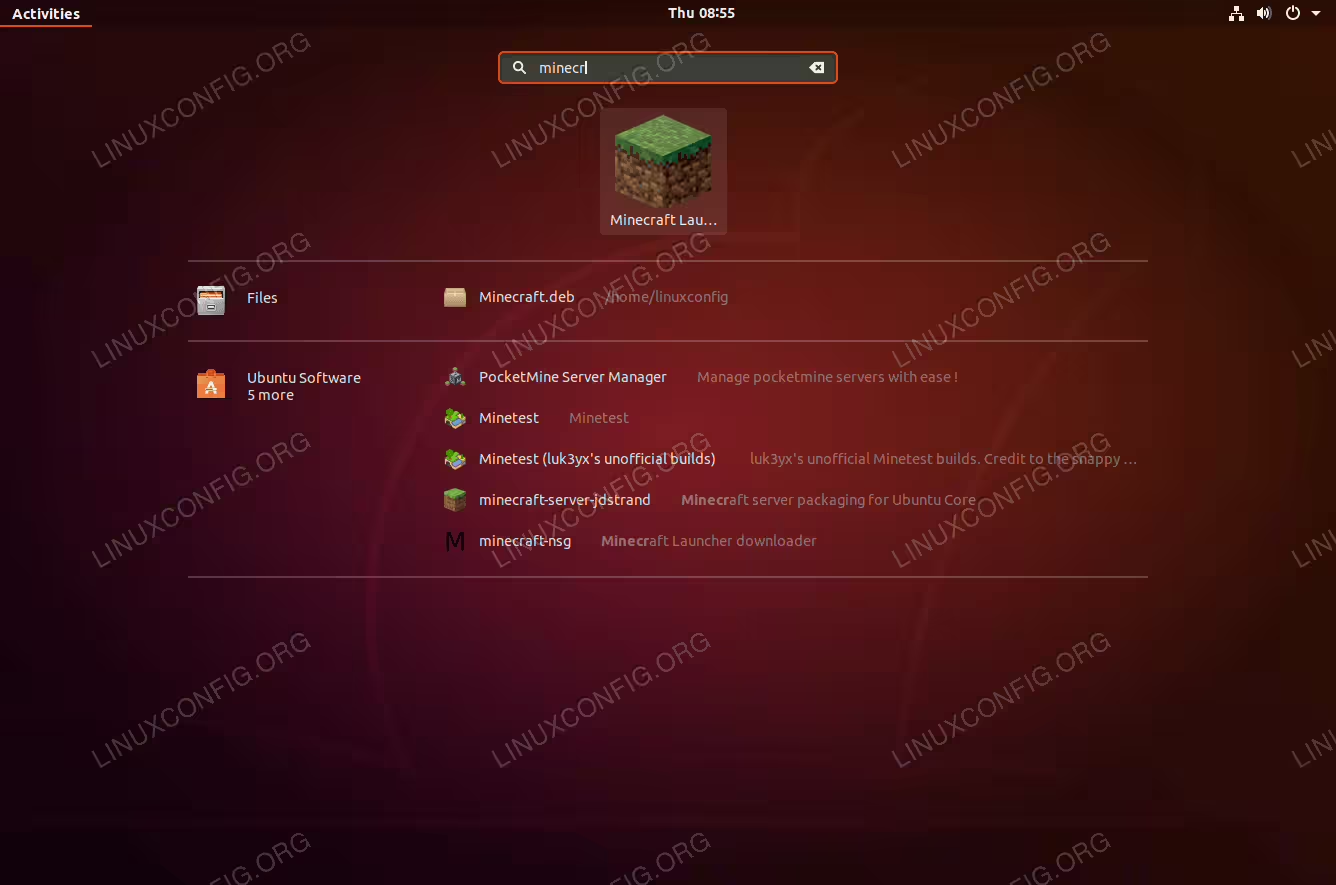
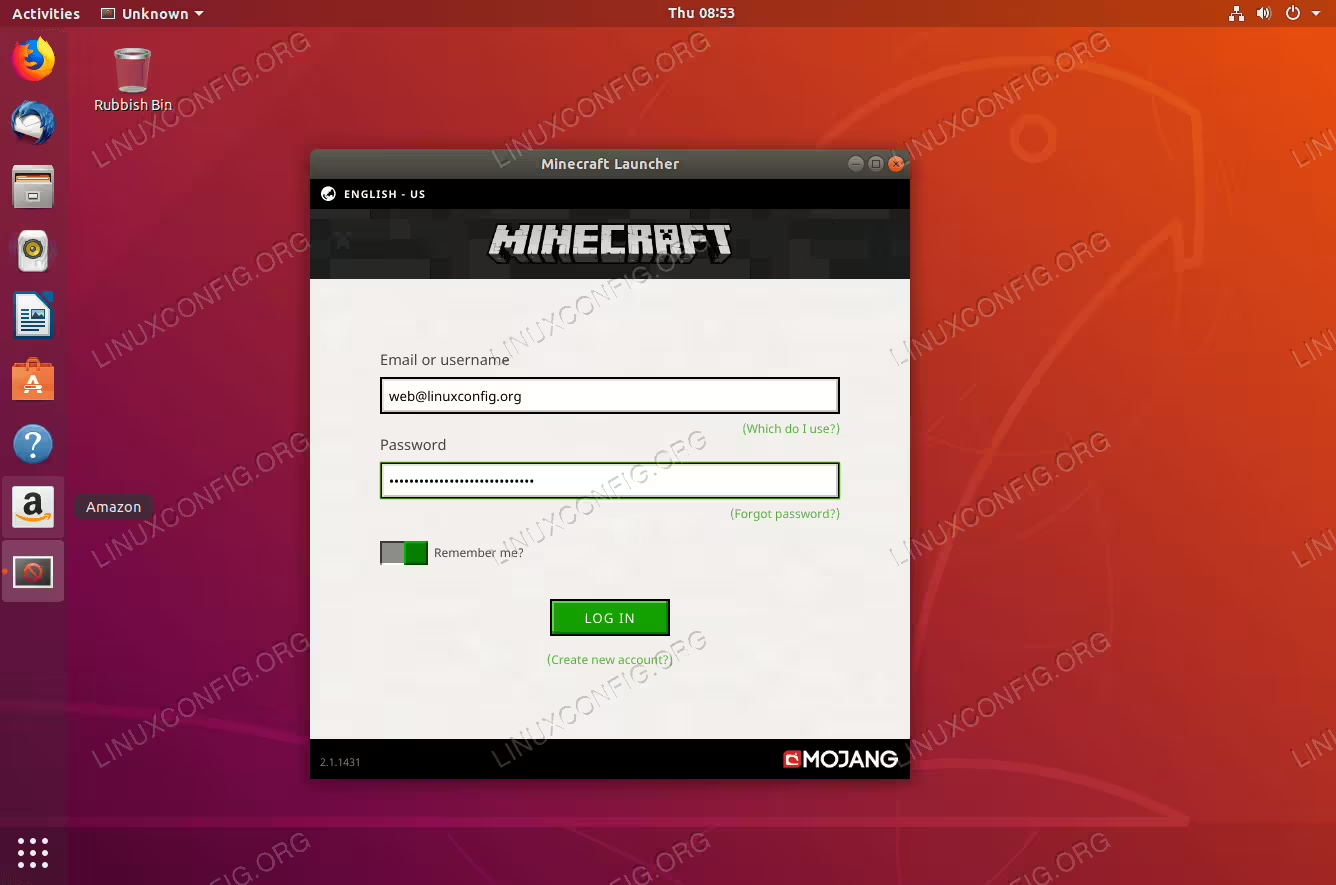
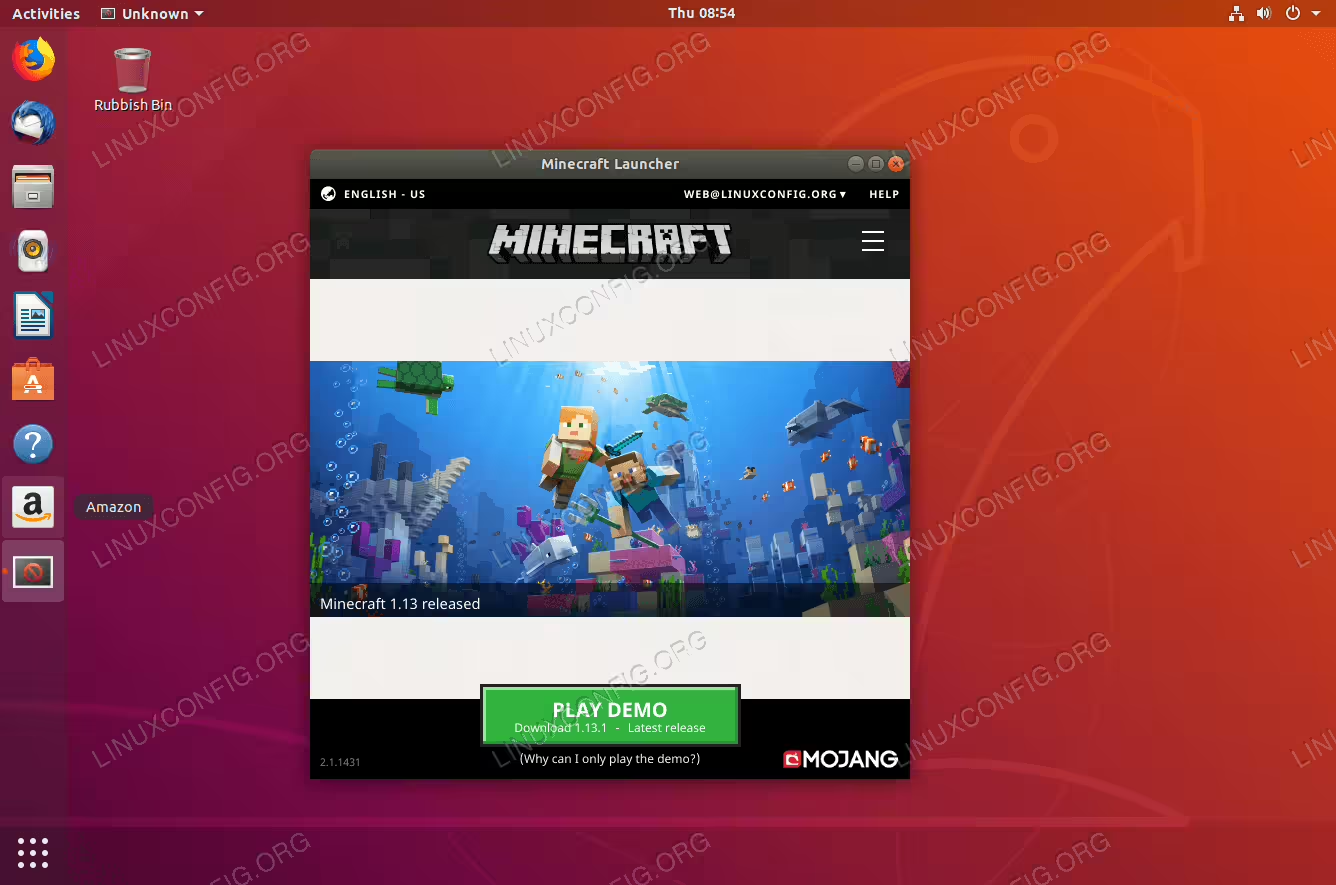
What remains is to start Minecraft launcher:
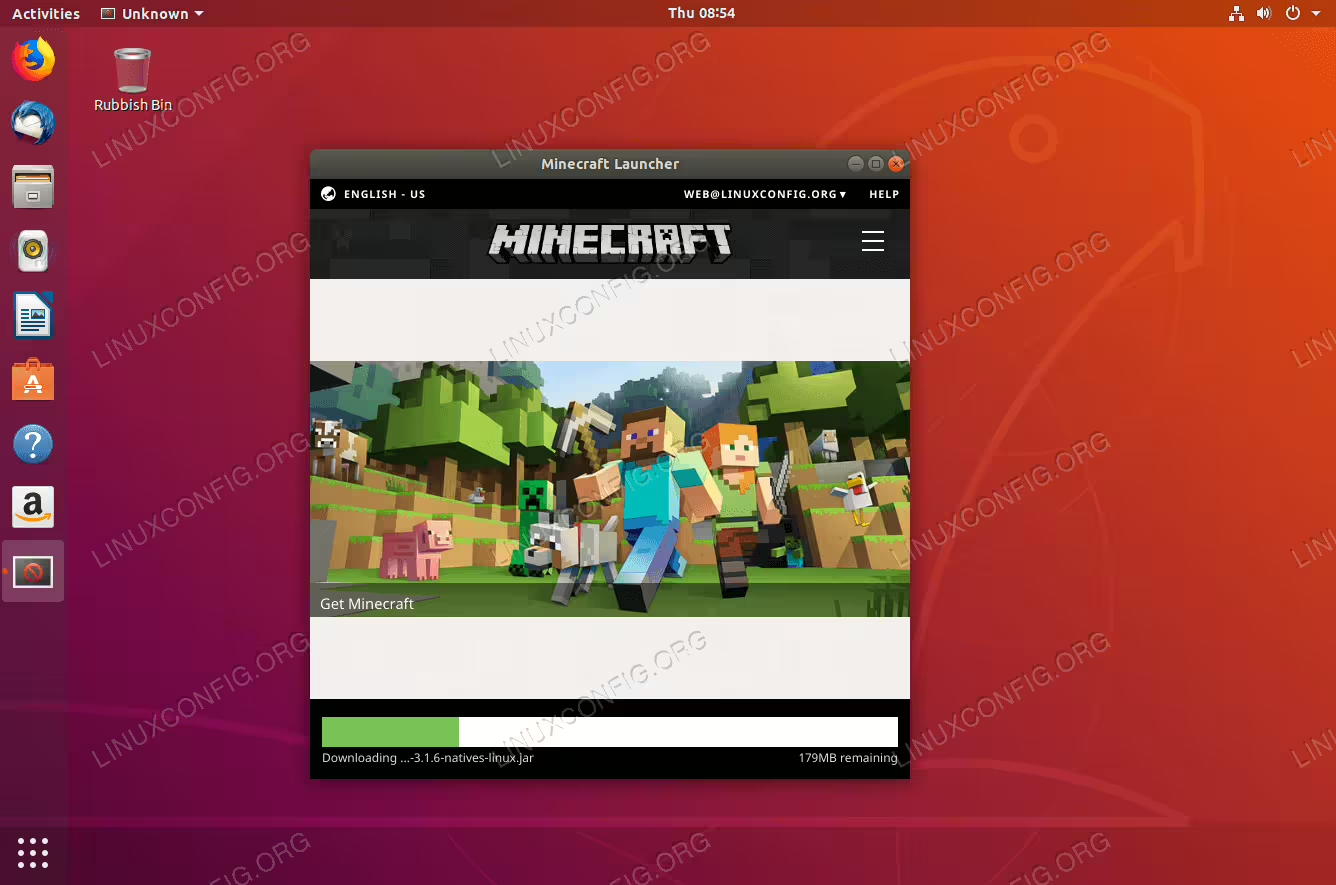
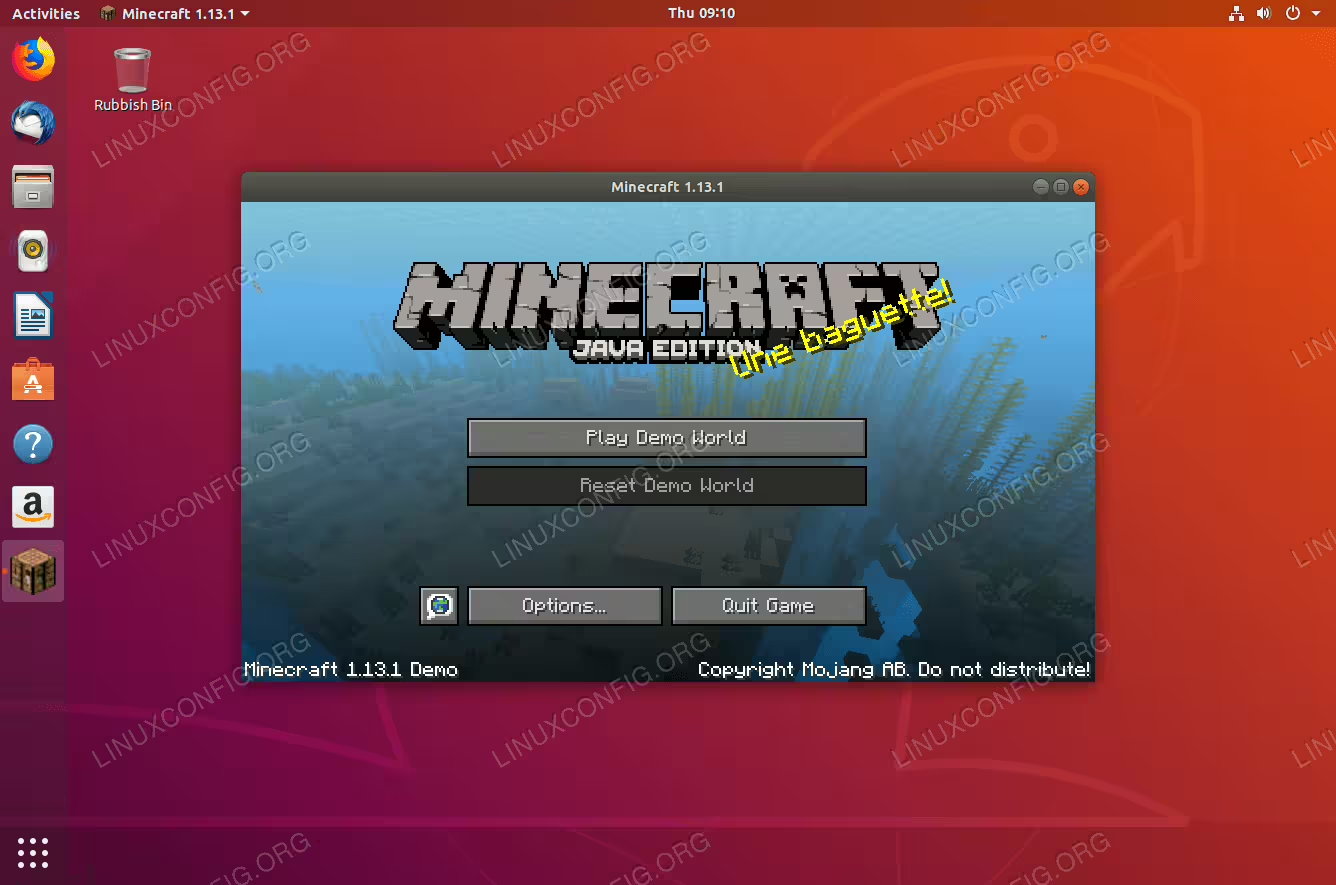
Install Minecraft on Ubuntu using snap
MINECRAFT SNAP PACKAGE UNAVAILABLE
Minecraft SNAP package seems to be no longer available. This section of the article is kept for archiving purposes only.
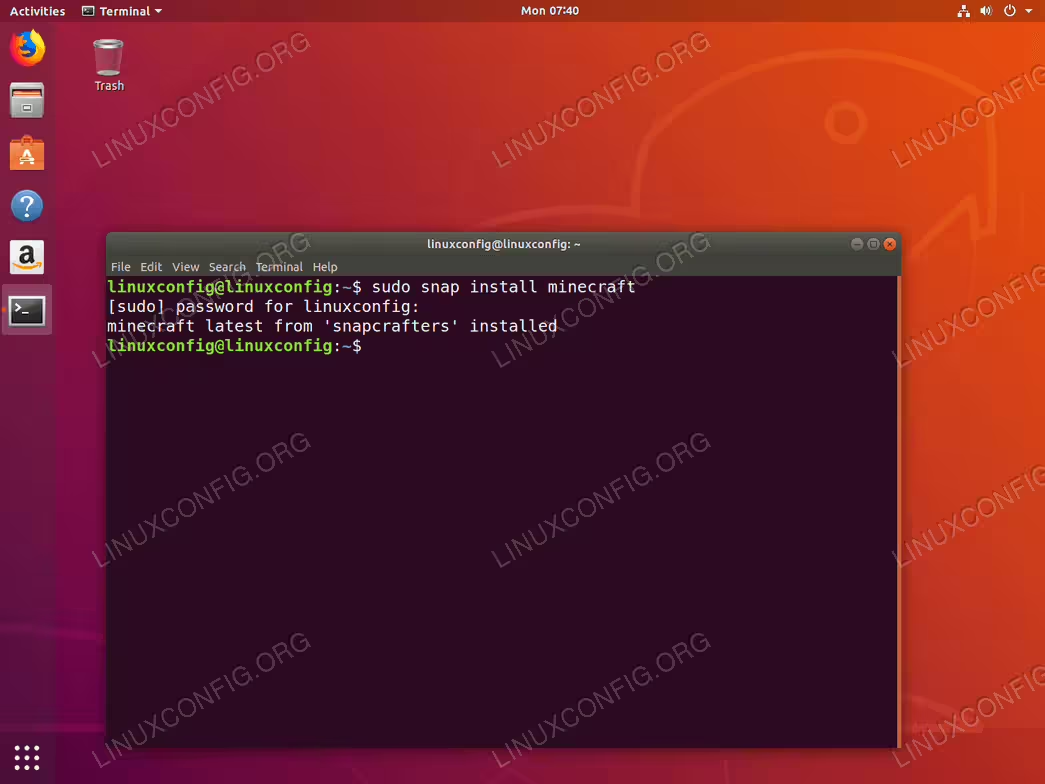
The installation of the Minecraft client on Ubuntu 18.04 Linux with use of snap is as easy as an execution of a single command. Open up terminal and enter:
$ sudo snap install minecraft
Launch Minecraft Client
To start the Minecraft client on your Ubuntu system either execute the command:
$ minecraft
or search the Activities menu:
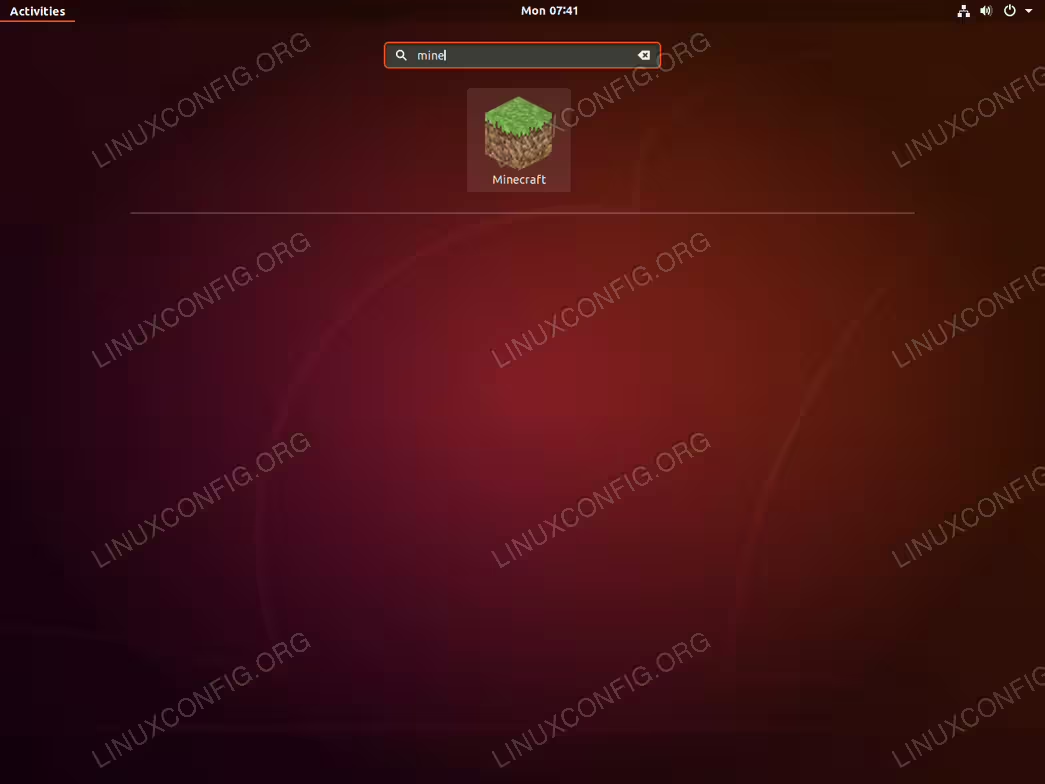
minecraft keyword. Click on the Minecraft icon to start the application. Be patient,it may take few moments for the Minecraft application to start.