
The cp command on a Linux system is one of the most basic commands that many users will utilize every day, whether they are new to Linux or a system administrator.
While the cp command is very basic, it comes packed with a lot of options. One option allows the user to copy a file while preserving the file permissions and ownership. In this tutorial, you’ll see how to do that.
In this tutorial you will learn:
- How to preserve file permissions and ownership with
cpcommand
| Category | Requirements, Conventions or Software Version Used |
|---|---|
| System | Any Linux distro |
| Software | N/A |
| Other | Privileged access to your Linux system as root or via the sudo command. |
| Conventions |
# – requires given linux commands to be executed with root privileges either directly as a root user or by use of sudo command$ – requires given linux commands to be executed as a regular non-privileged user |
How to preserve file permissions and ownership with cp command examples
The
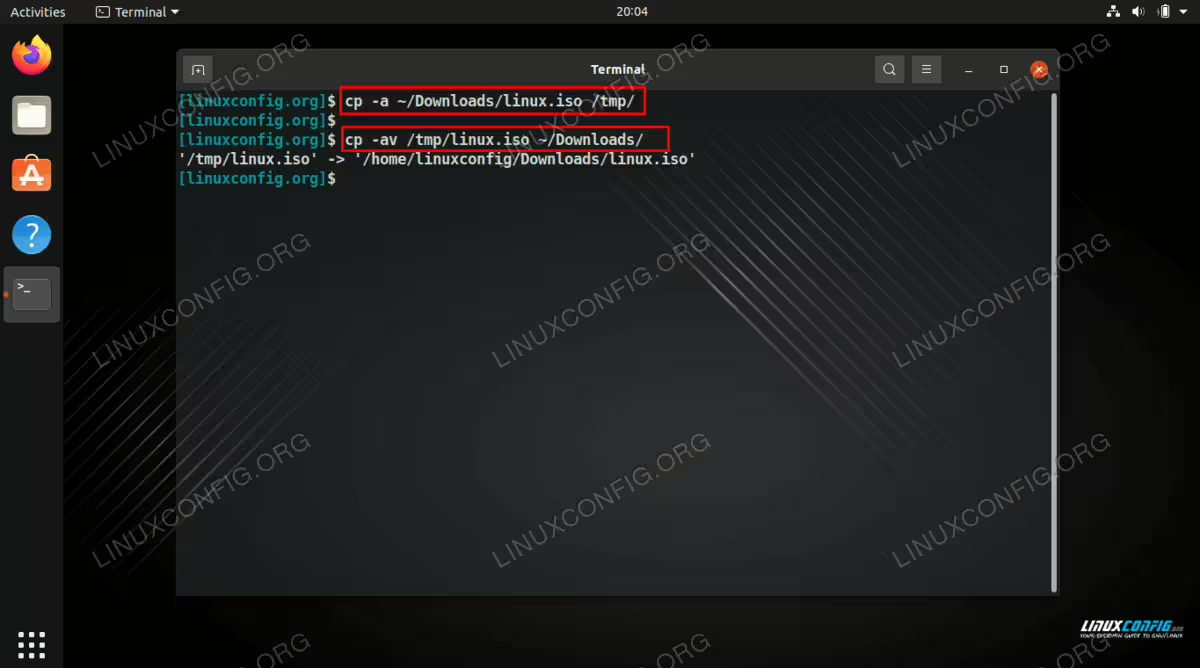
-a or --archive option can be used with the cp command in order to preserve file permissions and ownership. Check the example below where we copy a file one directory to another, while preserving these extra attributes.
$ cp -a ~/Downloads/linux.iso /tmp/
This will copy the file linux.iso into the /tmp directory.
The -a option is equivalent to -dR --preserve=all, which will preserve links, copy directories recursively, and preserve file permissions and ownership, respectively.
We can also use the -a option when copying directories.
$ cp -a /etc/dir1/ /opt/
Feel free to combine this option with others, such as the -v (verbose) flag to get a detailed output about what the cp command is doing.
$ cp -av ~/Downloads/linux.iso /tmp/
And that’s everything you should need to know about preserving file permissions and ownership with the cp command.