


From a small-sized NAS to an all-in-one media server, the Raspberry Pi is a versatile device that can be customized for pretty much any project imaginable. Heck, the newer boards pack enough firepower to emulate games developed for older consoles, and you even get to choose between Recalbox, Retro-Pie, and several other emulator-centric distros.
Unfortunately, PC games are a different story, as even the 32-bit Steam Client is incompatible with ARM-based systems. So, you’ll need to use some workarounds if you want to run your Steam games on a Raspberry Pi board. Since this procedure can get rather complex for beginners, we’ve compiled a step-by-step guide to help you install Steam on the Raspberry Pi.

How to emulate games on your Raspberry Pi
Here's everything you need to know to emulate older gaming systems on the Raspberry Pi.
What you’ll need
Besides a Raspberry Pi board, you’re going to need a storage solution. If you’re planning to install games on the microSD card that you’ll use as a boot drive, I suggest picking up something with over 64GB of memory since Steam games can occupy a lot of space. It’s also a good idea to pick out an external SSD and set it as the installation directory for Steam games.
Finally, you’ll need an operating system on which to install Steam. I've used Ubuntu for this tutorial, so you'll need to install the king of Linux distros if you want to follow along. That said, the process should be identical for other distributions, including the official Raspberry Pi OS.
-

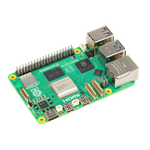
Raspberry Pi 5
- CPU
- Arm Cortex-A76 (quad-core, 2.4GHz)
- Memory
- Up to 8GB LPDDR4X SDRAM
- Operating System
- Raspberry Pi OS (official)
- Ports
- 2× USB 3.0, 2× USB 2.0, Ethernet, 2x micro HDMI, 2× 4-lane MIPI transceivers, PCIe Gen 2.0 interface, USB-C, 40-pin GPIO header
- GPU
- VideoCore VII
- Starting Price
- $60
-
-


Setting up MultiArch and GCC cross-compiler
Since the Raspberry Pi board is powered by an ARM processor, you’ll need to install the libraries for different architectures, including x86 and x86_64 systems, on the SBC. We’ll use MultiArch, and you can set it up by following these steps:
- Press Ctrl+Alt+T to launch the Terminal.
-
Paste the following command to add MultiArch support to your Raspberry Pi.
sudo dpkg --add-architecture armhf
Be sure to press Enter after you've copied the commands to execute them.
-
Update the packages using the update command.
sudo apt-get update && sudo apt-get upgrade
Press Y when prompted for confirmation.
-
Run this command to install the GCC cross-compiler package:
sudo apt install gcc-arm-linux-gnueabihf -y

-
(Optional) If your distro doesn’t have the git package, you’ll need to set it up with the apt-get install command.
sudo apt-get install git -y

-
(Optional) Likewise, you’ll also need the Cmake package for this tutorial.
sudo apt install cmake -y


Installing Box64
Once you’ve enabled Multiarch, it’s time to install Box64, which is the first of the two compatibility layers you need to set up on your Raspberry Pi to run Steam games.
-
Start by cloning the Box86 repository using the git command.
git clone https://github.com/ptitSeb/box64

-
Use the cd command to switch to the Box64 directory.
cd box64
-
Next, you’ll need to create a build directory and use the cmake command to generate the Box64 files.
mkdir build; cd build; cmake .. -D RPI5ARM64=1 -D CMAKE_BUILD_TYPE=RelWithDebInfo
If you’re using an older board, be sure to replace the ‘5’ in the RPI5ARM64 parameter with your Raspberry Pi model.
-
Enter the following commands to install Box64:
make -j4 sudo make install
This is arguably the longest step in the procedure, and depending on your Raspberry Pi model, it can easily take more than thirty minutes.
-
Restart the systemd-binfmt service to wrap up the Box64 installation.
sudo systemctl restart systemd-binfmt


Installing Box86
Next, it’s time to install Box86, an emulator that will allow your Raspberry Pi to run 32-bit applications, including the Steam client. The overall procedure is pretty similar to how we set up Box64, with a few modifications to the repository URL as well as the parameter and folder names.
-
Head back to the home directory with this command:
cd ~

-
Use the git command to clone the Box86 repository on your Raspberry Pi,
git clone https://github.com/ptitSeb/box86

-
Navigate to the Box86 folder using the cd command:
cd box86
-
Again, create a build folder and generate the Box86 files using the Cmake command.
mkdir build; cd build; cmake .. -D RPI4ARM64=1 -D CMAKE_BUILD_TYPE=RelWithDebInfo
Unlike Box64, Box86 gives an error if you try to change RPI4ARM64 to RPI5ARM64. As such, you can use the RPI4ARM64 parameter even if you’re installing Box86 on a Raspberry Pi 5.
-
Use the following commands to install Box86:
make -j4 sudo make install

-
Finally, restart the systemd-binfmt service.
sudo systemctl restart systemd-binfmt


Installing the essential drivers
Before you can install Steam, there are a couple of libraries, packages, and drivers that you must add to your Raspberry Pi.
-
Open the Terminal once again, and run the install command followed by these drivers.
sudo apt install libgdm1:armhf libudev1:armhf libgl1-mesa-dri:armhf libglapi-mesa:armhf libglu1-mesa:armhf libglx-mesa0:armhf mesa-va-drivers:armhf mesa-vdpau-drivers:armhf mesa-vulkan-drivers:armhf libsdl1.2debian:armhf libegl-mesa0:armhf
It’s possible for the terminal to abort the installation procedure after it can’t locate a specific driver. In this case, you should remove the driver responsible for the error and run the command mentioned above again.
-
You’ll also need to install the Libc6 package.
sudo apt-get install libc6:armhf -y

-
Also, update your Vulkan drivers with this command:
sudo apt install mesa-vulkan-drivers -y


Installing Steam
Finally, you can go ahead and install the Steam client. Although there are several ways to acquire the Steam Client package on a Raspberry Pi, we'll use the install_steam.sh shell file from the Box86 folder to install the app.
-
Click on Files and head to the Box86 folder.

-
Right-click on the install_steam.sh shell file and choose Run as a program.

- Enter your password and tap Y when the terminal asks for your approval to install Steam.
-
Once the installation is finished, type steam and hit Enter.


The Steam client will begin updating and, if all goes well, will launch itself in a few minutes.
Running Steam games on the Raspberry Pi

Once the Steam Client boots up, you’ll need to enter your username and password to sign in. After that, you can install your games as you would on a normal laptop/desktop setup. If you encounter errors regarding missing lib6c packages, be sure to update the drivers before rebooting your Steam application.
Although the Raspberry Pi boards have become quite capable recently, they’re still nowhere close to running modern 3D games. I barely managed to get 2D games running at “playable” FPS on my Raspberry Pi 5, and that’s after turning down the graphics settings and lowering the resolution. So, if you're planning to run the most graphically demanding games, you'll have to go for a premium PC with cutting-edge components instead.

Raspberry Pi 5 review: The holy grail of DIY projects got even better (and rarer)
The Raspberry Pi 5 is one of the most powerful consumer-grade SBCs out there. Sadly, its limited stock means you'll have a hard time finding one.