


A media server is a fantastic investment for your home theater setup. It not only provides video streaming services but also serves as a centralized hub for all your media files. Luckily, you don’t need to spend a fortune on a new media playback system. A cheap single-board computer like the Raspberry Pi is more than enough to run a lightweight media server OS. This guide will cover all the steps required to convert your spare Raspberry Pi into a full-fledged media server.
Although most Raspberry Pi models work well as local media servers, they aren’t good enough when you try to run hardware-based transcoding workloads. So, if you’re trying to transmit movies over a remote connection at a different bit rate, it’s not a good idea to use a Raspberry Pi, and you should go for an Intel NUC or a similar mini-PC instead.
Before you begin
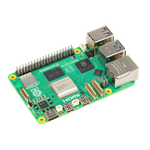
Unsurprisingly, a Raspberry Pi will serve as the core of the media center. I recommend getting at least a Raspberry Pi 3, as the older models don't have enough power to provide a lag-free and responsive experience in a GUI environment. I use a Raspberry Pi 5 for this article, but the procedure is the same for the other Pi models.
Next, you’ll need a microSD card with at least 4GB of storage, though I recommend getting a fast UHS-I SD card with over 16GB of capacity to store all your add-ons and videos.
On the OS side, you can pick between Plex or Kodi-based distributions. But since installing Plex is a rather long and cumbersome process, we’ll stick to LibreELEC for this beginner’s guide. It's based on Kodi and is a lightweight OS that’s intuitive for beginners and possesses most of the features you’ll need from a media server.
-

Raspberry Pi 5
- CPU
- Arm Cortex-A76 (quad-core, 2.4GHz)
- Memory
- Up to 8GB LPDDR4X SDRAM
- Operating System
- Raspberry Pi OS (official)
- Ports
- 2× USB 3.0, 2× USB 2.0, Ethernet, 2x micro HDMI, 2× 4-lane MIPI transceivers, PCIe Gen 2.0 interface, USB-C, 40-pin GPIO header
- GPU
- VideoCore VII
- Starting Price
- $60
-

Flashing the LibreELEC image
The first step in creating a Raspberry Pi media server involves downloading the OS and flashing it onto your microSD card. To do so:
- Download the latest LibreELEC version compatible with your Raspberry Pi from the official link.
- Download the portable variant of Balena Etcher from the official website, and run the EXE file with administrator privileges once it has finished downloading.
- Connect the microSD card to your system.
-
Select Flash from the file, choose the LibreELEC.img file you downloaded earlier, and hit Open.

-
Click on Select Target and pick the microSD card where you wish to flash the OS.

-
Select Flash and wait for Balena Etcher to finish writing the OS files.


Setting up LibreELEC
Once you’re done flashing LibreELEC onto the SD card, it’s time to boot into the OS for the first time.
- Insert the microSD card and plug in the mouse and keyboard before connecting the power cable to your Raspberry Pi and powering it on.
-
Enter the language of your choice and press Next.

-
Type the Hostname and hit Next.

-
If you haven’t connected your Raspberry Pi to a LAN cable, choose your Wi-Fi network from the list of networks and click Next.

-
LibreELEC will ask you to configure Samba and SSH.

Samba will be enabled by default, but you'll have to manually enable SSH by clicking on the toggle adjacent to it.
-
Press Next one last time to finish setting up your Pi-based media server.


Transferring files to the LibreELEC media server
Now that the LibreELEC server is up and running, it’s time to transfer some media files to it using Samba. But first, you’ll need to find the IP address of your Raspberry Pi.
-
Click on the Settings icon in the upper-left corner of the screen.

-
Select System information.

-
The IP address of your media server will be visible under the Summary tab.


You can use this IP address to send files from local PCs to the Raspberry Pi’s storage.
- Open File Explorer on another PC in the network.
-
Type two backslashes (\\) followed by the IP address of your Pi.

- The shared folders of the server will appear, and you can transfer your media files to the Videos, Music, and Recordings folders.

(Optional) Installing add-ons for the LibreELEC media server
A beginner’s guide to setting up a media server would not be complete without mentioning the procedure to install add-ons that enable video streaming, emulation, and other facilities. I’ve used the YouTube add-on for this demonstration, but the process is largely similar with other plugins.
-
Navigate to the Add-ons tab and select Install from repository.

-
Choose All repositories.

-
Scroll down and pick Video add-ons.

-
Click on YouTube (as an example).

-
Press the Install button.

-
In case the add-on requires additional plugins, you’ll need to install them by clicking on the OK button.


Closing thoughts
And that’s it! If you’ve followed the steps properly, the Raspberry Pi media server should be ready for use. Once you’ve installed YouTube, you might want to set up other video add-ons like Netflix and Amazon Prime to stream videos to your media center directly.
If you’re looking for another cool project you can create with your Raspberry Pi, be sure to check out our tutorial on how to turn your Pi into a NAS.