


A network-attached storage (NAS) system can be a great addition to your computing setup if you want a centralized storage solution. Modern-day NAS setups support multiple RAID levels, immutable snapshots, and a wide array (pun intended) of failsafes to ensure that your data remains secure. Plus, you can use them to share files across your devices.
While a NAS may sound like a pricey investment costing thousands of dollars, it’s not really all that expensive. If you don’t mind (relatively) slow read and write speeds, you can build a cheap NAS for under $100 using a Raspberry Pi.
What you’ll need
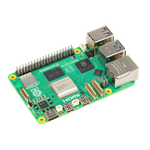
Since the entire NAS project revolves around a Raspberry Pi, you'll need one of these palm-sized single-board computers. I'll be using a Raspberry Pi 5 for this guide, but you can do this on older boards, too. However, if you pick anything older than the Raspberry Pi 4b, the NAS will get bottlenecked by the slow transfer rates of USB 2.0 ports.
You’ll also need a microSD card to boot into the operating system powering the NAS. If you want your NAS to be responsive, you should grab a fast microSD card with at least 4GB capacity.
Finally, you need a storage drive to store all the data. Here’s the twist: Unlike typical NAS, Raspberry Pi boards lack SATA slots and instead rely on USB ports to access an external storage device. Depending on your requirements and budget, you can choose a high-capacity hard drive or a cheap flash drive.
-

Raspberry Pi 5
- CPU
- Arm Cortex-A76 (quad-core, 2.4GHz)
- Memory
- Up to 8GB LPDDR4X SDRAM
- Operating System
- Raspberry Pi OS (official)
- Ports
- 2× USB 3.0, 2× USB 2.0, Ethernet, 2x micro HDMI, 2× 4-lane MIPI transceivers, PCIe Gen 2.0 interface, USB-C, 40-pin GPIO header
- GPU
- VideoCore VII
- Starting Price
- $60
-
-


Flashing the operating system
Once you have the necessary components, it’s time to flash an OS onto the microSD card. I’ll be using the Raspberry Pi OS Lite since a headless setup will improve the performance of the NAS, but you can also pick the GUI version. I'm using the official Raspberry Pi Imager, which provides the option to enable SSH and WLAN without going through the trouble of creating additional files on the microSD card.
- Download the Raspberry Pi Imager from the official link.
- Click on the Install button after running the Imager.exe tool with admin privileges.
- Once the tool has finished installing, run rpi-imager.exe as an administrator
-
Click on Choose Device and pick your Raspberry Pi model.

-
Select Choose OS and click on Raspberry Pi OS (other).

-
Select Raspberry Pi OS Lite (64-bit).

-
Click on Choose Storage and select the microSD card you want to use as the boot device for the Raspberry Pi.

-
Press Next and choose Edit settings on the pop-up window.

-
Type the username and password.

-
(Optional) If you want to access the Raspberry Pi over Wi-Fi, enable the Configure wireless LAN checkbox and enter the network SSID, password, and location.

-
Navigate to the Services header, check the box adjacent to Enable SSH, and click on the Save button.

- Choose Yes twice and wait for the tool to finish writing the OS files.


When I tried to create a NAS with a Raspberry Pi 3b last year, I installed OpenVaultMedia (OVM), which provides an intuitive GUI interface. Unfortunately, OVM 6 is only compatible with the older Buster and Bullseye versions of the Raspberry Pi OS and doesn't support the latest Bookmark release. So, we’ll have to make do with the CLI interface instead.
Checking the IP address of your Pi
You’ll need the IP address of your Raspberry Pi before you can log in from another system via the SSH command. To do so,
- Click on the Wi-Fi icon in the top-right corner of the screen.
- Select Advanced options.
-
Choose Connection Information, and note down the IP address under the IPv4 section.


Connecting to the NAS
Since the NAS server will be operated in a headless setup, you’ll need to access it from another PC.
I have switched to PuTTY from here on out since it's easier to use, but the procedure is mostly the same if you're using the Terminal shell in Windows 11.
- Insert the microSD card and plug the power and Ethernet cables into the Raspberry Pi. If you’re using a Raspberry Pi 5, you’ll need to press the power button to turn on the SBC.
- Switch to another PC.
- Download PuTTY from this link and open the app after installing it.
-
Type the IP address of the Raspberry Pi as the destination and make sure SSH is selected as the Connection type before clicking Open.

-
Type the name and password of the root user to enable the SSH connection.


Configuring the storage drives
Next, it’s time to partition, format, and mount the storage drive for the NAS.
-
Use the lsblk command to view the list of drives.

-
Running the following command will open the Parted tool.
sudo parted /dev/sda

-
Type mklabel gpt and enter yes when asked for confirmation.

- Type quit to close the Parted interface.
-
Run the mkfs.ext4 command to format the newly created partition:
sudo mkfs.ext4 /dev/sda1

- Press Y when prompted for confirmation.
-
Enter mkdir command to create a mount point for the drive:
sudo mkdir /mnt/sda1

-
Mount the drive by entering the following command:
sudo mount /dev/sda1 /mnt/sda1


Setting up a Samba server
Once you’re done adding the drives, the next step is to set up a way to share them over the network. Samba is free to use and lets you share files with multiple devices, so we’ll be using that for our Raspberry Pi-powered NAS.
-
Run the following command to install Samba on your Raspberry Pi:
sudo apt-get install samba samba-common-bin -y
-
Paste the following command to create a directory for Samba:
sudo mkdir /home/samba-folder
-
Grant read and write privileges to the file by running these commands:
-
sudo chown -R root:users /home/samba-folder
-
sudo chmod -R ug=rwx,o=rx /home/samba-folder

-
-
Mount the drive to the Samba directory by running the following command:
sudo mount /dev/sda1 /home/samba-folder

-
Execute the following command to open the fstab file:
sudo nano /etc/fstab

-
Add these lines at the end of the file:
-
/dev/sda1 /home/samba-folder auto noatime,nofail 0 0
-
/dev/sda1 /home/samba-folder vfat dmask=000,fmask=111,user 0 1

-
- Press Ctrl + X to save the file, and press Y when prompted for confirmation.
-
Open the Samba configuration file by entering the following command:
sudo nano /etc/samba/smb.conf

-
Scroll to the bottom of the file and paste the following lines:
-
Path = /home/samba-folder
-
Browseable = yes
-
read only = no
-
Writeable = Yes
-
only guest = no
-
create mask = 0777
-
directory mask = 0777
-
Public = yes
-
Guest ok = yes
-
-
(Optional) Feel free to change nasberrypi with the name you wish to give to your NAS server. If you're the only person using the NAS, you can also add the force user command like I have in the screenshot below.

- Save the file by pressing Ctrl + X, then Y.
-
Reboot Samba by executing the following command:
sudo systemctl restart smbd

-
(Optional) Add a user by entering these commands:
-
sudo adduser nasowner
-
sudo smbpasswd -a nasowner
Be sure to give this new user a password.
-


Accessing the NAS

Finally, you can use File Explorer in Windows 11 to manage your files on the NAS:
- Open File Explorer.
-
Click on the three dots in the Navigation Pane and choose Map Network Drive.

- Pick a drive letter and enter the IP address of the Raspberry Pi, followed by the hostname you added in the sbm.conf file in the name field.
-
Press the Finish button.

- If you added a user before, enter the username and password to log in to the Raspberry Pi.


Creating a personal NAS-berry Pi server
And that's it! If you have followed all the steps correctly, the samba-folder will be open, and you’ll be able to store and retrieve all your files in the newly created NAS.
That said, a Raspberry Pi-based NAS server is unfit for large projects due to its lack of SATA connectivity and limited support for RAID configurations. If you’re looking for a powerful device to manage all your professional workloads, you should instead purchase a high-end NAS enclosure or convert an old PC into a makeshift NAS.