
Remote Support "RemoteCall": Explaining Multiple Support Formats and Connection Methods! #UsageTips🎁

Provide customer support that efficiently resolves customer questions and issues while ensuring satisfaction with remote support! RemoteCall is a popular remote support tool built on long-cultivated technology and know-how👏 What are the reasons for RemoteCall's popularity?
There are several, but one of them is...😁 Actually, with RemoteCall, one license includes a set of 3 support formats that can handle various support scenarios and everything can be used all-in-one. Today, I will introduce these 3 support methods! Furthermore, I will also introduce the connection methods, "dedicated app or Web browser"✅️
The 3 Support Methods of "RemoteCall"

"RemoteCall" has 3 types: PC support, mobile support, and on-site support, which can be used depending on the situation. PC support and mobile support are, as the names suggest, for remotely supporting troubles occurring on the customer's PC or mobile device. Through screen sharing and remote control, you can accurately grasp the problem and lead to a quick resolution.
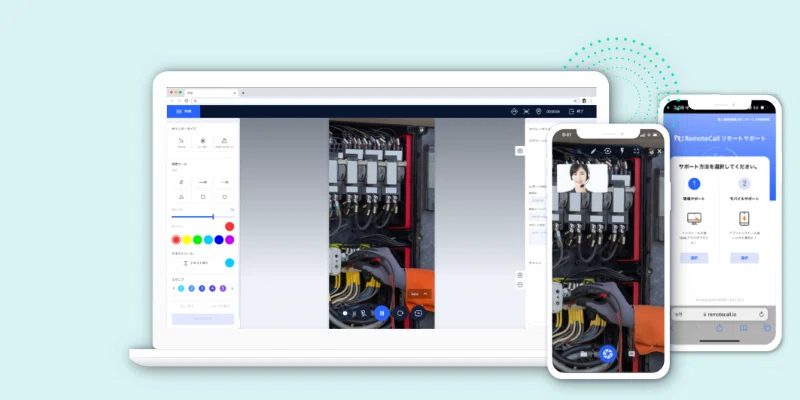
Perhaps it is a little difficult to understand what on-site support is? On-site support is a method of providing support while looking at the screen (i.e., the situation on-site) that the other party shows with their smartphone camera. Operators and administrators can instantly grasp and deal with troubles occurring on-site. It is simply like a video call, but unlike a general video call, it is equipped with various functions necessary for support, such as a function to draw on the screen, a barcode recognition function, and a chat function.

The fact that these support methods are included as a set is popular for its wide range of applications🔥
The 2 Connection Methods of "RemoteCall"
Furthermore! RemoteCall offers 2 types of viewers that can be selected according to the support scene. There is the "Agent Viewer", which allows you to use full features by installing a dedicated program (Agent), and the "Web Viewer", which allows you to use remote support from a Web browser without installing a program. These can also be used differently depending on the support content and situation.
If you are unsure about which viewer to use... for those people, I will introduce recommended RemoteCall viewers by usage scene!
📌 Scenes where "Web Viewer" is recommended!
1. For on-site video sharing support
With RemoteCall's Web Viewer, both the support side and the side receiving support can perform on-site support without an app. You can more easily conduct various on-site support tasks through closer communication with the person on-site via video, such as device connection guidance and instructions to the site.
2. For ChromeBook support!
The Web Viewer is also convenient when providing support for ChromeBooks. You can support ChromeBooks using the Web Viewer's "browser screen sharing" without having to install a program to receive support. Don't worry about troubles or inquiries that occur on ChromeBooks!

📌 Scenes where "Agent Viewer" is recommended!
1. The royal road of support! More detailed guidance with rich features

Although you need to pre-install the operator-only Agent on the support side's PC, the Agent Viewer is recommended when more professional support is required with rich support features!
Please check this comparison table (LINK) for the features of the Agent Viewer and Web Viewer, such as file transfer, reconnection after reboot, and customization.
With multiple support formats and connection methods, "RemoteCall" is a remote support tool that is easy to use in a wide range of scenes✨️ It is sure to be useful in situations where you need support😁🔥
👇👇👇 "RemoteCall" 14-day free trial
Please give it a try👇👇👇
🔻🔻 RemoteCall Related Articles 🔻🔻