Bulk apply Tate-chu-yoko to Arabic numerals in InDesign vertical text!?

Hello, this is the person behind 'Humanities x Society'.
In this post, I would like to introduce a way to bulk apply Tate-chu-yoko (horizontal-in-vertical) to Arabic numerals when typesetting vertical text in InDesign.
I would appreciate it if you could learn how vertical typesetting is handled this way.
InDesign Tate-chu-yoko settings
I have previously introduced InDesign's Tate-chu-yoko settings in an article titled 'What is Tate-chu-yoko?'.
For example, let's assume we have the following sample text.
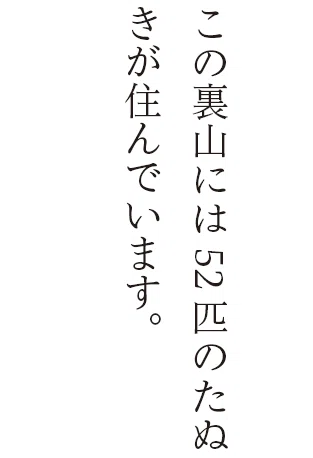
Since only the half-width numbers '52' are lying on their side, I want to apply the Tate-chu-yoko setting only to this part.
As shown in the figure below, if you select '52' on the InDesign screen and right-click, a menu will appear, so you can just select 'Tate-chu-yoko' from there.
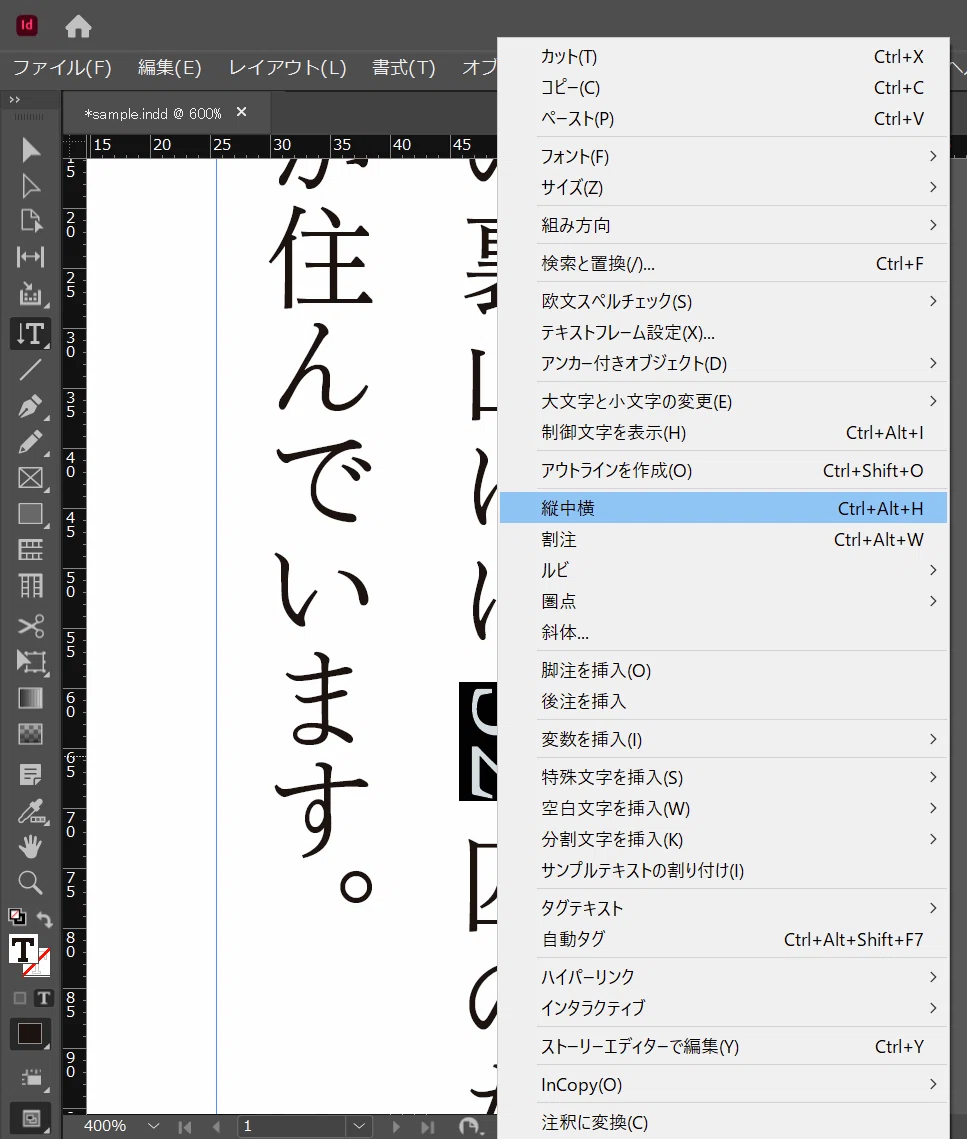
When you click 'Tate-chu-yoko', it looks like this.

The entire sample text will look like this.
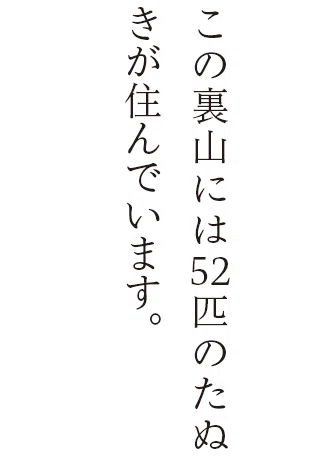
Oh, it has properly become Tate-chu-yoko!
However, selecting characters one by one like this and applying the Tate-chu-yoko setting bit by bit is quite troublesome... or rather, inefficient.
That is when settings using 'Paragraph Styles' come in handy.
Setting Tate-chu-yoko with Paragraph Styles
With paragraph styles, you can set not only the font type, size, leading, and indentation within a paragraph, but also Tate-chu-yoko in bulk.
I would like to try this out with the following sample text.
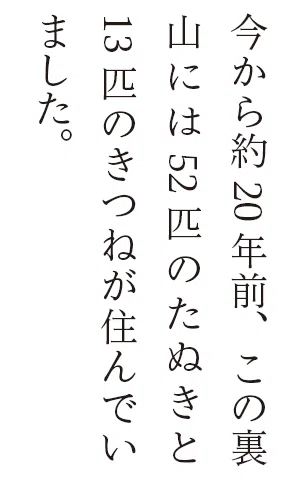
This time, there are three places to set to Tate-chu-yoko.
So, first, prepare a new paragraph style to apply to this paragraph. (Here, I will create a paragraph style called 'Body Text')
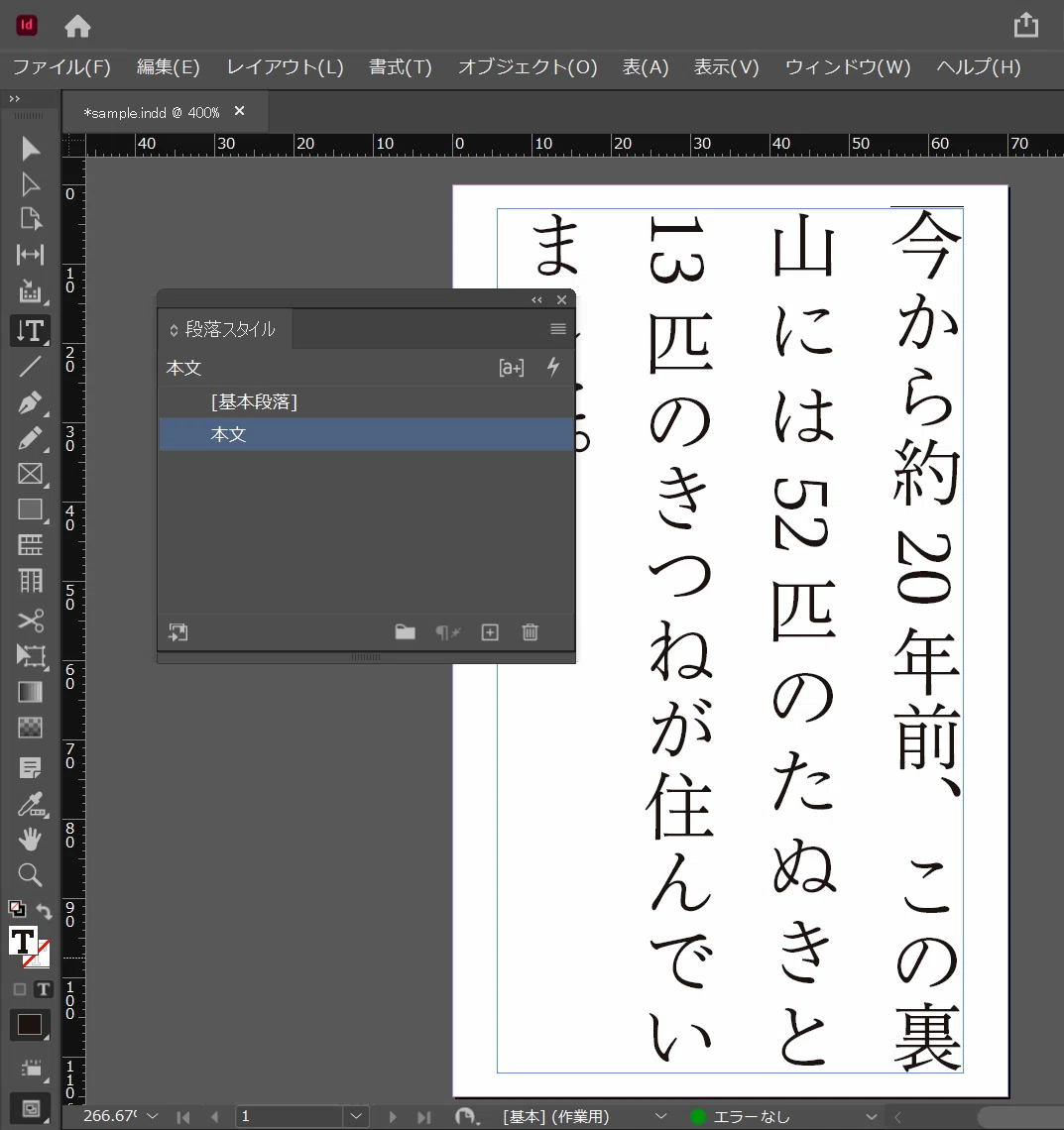
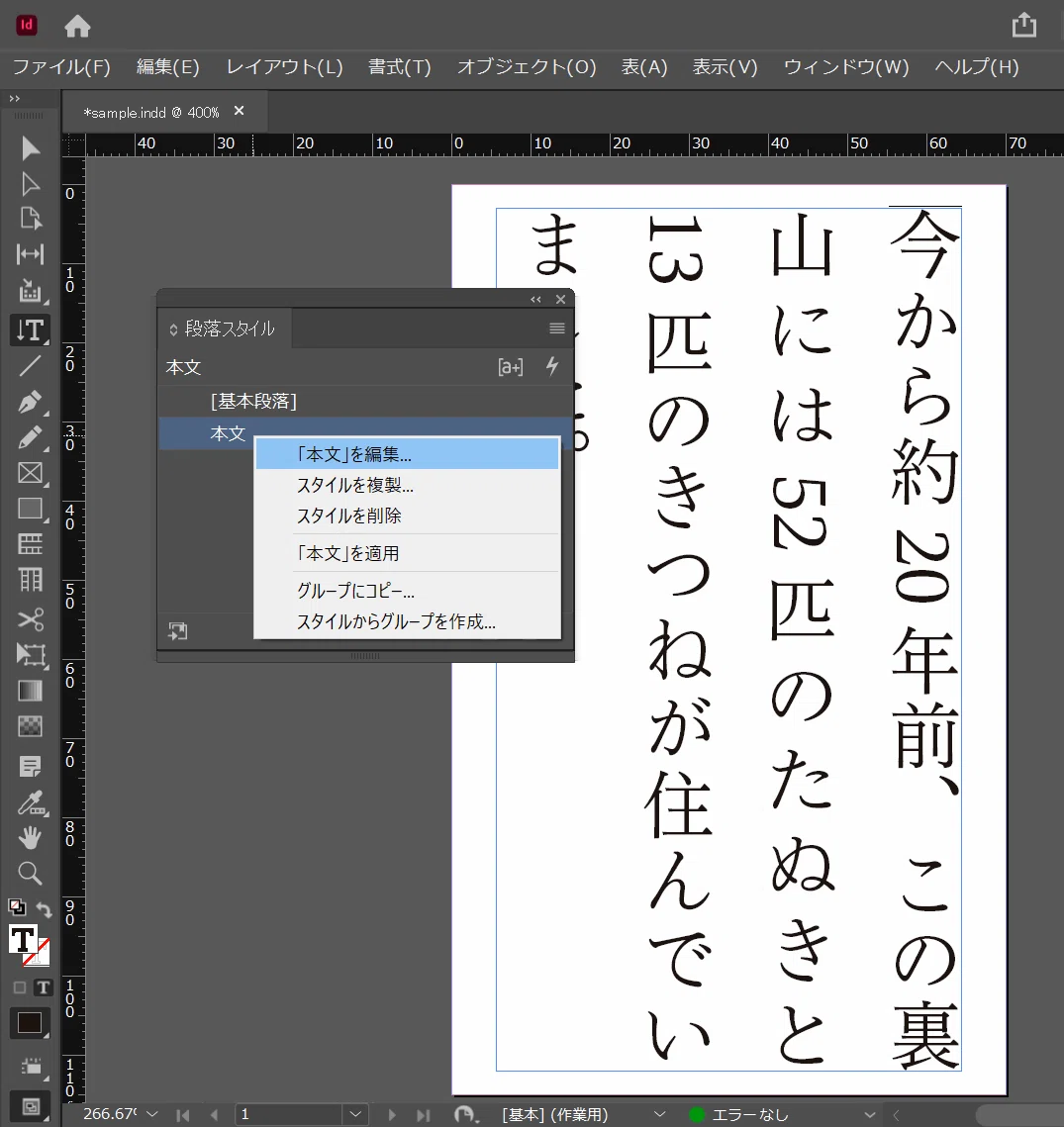
Then, change the settings of this newly created 'Body Text' paragraph style. If you right-click on the 'Body Text' section, a menu will be displayed as shown below, so select 'Edit 'Body Text''.
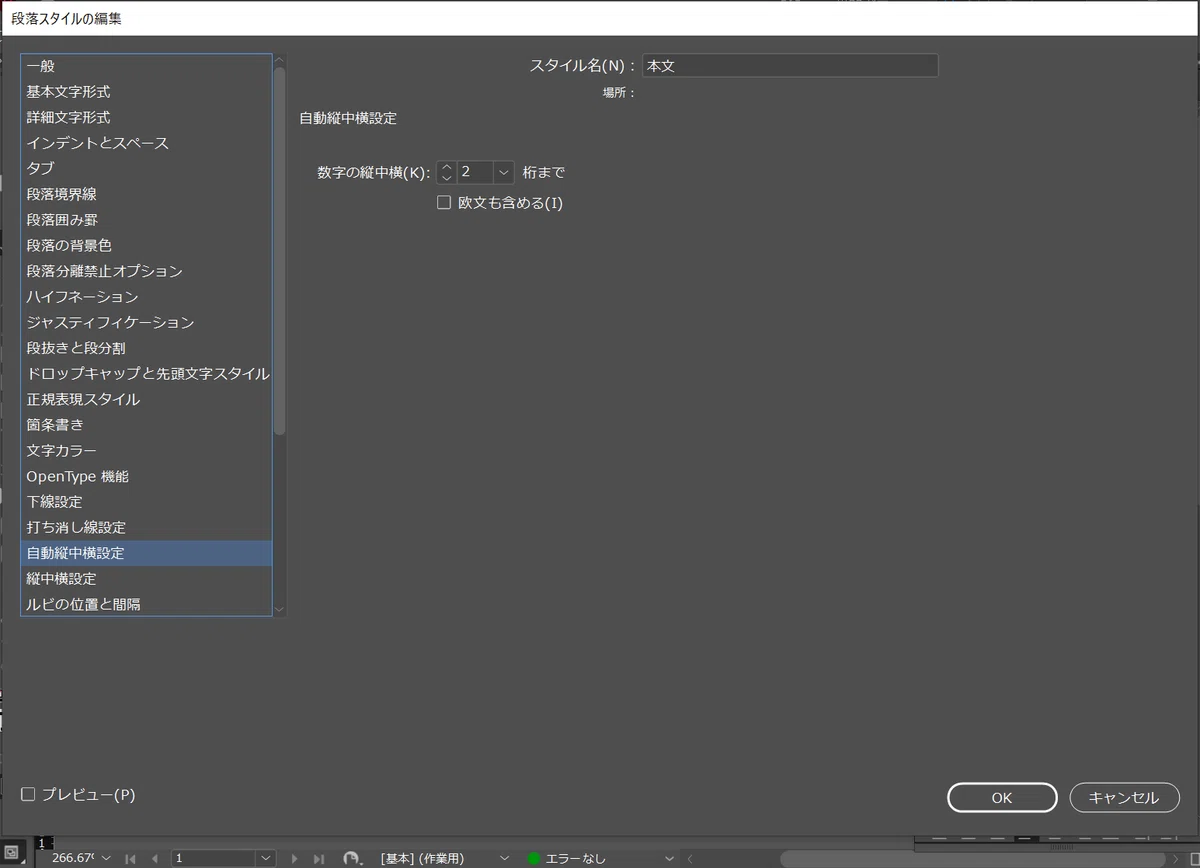
Then, a panel like this will be displayed.

Selecting "Automatic Tate-chu-yoko Settings" from the left menu will switch the display to the one shown below.

Here, you can specify the number of digits for the numbers you want to apply Tate-chu-yoko to. For now, let's set it to "2 digits".
Clicking "OK" now will change the previous sample like this.
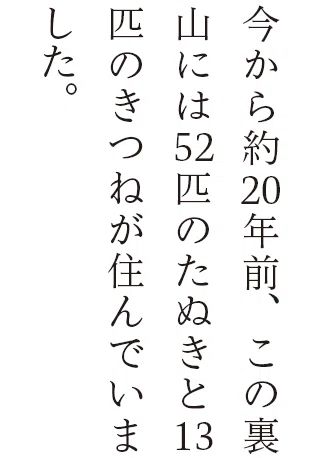
By the way, this setting applies Tate-chu-yoko to half-width numbers up to "2 digits," so it will naturally be applied to single-digit half-width numbers as well.
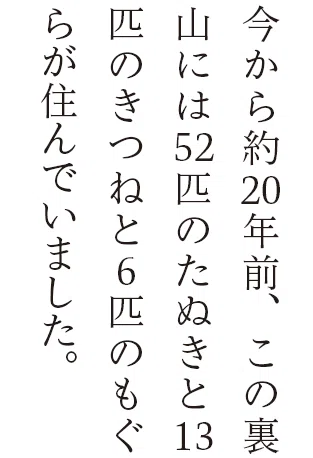
What about numbers with 3 or more digits!?
So, what should you do for numbers with 3 or more digits?
Of course, you can apply Tate-chu-yoko to 3-digit numbers if you like.
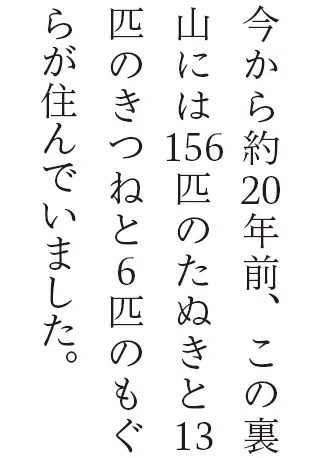
However, the line spacing will become a bit tight. (The density of tanuki living on the mountain behind is also getting tight.)
For this reason, in vertical publications currently distributed in Japan, Tate-chu-yoko is generally used only for up to 2 digits, while numbers with 3 or more digits are arranged vertically.
If you change the "156" part to full-width numbers, they will be arranged vertically.
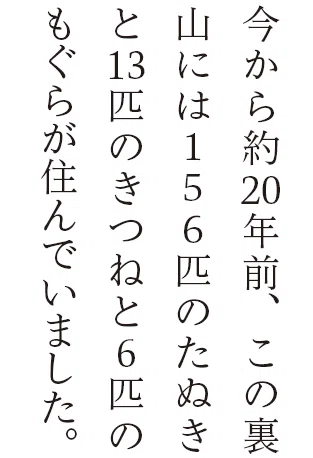
Phew, now I can rest easy... or so I thought, but it's too early for that.
The glyphs for the "6" in "156 tanuki" and the "6" in "6 moles" are slightly different. That's right, the "6" in "6 moles" was entered as a half-width number, while the "6" in "156 tanuki" was changed to a full-width number.
Therefore, you also need to change the "6" in "6 moles" to a full-width number.
Let's change it right away, and it will look like this.
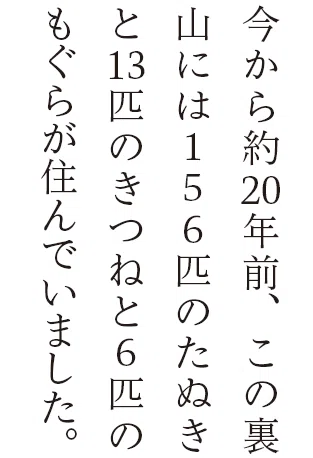
Now it looks clean!
To make only 2-digit numbers half-width...
However, if the original manuscript isn't unified so that 2-digit numbers are half-width and other numbers are full-width, I feel like I'll end up doing tedious work in InDesign anyway.
But don't worry. This can be solved quickly by using wildcards to perform pre-processing on the Word manuscript before importing it into InDesign.
For example, let's assume you have a manuscript like the one below.
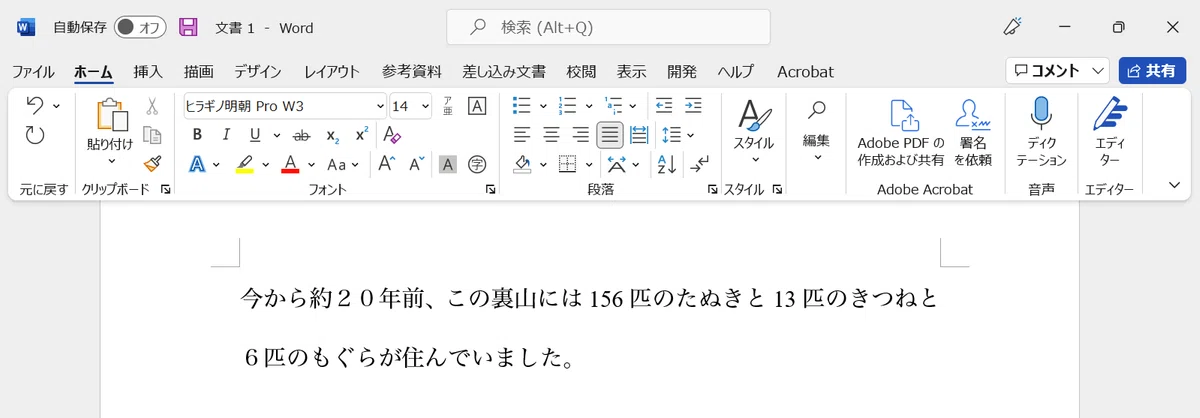
Full-width numbers and half-width numbers are mixed together.
So, first, unify all numbers to full-width.
As shown in the figure below, search for half-width numbers using wildcards and convert them to full-width using the "Convert Case" feature.
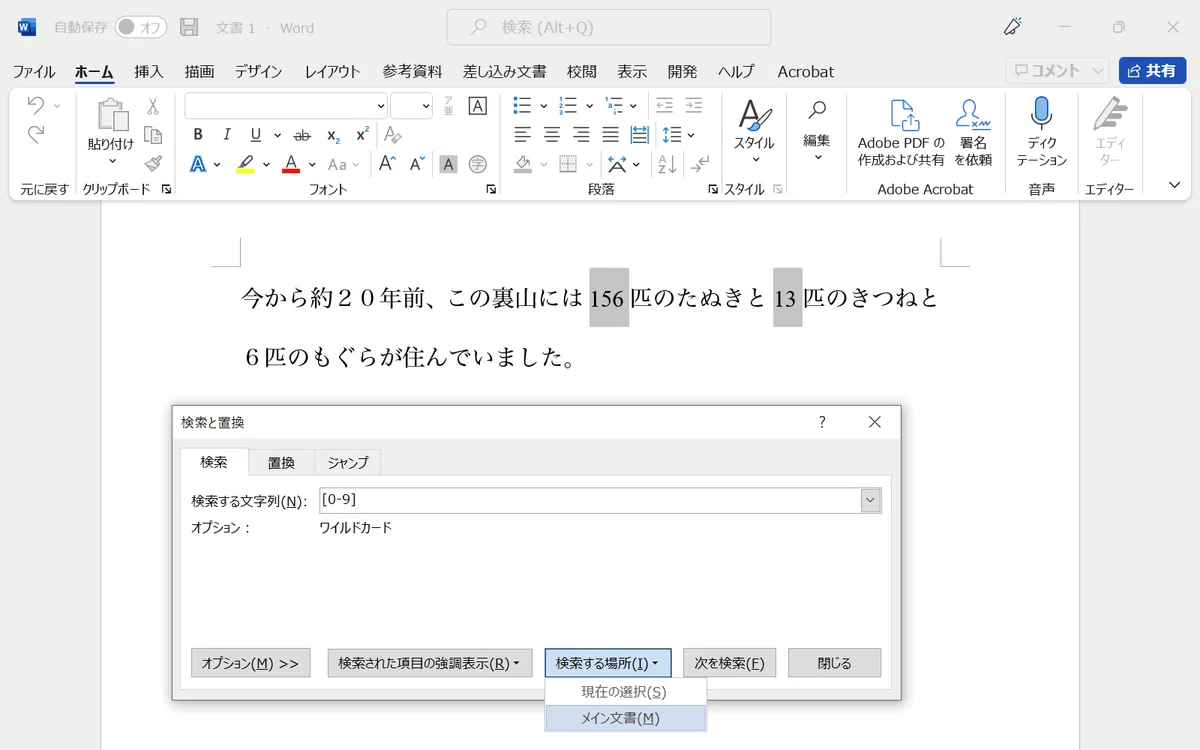


After that, if you can search for only 2-digit numbers using wildcards and convert them back to half-width using the "Convert Case" feature, you are good to go.

However, since Japanese text does not use spaces, you have to be a bit clever. Here, I am searching for "two consecutive full-width numbers that do not have full-width numbers before or after them."
If you try to convert to half-width using the Convert Case feature in this state, this is what happens.

Since there is no "half-width" for hiragana or kanji, you can make only the numeric parts half-width.
However, with this method, if katakana is selected, it will become half-width katakana, so you will need to correct those parts.
Anyway, let's flow this text, where only the 2-digit numbers have become half-width, into InDesign. Then, it looks like this.
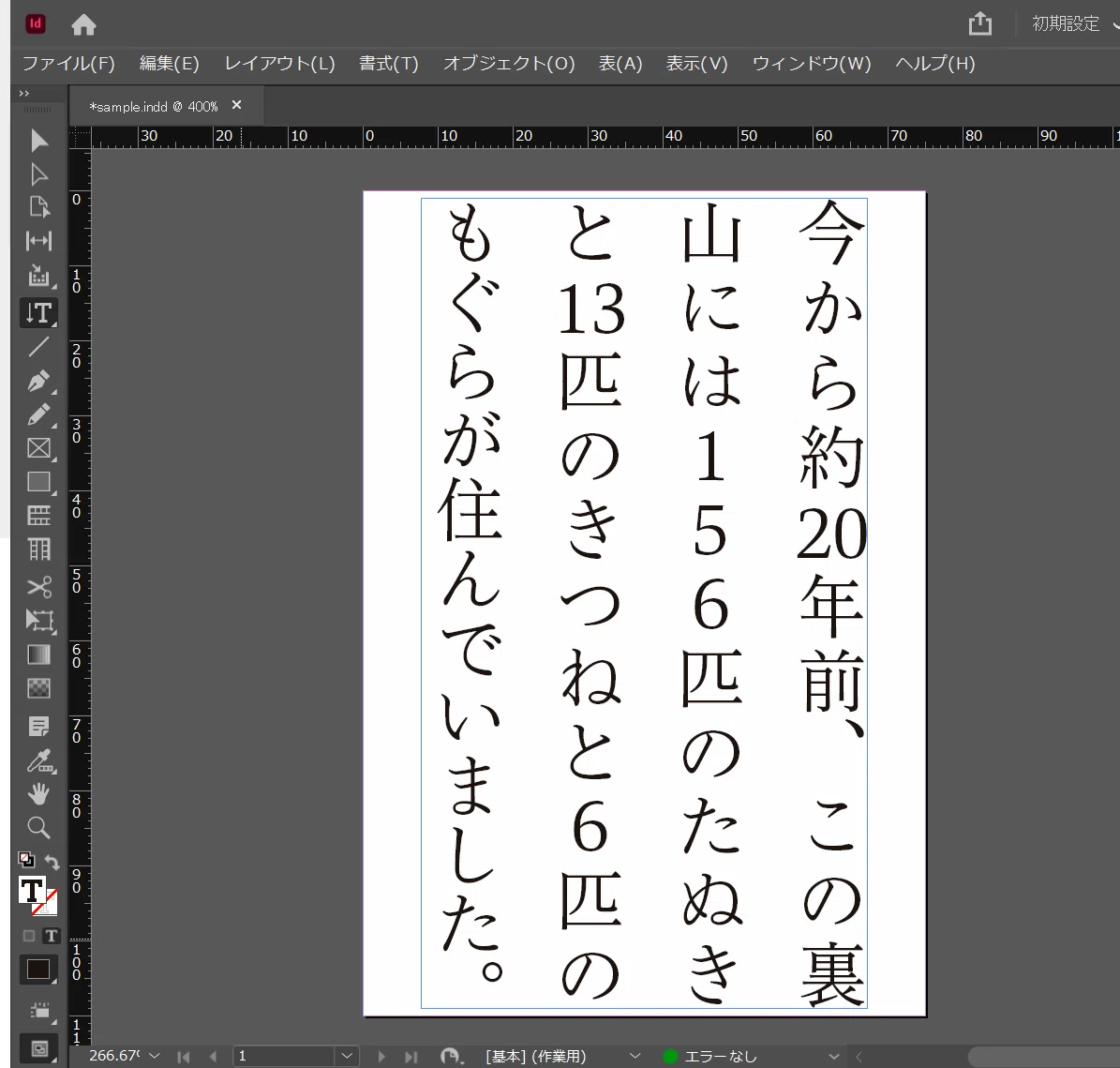
Oh, it reached the same state as before in one go!
Conclusion
I have introduced the Tate-chu-yoko settings in InDesign.
I hope this article helps you get an idea of how vertical typesetting is performed.