


The internet is one of humanity’s greatest inventions. We can send messages and retrieve information to and from the corners of the world in a matter of seconds, and browsers make the process a breeze. Just type in a website’s URL (or type a term into a search engine), and you’re off. You have plenty of browsers to choose from, each with its own features and advantages, but so far Google Chrome is the reigning champion.
Many people use Google Chrome because it is integrated into Google-owned sites such as YouTube, and because the browser boasts quite a few security features. However, Google Chrome’s most important feature is its speed. Many people pay out the nose for fast internet and gravitate towards browsers that let them use those upload and download speeds to their fullest. However, sometimes Google Chrome doesn’t load pages as fast as advertised. These occurrences are rare and are often temporary hiccups, but if you consistently encounter slow internet speeds on Google Chrome, you might need to take matters into your own hands.
Here’s some of the most common ways you can speed up Google Chrome.
Update Google Chrome
Traditional logic states that if something isn’t broke, you shouldn’t try to fix it. This isn’t always true for programs, including browsers such as Google Chrome. Each new update generally includes improvements such as security fixes, new features, and performance upgrades. Any one of these could improve Google Chrome’s speed, so it’s a great idea to make sure you’re using the latest version.
Here’s how to update Google Chrome:
- Open Google Chrome.
- Click on the More button (the three dots in the upper right corner underneath the Close button).
- Click Help.
- Select About Google Chrome.
- If you have installed the latest version, the new page will show the statement “Chrome is up to date” and include the version number underneath.
- If you aren’t using the latest version, the page will show the Update Google Chrome button.
- Click the button and wait for the update to finish downloading.
-
Hit the Relaunch button to restart Google Chrome and implement the changes.


Don’t worry about losing your pages; Google Chrome will automatically reopen all the tabs you were using. If all goes according to plan. You should notice an increase in browser speed.
Close unused tabs
The modern internet is not a one-sided transference but instead a two-way conversation between a host computer and different servers. The servers transmit data to innumerable foreign PCs, and every computer that accesses this info essentially “saves” it to a browser tab. This process uses some of a computer’s Random-access Memory (RAM); the more RAM a computer has, the more internet browser tabs it can open at once. However, when you are almost out of RAM, your entire computer slows to a crawl, and if your Google Chrome browser is eating up all the available RAM, it will be the first program to feel the effects.

To solve this issue, just free up some RAM with the following steps:
- Press the Close button (the “X”) in the top right corner of the tab.
- To close multiple tabs at once, just press the Close button on a Google Chrome window.
If you have the latest version of Google Chrome, you can see just how much RAM each tab is using. Simply hover the cursor over a tab, and a small window will appear. This window will show a preview of the page with the memory usage at the bottom. If you have numerous tabs open, this feature might help you figure out which ones to close first. Alternatively, you can cut down on the RAM each tab uses without closing it by using Google Chrome’s Memory Saver function. This feature deactivates a tab if it is inactive for a set amount of time, freeing up RAM for tabs you are currently using.
Here’s how to activate Memory Saver:
- Click on the More button in the top right corner of the Google Chrome window.
- Click on Settings.
- Click on Performance, which will be on the left side of the page.
-
Turn on Memory Saver if it isn’t already active.


Turn off unwanted apps and processes
While Google Chrome uses RAM to support every open tab, it isn’t the only potential RAM hog. Since RAM provides short-term memory to store data, literally every computer program uses it to some degree. The more RAM your PC has, the more apps you can potentially run at the same time. But by that same token, the more programs you use simultaneously, the less RAM is available for Google Chrome and its tabs. If a program is taking up too much RAM, Google Chrome will start to slow down. Usually, you can shut down the app by just closing it within the program (make sure to save any progress), but sometimes you might find that the process is coming from inside the browser.
These RAM hog programs come in two forms: Extensions and general tasks. Extensions are programs you can add to Chrome, such as ad-blockers and translation suites, while the tasks are just general programs that run on certain websites (e.g., YouTube videos).
To turn off extensions, follow these steps:
- In Google Chrome, click the More button in the upper right corner of the window.
- Scroll down to Extensions.
- Select Manage Extensions.
-
Turn off the extensions you don’t want by clicking the toggle in the bottom right corner of each one.

- Alternatively, permanently delete extensions by clicking Remove at the bottom of the extension and then selecting Remove again in the tab that pops up.

While some extensions, such as ad blockers, can be downright essential for safe browsing, others just eat up RAM and slow down Google Chrome without providing any real benefit.
If you want to speed up Chrome by ending tasks, here’s how to do so:
- In Google Chrome, click the More button.
- Highlight More Tools.
- Click on Task Manager.
- Select the task you want to stop.
-
Click on End Process.

- To get a better idea of how much RAM each process uses, click Memory footprint at the top to organize them based on memory usage.

Double check which processes you are thinking of closing to make sure you don’t prematurely end something important. Speeding up Google Chrome isn’t worth accidentally losing data that has yet to be saved.
Configure preload settings
Out of all the ways one might consider speeding up a browser, using predictive programming to preload pages probably wasn’t one of them. But Google Chrome lets you do just that. This feature, as its name suggests, “preloads” the pages you are most likely to visit. When you inevitably do, Google Chrome has already completed the lion’s share of downloading, letting you access the page faster.
Here’s how to turn on Google Chrome’s preload settings:
- Click on the More button at the top right of the Google Chrome window.
- Select Settings.
- Click on Performance at the left of the screen.
-
Scroll down to the tab under Speed and toggle Preload pages either on or off.


When activated, Preload functionality will perform “Standard preloading,” which only gets a head start on the pages you are most likely to visit. If you want Google to cast a wider net and preload even more sites, click on “Extended preloading.” Just be warned that if you use any form of preloading, Google will automatically use cookies.
Turn on an ad blocker
The internet is full of reasons to use ad blockers. Some sites show so many ads that individual pages become nigh illegible, and hackers have a nasty tendency to inject malicious code into ads to give you a virus. But ad blockers can also speed up Google Chrome. Well, they technically can speed up any web browser. If a website features too many ads, especially large ones, Google Chrome (and all other browsers) will struggle to load them due to all the ads bogging down the download speed. Ad blockers can prevent these ads from loading, freeing up browsers to quickly show what you came for.
Here’s how to install ad blockers on Google Chrome:
- Click on the More button in the upper right corner of the window.
- Highlight Extensions.
- Click on Visit Chrome Web Store.
- Type “ad blocker” into the search bar at the top of the screen.
-
Press the Enter button.

- Click on the ad blocker you want. Alternatively, do research into ad blockers and select the one with the best reviews.
- Click on the Add to Chrome button.

Once your ad blocker is installed, keep it running. You should never have to worry about ads overwhelming a web page or slowing down Google Chrome ever again.
Clear your cache
While browsers such as Google Chrome temporarily “save” websites whenever you access them, these programs also permanently commit these sites to memory by “caching” them in your computer’s hard drive. This cache of information saves certain files, such as images, from websites in order to load faster the next time you visit them. However, as with RAM, if your cache fills up too much, your browser will start to slow down. As counterintuitive as it sounds, clearing your cache will give Google Chrome more hard drive to work with, thus speeding it up.

Clearing your cache is quite easy:
- Click the More button at the top right of the Google Chrome window.
- Select Clear browsing data.
- Select how far back you want to delete the cache, from the past hour to the first time you booted up Google Chrome.
-
Make sure the box next to Cached images and files is checked.

- Click Clear data.

Google Chrome warns you that some sites might load slowly the next time you visit them, but that is only temporary. The browser will speed up eventually. Moreover, you can use this feature to delete other saved bits of data, including your browsing history and cookies. If you visit the “Advanced” tab, you can also delete files such as passwords, site settings, and hosted app data.
Enable hardware acceleration
One of the secrets to Google Chrome’s success is its hardware acceleration. Normally, a web browser draws from a central processing unit (CPU) to render the visuals of a website. The hardware acceleration feature offloads some of the processing to other pieces of hardware, usually the graphics processing unit (GPU). While CPUs are capable of fulfilling a number of duties, GPUs are more efficient at rendering 2D and 3D graphics. These processors are a crucial component for any gaming computer, and Google Chrome taps into GPUs to speed up loading websites with complex visual effects.
Enabling hardware acceleration is a quick and easy process:
- Click the More button in the top right corner of the window.
- Select Settings.
- Scroll down to and select System on the left corner of the screen.
-
Toggle Use graphics acceleration when available.

- Click the Relaunch button that appears next to the switch to enable the feature.

Usually, hardware acceleration improves Google Chrome’s speed, but sometimes a system doesn’t cooperate with the feature. If you find that hardware acceleration is actually slowing down your web browsing, follow the same steps above to turn it off.
Turn on Energy Saver
The miracle of wi-fi lets people connect to the internet almost anywhere within a set location, but unless you’re plugged into a wall socket, you’re going to use your device’s battery power. To help squeeze every kilowatt out of your laptop’s battery, Google Chrome introduced Energy Saver. This mode reduces the browser’s background activity and the visual effects present on certain websites, which in turn draws less juice from the battery. But that isn’t Energy Saver’s only advantage. This feature also speeds up Google Chrome since the browser doesn’t have to spend precious RAM on background activities or fancy visuals.
You can turn on Energy Saver using the following steps:
- Click on the More button in the top right corner of the window.
- Click on Settings.
- Select Performance on the left side of the screen.
- Scroll down to the Power tab.
-
Turn on Energy Saver with the toggle at the tab’s upper right corner.

- Select when you want Energy Saver to activate: When your computer’s battery has 20% power left or whenever it is unplugged.

Due to its design, Google Chrome’s Energy Saver mode only functions with laptops. If you are using the browser on a desktop, you will have to reduce Chrome’s energy and memory usage another way.
Scan for viruses
If worse comes to worse and nothing seems to speed up a sluggish Google Chrome browser, a virus might be to blame. These insidious programs like to hide on computers and wreak all kinds of havoc. Regardless of their purpose, viruses always eat up RAM, and unless you get rid of malware, they will slow down your internet browser and other computer processes.
To remove a virus or any type of malware, just run a scan on your computer. The internet is full of security suites that can detect illicit programs on your PC. Download one and start a scan; the more files the antivirus scours, the more likely it will find the virus causing the slowdown. Depending on the malware’s complexity, you might need to enable rootkit scans or even use a program that cleans even deeper. You might even need to bring your computer in to your local repair center, but eventually, you should flush the virus out.
Turn off other devices connected to the internet
When you purchase an internet package from a provider, the amount you pay will determine your upload and download speeds, as well as bandwidth. Bandwidth is arguably more important because it determines the total amount of data that can transfer at once. If your computer running Google Chrome is literally the only device attached to the internet in your house, you probably will never encounter slow browsing speeds. However, if another computer shares your internet, you will have to share your bandwidth. Connect too many devices to the web through your one modem or router, and they all suffer.
If your Google Chrome browser is slowing down, do a sweep of your house and check what is connected to the internet. Then either disconnect or turn off what you can do without. Do you really need your coffee machine to connect to the wi-fi? Can you wait to start downloading the latest game updates for your Xbox Series X or PlayStation 5? If so, turn them off for the time being and watch Google Chrome speed up.
Restart your modem/router
If you have ever called a helpline to troubleshoot a device, you’ve probably heard the question, “Have you tried turning it off and on again?” It’s as much a cliché as it is a proven solution. More often than not, you can fix a PC problem by just shutting down the malfunctioning program and starting it up again, or by restarting your computer. If Google Chrome is running slow, restarting the browser or your PC can help, but if that doesn’t work, maybe the problem is the router or modem.
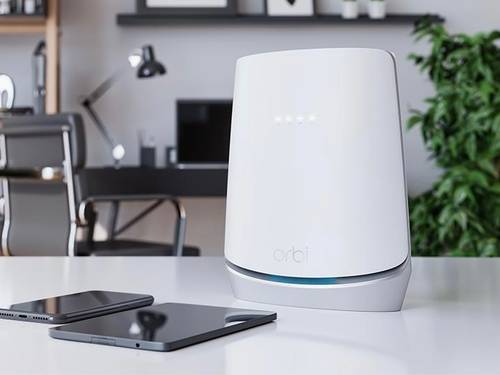
The modem sends and receives all data to the internet service provider, and the router connects devices to the modem. If either encounters an error, they will affect everything connected. Modems even have their own RAM, and like a computer’s RAM, browsers slow to a crawl when it’s almost full. As is true with PC RAM, clearing the modem’s RAM will speed things up.
Here’s how to restart your modem and clear up browser slowdowns:
- Turn off your modem by flipping its on/off switch (the location of this switch differs from model to model).
- Also, turn off your router the same way just in case. You can skip this step if you own a router-modem combo.
- Unplug both the modem and router.
- Wait 10 to 30 seconds to make sure every capacitor is drained. This step guarantees that the RAM is purged and all settings are reset.
- Plug the modem and router back in and turn them back on.
Assuming the modem and/or router were the cause, your internet should speed up regardless of your preferred browser.
Wait patiently
If you have tried literally every possible solution in this article, then the problem might not be on your end. As previously stated, what we consider to be the internet is a two-way conversation between your computer and countless servers, and different internet providers make this possible. However, if the provider’s service encounters a problem, you might find yourself with slow internet or even no internet at all. Keep an eye on your provider’s internet service status to see if this is the case. Also, don’t be afraid to visit sites such as Downdetector to check if the issue is limited to a few sites and not the internet at large.