


We've all been there. You're trying to upload an image to the web, and the website where you need to upload it has an annoying file size limit. That means you now have to resize the image yourself, and we're here to show you how you can do it on your Windows PC or Mac.
To be clear, there is no shortage of methods for resizing images on a PC, but before you go on and download some third-party tool you've never heard of, it's a good idea to look at the tools available to you out of the box. Windows gives you more than one tool to resize your images, and if you do need something extra, it's best to download something reliable and trustworthy.

Best apps for photo editing on Windows in 2024
Want to make your photos look even better? Here are some of the best photo editing apps you can find for your Windows PC.
How to resize an image using the Photos app
The Photos app is probably the easiest way you can resize any image you want to. It's very quick and simple, assuming you just want to resize a couple of images. Here's what you need to do:
- Open the image you want to resize using the Photos app (it should be the default option when opening an image).
- Click the ... (ellipsis) button on the menu bar at the top, then click Resize image.
-
Enter the dimensions you want the image to have. You can see a preview of the final file size at the bottom of the window.

-
You can also change the format of the resized image. If you choose .jpg you can also change the quality of the final image. The lower the quality, the smaller the file size.

- Save the image in a location of your choosing.


You can save the image with the same file name if you want to overwrite the existing file, but you can also keep the original high-quality version.
How to resize an image using Paint
If you really hate the Photos app for whatever reason, Paint also lets you resize images fairly easily. The main benefit of doing it this way is that you can see the final result before saving the file. You can also undo changes as long as the app is open, and make other tweaks if you want.
- In File Explorer, right-click the image you want to resize, and then choose Open with and then select Paint from the dropdown list.
-
In the top menu bar, select the Resize option.

- You can choose to resize the image to a percentage of the original size or use absolute pixel values if you want a more specific size. You can click the chain button to choose whether you want to keep the original aspect ratio. Paint also gives you the option to skew the image if you want to distort it for whatever reason.
-
Click OK to see the results.

-
Once you're happy with the image, you can click the Save icon at the top of the window to update the original file.
If you want to save a copy rather than modify the original file, click File then Save as and choose a different file name or location to save the new image in a separate file.


How to resize images in bulk with PowerToys
The two methods above work well if you just want to resize an image or two, but if you have a folder with a ton of large images, there are some tools you can download to help you out with that.
My personal favorite is PowerToys, which is also published by Microsoft and developed in collaboration with the open-source community. PowerToys has a lot more tools than the image resizer, but that's beside the point. Image Resizer is a very useful part of this suite, and here's how it works.
- Download the latest version of PowerToys, available on GitHub, and install it.
- Launch PowerToys and switch to the Image Resizer tab. Make sure the feature is turned on.
-
You can close the PowerToys window and go to the folder where your images are. Select all the images you want to resize and right-click them, then choose Resize images.

-
Choose one of the size presets or set custom dimensions. You can also choose whether you want to replace the existing images or create copies, remove image metadata, and more.

- Click Resize and the images will be resized.

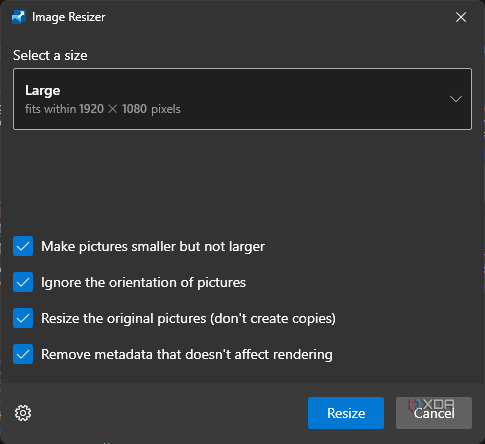
This is one of the easiest ways to resize a large number of images in one go, and considering everything else PowerToys has to offer, we definitely recommend checking it out.

The ultimate guide to using PowerToys
Windows may not be perfect, but Microsoft gives you the tools to make the experience better with PowerToys. Here's everything you need to know.
It's also worth mentioning that PowerToys gives you the ability to change the default presets for the image resizer, so you can have the dimensions you want available right away without having to type them in each time. You can change encoding options in the PowerToys settings, too.

How to resize an image on a Mac
If you're using Mac, things are actually quite a bit more straightforward, since the only tool you need is built right into macOS. Apple's operating system comes with an app called Preview, which lets you resize images individually and in bulk.
One thing to note before doing this is that Preview will always replace the original image files when you resize them. If you want to keep the original files, duplicate them first, then resize the duplicates to leave the original images intact.
- In Finder, open the image you want to resize. If Preview isn't your default for opening images, right-click the image file, then choose Open with and select the Preview app.
-
With Preview open, click the Tools option in the top menu bar, then choose Adjust size.

-
You'll see a window to choose the target size for your image. There are a few presets available, but you can also choose a custom size. You can resize it by the percentage of the original resolution or switch to absolute values using the dropdown menu. You can also choose the pixel density of the final image if you prefer that method.

- Click OK and your image will be saved with the new resolution.


If you want to resize your images in bulk, the process is similar, but there are a couple of things you need to pay attention to. First, select all the images you want in Finder and open them with Preview. Then, in Preview, make sure you select the thumbnails for all the images you want to resize before using the Adjust Size option.
How to make an image bigger
All of these methods work pretty well for making an image smaller, but what if you want your images to be a higher resolution? While all of these can technically increase the resolution of your images, they won't resample them, which is to say it's basically just stretching the existing pixels. If you want to make an image bigger and still retain a similar level of quality, you'll need a dedicated upscaler.
There are a few options for this, but most of them are paid. I like to use the ILoveIMG upscaler, since it's free to use and still solid. Here's how it works:
- Open the ILoveIMG website in your browser.
- Click Select image and choose a picture to upload. You can only upload up to three pictures at a time, and they must be under 2MB in size.
-
ILoveIMG will automatically upscale the image by a factor of two, but you can go further and set it to four.

- Click Upscale.
- Your images should download automatically, but you can also click Download upscaled images to download them manually.

Keep in mind you can only upscale a few images for free before you have to pay up or wait. That's true of most AI-based upscalers.
Plenty of options to go around
As you can see, there are plenty of options for resizing an image depending on your needs. It's admittedly a bit easier to get this done on macOS, but it's not a difficult process either way. As a Windows user, PowerToys is my go-to for resizing images now, since I can work with multiple images with just a few clicks. It's only a bit more troublesome to set up the first time, but it saves you a lot of time in the long run. There are plenty of other options for both Windows and macOS if you want to use third-party tools, but this is probably easier for most people.
Want to get into more advanced image editing? Check out our roundup of the best photo editing laptops if you want to do this more professionally.