Knowing the exact version of your Apache Tomcat server is essential for debugging, ensuring compatibility, applying security patches, and maintaining production environments. This article walks through multiple reliable methods to determine the version of a Tomcat installation across different environments.
1. Check the Version Using the Command Line
One simple and direct way is via the command line.
On Linux / macOS
Navigate to the Tomcat bin directory and run:
./catalina.sh version
On Windows
catalina.bat version
Example Output
Using CATALINA_BASE:   /opt/tomcat/apache-tomcat-11.0.21
Using CATALINA_HOME:   /opt/tomcat/apache-tomcat-11.0.21
Using CATALINA_TMPDIR: /opt/tomcat/apache-tomcat-11.0.21/temp
Using JRE_HOME:        /Library/Java/JavaVirtualMachines/jdk-25.jdk/Contents/Home
Using CLASSPATH:       /opt/tomcat/apache-tomcat-11.0.21/bin/bootstrap.jar:/opt/tomcat/apache-tomcat-11.0.21/bin/tomcat-juli.jar
Using CATALINA_OPTS:
Server version: Apache Tomcat/11.0.21
Server built:   Mar 30 2026 14:59:44 UTC
Server number:  11.0.21.0
OS Name:        Mac OS X
OS Version:     12.6
Architecture:   x86_64
JVM Version:    25+37-LTS-3491
JVM Vendor:     Oracle Corporation
This output provides:
- Full version number
- Build date
- Underlying OS details
2. Inspect the Startup Logs
Tomcat logs its version information during startup.
Start the server:
./catalina.sh start
Open and inspect the log file:
cat logs/catalina.out
Look for entries like:
08-Apr-2026 17:56:22.635 INFO [main] org.apache.catalina.core.StandardService.startInternal Starting service [Catalina]
08-Apr-2026 17:56:22.635 INFO [main] org.apache.catalina.core.StandardEngine.startInternal Starting Servlet engine: [Apache Tomcat/11.0.21]
3. Check the Web Interface
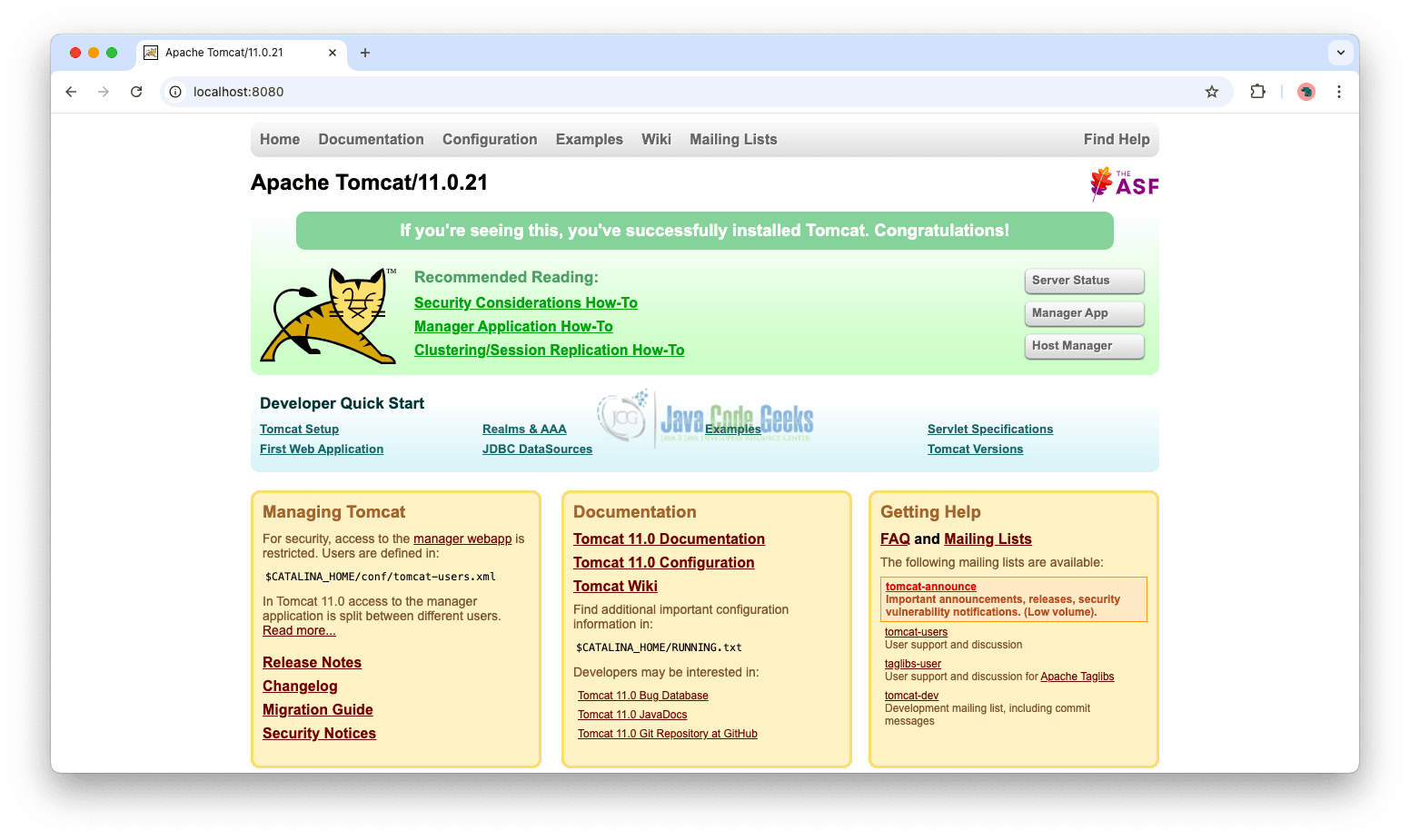
If the Apache Tomcat Manager application is enabled, open your browser and navigate to http://localhost:8080. At the top of the page, you will typically find the server version information displayed.
4. Check the RELEASE-NOTES File
Inside the Tomcat installation directory:
cat RELEASE-NOTES
or
cat RUNNING.txt
These files often contain version details and build information.
5. Run ServerInfo from catalina.jar
The core libraries of Apache Tomcat contain embedded version metadata, which can be accessed by navigating to the lib/catalina.jar file and executing the ServerInfo class within it to retrieve detailed server version information.
java -cp catalina.jar org.apache.catalina.util.ServerInfo
Example Output
Server version: Apache Tomcat/11.0.21
Server built:   Mar 30 2026 14:59:44 UTC
Server number:  11.0.21.0
OS Name:        Mac OS X
OS Version:     12.6
Architecture:   x86_64
JVM Version:    25+37-LTS-3491
JVM Vendor:     Oracle Corporation
6. Programmatic Approach
If your application is running inside Tomcat, you can retrieve version details programmatically:
import org.apache.catalina.util.ServerInfo;

public class TomcatVersion {
    public static void main(String[] args) {
        System.out.println(ServerInfo.getServerInfo());
        System.out.println(ServerInfo.getServerNumber());
    }
}
Output:
Apache Tomcat/11.0.21
11.0.21
7. Using Environment Variables
If CATALINA_HOME or CATALINA_BASE is set, you can infer the version by inspecting directory names:
echo $CATALINA_HOME
Example output:
/opt/tomcat/apache-tomcat-11.0.21
While not always reliable, it provides a quick hint.
8. Conclusion
There are multiple ways to determine the version of a Tomcat server, ranging from simple command-line checks to programmatic approaches. The best method depends on your access level and environment constraints. For most cases, running the catalina version command or checking startup logs will give you immediate and accurate results.
This article explored how to determine the version of a Tomcat server.