1. Introduction
Selenium is an open-source testing framework for web applications. It supports common web browsers. For example, Selenium supports Google Chrome via ChromeDriver, Mozilla Firefox via GeckoDriver, Microsoft Edge via EdgeDriver, etc. The <select> html web element is used to create a drop-down list within a form. Its name attribute is used to submit data to the back-end service. The id attribute is used to associate the drop-down list with a label. The <option> tags inside the <select> element define the available options. In this example, I will select dropdown value via ChromeDriver after opening a web page with a Select web element.
2. Setup
2.1 Maven Pom.xml
In this step, I will create a maven project with both Selenium and Junit libraries.
pom.xml
<project xmlns="http://maven.apache.org/POM/4.0.0"
	xmlns:xsi="http://www.w3.org/2001/XMLSchema-instance"
	xsi:schemaLocation="http://maven.apache.org/POM/4.0.0 http://maven.apache.org/xsd/maven-4.0.0.xsd">
	<modelVersion>4.0.0</modelVersion>
	<groupId>selenium-example</groupId>
	<artifactId>selenium-example</artifactId>
	<version>0.0.1-SNAPSHOT</version>
	<build>
		<sourceDirectory>src</sourceDirectory>
		<plugins>
			<plugin>
				<artifactId>maven-compiler-plugin</artifactId>
				<version>3.8.0</version>
				<configuration>
					<release>17</release>
				</configuration>
			</plugin>
		</plugins>
	</build>
	<dependencies>

		<!--
		https://mvnrepository.com/artifact/org.seleniumhq.selenium/selenium-java -->
		<dependency>
			<groupId>org.seleniumhq.selenium</groupId>
			<artifactId>selenium-java</artifactId>
			<version>4.25.0</version>
		</dependency>


		<dependency>
			<groupId>org.junit.jupiter</groupId>
			<artifactId>junit-jupiter-api</artifactId>
			<version>5.11.0</version>
			<scope>test</scope>
		</dependency>

		<dependency>
			<groupId>org.junit.jupiter</groupId>
			<artifactId>junit-jupiter-engine</artifactId>
			<version>5.11.0</version>
			<scope>test</scope>
		</dependency>


	</dependencies>
</project>
2.2 Install ChromeDriver
In this step, I will download the ChromeDriver from here. Please check your Google Chrome version and download the matching version of ChromeDriver.
I downloaded chromedriver-win64.zip and extracted it at C:\Users\azpm0\Mary\devTools\.
ChromeDriver Location
C:\Users\azpm0\Mary\devTools\chromedriver-win64>dir
 Volume in drive C is OS
 Volume Serial Number is 92BA-6AB7

 Directory of C:\Users\azpm0\Mary\devTools\chromedriver-win64

09/21/2024  09:18 PM              .
09/21/2024  09:20 PM              ..
09/21/2024  09:18 PM        17,793,536 chromedriver.exe
09/21/2024  09:18 PM             1,536 LICENSE.chromedriver
09/21/2024  09:18 PM           469,519 THIRD_PARTY_NOTICES.chromedriver
               3 File(s)     18,264,591 bytes
               2 Dir(s)  100,051,456,000 bytes free

C:\Users\azpm0\Mary\devTools\chromedriver-win64>- Line 5: directory of the
chromedriverlocation. - Line 9:
chromedriver.exefile.
2.3 Create a Demo Select HTML Page
In this step, I will create a simple HTML web page that contains a select element with 4 options. The <select> element name is “demoSelectName“, id is “demoSelectId“, and has four options.
SeleniumDemo.html
<html>
    <body>
        <label>Demo Select Web Element:</label>
    <select name="demoSelectName" id="demoSelectID">
        <option value="opt1">Option Text 1</option>
        <option value="opt2">Option Text 2</option>
        <option value="opt3">Option Text 3</option>
        <option value="opt4">Option Text 4</option>
    </select>
    </body>
</html>
Launch a Google Chrome browser and open the selectDemo.html. Figure 1 shows the web page.
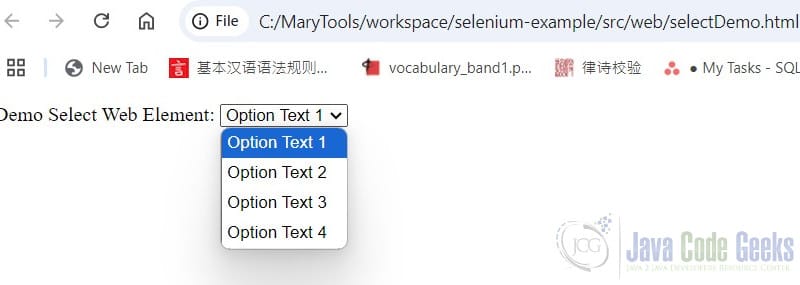
3. Select Dropdown Value Test
In this step, I will create a SeleniumDropDownTest.java class to select a value from the web page outlined in step 2.3.
SeleniumDropDownTest.java
package jcg.zheng.testngdemo;

import static org.junit.jupiter.api.Assertions.assertEquals;
import static org.junit.jupiter.api.Assertions.assertTrue;

import java.time.Duration;

import org.junit.jupiter.api.AfterEach;
import org.junit.jupiter.api.BeforeEach;
import org.junit.jupiter.api.Test;
import org.openqa.selenium.By;
import org.openqa.selenium.WebDriver;
import org.openqa.selenium.WebElement;
import org.openqa.selenium.chrome.ChromeDriver;
import org.openqa.selenium.support.ui.Select;
import org.openqa.selenium.support.ui.WebDriverWait;

public class SeleniumDropDownTest {

	private static final String CHROME_DRIVER_PATH = "C:\\Users\\azpm0\\Mary\\devTools\\chromedriver-win64\\chromedriver.exe";

	private static final String SELECT_WEB_NAME = "demoSelectName";

	private static final String SELECTED_OPTION_TEXT = "Option Text 1";

	private static final String SELECTED_OPTION_VALUE = "opt1";

	protected static final String URL_WITH_DROPDOWN = "file:///C:/MaryTools/workspace/selenium-example/src/web/selectDemo.html";

	private static final String WEBDRIVER_CHROME_DRIVER = "webdriver.chrome.driver";

	protected WebDriver driver;

	private WebElement questionDropdownbox;

	protected WebDriverWait webdriverwait;

	@AfterEach
	public void cleanup() {
		driver.close();
		driver.quit();
	}

	@Test
	public void print_dropdown_options() {
		Select dropdown = new Select(questionDropdownbox);

		dropdown.getOptions().stream().forEach(opt -> System.out
				.println("Option value=" + opt.getAttribute("value") + ", option Label=" + opt.getText()));

	}

	@Test
	public void select_dropdown_element_byIndex() {
		Select dropdown = new Select(questionDropdownbox);

		dropdown.selectByIndex(0);

		WebElement firstSelectedOpt = dropdown.getFirstSelectedOption();
		assertEquals(SELECTED_OPTION_VALUE, firstSelectedOpt.getAttribute("value"));

	}

	@Test
	public void select_dropdown_element_byText() {
		Select dropdown = new Select(questionDropdownbox);

		dropdown.selectByVisibleText(SELECTED_OPTION_TEXT);

		WebElement firstSelectedOpt = dropdown.getFirstSelectedOption();
		assertEquals(SELECTED_OPTION_VALUE, firstSelectedOpt.getAttribute("value"));

	}

	@Test
	public void select_dropdown_element_byValue() {
		Select dropdown = new Select(questionDropdownbox);

		dropdown.selectByValue(SELECTED_OPTION_VALUE);

		WebElement firstSelectedOpt = dropdown.getFirstSelectedOption();
		assertEquals(SELECTED_OPTION_VALUE, firstSelectedOpt.getAttribute("value"));

	}

	@BeforeEach
	public void setupWebDriver() {
		System.setProperty(WEBDRIVER_CHROME_DRIVER, CHROME_DRIVER_PATH);

		driver = new ChromeDriver();

		driver.manage().deleteAllCookies();
		driver.manage().window().maximize();
		driver.manage().timeouts().pageLoadTimeout(Duration.ofMinutes(1));
		driver.manage().timeouts().implicitlyWait(Duration.ofMinutes(1));
		driver.get(URL_WITH_DROPDOWN);

		questionDropdownbox = driver.findElement(By.name(SELECT_WEB_NAME));
		assertTrue(questionDropdownbox.isDisplayed());

	}

}
- Line 20: sets the
CHROME_DRIVER_PATH=C:\Users\azpm0\Mary\devTools\chromedriver-win64\chromedriver.exevalue as outlined in step 2.2. - Line 22: sets the
SELECT_WEB_NAME=demoSelectNamevalue as outlined in step 2.3. - Line 24: sets the
SELECTED_OPTION_TEXT=Option Text 1value as outlined in step 2.3. - Line 28: sets the
URL_WITH_DROPDOWN=file:///C:/MaryTools/workspace/selenium-example/src/web/selectDemo.htmlvalue for the testing web page. - Line 45:
print_dropdown_optionstest prints all five options. - Line 54:
select_dropdown_element_byTextselects via theselectByVisibleTextmethod. - Line 65:
select_dropdown_element_byIndexselects via theselectByIndexmethod. - Line 76:
setupWebDriversets up theChromeDriverwith configurations. - Line 87:
findElementvia the select name as outlined in step 2.3
4. Select Dropdown Value Demo
In this step, I will execute the SeleniumDropDownTest.java, you will see a Google Chrome browser is launched, the testing web page is opened, the select option value is selected, and the browser is closed.
Test Console
Option value=opt1, option Label=Option Text 1
Option value=opt2, option Label=Option Text 2
Option value=opt3, option Label=Option Text 3
Option value=opt4, option Label=Option Text 4
5. Conclusion
In this example, I demonstrated how to download and install ChromeDriver. I also configured a Selenium web driver and opened a web page automatically. After the page is opened, select dropdown value from a web element and choose an option from the available options.
6. Download
This was an example of a maven project that included a unit test to select dropdown value from a web page via ChromeDriver.
You can download the full source code of this example here: Select Value From Dropdown Using Selenium Webdriver Example