Generating PDF files directly in the browser is one of the most useful features in modern web applications. Invoices, reports, certificates, receipts, tickets, analytics exports, and downloadable summaries are commonly generated as PDFs without requiring any backend processing. In this article, we’ll learn how browser-based PDF generation works, which JavaScript library to use, common mistakes to avoid, and how to build a complete invoice PDF generator using JavaScript.
1. How PDF Generation Works in the Browser
1.1 How Browser PDF Generation Actually Works
A JavaScript library creates a PDF document in memory using coordinates, fonts, images, shapes, and text instructions. Once the PDF binary is generated, the browser downloads it as a file. Most browser-based PDF libraries work by programmatically generating PDFs using drawing APIs, converting HTML content into PDF format, or rendering canvas content into a PDF document. Internally, the generated PDF is typically represented as binary data such as a Blob or ArrayBuffer, after which JavaScript triggers the browser to automatically download the generated file.
1.2 What Library Are We Using?
We’ll use jsPDF, one of the most popular JavaScript libraries for generating PDF documents directly in the browser. It provides a simple and developer-friendly API for creating professional PDF files without requiring any backend processing. jsPDF supports text rendering, images, tables, shapes, custom fonts, and multi-page documents, making it suitable for invoices, reports, receipts, and export features in modern web applications. It is lightweight, easy to learn, and works entirely on the client side. In addition to jsPDF, we’ll also use html2canvas for optional HTML screenshot rendering and jsPDF AutoTable for generating structured tables with automatic spacing, styling, and pagination support.
1.3 Installing the Library
For this example, we’ll use CDN imports.
<script src="/https://cdnjs.cloudflare.com/ajax/libs/jspdf/2.5.1/jspdf.umd.min.js"></script>

<script src="/https://cdnjs.cloudflare.com/ajax/libs/jspdf-autotable/3.5.31/jspdf.plugin.autotable.min.js"></script>
1.4 Important Notes From Real-World Usage
1.4.1 Layout Positioning Matters
PDF libraries typically position content using X and Y coordinates, where every element is placed at a specific location on the page. Improper spacing or hardcoded positioning can easily cause overlapping text, broken layouts, or content that extends beyond the page boundaries. To create clean and professional PDFs, always maintain consistent margins, proper line spacing, sufficient page padding, and dynamic Y positions so that content adjusts correctly based on variable data and document length.
1.4.2 Long Content Can Overflow
Large tables, long descriptions, or dynamically generated content can easily exceed the available page height in a PDF document. If page overflow is not handled properly, content may get cut off or rendered outside the visible area. To avoid layout issues, always implement proper page break handling, support dynamic row rendering based on content size, and use features such as AutoTable pagination to automatically split large tables across multiple pages while maintaining readability and formatting consistency.
1.4.3 Font Rendering Can Differ
Custom fonts may not render correctly in generated PDFs unless they are properly embedded and supported by the PDF library. This becomes especially important in production systems that handle international users, multilingual documents, or special symbols. To ensure consistent rendering across different devices and PDF viewers, always use UTF-8 compatible fonts, thoroughly test special characters and currency symbols, and validate multilingual support for languages such as Hindi, Japanese, Arabic, or Chinese before deploying the solution to production.
1.4.4 Images Increase PDF Size
Large images can significantly increase the size of generated PDF files, which may lead to slower downloads, higher memory usage, and reduced browser performance, especially on mobile devices. High-resolution images also increase PDF generation time and can sometimes cause browser crashes when multiple images are processed together. To optimize performance and maintain manageable file sizes, always compress images before embedding them into the PDF, resize unnecessarily large images, prefer optimized formats such as JPEG or compressed PNG, and avoid embedding full-resolution screenshots unless absolutely necessary.
1.5 Common Mistakes to Avoid
| Mistake | Problem |
|---|---|
| Hardcoding positions | Content overlaps |
| Ignoring page breaks | Data gets cut off |
| Using huge images | Very large PDF size |
| Not testing mobile browsers | Downloads may fail |
| Not handling dynamic content | Broken layouts |
| Using HTML screenshots for everything | Blurry PDFs |
2. Real Invoice PDF Example
2.1 Complete HTML Page
<!DOCTYPE html>
<html>

<head>
    <title>Invoice PDF Generator</title>

    <script src="/https://cdnjs.cloudflare.com/ajax/libs/jspdf/2.5.1/jspdf.umd.min.js"></script>

    <script src="/https://cdnjs.cloudflare.com/ajax/libs/jspdf-autotable/3.5.31/jspdf.plugin.autotable.min.js"></script>

    <style>

        body {
            font-family: Arial;
            margin: 40px;
        }

        .invoice-container {
            max-width: 800px;
            border: 1px solid #ddd;
            padding: 20px;
        }

        .invoice-header {
            display: flex;
            justify-content: space-between;
            margin-bottom: 30px;
        }

        table {
            width: 100%;
            border-collapse: collapse;
        }

        table th,
        table td {
            border: 1px solid #ccc;
            padding: 10px;
        }

        .download-btn {
            margin-top: 20px;
            padding: 12px 20px;
            background: black;
            color: white;
            border: none;
            cursor: pointer;
        }

    </style>
</head>

<body>

    <div class="invoice-container">

        <div class="invoice-header">
            <div>
                <h2>Tech Solutions Pvt Ltd</h2>
                <p>Delhi, India</p>
            </div>

            <div>
                <h2>INVOICE</h2>
                <p>Invoice #: INV-1001</p>
            </div>
        </div>

        <table id="invoiceTable">

            <thead>
                <tr>
                    <th>Item</th>
                    <th>Quantity</th>
                    <th>Price</th>
                    <th>Total</th>
                </tr>
            </thead>

            <tbody></tbody>

        </table>

        <h3 id="grandTotal"></h3>

        <button class="download-btn" onclick="generatePDF()">
            Download PDF
        </button>

    </div>

    <script>

        const invoiceItems = [
            {
                item: "Spring Boot Development",
                quantity: 2,
                price: 500
            },

            {
                item: "System Design Consultation",
                quantity: 1,
                price: 800
            },

            {
                item: "Cloud Deployment",
                quantity: 3,
                price: 300
            }
        ];

        function renderInvoice() {

            const tableBody =
                document.querySelector("#invoiceTable tbody");

            let grandTotal = 0;

            invoiceItems.forEach(product => {

                const total =
                    product.quantity * product.price;

                grandTotal += total;

                const row = `
                    <tr>
                        <td>${product.item}</td>
                        <td>${product.quantity}</td>
                        <td>${product.price}</td>
                        <td>${total}</td>
                    </tr>
                `;

                tableBody.innerHTML += row;
            });

            document.getElementById("grandTotal")
                .innerText =
                "Grand Total: $" + grandTotal;
        }

        renderInvoice();

        async function generatePDF() {

            const { jsPDF } = window.jspdf;

            const doc = new jsPDF();

            doc.setFontSize(20);

            doc.text("Tech Solutions Pvt Ltd", 14, 20);

            doc.setFontSize(12);

            doc.text("Invoice #: INV-1001", 14, 30);

            doc.text("Location: Delhi, India", 14, 38);

            const tableColumn = [
                "Item",
                "Quantity",
                "Price",
                "Total"
            ];

            const tableRows = [];

            invoiceItems.forEach(item => {

                const total =
                    item.quantity * item.price;

                tableRows.push([
                    item.item,
                    item.quantity,
                    "$" + item.price,
                    "$" + total
                ]);
            });

            doc.autoTable({
                head: [tableColumn],
                body: tableRows,
                startY: 50,
                theme: 'grid',
                styles: {
                    fontSize: 11
                }
            });

            const finalY =
                doc.lastAutoTable.finalY;

            let grandTotal = 0;

            invoiceItems.forEach(item => {
                grandTotal +=
                    item.quantity * item.price;
            });

            doc.text(
                "Grand Total: $" + grandTotal,
                14,
                finalY + 20
            );

            doc.save("invoice.pdf");
        }

    </script>

</body>

</html>
2.1.1 Code Explanation
This example demonstrates how to build a complete browser-based invoice PDF generator using HTML, CSS, JavaScript, jsPDF, and the jsPDF AutoTable plugin. The HTML structure creates the invoice layout containing company details, invoice information, a dynamic product table, a grand total section, and a download button. The CSS styles improve the visual appearance by adding spacing, borders, table styling, layout alignment, and button formatting to make the invoice look professional inside the browser before generating the PDF. The jsPDF library is loaded using a CDN so the application can create PDF documents directly in the browser without requiring any backend service, while the AutoTable plugin simplifies dynamic table generation with automatic spacing and pagination support. Inside the JavaScript section, the invoiceItems array stores invoice product data including item name, quantity, and price. The renderInvoice() function dynamically loops through the invoice items, calculates totals, generates table rows using template literals, inserts rows into the HTML table body, and computes the overall grand total displayed on the page. When the user clicks the Download PDF button, the generatePDF() function initializes a new PDF document using jsPDF, sets font sizes, adds invoice headers and company details at specific X and Y coordinates, prepares table column headers and dynamic table rows, and then generates a formatted invoice table using the autoTable() method. The code also calculates the final table position dynamically using doc.lastAutoTable.finalY so the grand total can be placed correctly below the table without overlapping content. Finally, the doc.save("invoice.pdf") method converts the generated PDF document into a downloadable file and automatically triggers the browser download for the user.
2.1.2 Code Output
When the application is loaded in the browser, it displays a professionally formatted invoice containing the company name, invoice number, location details, dynamically generated invoice items, pricing information, and the calculated grand total. The invoice table is automatically populated using the data stored inside the invoiceItems JavaScript array, allowing dynamic content rendering without manually creating table rows. When the user clicks the Download PDF button, the generatePDF() function creates a PDF document in memory using jsPDF and generates a structured invoice containing all invoice details and table data. The jsPDF AutoTable plugin formats the invoice rows into a clean table layout with proper spacing, borders, alignment, and automatic row handling.
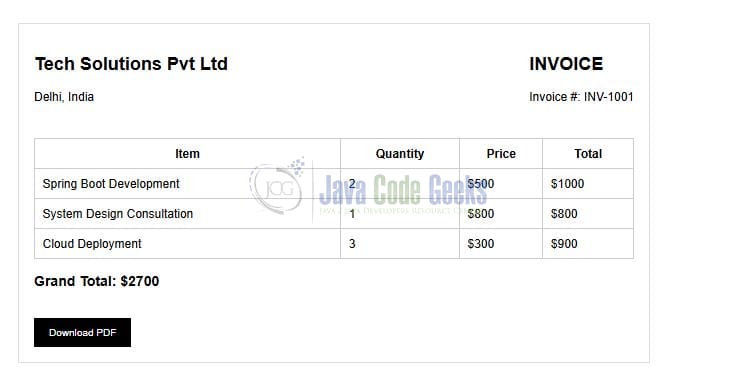
The generated PDF is then automatically downloaded as invoice.pdf in the browser. The final output resembles a real-world invoice document with properly aligned headings, formatted tables, calculated totals, and professional spacing suitable for invoices, billing systems, payment receipts, analytics exports, and financial reporting workflows used in production-grade applications.
3. Conclusion
Generating PDFs in the browser using JavaScript is an extremely powerful capability for modern web applications, and libraries like jsPDF make it easy to create invoices, reports, receipts, and other downloadable documents without requiring backend PDF services. In this article, we explored how browser-based PDF generation works, how jsPDF creates PDF documents, common production mistakes developers should avoid, how to build a complete invoice generator, techniques for improving layouts and spacing, and how to dynamically generate downloadable PDFs directly in the browser. For production-grade applications, it is important to focus on layout consistency, dynamic content handling, page break management, performance optimization, and cross-browser compatibility testing to ensure reliable document generation across different environments. When implemented properly, browser PDF generation significantly improves user experience while also reducing backend complexity and infrastructure overhead.