Web applications often use hidden and read-only input fields to store metadata, system-generated values, or tokens required for secure form submissions. Standard Selenium actions like sendKeys() cannot modify these fields, making automated testing challenging and sometimes error-prone. In this article, we demonstrate how to handle such inputs effectively and reliably using Selenium WebDriver, Java, and JavaScript execution, showcasing implementation and techniques for reliable automated testing.
1. Understanding Hidden and Read-Only Inputs
Hidden inputs (type="hidden") do not appear in the user interface, while read-only inputs display data that users cannot edit. For example, CSRF tokens, session IDs, or pre-filled order numbers are often stored in these fields. Selenium cannot interact with these elements through standard methods because browsers enforce visibility and editability restrictions.
<input type="hidden" id="hiddenInput" value="">
<input type="text" id="readonlyInput" value="12345" readonly>
Hidden inputs store data invisibly, while read-only fields are visible but locked. Automating these fields requires executing JavaScript in the browser to modify their values directly.
2. Project Setup and Dependencies
For this tutorial, we use Maven and Selenium 4. Ensure the following Maven dependencies are included in your pom.xml:
        <dependency>
            <groupId>org.seleniumhq.selenium</groupId>
            <artifactId>selenium-java</artifactId>
            <version>4.40.0</version>
            <scope>compile</scope>
        </dependency>
This configuration pulls in Selenium for browser automation. Selenium 4 handles WebDriver management automatically, so there is no need to download ChromeDriver binaries manually.
3. WebDriver Configuration and Initialization
Before interacting with the browser, we must initialize and configure the WebDriver. This example also sets implicit waits, maximizes the window, and navigates to the target page.
public class HiddenInputAutomation {

    public static void main(String[] args) {

        // Enable browser console logging
        LoggingPreferences logPrefs = new LoggingPreferences();
        logPrefs.enable(LogType.BROWSER, Level.ALL);

        ChromeOptions options = new ChromeOptions();
        options.setCapability("goog:loggingPrefs", logPrefs);

        WebDriver driver = new ChromeDriver(options);
        driver.manage().timeouts().implicitlyWait(Duration.ofSeconds(5));
        driver.manage().window().maximize();

        driver.get("http://localhost:8080/index.html");

        // Select gender
        driver.findElement(By.cssSelector("input[name='gender'][value='female']"))
                .click();

        // Set hidden input
        JavascriptExecutor js = (JavascriptExecutor) driver;
        js.executeScript("document.getElementById('csrfToken').value='token-from-selenium';");
        js.executeScript("document.getElementById('orderNumber').value='order-number-00123';");

        // Submit the form
        driver.findElement(By.id("submitBtn")).click();

        // Wait for DOM update
        WebDriverWait wait = new WebDriverWait(driver, Duration.ofSeconds(5));
        wait.until(ExpectedConditions.visibilityOfElementLocated(By.id("success")));

        // Capture browser console logs
        LogEntries logs = driver.manage().logs().get(LogType.BROWSER);

        System.out.println("\n Browser Console Output ");
        for (LogEntry entry : logs) {
            System.out.println(entry.getLevel() + " : " + entry.getMessage());
        }

        driver.quit();
    }
}
This program automates a web form containing hidden and read-only inputs using Selenium WebDriver and JavaScript execution. It starts by enabling browser console logging through LoggingPreferences and ChromeOptions, allowing Selenium to capture all messages logged from the browser console.
The script navigates to the test page (http://localhost:8080/index.html) and interacts with the form. It selects the gender radio button and sets values for the hidden CSRF token and the read-only order number. Since sendKeys() cannot interact with hidden or read-only elements, the driver is cast to JavascriptExecutor to directly update the DOM, effectively setting the values through JavaScript. This approach bypasses browser restrictions on non-interactive fields, allowing the automation to manipulate all required form inputs reliably.
The form is submitted by clicking the submit button, and the program uses WebDriverWait to pause until the success message element (id="success") becomes visible, confirming that the form submission was processed successfully. Afterwards, Selenium captures all browser console logs with driver.manage().logs().get(LogType.BROWSER) and prints them to the Java console. Finally, the browser is closed using driver.quit().
This method ensures that even elements that cannot be typed into or clicked normally are set correctly and that their values can be verified via browser console logs, making it ideal for testing hidden, read-only, or dynamically generated form inputs.
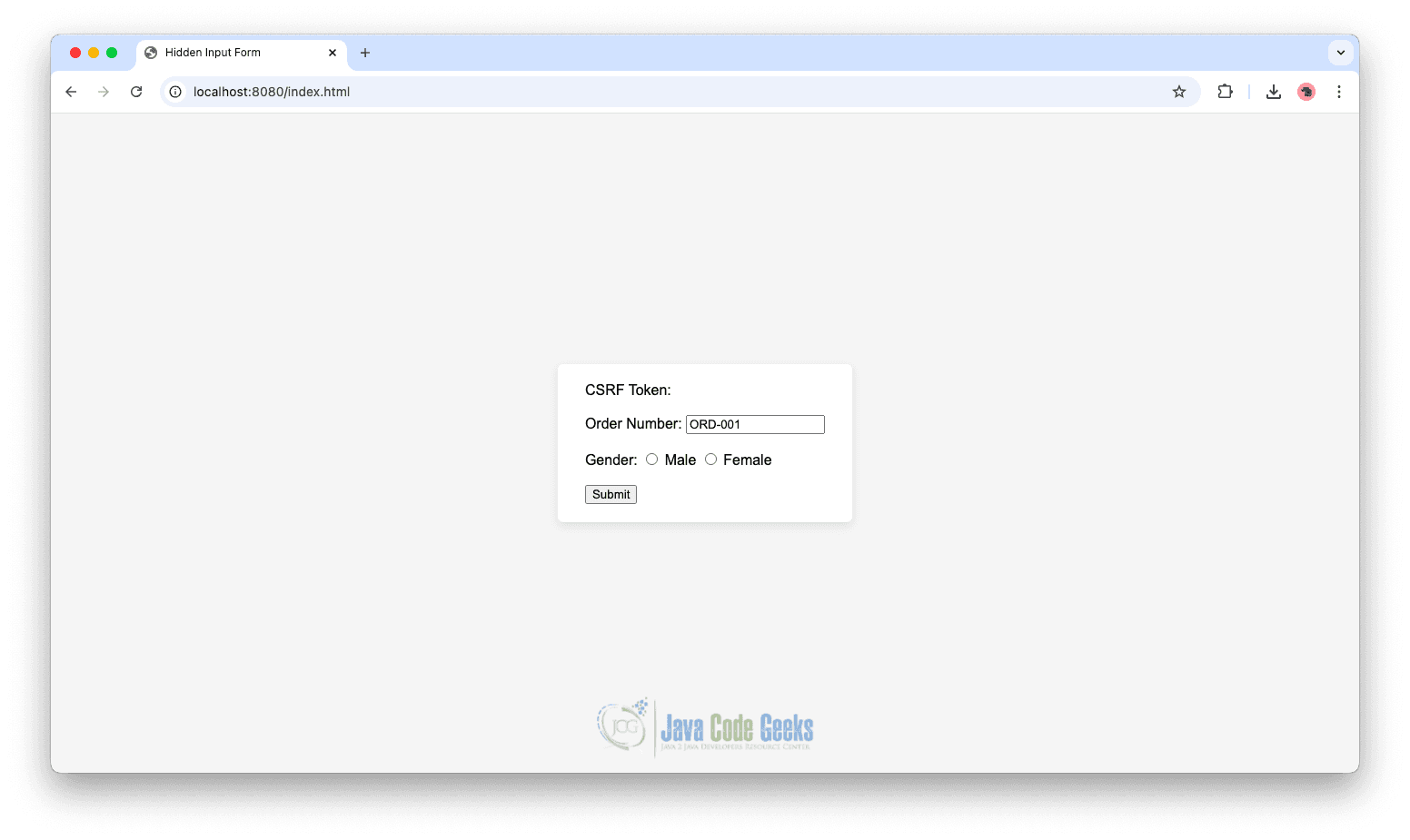
Sample HTML Form (Test Page)
Here is the corresponding HTML page used for testing.
<!DOCTYPE html>
<html>
    <head>
        <title>Hidden Input Form</title>
    </head>
    <body>
        <form id="orderForm" action="/result" method="post">

            <label>CSRF Token:</label>
            <input type="hidden" id="csrfToken" value=""><br><br>

            <label>Order Number:</label>
            <input type="text" id="orderNumber" value="ORD-001" readonly><br><br>

            <label>Gender:</label>
            <input type="radio" name="gender" value="male"> Male
            <input type="radio" name="gender" value="female"> Female<br><br>

            <button type="submit" id="submitBtn">Submit</button>
        </form>

        <script>
            document.getElementById('orderForm').onsubmit = function (event) {
                event.preventDefault();
                console.info("Form submitted!");
                console.info("CSRF Token: " + document.getElementById('csrfToken').value);
                console.info("Order Number: " + document.getElementById('orderNumber').value);
                console.info("Gender: " + document.querySelector('input[name="gender"]:checked').value);
                document.body.insertAdjacentHTML("beforeend","<h3 id='success'>Form submitted successfully!</h3>");
            };
        </script>
    </body>
</html>
The form contains both visible and hidden inputs, and upon submission, a JavaScript handler logs all input values to the browser console while displaying a success message. This setup provides an ideal environment for testing automation of hidden and read-only fields without requiring a real backend.
Expected Output
INFO : http://localhost:8080/index.html 42:24 "Form submitted!"
INFO : http://localhost:8080/index.html 43:24 "CSRF Token: token-from-selenium"
INFO : http://localhost:8080/index.html 44:24 "Order Number: order-number-00123"
INFO : http://localhost:8080/index.html 45:24 "Gender: female"
The output confirms that the form was submitted successfully, and the hidden and read-only inputs were correctly updated via JavaScript. Each INFO line corresponds to a console.info() call in the HTML page, demonstrating that the automation script interacted with both visible and non-interactive elements accurately.
4. Conclusion
In this article, we explored how to automate hidden and read-only inputs in web forms using Selenium WebDriver and JavaScript. By leveraging JavascriptExecutor, we were able to bypass browser restrictions on non-interactive elements, set values for hidden and read-only fields, and verify form submissions through browser console logs. This approach ensures reliable testing of client-side behaviours, making it a practical solution for complex form automation scenarios.
5. Download the Source Code
This article explores how to automate hidden and read-only inputs using Selenium and JavaScript.
You can download the full source code of this example here: selenium javascript automate hidden read only inputs