In this article, we will demonstrate how to read all the rows from an Excel (.xls or .xlsx) file using Spring Batch and save them into a database in a Spring Boot application. We will cover the entire process from reading the Excel file, converting the rows into Entity instances, saving these instances into the database, logging the progress, and scheduling the batch job with a cron expression.
1. Prerequisites
Ensure you have the following:
- JDK 17 or later
- Maven or Gradle
- Spring Boot 3.2.7 or later
- H2 or any other database
- Apache POI for reading Excel files
2. Setting Up the Project
Here is the pom.xml configuration for a Maven project:
    <dependencies>
        <dependency>
            <groupId>org.springframework.boot</groupId>
            <artifactId>spring-boot-starter-batch</artifactId>
        </dependency>
        <dependency>
            <groupId>org.springframework.boot</groupId>
            <artifactId>spring-boot-starter-data-jpa</artifactId>
        </dependency>
        <dependency>
            <groupId>org.springframework.batch.extensions</groupId>
            <artifactId>spring-batch-excel</artifactId>
            <version>0.1.1</version>
        </dependency>
        <dependency>
            <groupId>org.apache.poi</groupId>
            <artifactId>poi-ooxml</artifactId>
            <version>5.2.5</version>
        </dependency>
        <dependency>
            <groupId>com.h2database</groupId>
            <artifactId>h2</artifactId>
            <scope>runtime</scope>
        </dependency>
   </dependencies>
Sample Excel File
Below is a sample Excel file named employees.xlsx used in this article:
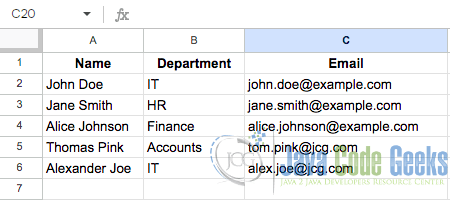
This Excel file contains a list of employees, with each row representing an individual employee’s details. The columns in the Excel file correspond directly to the fields in the Employee entity class:
- Name: This column maps to the
namefield in theEmployeeentity. - Department: This column maps to the
departmentfield in theEmployeeentity. - Email: This column maps to the
emailfield in theEmployeeentity.
Define the Employee Entity
The Employee entity class is defined as follows:
@Entity
public class Employee {

    @Id
    @GeneratedValue(strategy = GenerationType.IDENTITY)
    private Long id;
    private String name;
    private String department;
    private String email;

    public Long getId() {
        return id;
    }

    public void setId(Long id) {
        this.id = id;
    }

    public String getName() {
        return name;
    }

    public void setName(String name) {
        this.name = name;
    }

    public String getDepartment() {
        return department;
    }

    public void setDepartment(String department) {
        this.department = department;
    }

    public String getEmail() {
        return email;
    }

    public void setEmail(String email) {
        this.email = email;
    }

    @Override
    public String toString() {
        return "Employee{" + "id=" + id + ", name=" + name + ", department=" + department + ", email=" + email + '}';
    }
}
Create the EmployeeRepository
Create a repository interface for the Employee entity.
@Repository
public interface EmployeeRepository extends JpaRepository{

}
3. Implement the Excel Reader with PoiItemReader
Spring Batch Extension provides PoiItemReader for reading Excel files. Here, we will configure it to process the employee data:
@Configuration
public class PoiReader {

    @Value("${excel.file.path}")
    private String filePath;

    @Bean
    public ItemReader<Employee> employeeReader() {
        PoiItemReader<Employee> reader = new PoiItemReader<>();
        reader.setResource(new ClassPathResource(filePath));
        reader.setLinesToSkip(1);
        reader.setRowMapper(new BeanWrapperRowMapper<Employee>() {
            {
                setTargetType(Employee.class);
            }
        });
        reader.setName("employeeReader");
        return reader;
    }

}
@Valueannotation injects the file path from application properties (e.g.,excel.file.path=employees.xlsx).PoiItemReaderis configured with the Excel file location as a ClasspathResource.BeanWrapperRowMapperautomatically maps column names to the corresponding fields in theEmployeeclass.setLinesToSkip(1)ensures the header row is skipped.
4. Saving to Database with JpaRepository
Next, we will leverage the Spring Data JPA EmployeeRepository to save the processed employee data to the database.
    @Bean
    public ItemWriter employeeWriter(EmployeeRepository repository) {
        return items -> {
            for (Employee employee : items) {
                repository.save(employee);
                System.out.println("Employee saved: " + employee.getName());
            }
        };
    }
This ItemWriter iterates through a list of Employee objects and saves them using the EmployeeRepository.
5. Configure Spring Batch Job
Here is the full example code used in this article to configure a Spring Batch job that reads employee data from an Excel file, processes the data, and writes it into a database. Each step has be broken down into smaller components – ItemReader, ItemProcessor, and ItemWriter.
@Configuration
public class PoiReader {

    @Value("${excel.file.path}")
    private String filePath;

    private final JobRepository jobRepository;

    private final PlatformTransactionManager transactionManager;

    private final EmployeeRepository employeeRepository;

    public PoiReader(JobRepository jobRepository, EmployeeRepository employeeRepository, PlatformTransactionManager transactionManager) {
        this.jobRepository = jobRepository;
        this.transactionManager = transactionManager;
        this.employeeRepository = employeeRepository;
    }

    @Bean
    public ItemReader<Employee> employeeReader() {
        PoiItemReader<Employee> reader = new PoiItemReader<>();
        reader.setResource(new ClassPathResource(filePath));
        reader.setLinesToSkip(1);
        reader.setRowMapper(new BeanWrapperRowMapper<Employee>() {
            {
                setTargetType(Employee.class);
            }
        });
        reader.setName("employeeReader");
        return reader;
    }

    @Bean
    public ItemWriter<Employee> employeeWriter() {
        return items -> {
            for (Employee employee : items) {
                employeeRepository.save(employee);
                System.out.println("Employee saved: " + employee.getName());
            }
        };
    }

    @Bean
    public ItemProcessor<Employee, Employee> processor() {
        return employee -> {
            // Example processor logic
            employee.setName(employee.getName());
            System.out.println("Name: " + employee.getName() + ", Department: " + employee.getDepartment());
            return employee;
        };
    }

    @Bean
    public Step chunkProcessingStep() {

        var builder = new StepBuilder("chunkProcessingStep", jobRepository);
        return builder
                .<Employee, Employee>chunk(1, transactionManager)
                .reader(employeeReader())
                .processor(processor())
                .writer(employeeWriter())
                .build();
    }

    @Bean
    Job importUserJob(Step step1) {

        var builder = new JobBuilder("importUserJob", jobRepository);
        return builder
                .incrementer(new RunIdIncrementer())
                .start(step1)
                .build();
    }

}
The above code defines a Spring Batch configuration that uses @Value to inject the path to the Excel file, and it includes constructor injection for JobRepository, EmployeeRepository, and PlatformTransactionManager, which are used for managing job execution, database operations, and transaction management, respectively.
The class defines several beans crucial for batch processing:
employeeReader(): This bean usesPoiItemReaderto read data from an Excel file. It skips the header row and maps each row to anEmployeeobject usingBeanWrapperRowMapper.employeeWriter(): This bean writes the processedEmployeeobjects to the database using theEmployeeRepository.processor(): This bean processes eachEmployeeobject. In this example, it prints the employee’s name and department.chunkProcessingStep(): This bean defines a step in the batch job, specifying a chunk size of 1. It combines the reader, processor, and writer to handle the chunk of data.importUserJob(): This bean defines the batch job itself, starting with the defined step and usingRunIdIncrementerto ensure unique job runs.
6. Scheduling the Batch Job
Once the batch job is configured, the next step is to schedule it to run at specific intervals. Spring Boot provides scheduling capabilities through the @EnableScheduling annotation and the @Scheduled annotation. By using these annotations, we can easily schedule batch jobs to run at fixed intervals, such as hourly, daily, or based on more complex cron expressions.
In our example, we will schedule the batch job to run at the top of every hour. This ensures that our employee data is read from the Excel file and written to the database on an hourly basis.
@Configuration
@EnableScheduling
public class BatchScheduler {

    @Autowired
    private JobLauncher jobLauncher;

    @Autowired
    private Job importUserJob;

    @Scheduled(cron = "0 0 * * * ?") // Run at the top of every hour
    public void perform() throws Exception {
        jobLauncher.run(importUserJob, new JobParameters());
    }

}
The code snippet above schedules a batch job to run at the top of every hour. The class is annotated with @EnableScheduling to enable Spring’s scheduled task execution capability. It autowires JobLauncher and Job beans to launch and execute the batch job named importUserJob.
The @Scheduled(cron = "0 0 * * * ?") annotation specifies that the perform() method should run at the start of every hour, triggering the batch job.
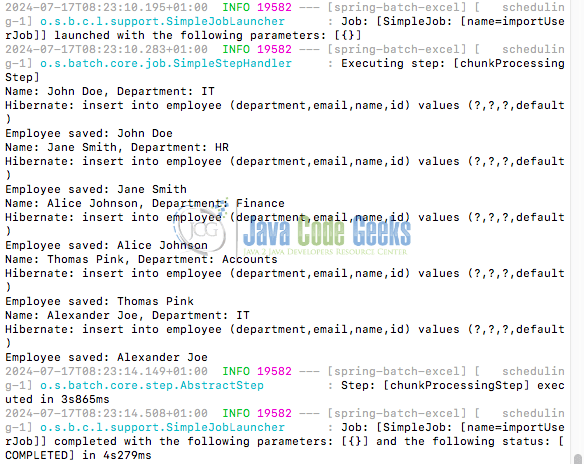
Output
When we run the application with the configured Spring Batch job, it initializes all configured beans and sets up the batch job and scheduler and upon successful completion of the job, a summary log entry is created as shown below:
7. Conclusion
In this article, we explored how to implement a Spring Batch Excel reader to efficiently read employee data from Excel files and store it in a database. We covered each step, from setting up the project and defining an entity to configuring the batch job and scheduling it with cron expressions.
8. Download the Source Code
This article covers an example of a Spring Batch Excel reader, demonstrating how to read data from Excel files and save it to a database.
You can download the full source code of this example here: spring batch excel reader example