
Transferring data from one iPhone to another can seem daunting, but it’s an easy process with various alternatives available. Understanding how to move data from one iPhone to another is crucial, regardless of whether you're upgrading to a new model or are just changing phones. We'll look at a variety of iPhone data transfer techniques in this article, such as wireless data migration, iTunes, and iCloud data transfer. Find the most effective and hassle-free ways to copy data to your new iPhone.
Table of Content
- Preparatory Steps on Old iPhone
- How To Transfer Data from iPhone to iPhone?
- Method 1: Transfer using Old iPhone or iCloud (Quick Start)
- Method 2: Transfer using Mac Tinder
- Method 3: Data Transfer to new iPhone using iTunes
- Method 4: Move Data from iPhone to iPhone using AirDrops
- How To Transfer Data from iPhone to iPhone - FAQ's
Preparatory Steps on Old iPhone
Note: Here, we will mark some of the steps that you should execute on your old iPhone. Whatever the method you choose to share the data with the new iPhone, these steps should be performed on your old iPhone every time.
Step 1: Open Settings & go to the General Section

Step 2: Scroll down & click on the Reset option.

Step 3: Click the Erase All Content & Settings option. It will take some time & the device will reboot and it will be restored.

How To Transfer Data from iPhone to iPhone?
For Sharing Data from iPhone to another one, a few steps need to be executed based on the chosen option. We will start with the method to directly transfer data from iPhone to iPhone or iCloud.
Method 1: Transfer using Old iPhone or iCloud (Quick Start)
Step 1: After executing the preparatory steps on the Old iPhone, you will receive a prompt message on the new iPhone with Apple ID. Click Continue to move ahead.

Step 2: Now, from the next screen click on the Restore from iCloud Backup to directly take data from iCloud. Or you can choose the Transfer Directly from iPhone. In both cases, you need to log in to the Apple ID to transfer the data from iPhone to iPhone.

Hence, we have successfully transferred data to the new iPhone using the old iPhone or iCloud.
Method 2: Transfer using Mac Tinder
Step 1: In case, you want to use your Mac instead of directly transferring data from your old iPhone or iCloud, click on the option Restore From Mac or PC on your iPhone and connect it to a Mac using a cable. This will certainly help to migrate from iPhone to iPhone.
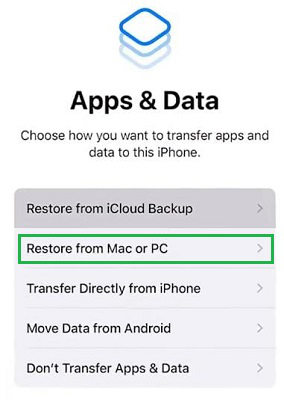
Step 2: Open Tinder on your Mac & you will find the Backups option. Under that option, there will be a button as Restore Backup. Click on that.

Step 3: A new small popup window will appear click on Restore there.

Hence, we have successfully transferred data to a new iPhone using Mac Tinder.
Method 3: Data Transfer to new iPhone using iTunes
Step 1: Using iTunes data transfer to new iPhone can also be possible. On your iPhone click on Restore From Mac or PC option. And connect to the Mac.

Step 2: Open the iTunes application on Mac. A new popup window will replace the opened window. Click on the Continue button.

Hence, we have successfully transferred data to a new iPhone using Mac iTunes.
Method 4: Move Data from iPhone to iPhone using AirDrops
Note: This method can only be used for sharing a few data to the new or another iPhone. Using this method, you can't share the entire data of the existing iPhone with the new one.
Step 1: Choose the files on the old iPhone that need to be shared. You will get the AirDrop option, click over it.

Step 2: On the next window, you will get a Device Option, click on that. So, the selected files will be shared with the connected devices present nearby. Then, click Done.

Hence, we have successfully transferred a few pieces of data to the new iPhone using AirDrop technology.

Conclusion
Maintaining your productivity and personal organization depends on the successful transfer of your data from an old iPhone to a new one. Depending on your preferences, you can quickly do iPhone to iPhone data migration using a variety of ways like Quick Start, iCloud, and iTunes. You can guarantee a seamless transfer to your new device by using these iPhone data transfer recommendations, which will make the process as easy as possible.
Also Read